AI-Shipping Label Parser for Zapier
What this action does
PDF4me AI-Shipping Label Parser lets you automatically extract shipping label data in Zapier — tracking numbers, carrier names, sender and recipient addresses, weight, dimensions, ship dates, and special handling instructions — from any PDF, PNG, or JPG label file. Connect it to any Zapier trigger (Gmail, Google Drive, Dropbox, Shopify, WooCommerce) and pipe the structured output directly into your order management system, warehouse platform, spreadsheet, or customer notification step. No code. No manual copy-paste. Just map your label file and every field comes back structured and ready to use.
Authenticating Your API Request
Every PDF4me action in Zapier needs a valid Connection. Create or select a connection that holds your PDF4me API key so your Zap can call the AI extraction securely.
Important Facts You Should Not Miss
File must be actual binary data from a prior step — not a URL or filename string. Map it from the file-data output of your trigger (Gmail attachment, Google Drive file content, Dropbox). Passing a URL causes a failed extraction.
The File Name field must end with .pdf, .png, or .jpg. PDF4me uses the extension for format detection. A name without an extension returns empty results. Example: Labels-199287-1.pdf.
Every field comes with a 0–1 confidence score. Add a Zapier Filter after the parser: continue only when confidence.trackingNumber > 0.85. Route low-confidence records to a review sheet instead of writing suspect data to your OMS.
Configure the Action in Zapier
Open the Configure tab of the PDF4me AI-Shipping Label Parser step. Map File from the binary output of the previous step (shown as "Exists but not shown" in Zapier's UI — that is normal for file objects). Then build File Name by combining the File Name token and the File Ext token from your trigger so the result includes the extension (e.g. Labels-199287-1.pdf).
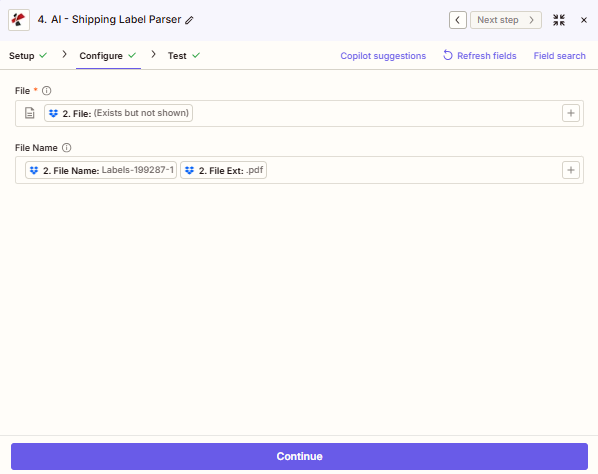
The Configure tab: File is mapped from step 2 (the binary label file — Zapier shows "Exists but not shown" for file objects, which is expected). File Name is assembled from two tokens — File Name and File Ext — producing Labels-199287-1.pdf. Use Refresh fields if step 2 was recently renamed and sample data is out of sync.
Key Features
- AI-powered extraction — reads printed and thermally printed labels; handles low-resolution scans, digital PDFs, and multiple label orientations
- Full address parsing — sender and recipient split into individual fields: name, company, street, city, state, postal code, country
- Carrier auto-detection — UPS, FedEx, DHL, USPS, Royal Mail, Australia Post, Canada Post, and regional carriers identified automatically
- Tracking & barcode — primary tracking number, secondary barcodes, and carrier reference IDs returned as separate fields
- Weight and dimensions — declared weight with unit (kg / lb) and package dimensions with unit (cm / in)
- Special handling instructions — Fragile, Signature Required, Leave Safe, Do Not Bend captured as structured text
- Per-field confidence scores — use to branch Zap logic, flag low-quality records, and protect downstream systems
Parameters
Required: Connection, File, and File Name. All three must be configured before saving the action step.
| Parameter | Required | What it does | Example value |
|---|---|---|---|
| Connection | Yes | Your PDF4me API connection. Create one via "Add a new connection" and paste your API key from dev.pdf4me.com. | My PDF4me connection |
| File | Yes | Binary content of the shipping label. Map the file data output (not a URL) from your trigger or a file-download step. | 1. Attachment (File Content) |
| File Name | Yes | File name including extension (.pdf, .png, .jpg). Used for format detection and AI optimization. Must include extension. | Labels-199287-1.pdf |
| Custom Field Keys | No | Optional list of extra field keys for the AI to extract — carrier-specific codes, routing zones, or hazmat classes not covered by the default output. | ["routingCode","hazmatClass"] |
How to Extract Shipping Label Data in Zapier
Follow these steps to set up the AI-Shipping Label Parser in any Zap. The whole setup takes under 5 minutes.
In Zapier, click the + button to add a new Action. In the app search box, type PDF4me and select it. From the action list, choose AI-Shipping Label Parser.
Click Sign in to PDF4me. A connection dialog opens — paste your PDF4me API key (get it free at dev.pdf4me.com/dashboard/#/api-keys/). Click Yes, Continue to save.
Under File, click the + icon to map from a previous step. Select the file-data output — not a URL. From a Gmail trigger this is "Attachment"; from Google Drive it is "File Content"; from Dropbox it is "File Binary". The field must contain actual bytes, not a link.
Under File Name, map the filename from your trigger. Confirm it ends with .pdf, .png, or .jpg — for example Labels-199287-1.pdf. If your trigger returns the name without an extension, use Zapier Formatter (Text → Append) to add it before this step.
If your carrier prints fields not covered by the default output — routing codes, zone identifiers, hazmat classes — enter them as a list in Custom Field Keys. Each key you add is returned as an extra field in the response.
Click Continue then Test action. PDF4me processes the sample label and returns all extracted fields. Check that trackingNumber, carrierName, recipientAddress, and weight are populated correctly.
After the parser, add a Zapier Filter step. Set it to continue only when the confidence value for your most critical field (e.g. trackingNumber) is greater than 0.85. Route failed records to a review sheet or Slack alert.
Use the extracted fields — tracking number, addresses, carrier, weight, estimated delivery date — in subsequent Zapier steps to update Shopify orders, write to Google Sheets, send customer SMS/email, or post a warehouse notification in Slack.
What You Get Back
Tip: After running Test action in Zapier, open the output panel to see the exact field names returned for your specific label. Field availability depends on what is printed on the label — fields not present on the label are returned as null or omitted. The table below shows the standard output set.
| Field | Type | Description |
|---|---|---|
| trackingNumber | String | Primary tracking number extracted from the label barcode or printed text |
| carrierName | String | Carrier identified from the label (e.g. UPS, FedEx, DHL, USPS, Royal Mail) |
| serviceType | String | Service level printed on the label (e.g. Ground, Express, Priority Mail) |
| senderName | String | Sender name or company as printed in the From/Sender section |
| senderAddress | String | Sender street address |
| senderCity | String | Sender city |
| senderState | String | Sender state, province, or region |
| senderPostalCode | String | Sender postal code or ZIP |
| senderCountry | String | Sender country |
| recipientName | String | Recipient name or company as printed in the To/Recipient section |
| recipientAddress | String | Recipient street address |
| recipientCity | String | Recipient city |
| recipientState | String | Recipient state, province, or region |
| recipientPostalCode | String | Recipient postal code or ZIP |
| recipientCountry | String | Recipient country |
| weight | String | Declared weight as printed on the label (value and unit may be combined, e.g. "2.3 lb") |
| shipDate | String | Ship date as printed on the label |
| referenceNumber | String | Reference number, order ID, or PO number printed on the label (if present) |
| confidence | Object | Per-field confidence scores (0–1). Confirmed across all PDF4me AI parsers. Use in a Filter step to gate data quality. |
| jobId | String | Unique identifier for this AI processing job — use for tracking and support |
| jobIdExt | String | External job reference (null if not applicable) |
| success | Boolean | true when extraction completed without errors |
| message | String | Result message from the API — describes success or the specific error |
Workflow Examples
Workflow ExamplesReal-world Zapier patterns built around the AI-Shipping Label Parser.
- Gmail / Outlook trigger — new email with shipping label attachment.
- AI-Shipping Label Parser — extract tracking number, recipient, carrier, ETA.
- Filter — continue only when
success = true. - Shopify / WooCommerce — update order with tracking number and carrier.
- Gmail / Twilio — send customer a branded shipping confirmation with tracking link.
- Google Drive trigger — new scanned label PDF in receiving folder.
- AI-Shipping Label Parser — extract sender, tracking number, weight, dimensions.
- Paths — route by carrier or destination for different handling rules.
- Google Sheets / Airtable — append full shipment record to receiving log.
- Slack — notify warehouse team with parcel summary and special instructions.
- Dropbox / OneDrive trigger — return label uploaded by customer.
- AI-Shipping Label Parser — extract sender (returning customer) and reference number.
- Order lookup — match reference number to original order in Shopify or OMS.
- Create RMA record — populate return with all extracted fields pre-filled.
- Stripe / PayPal — trigger refund; send customer confirmation email.