Text Highlighting (Zapier)
What this action does
Text Highlighting scans a PDF for every word or phrase you specify and paints them with your chosen color — all in one Zapier step, no manual marking. Supply a TextHighlightList of text-plus-hex-color pairs and the step returns a new annotated PDF ready to route into any downstream app: Drive, Dropbox, email, Slack, or a database.
Connect PDF4me
Every PDF4me action in Zapier requires authentication. Enter your API key once and it applies to every PDF4me step in your account.
Use File when a previous Zap step gives you a PDF attachment object (for example "2. File"). Use File URL when you only have a direct download link. Pair whichever you choose with File Name so runs are traceable in logs.
Configure the step
Open the Configure tab. Map File from the step that produced the PDF, then build File Name from name and extension tokens. Under TextHighlightList, click Add to insert each text-color pair.
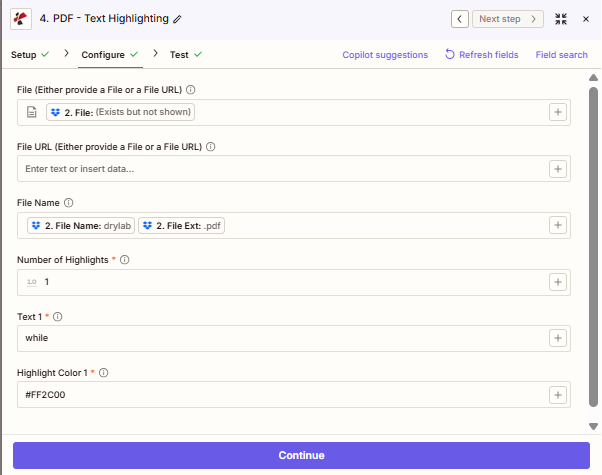
Map File from the step that produced your PDF. Build File Name from name and extension fields from your trigger. Add each word-color pair to TextHighlightList.
Important facts
Text Highlighting works on PDFs with a real text layer. Scanned image PDFs need an OCR step first to create a searchable layer before highlights can be applied.
Add as many items to TextHighlightList as you need. Each item has its own Text and HighlightColor — yellow for keywords, green for dates, red for risks — all processed in one step.
HighlightColor accepts standard six-digit hex codes: #FFFF00 (yellow), #90EE90 (green), #FF2C00 (red). The hash prefix is required.
Field reference
| Parameter | Usually | Purpose | Example map |
|---|---|---|---|
| File | Often used | Binary PDF from a prior Zap step when you have a file attachment object. | `2. File` |
| File URL | Optional | Public or signed URL to the PDF when you do not have a file attachment object. | n/a |
| File Name | Recommended | Filename with extension for logging. Combine name and extension tokens when your trigger splits them. | `2. File Name` + `2. File Ext` |
| TextHighlightList › Text | Required per item | The exact word or phrase to find and highlight inside the PDF. | `invoice`, `URGENT` |
| TextHighlightList › HighlightColor | Required per item | Six-digit hex color to paint matched text. Include the # prefix. | `#FFFF00`, `#FF2C00` |
How to highlight text in a PDF with Zapier
Sign in to Zapier and open an existing Zap, or click Create Zap to start fresh.
Pick any app that supplies a PDF — Dropbox, Google Drive, Gmail, Webhooks, or any cloud storage that fires when a file arrives.
Click the + button, search for PDF4me, and choose Text Highlighting as the Event.
If prompted, enter your PDF4me API key. You only authenticate once per Zapier account.
On the Configure tab, map File from your trigger when it hands you a file object, or enter a File URL when you only have a download link. Use one input, not both.
Build File Name from the name and extension tokens your trigger provides, for example "2. File Name" + "2. File Ext". This keeps runs traceable in Zapier history.
Under TextHighlightList, click Add and enter the Text to find and the HighlightColor as a hex code. Repeat for every word-color pair you need.
Click Test step and check that the output shows a File URL pointing to the annotated PDF. Open the link to confirm colors are applied correctly, then turn the Zap on.
Output
After a successful test or live run, the step returns:
| Output field | What it contains |
|---|---|
File | The annotated PDF file object — map this into any upload or send step. |
File URL | Temporary signed URL to download the highlighted PDF. |
File Name | Filename of the returned file, typically matching what you provided. |
File Extension | Extension of the output file, usually pdf. |
Workflow patterns
Workflow patternsReal-world Zap patterns using Text Highlighting — swap apps to match your stack.
- New PDF contract uploaded to Google Drive.
- Text Highlighting marks "Liability", "Termination", "Indemnity" in red.
- Upload highlighted PDF back to a review folder in Drive.
- Send a Slack notification with the file link.
- New invoice email attachment triggers the Zap.
- Highlight "OVERDUE", "Past Due", and "Final Notice" in yellow.
- Email the marked invoice to the finance team automatically.
- Policy PDF lands in a Dropbox folder.
- Highlight regulatory terms in blue, action items in green.
- Save annotated PDF to SharePoint for compliance archive.