Split PDFs by Barcode in Zapier: New File → Split by Barcode → Upload (3 Steps)
When you scan a stack of documents into one PDF—batch invoices, mail with separator sheets, or reports with barcode dividers—you need each document in its own file. PDF4me’s Split by Barcode action detects barcodes, filters by text (e.g. starts with PDF4me), and splits before, after, or at the barcode page. In Zapier, you can wire this into a three-step Zap: watch a Dropbox folder, split the PDF, and upload the results as individual files or a single ZIP.
In a nutshell: Drop a PDF like Barcode Test.pdf into a folder → Zap triggers → Split by Barcode cuts it at each barcode → Upload saves Barcode Test_1.pdf, Barcode Test_2.pdf, or bundles them in Outputs.zip.
What You’ll Get at the End
Input: One PDF (e.g. Barcode Test.pdf) with barcode separators. Output: Multiple PDFs (Barcode Test_1.pdf, Barcode Test_2.pdf, etc.) or a ZIP archive (Outputs.zip) containing all split files.

Input: one PDF with barcode dividers.

Output: individual split PDFs.
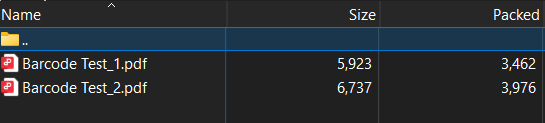
Or one ZIP file with all split PDFs inside.
What Do You Need?
- Zapier — Create a Zapier account and start a new Zap.
- PDF4me API key — Get your API key. You’ll connect it when you add the Split by Barcode action. First time? See Connect PDF4me to Zapier.
- Dropbox — We use New File in Folder as the trigger. Any storage app that triggers on new files works too.
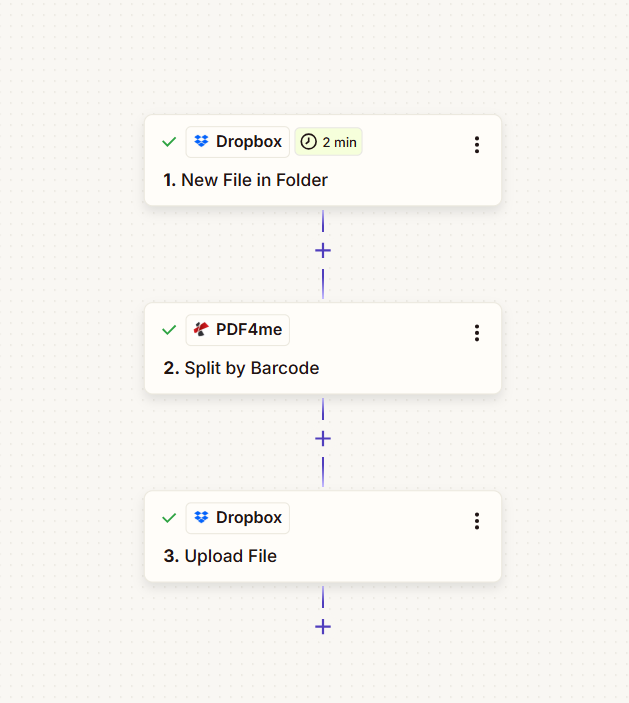
The Zap in 3 Steps
- New File in Folder (Dropbox) — Triggers when a PDF lands in a folder like
/Blog Data/Split By Barcode. - Split by Barcode (PDF4me) — Splits the PDF using barcode text and filter settings. Returns individual files or a ZIP.
- Upload File (Dropbox) — Saves the split result to a folder.
Step 1: New File in Folder (Trigger)
Zap so far: Trigger only.
- Add Dropbox → New File in Folder as the trigger.
- Space — Default (or choose your space).
- Folder * —
/Blog Data/Split By Barcode(or your target folder). - Include files in subfolders? — False (or True for nested folders).
- Include file contents? — Yes. Must be Yes so the file content is passed to Split by Barcode.
- Include sharing link? — Yes (optional).
- Click Continue and test the trigger.
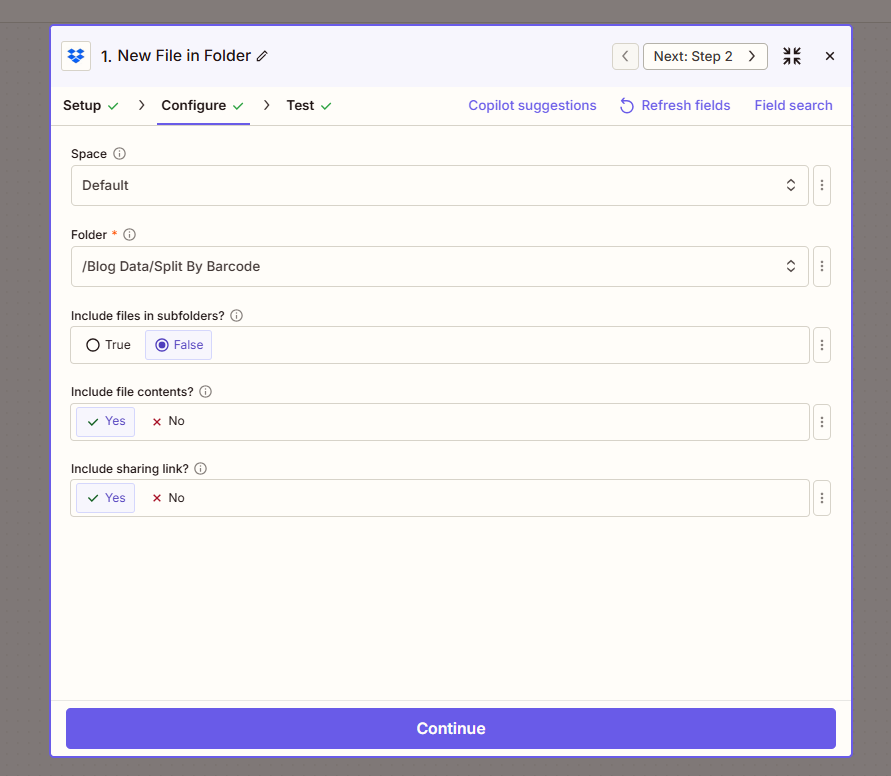
Important: Set Include file contents? to Yes. If it’s No, Zapier passes a reference instead of the file, and the Split step will fail.
Step 2: Split by Barcode (Action)
Zap so far: Trigger → Split by Barcode.
- Add PDF4me → Split by Barcode.
- File * — Map 1. File from the Dropbox trigger. Use the field with the actual file content, not “File: (Exists but not shown).”
- Specify File Name — Map 1. File Name and 1. File Ext (e.g.
Barcode Test+.pdf). - Barcode Text * —
PDF4me(or the text you want to filter by). - Barcode Filter * — Starts with (or Contains, Ends with, Exact).
- Barcode Type * — Any Type.
- Split Barcode Page * — Before the barcode (or After, Remove the page).
- PDF Render Dpi * —
150(bump to 200+ if barcodes are small or blurry). - Combine Pages with Same Barcodes — False.
- Return as Zip — True to get a single ZIP, or False for individual files (Zapier may return one item per file).
- Click Continue and test.
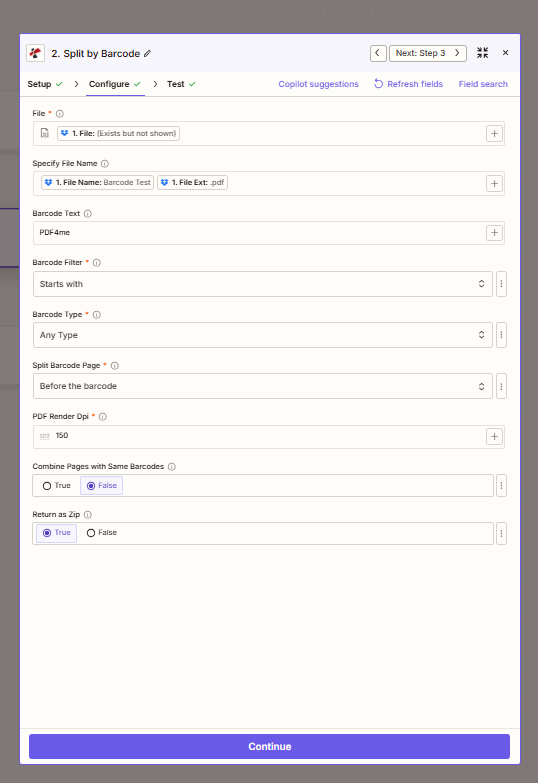
Pro tip: With Return as Zip = True, the action returns one ZIP file—easier to upload in a single step. With False, you get multiple output items; you’d need a Zapier Loop to upload each one.
Step 3: Upload File (Action)
Zap so far: Trigger → Split by Barcode → Upload File.
- Add Dropbox → Upload File.
- Space — Default.
- Folder * — Choose an output folder (e.g.
/Blog Data/Split By Barcode/Outputor a different path than the trigger folder). - File * — Map 2. File Url from the Split by Barcode step.
- Overwrite — False (or True to replace existing files).
- Specify File Name —
Outputs(or use dynamic data from the trigger). - Specify File Extension —
.zip(when Return as Zip is True). - Include sharing link? — Yes (optional).
- Click Continue and test.
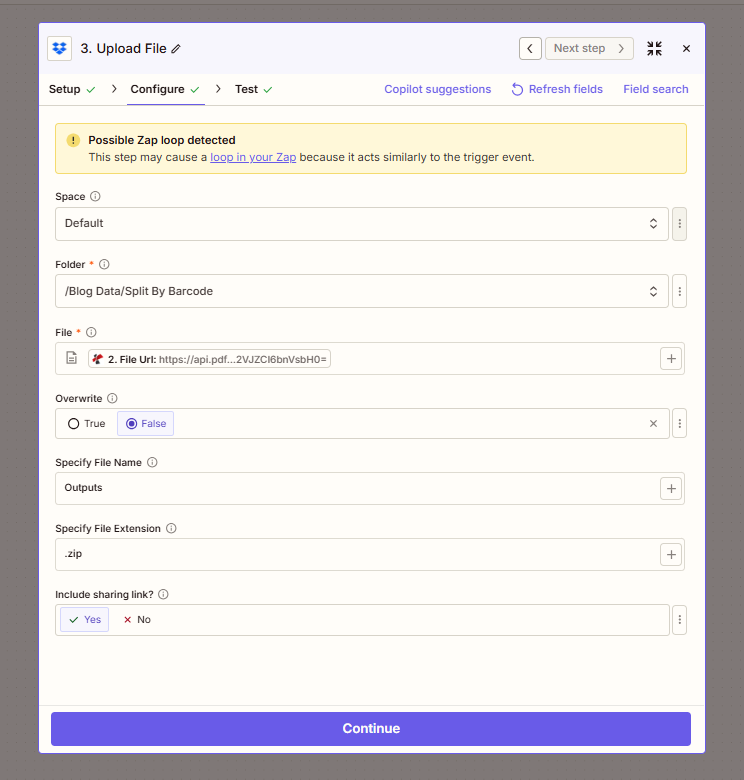
Possible Zap loop: If you upload to the same folder that triggers the Zap, Zapier may detect a loop—the new file triggers the Zap again. Use a different output folder (e.g. a subfolder like /Blog Data/Split By Barcode/Output) to avoid this.
Quick Reference: Key Parameters
| Parameter | Value | Notes |
|---|---|---|
| Barcode Text | PDF4me | Only barcodes that match trigger a split |
| Barcode Filter | Starts with | Or Ends with, Contains, Exact |
| Split Barcode Page | Before the barcode | Split before, after, or remove the separator page |
| PDF Render Dpi | 150 | Bump to 200+ if barcodes are small or blurry |
| Return as Zip | True | One ZIP file; easier to upload in a single step |
For full parameter details, see Split by Barcode — Zapier.
Troubleshooting
That option often passes a reference instead of the file. Pick the field that contains the actual file content. See Zapier and Power Automate Tips for file handling.
Ensure Include file contents? is Yes in the trigger. Check that your barcode text and filter match what’s in the PDF—if nothing matches, you’ll get one output (the whole file).
Upload to a different folder than the trigger. Use a subfolder (e.g. /Blog Data/Split By Barcode/Output) or a separate path so the new file doesn’t re-trigger the Zap.
PDF4me Troubleshooting covers 401 (API key), 402 (credits), and more.
Try the API Yourself
Test the Split by Barcode API without building a Zap:
Next Steps
- Drop a test PDF with barcodes into your folder and run the Zap. Check the Upload step output for the new file(s).
- Tweak Barcode Text and Barcode Filter (Contains, Exact, etc.) to match your documents.
- Need individual PDFs instead of a ZIP? See Split PDF by Barcode in Make for an Iterator-based approach.