One PDF, Many Documents with barcodes ? Split by Barcode in n8n using PDF4me
One PDF, multiple documents inside—batch scans, mail with separator sheets, or reports with barcode dividers. PDF4me Split PDF by Barcode finds barcodes (QR Code, Code 128, Data Matrix), filters by text (e.g. starts with PDF4me), and splits the file at each match. In n8n, you need just two PDF4me nodes: Upload file to PDF4me to host the PDF, then Split PDF by barcode to cut it into individual files. Execute the workflow and get PDF4me Barcode 1.pdf, PDF4me Barcode 2.pdf, and more—ready to download or pass to the next node.
In a nutshell: Manual trigger → Upload file to PDF4me (Base64 input) → Split PDF by barcode (uses documentUrl from Upload). Output: one item per split file (data_1, data_2, …) or a JSON response with totalFiles, fileName, fileSize for each.
What You’ll Get
Input: One PDF with barcode separators (e.g. pages with PDF4me barcodes). Output: Multiple PDFs—e.g. PDF4me Barcode 1.pdf (5.92 kB), PDF4me Barcode 2.pdf (6.24 kB), PDF4me Barcode 3.pdf (1.7 kB)—in the Binary tab, plus a structured JSON response.
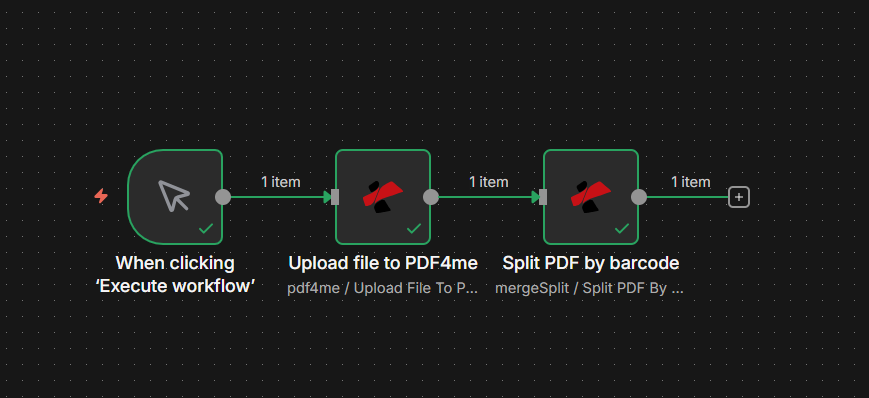
Workflow: manual trigger → Upload → Split. Each node shows a green checkmark when configured.
What You Need
- n8n — n8n instance. Create a new workflow with a manual trigger.
- PDF4me API key — Get your API key. Add a PDF4me Connection credential when you add the first PDF4me node. First time? See Connect PDF4me to n8n.
The Workflow in 2 Nodes
- Upload file to PDF4me — Sends your PDF (Base64 or binary) to PDF4me and returns a
documentUrl. That URL is what the Split node needs. - Split PDF by barcode — Takes the
documentUrlfrom the Upload node, detects barcodes, and returns one or more split PDFs.
Step 1: Upload file to PDF4me
Workflow so far: Trigger → Upload.
- Add a trigger — Manual / When clicking 'Execute workflow' (or use a file trigger from Google Drive, Dropbox, etc.).
- Add PDF4me node — Resource: PDF4me → PDF4me Operations: Upload File To PDF4me.
- Credential — Select PDF4me Connection.
- Input Data Type — Base64 String (or Binary Data if your trigger provides binary).
- Base64 File Content — Map the PDF content. If using a manual trigger with a test file, use an expression or a Read Binary File node to load it. For a file trigger, map the binary or base64 output.
- File Retention Hours —
2(or your preference). PDF4me keeps the file for this long; the Split node uses the URL before it expires.
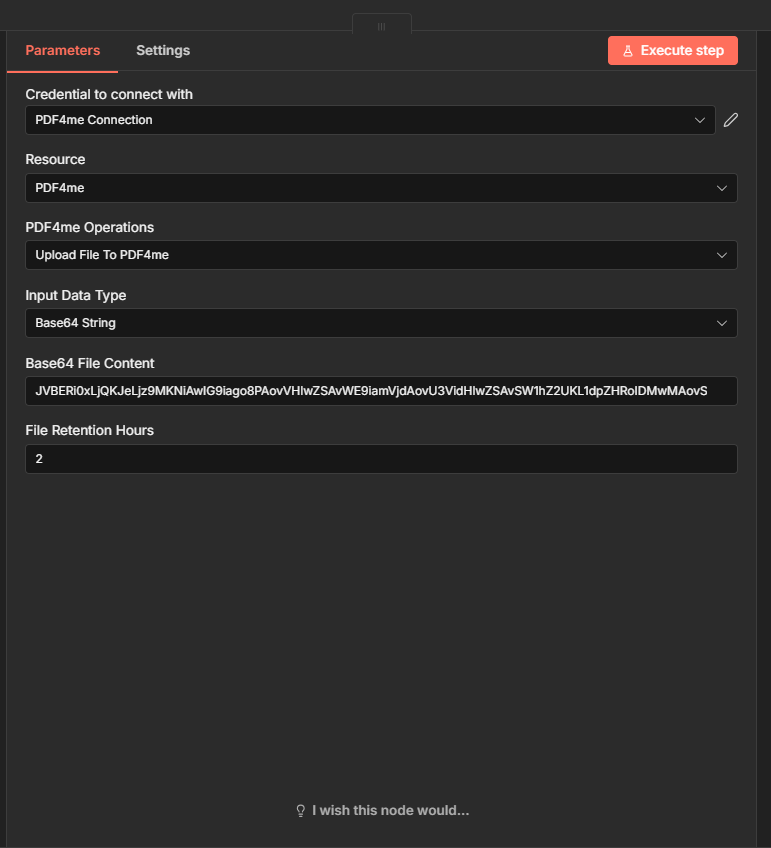
Output: The node returns documentUrl — a URL like https://api.pdf4me.com/api/V2/GetDocument?s=.... The Split node uses this to fetch and process the PDF.
Step 2: Split PDF by barcode
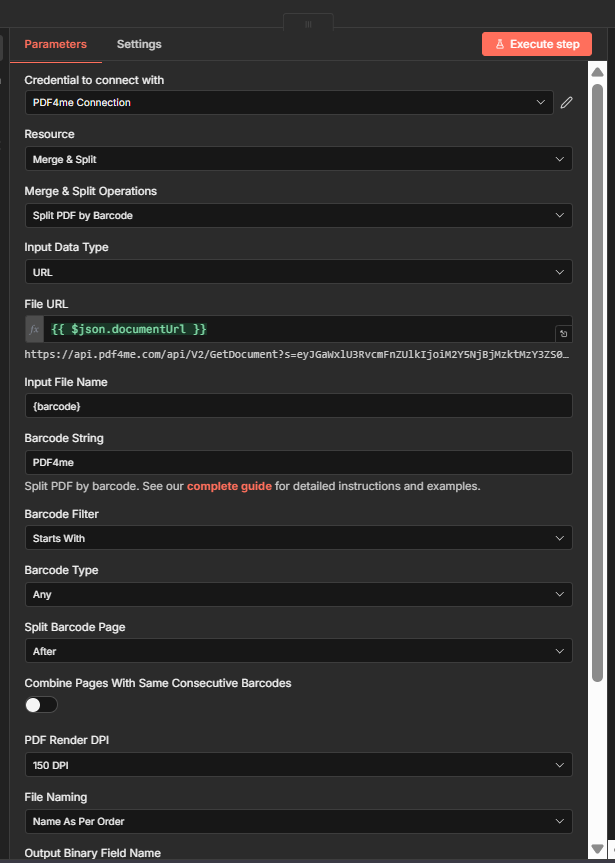
Workflow so far: Trigger → Upload → Split.
- Add another PDF4me node — Resource: Merge & Split → Merge & Split Operations: Split PDF by Barcode.
- Credential — PDF4me Connection.
- Input Data Type — URL.
- File URL — Map
{{ $json.documentUrl }}from the Upload node. This passes the hosted document URL to the Split action. - Input File Name — e.g.
{barcode}(optional; used for output folder naming). - Barcode String —
PDF4me(or the text your barcodes contain). - Barcode Filter — Starts With (or Contains, Ends with, Exact).
- Barcode Type — Any.
- Split Barcode Page — After (split after the page with the barcode). Or Before if you prefer.
- Combine Pages With Same Consecutive Barcodes — Off (split at every match) or On (group consecutive pages with the same barcode).
- PDF Render DPI —
150 DPI(increase if barcodes are small or blurry). - File Naming — Name As Per Order so you get
PDF4me Barcode 1.pdf,PDF4me Barcode 2.pdf, etc.
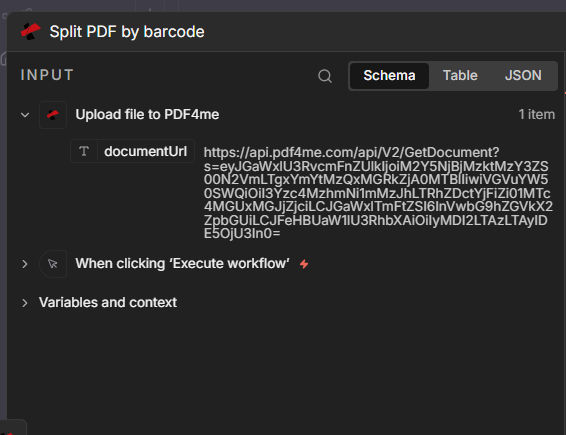
Input wiring
The Split node receives the Upload node’s output. The key field is documentUrl:
Output: JSON and Binary
JSON output — The Split node returns success, message, totalFiles, and a files array with fileName, pageIndex, binaryProperty, fileSize, mimeType for each split:
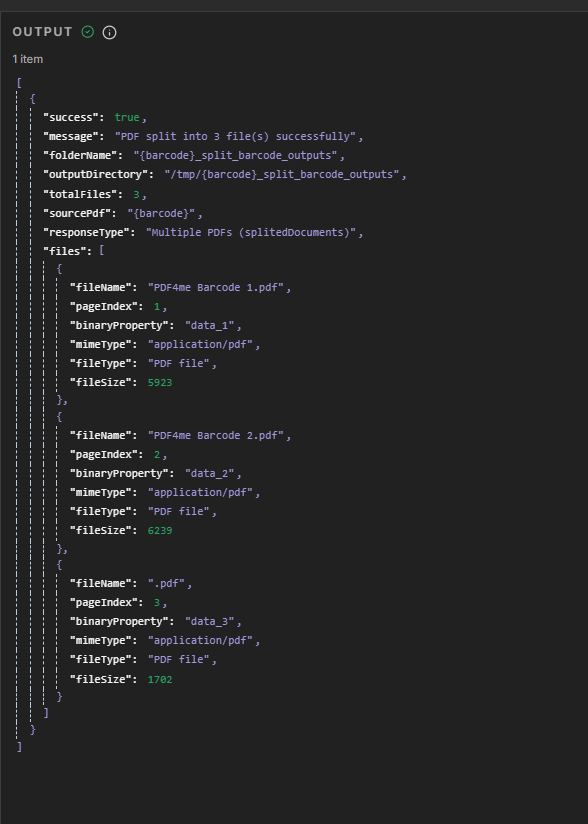
Binary output — Switch to the Binary tab to see data_1, data_2, data_3 (or more) with file names, sizes, and download options:
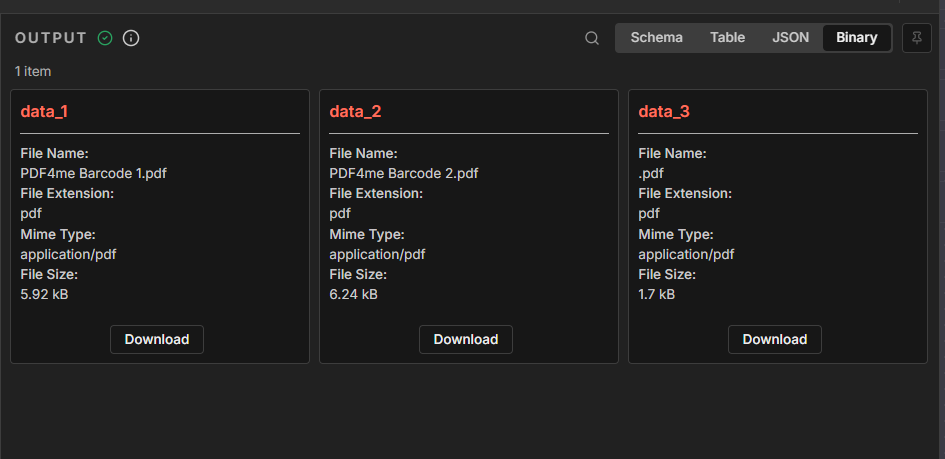
Parameter Quick Reference
| Parameter | Value | Notes |
|---|---|---|
| File URL | {{ $json.documentUrl }} | From Upload node |
| Barcode String | PDF4me | Text to match in barcodes |
| Barcode Filter | Starts With | Or Contains, Ends with, Exact |
| Split Barcode Page | After | Split after (or before) the barcode page |
| File Naming | Name As Per Order | PDF4me Barcode 1.pdf, 2.pdf, etc. |
For full parameter details, see Split PDF by Barcode — n8n.
What’s Next?
- Add a Loop Over Items or Split In Batches node to process each binary output (data_1, data_2, …) and save to Google Drive, Dropbox, or S3.
- Replace the manual trigger with Google Drive or Dropbox “new file” trigger to run on every new PDF.
- Same idea in Zapier, Make, or Power Automate if you prefer those platforms.
Troubleshooting
Ensure the Upload node runs before the Split node and passes its output. Use {{ $json.documentUrl }} or the expression editor to pick the correct field.
Check that Barcode String and Barcode Filter match your PDF’s barcodes. If nothing matches, you get the whole file back. Try “Contains” or “Exact” if “Starts With” fails.
PDF4me Troubleshooting covers 401 (API key), 402 (credits), and more.
Try the API
Test Split PDF by Barcode without n8n: