How to Extract Text from Scanned PDFs in Zapier: Watch → OCR → Extract (3 Steps)
Scanned invoices, faxed forms, or screenshots saved as PDFs—they look like documents, but the text is just pixels. You can’t select it, copy it, or feed it into your Zap. The workaround: run OCR first to make the PDF searchable, then extract the text. Here’s a three-step Zap that does exactly that, using Dropbox and PDF4me.
In a nutshell: Drop a PDF into Dropbox → Zap triggers → OCR makes it searchable → Extract Text pulls the content into full Text. Map that field into Sheets, Airtable, email, or anything else.
What You’ll Get at the End
When a PDF lands in your Dropbox folder, the Zap runs OCR (if needed) and extracts all text into a single field—full Text. You can map that into Google Sheets, Airtable, email, or any next step. The output includes Trace Id for debugging and Page Text Info for per-page details.
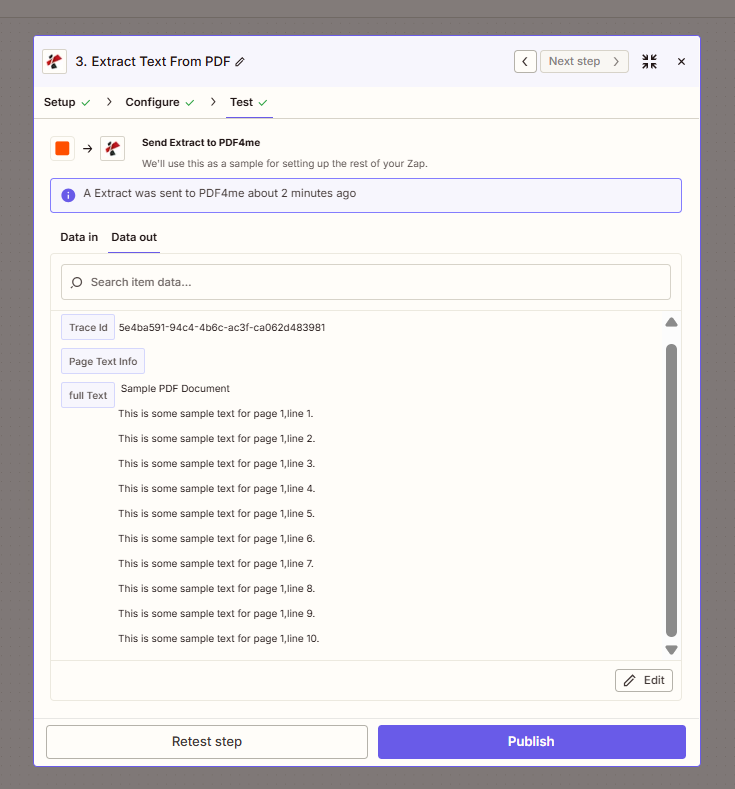
Output from the Zap: extracted text, Trace Id, and Page Text Info.
Why Image-Based PDFs Need OCR First
Image-based PDFs store text as pixels. Extraction tools expect a text layer, so they return nothing useful. Make PDF Searchable / OCR adds that layer—then Extract Text From PDF can read everything. Skip the OCR step only if your PDFs already have selectable text (try copying a word in a reader to verify).
What Do You Need?
- Zapier — Create a Zapier account and start a new Zap.
- PDF4me API key — Get your API key. You’ll connect it when you add the PDF4me actions. First time? See Connect PDF4me to Zapier.
- Dropbox — We use New File in Folder as the trigger. Any storage app that triggers on new files works too.
The Zap in 3 Steps
- New File in Folder (Dropbox) — Watches
/pdf4metest/ExtractTextevery 2 minutes. - Make PDF Searchable / OCR (PDF4me) — Turns image-based PDFs into searchable documents.
- Extract Text From PDF (PDF4me) — Pulls the text into full Text, Trace Id, and Page Text Info.
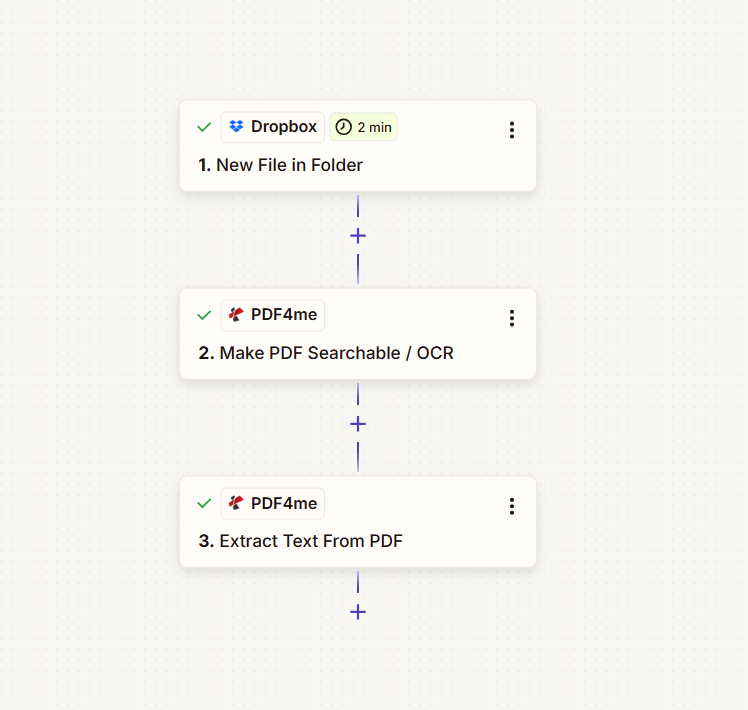
Input: An image-based PDF (e.g. Image To PDF.pdf) with content like “Sample PDF Document” and numbered lines. Output: All text in full Text, ready for the next step.
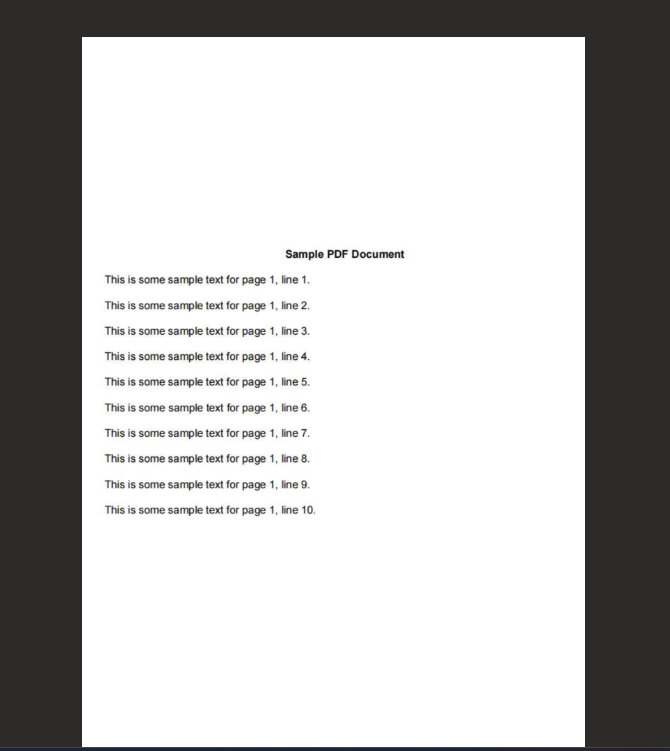
Example input: image-based PDF that needs OCR before extraction.
Step 1: New File in Folder (Trigger).
Zap so far: Trigger only.
- Add Dropbox → New File in Folder as the trigger.
- Space — Default (or choose your space).
- Folder * —
/pdf4metest/ExtractText(or your target folder). - Include files in subfolders? — False (or True for nested folders).
- Include file contents? — Yes. Must be Yes so the file content is passed to the next steps.
- Include sharing link? — Yes (optional).
- Click Continue and test the trigger.
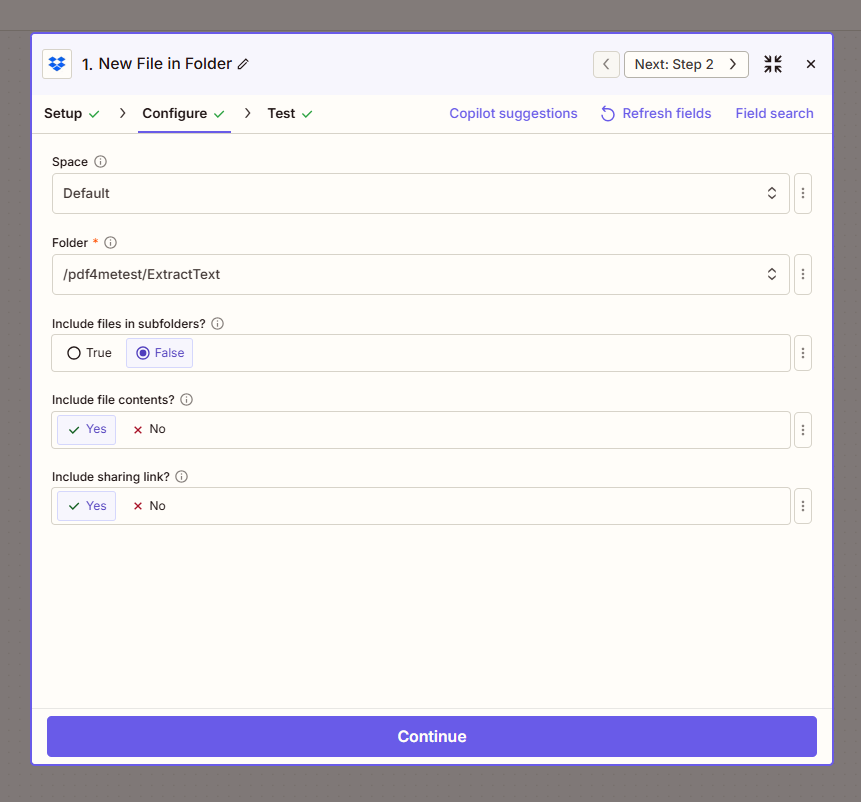
Important: Set Include file contents? to Yes. If it’s No, Zapier passes a reference instead of the file, and the OCR and Extract steps will fail.
Step 2: Make PDF Searchable / OCR (Action).
Zap so far: Trigger → Make PDF Searchable / OCR.
- Add PDF4me → Make PDF Searchable / OCR.
- File * — Map 1. File from the Dropbox trigger. Use the field with the actual file content, not “File: (Exists but not shown).”
- File Name — Map 1. File Name and 1. File Ext (e.g.
Image To PDF+.pdf). - Quality Type * — Standard for most PDFs.
- Set Process as Async — False so the Zap waits for OCR to finish.
- Click Continue and test.
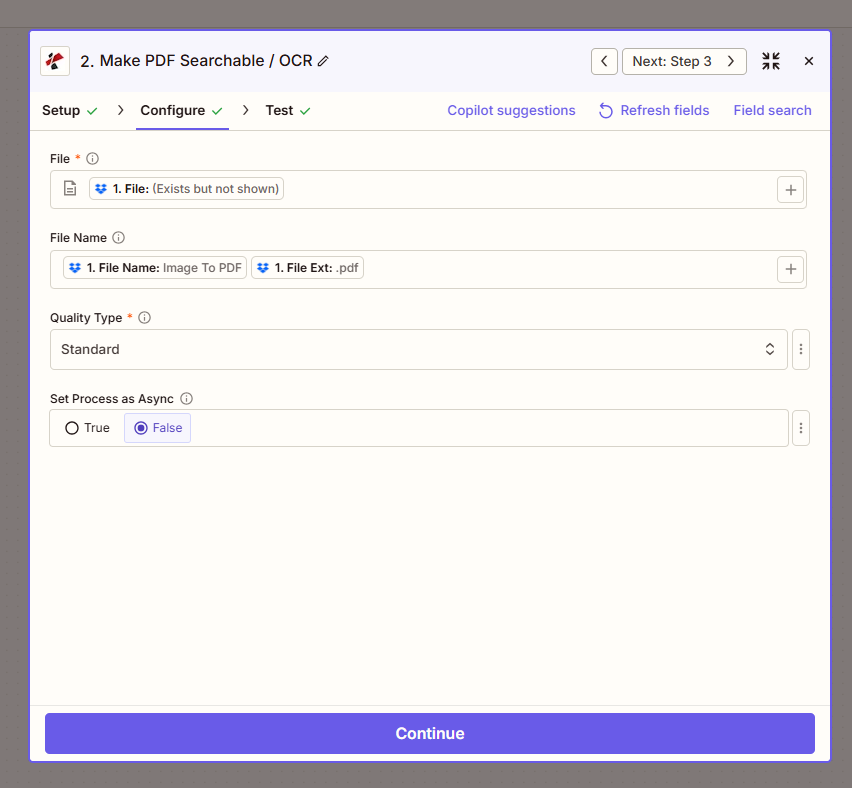
The OCR step returns a searchable PDF. The Extract step uses that file.
Step 3: Extract Text From PDF (Action).
Zap so far: Trigger → OCR → Extract Text.
- Add PDF4me → Extract Text From PDF.
- File * — Map 2. File Url from the OCR step (the processed PDF).
- File Name — Map 2. Full File Name (e.g.
Image To PDF.pdf). - Extract Mode * — Full Document for all text in one field, or Page-Wise for per-page output.
- Click Continue and test.
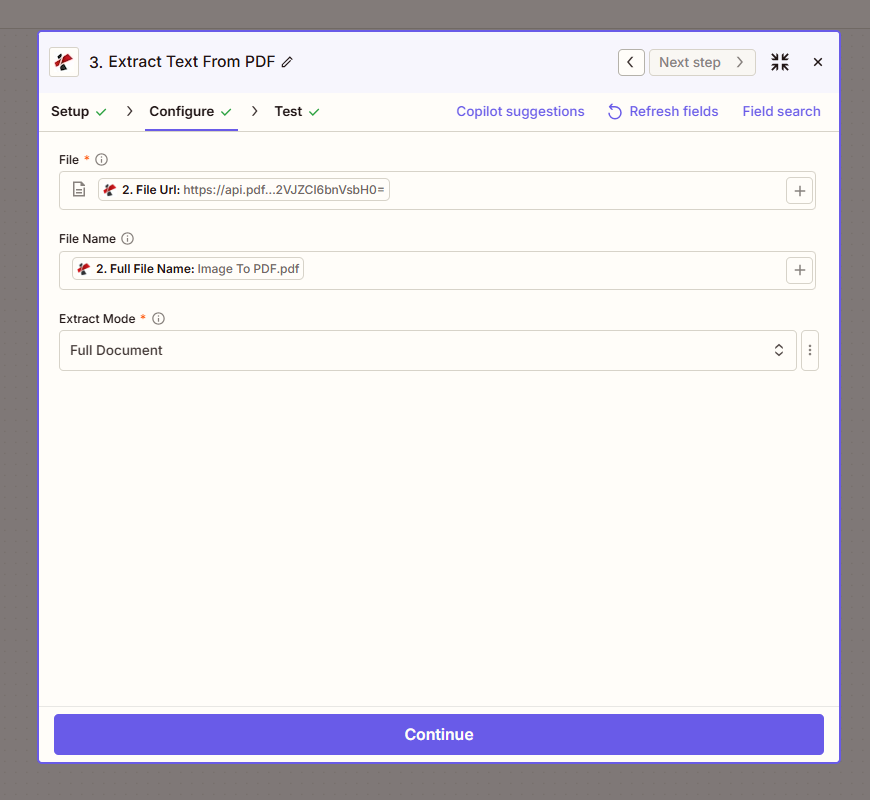
Output: The action returns full Text (all extracted text), Trace Id (e.g. 5e4ba591-94c4-4b6c-ac3f-ca062d483981), and Page Text Info. For a sample PDF like the one above, you’ll see “Sample PDF Document” plus lines 1 through 10 in full Text.
Quick Reference Table
| Step | Key settings | Notes |
|---|---|---|
| Trigger | Folder: /pdf4metest/ExtractText | Include file contents: Yes |
| OCR | Quality Type: Standard | Use Expert for poor scans (more API calls) |
| OCR | Set Process as Async: False | Keeps the Zap synchronous |
| Extract | Extract Mode: Full Document | All text in one field |
| Output | full Text | Map this to later steps |
For full parameter details, see Extract Text from PDF — Zapier and PDF OCR — Zapier.
Troubleshooting.
That option often passes a reference instead of the file. Pick the field that contains the actual file content. See Zapier and Power Automate Tips for file handling.
Ensure Include file contents? is Yes in the trigger, and that you map the OCR step’s File Url (or file output) into the Extract step, not a path or metadata.
PDF4me Troubleshooting covers 401 (API key), 402 (credits), and more.
Try the API Yourself.
Test the Extract Text API without building a Zap:
Next Steps.
- Drop a test PDF into your folder and run the Zap. Check the Extract step output for
full Text. - Add a step after Extract—e.g. Add Row to Google Sheets, Send Email, or Update Airtable—and map full Text into it.
- Turn the Zap on so it runs when new PDFs appear in the folder.