Too many Invoices in Dropbox? Parse Them Automatically with Make using AI Invoice Processing !
Invoices piling up in cloud storage? PDF4me AI-Invoice Parser pulls vendor name, invoice number, totals, dates, line items—and even custom fields like Store Number or DepartmentCode—from PDF invoices automatically. Wire it into Make: download a file from Dropbox, parse it with AI, and get a structured object ready for Google Sheets, Airtable, databases, or any downstream app. No templates, no manual typing.
In a nutshell: Drop an invoice PDF into /Blog Data/Process Invoice → Make triggers → Dropbox Download a File fetches it → PDF4me AI-Invoice Parser extracts invoiceNumber, vendorName, total, lineItems, and optional custom fields → Use the output in any next module (Sheets, Airtable, webhook, etc.).
What You’ll Get at the End
Input: An invoice PDF (e.g. sample_invoice.pdf). Output: A structured Process Invoice Model with fields such as:
- Invoice: invoiceNumber, invoiceDate, orderId, paymentDeadline
- Vendor: vendorName, vendorAddress, vendorEmail, vendorPhone, vendorGSTIN
- Billing: billTo, billToAddress, billToEmail, billToState
- Financials: subTotal, total, cgst, sgst, lineItems
- Custom: Store Number, DepartmentCode (or any fields you add)
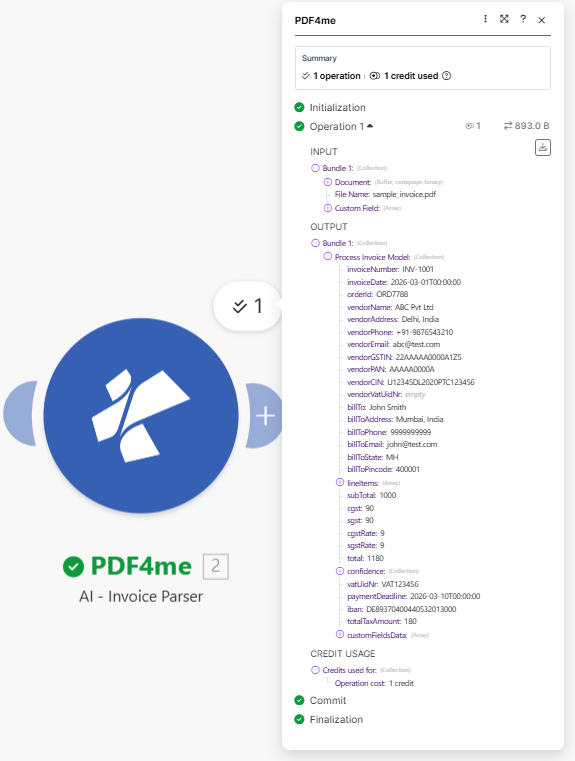
Example output: invoice number INV-1001, total 1180, vendor ABC Pvt Ltd, line items, taxes, and custom fields.
What Do You Need?
- Make — Create a Make account and open a new scenario.
- PDF4me API key — Get your API key. Connect it when you add the AI-Invoice Parser module. First time? See Connect PDF4me to Make.
- Dropbox — For the file source. Use a folder like
/Blog Data/Process Invoice.
The Scenario in 2 Modules
- Dropbox – Download a File — Gets the invoice PDF from your chosen folder.
- PDF4me – AI-Invoice Parser — Extracts vendor, invoice number, total, date, line items, and custom fields.
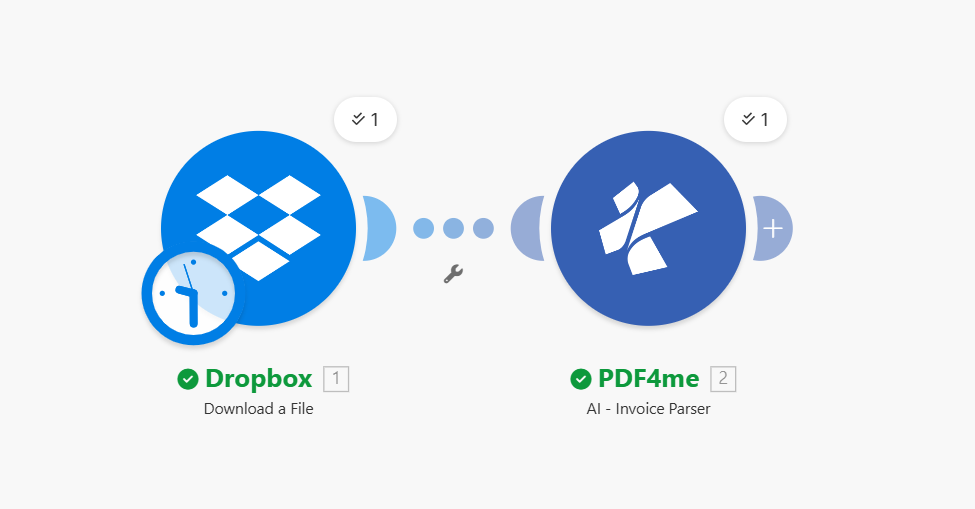
Step 1: Dropbox – Download a File
Scenario so far: One module.
- Add Dropbox → Download a File.
- Connection — Select your Dropbox connection (e.g. YnooxTestone).
- Way of selecting files — Select a file (or use Map for dynamic paths).
- File — Enter the path, e.g.
/Blog Data/Process Invoice/sample_invoice.pdf.
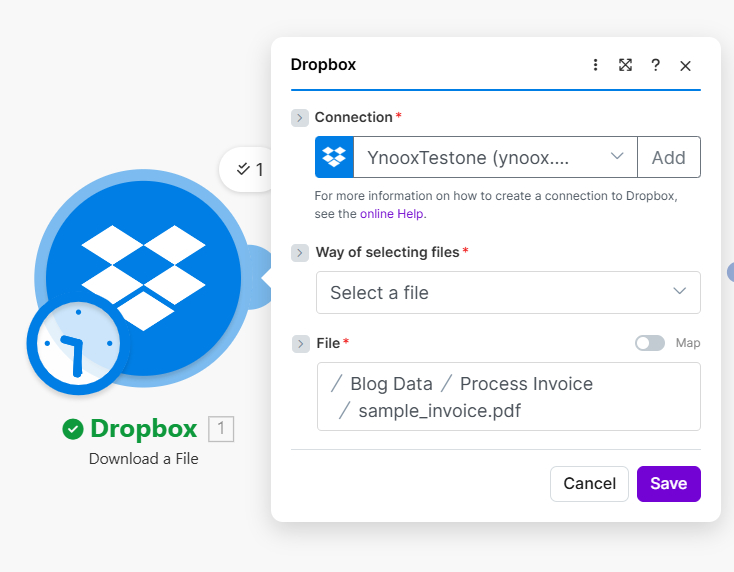
Dynamic paths: For real automation, use a scheduled trigger or webhook to watch a folder, then map the file path dynamically. For this walkthrough, we use a fixed path.
Step 2: PDF4me – AI-Invoice Parser
Scenario so far: Dropbox Download → AI-Invoice Parser.
- Add PDF4me → AI-Invoice Parser.
- Connection — Select your PDF4me connection.
- File — Choose Dropbox – Download a File (or Map and select the file output from step 1).
- Custom Field — Optional. Add extra fields beyond the standard schema:
- Item 1: Store Number
- Item 2: DepartmentCode
- Use + Add item for more (e.g. Delivery Date, Purchase Order Ref, Customer Reference, Line Total, Financial Charges).
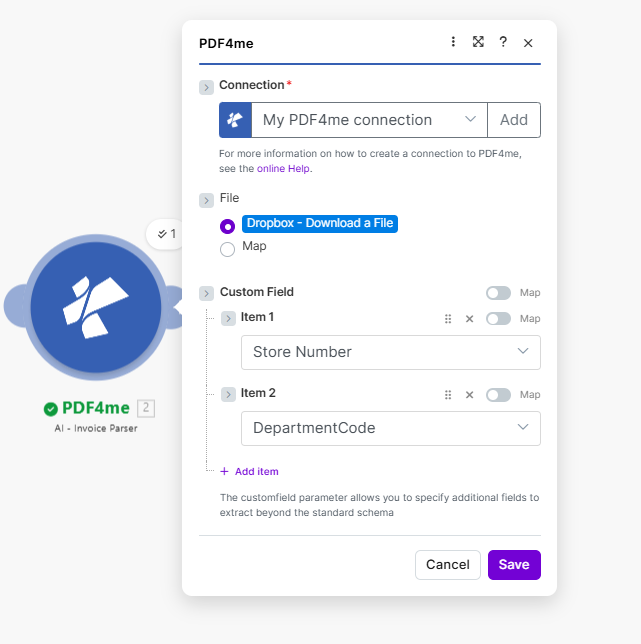
Custom field dropdown
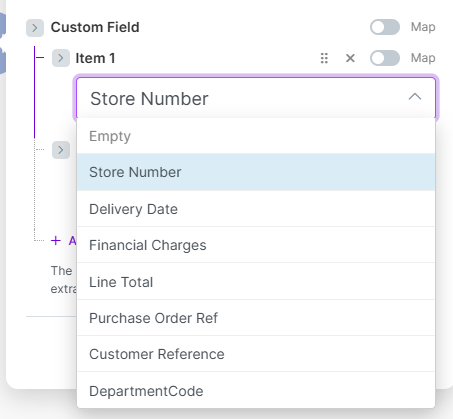
Choose from standard invoice fields or add your own labels for extraction.
Custom fields: The customfield parameter lets you extract additional fields beyond the standard schema—Store Number, DepartmentCode, Purchase Order Ref, and more. Perfect for retail, logistics, or ERP integrations.
Output: The module returns a Process Invoice Model with invoiceNumber, vendorName, total, lineItems, customFieldsData, and more. Use these in Google Sheets, Airtable, HTTP requests, or any module that accepts collections.
Quick Reference: Output Fields You Can Map
| Output field | Description | Example |
|---|---|---|
| invoiceNumber | Invoice reference | INV-1001 |
| vendorName | Supplier or vendor name | ABC Pvt Ltd |
| total | Final amount including tax | 1180 |
| invoiceDate | Issue date | 2026-03-01 |
| lineItems | Line-item array | [{description, quantity, amount}] |
| customFieldsData | Store Number, DepartmentCode, etc. | From Custom Field config |
For full parameter and output details, see AI-Invoice Parser — Make.
What’s Next After Parsing?
- Google Sheets — Add a row with invoice number, vendor, total, date.
- Airtable — Create a record from the parsed output.
- Webhook / HTTP — POST the data to your ERP or accounting system.
- Dropbox — Upload a JSON or TXT file with the extracted data alongside the PDF.
- Same idea in Power Automate or Zapier if you prefer those platforms.
Troubleshooting
Map the file content (binary) from Dropbox, not a path. Choose Dropbox – Download a File in the File field, or use Map and select the correct buffer output.
Ensure you added the field in the Custom Field section with the exact label (e.g. Store Number, DepartmentCode). Check customFieldsData in the output.
PDF4me Troubleshooting covers 401 (API key), 402 (credits), and more.