Drop an Invoice PDF, Get a Text File using Zapier via PDF4me AI Invoice Processing !
Drop an invoice PDF into a Dropbox folder—and get a text file with the vendor name, invoice number, and any custom fields you need. No manual typing, no spreadsheets to copy into. PDF4me AI - Invoice Parser reads the PDF and extracts structured data; Create Text File writes it straight into your folder. Three steps, one Zap.
In a nutshell: New File in Folder watches /Blog Data/Process Invoice → AI - Invoice Parser pulls vendor, invoice number, Department Code, Delivery Date → Create Text File saves Result.txt with the extracted values. One credit per invoice.
What You’ll Get
Input: An invoice PDF (e.g. sample_invoice.pdf). Output: A text file in the same folder with the extracted data—for example, vendor name and invoice number concatenated (e.g. ABC Pvt LtdINV-1001). You can map more fields—subtotal, total, custom fields—and build any format you need.
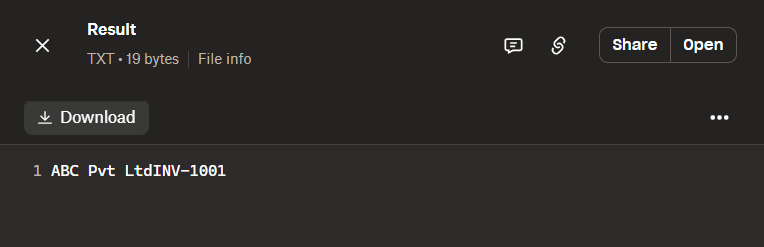
Example output: a small text file with vendor name and invoice number.
What You Need
- Zapier — Zapier account. New Zap with one trigger and two actions.
- PDF4me API key — Get your API key. Connect it when adding the AI - Invoice Parser. First time? See Connect PDF4me to Zapier.
- Dropbox — For the folder trigger and file output. Same pattern works with Google Drive or SharePoint.
The Zap in 3 Steps
- New File in Folder (Dropbox) — Triggers when a file appears in your invoice folder. Polls every 2 minutes by default.
- AI - Invoice Parser (PDF4me) — Extracts vendor, invoice number, dates, amounts, line items, and custom fields.
- Create Text File (Dropbox) — Writes the extracted data into a text file in the same folder.
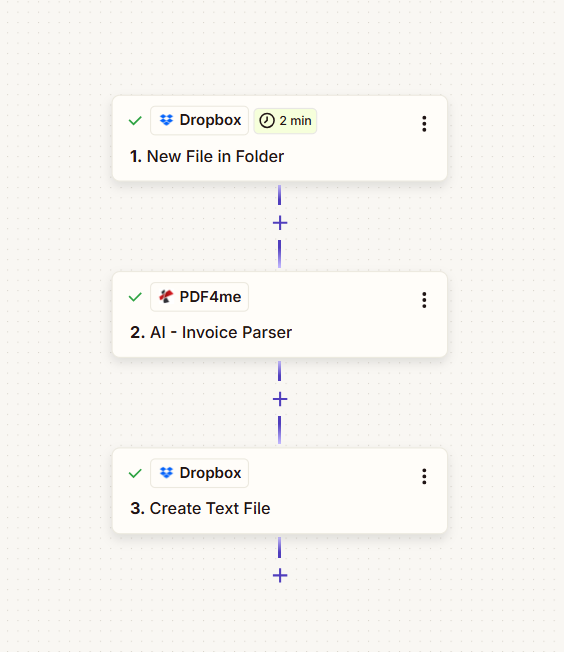
Step 1: New File in Folder (Trigger)
Zap so far: Trigger only.
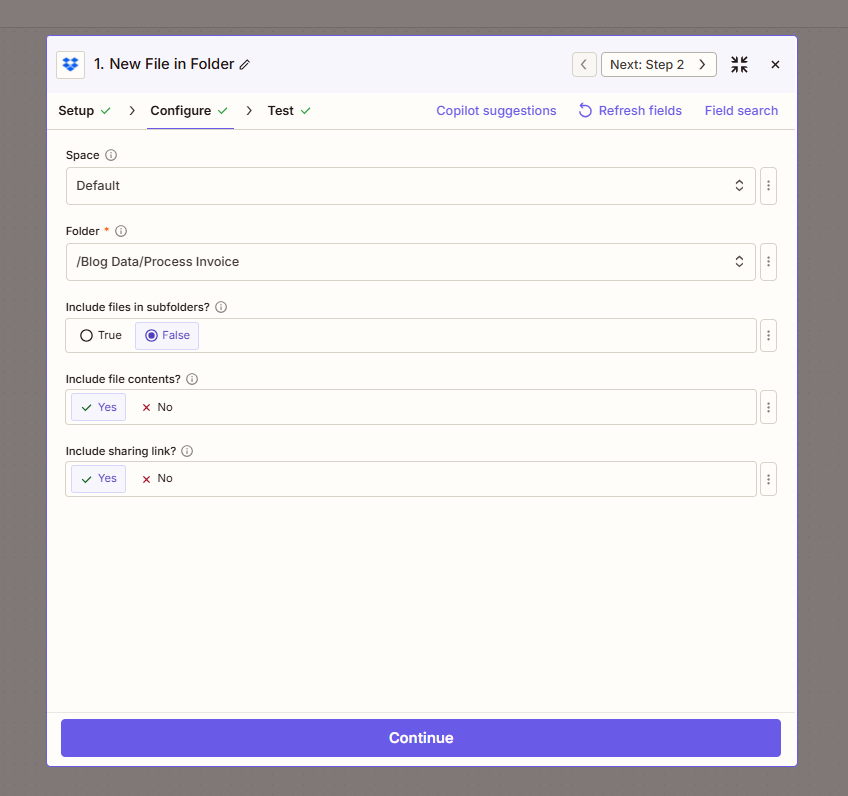
- Add trigger — Dropbox → New File in Folder.
- Space — Default (or your Dropbox space).
- Folder (required) — Path to watch, e.g.
/Blog Data/Process Invoice. - Include files in subfolders? — False to watch only that folder; True to include subfolders.
- Include file contents? — Yes. Required so the AI parser receives the actual PDF bytes.
- Include sharing link? — Yes or No as needed.
- Continue and run a test to pull sample data.
Step 2: AI - Invoice Parser (Action)
Zap so far: Trigger → AI - Invoice Parser.
- Add action — PDF4me → AI - Invoice Parser.
- File (required) — Map 1. File from the New File in Folder step.
- File Name — Map 1. File Name and 1. File Ext from step 1 (e.g.
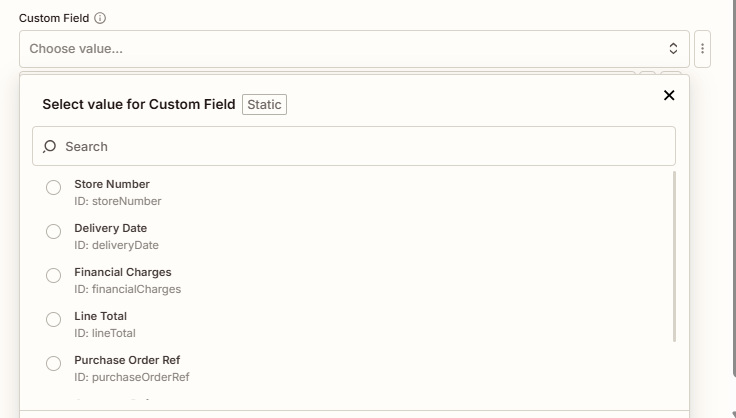
sample_invoice+.pdf). - Custom Field (optional) — Add fields like Department Code, Delivery Date, Store Number, Financial Charges, Line Total, Purchase Order Ref. These appear in the parser output alongside standard fields.
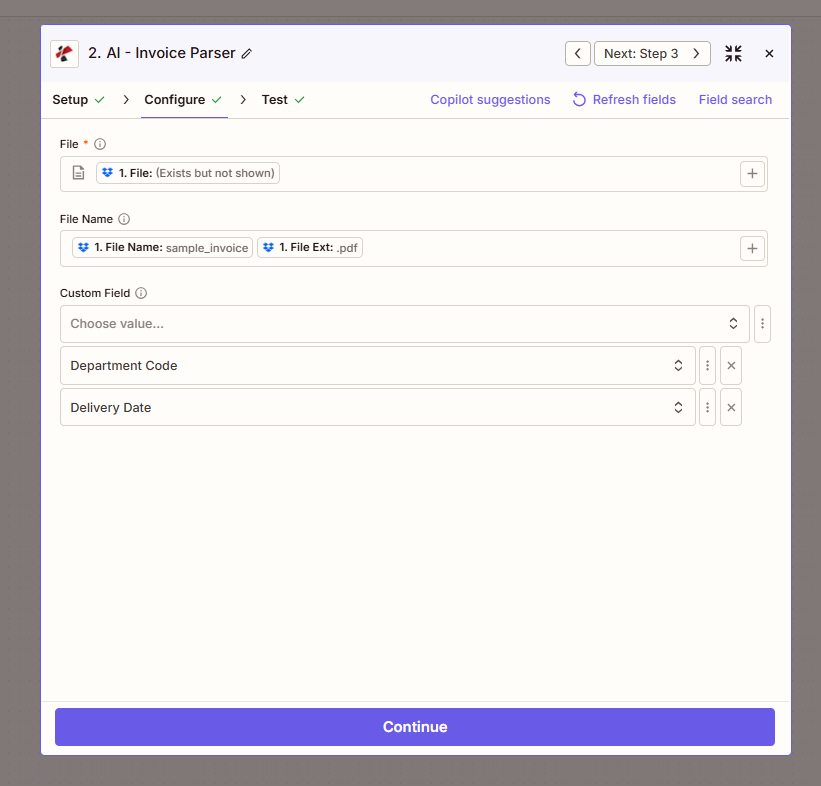
Custom field options
Use the Custom Field dropdown to choose which extra fields to extract. Each field has an ID (e.g. storeNumber, deliveryDate) and a display name.
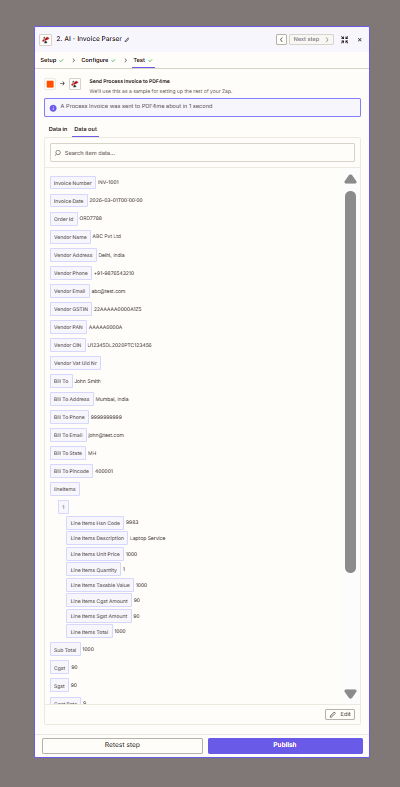
Parser output
The action returns structured data: Invoice Number (e.g. INV-1001), Invoice Date, Order Id, Vendor Name (e.g. ABC Pvt Ltd), Vendor Address, Bill To, Sub Total, Cgst, Sgst, Line Items, and any custom fields you configured.
Step 3: Create Text File (Action)
Zap so far: Trigger → AI - Invoice Parser → Create Text File.
- Add action — Dropbox → Create Text File.
- Space — Default.
- Folder (required) — Same folder as the trigger, e.g.
/Blog Data/Process Invoice. - File Name (required) — Enter a name (e.g.
Result.txt) or map dynamically from step 2 (e.g. 2. Invoice Number +.txt). - File Content (required) — Map the values from step 2. Example: 2. Vendor Name and 2. Invoice Number to get something like
ABC Pvt LtdINV-1001. Add more fields (Sub Total, Total, custom fields) as needed. - Overwrite — True to replace an existing file with the same name; False to keep existing files.
- Include sharing link? — Yes or No as needed.
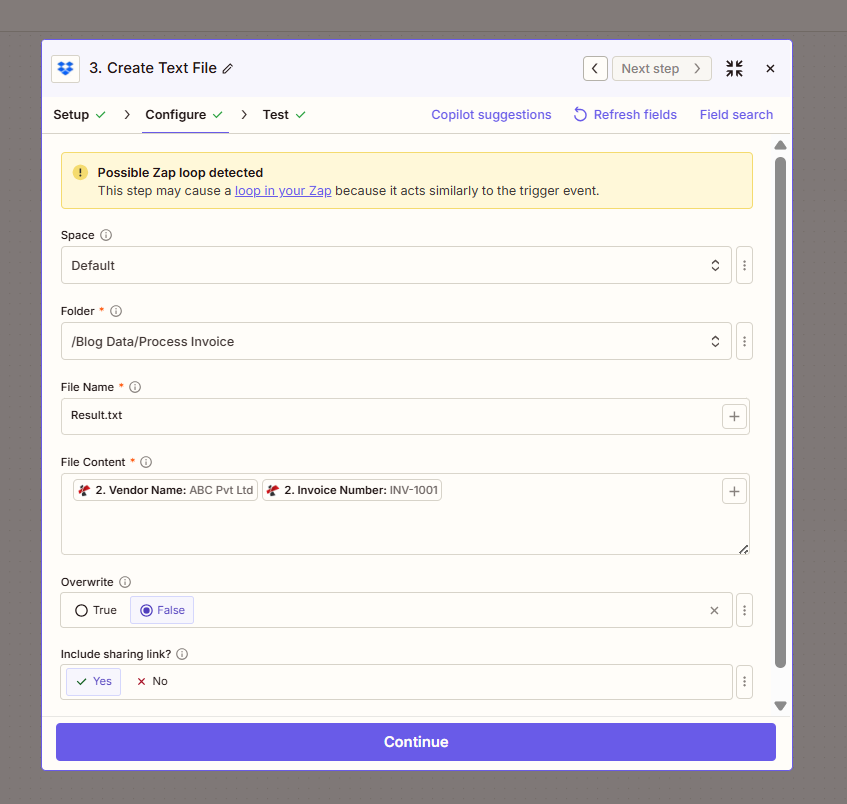
Zap loop warning: Create Text File writes to the same folder the trigger watches. Zapier may show "Possible Zap loop detected" because the new file can retrigger the Zap. To avoid loops: use a different folder for output, add a filter to exclude .txt files, or name the output folder differently. For testing with Result.txt, you can proceed—just be aware of this when going live.
Field Mapping Cheat Sheet
| Step | Field | Map from / To |
|---|---|---|
| 1. New File in Folder | Include file contents? | Yes (required) |
| 2. AI - Invoice Parser | File | 1. File |
| 2. AI - Invoice Parser | File Name | 1. File Name + 1. File Ext |
| 3. Create Text File | File Content | 2. Vendor Name, 2. Invoice Number (or more) |
| 3. Create Text File | Folder | Same as trigger, or different to avoid loops |
What’s Next?
- Map more fields into File Content (Sub Total, Total, custom fields) for richer output.
- Use Formatter or Code by Zapier to build a custom string (e.g. CSV line, JSON) before Create Text File.
- Name the file by invoice number: map 2. Invoice Number to File Name and add
.txtas the extension. - Need the same flow in Make or Power Automate? Same pattern applies.
Troubleshooting
Set Include file contents? Yes in the trigger. The parser needs the actual file bytes, not just a path.
Add the field in the Custom Field section. Ensure the field exists on the invoice—if it doesn’t, the AI may leave it empty.
PDF4me Troubleshooting covers 401 (API key), 402 (credits), and more.