AI Invoice Processing in Power Automate: Dropbox → Invoice Parser → SharePoint (3 Steps)
Invoices land in email, Dropbox, or SharePoint—and someone has to type the numbers into your system. PDF4me AI - Invoice Parser extracts vendor name, invoice number, amounts, dates, and line items from PDF invoices automatically. Wire it into Power Automate: watch a Dropbox folder, parse each new invoice with AI, and create a SharePoint list item with the extracted data. No manual data entry.
In a nutshell: Drop an invoice PDF into /blog data/process invoice → Flow triggers → AI extracts invoice number, total, date, vendor, line items → Create item adds a row to your SharePoint list with InvNr, InvAmt, InvDate.
What You’ll Get at the End
Input: An invoice PDF (e.g. New.pdf). Output: A new row in a SharePoint list with InvNr (e.g. INV-1001), InvAmt (e.g. 1.180), InvDate, and any other columns you map.

SharePoint list after the flow runs: invoice number, amount, and date from the parsed invoice.
What Do You Need?
- Power Automate — Open Power Automate and create a new cloud flow (Automated).
- PDF4me API key — Get your API key. You’ll connect it when you add the AI - Invoice Parser action. First time? See Connect PDF4me to Power Automate.
- Dropbox — For the trigger. Use a folder like
/blog data/process invoice. - SharePoint — A list with columns for InvNr, InvAmt, InvDate (or your preferred names).
The Flow in 3 Steps
- When a file is created (Dropbox) — Triggers when a new file lands in your folder.
- AI - Invoice Parser (PDF4me AI) — Extracts vendor, invoice number, total, date, line items, and more.
- Create item (SharePoint) — Adds a row to your list with the extracted fields.
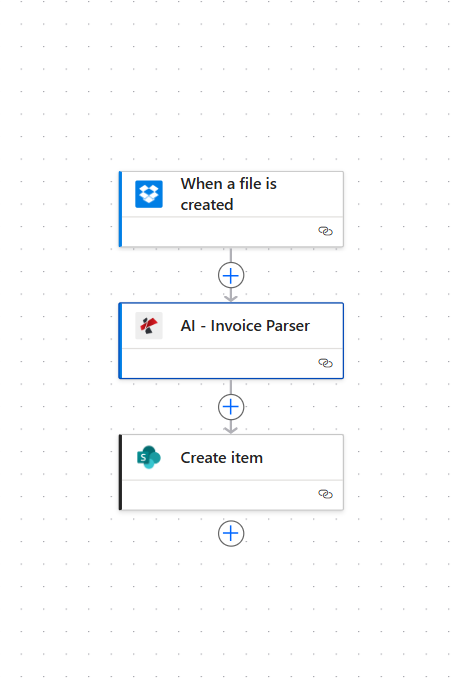
Step 1: When a file is created (Trigger)
Flow so far: Trigger only.
- Create a new Automated cloud flow.
- Add Dropbox → When a file is created as the trigger.
- Folder * — Enter the path to watch, e.g.
/blog data/process invoice. Use the folder picker if available. - Ensure the trigger is connected to Dropbox.
- Save and optionally run a test to ensure the trigger fires when you add a file.
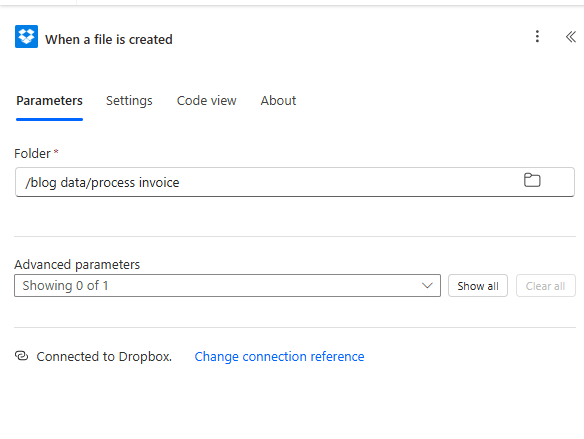
File content: The Invoice Parser needs the actual file content (binary). If the trigger doesn’t output it directly, add a Dropbox – Get file content action after the trigger and pass that output to the parser. Map File Content from whichever step provides the PDF bytes.
Step 2: AI - Invoice Parser (Action)
Flow so far: Trigger → AI - Invoice Parser.
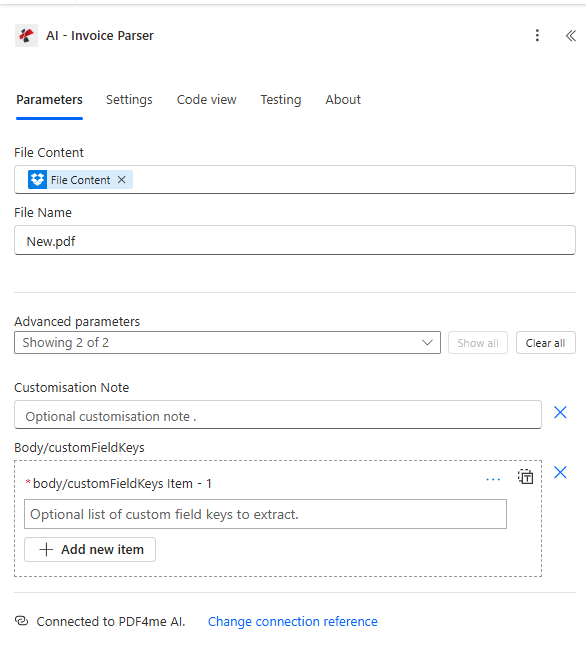
- Add PDF4me AI (or PDF4me) → AI - Invoice Parser.
- File Content * — Map the file content from the Dropbox trigger (or from a Get file content step). Pick the field that contains the actual PDF binary.
- File Name * — Enter a name such as
New.pdfor map the filename from the trigger. - Customisation Note — Optional. Add notes if you need custom behaviour.
- Body/customFieldKeys — Optional. Add custom field keys if you need extra fields beyond the standard set.
- Ensure Connected to PDF4me AI at the bottom.
- Run the flow to test—you should see parsed data in the action output.
Output: The action returns a structured object including invoiceNumber, vendorName, invoiceDate, total, subTotal, lineItems, billTo, vendorAddress, and more.
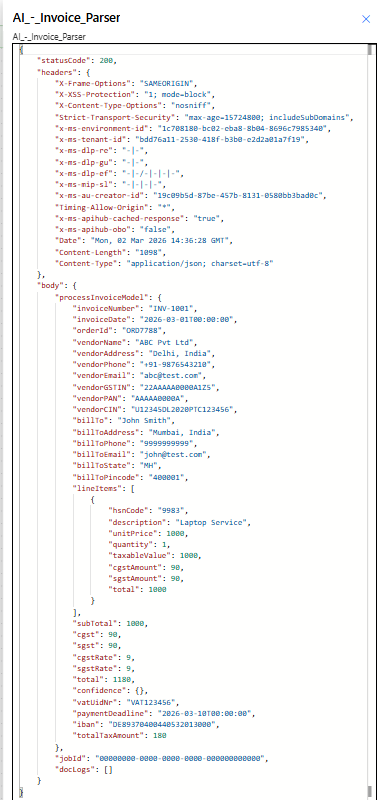
Example output: invoice number INV-1001, total 1180, vendor ABC Pvt Ltd, line items, taxes, and more.
Step 3: Create item (SharePoint)
Flow so far: Trigger → AI - Invoice Parser → Create item.
- Add SharePoint → Create item.
- Site Address * — Select your SharePoint site (e.g. your team site).
- List Name * — Select your list (e.g.
invoice). - Map the parsed fields to your list columns:
- InvNr — Map Invoice Number from the AI - Invoice Parser output (e.g.
INV-1001). - InvAmt — Map Total Amount or total from the parser output (e.g.
1180or1.180depending on format). - InvDate — Map Invoice Date from the parser output.
- InvNr — Map Invoice Number from the AI - Invoice Parser output (e.g.
- Add any other columns your list has (e.g. Title, vendor name, etc.).
- Ensure Connected to SharePoint at the bottom.
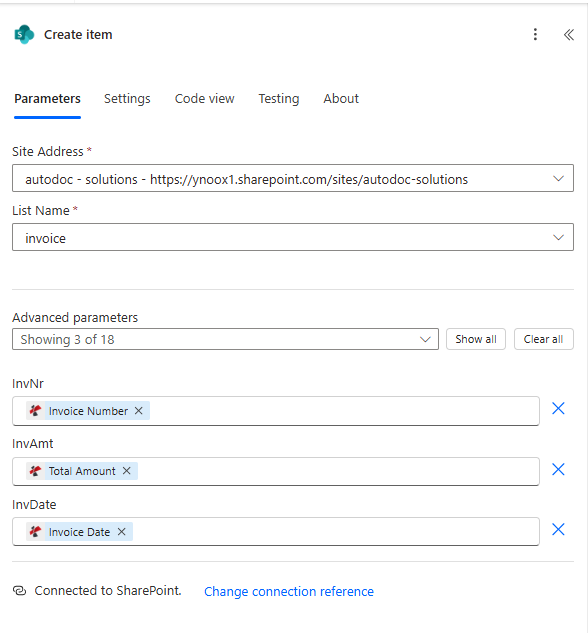
Pro tip: The parser returns nested objects. In Power Automate’s dynamic content, look for body or processInvoiceModel and expand it to find invoiceNumber, total, invoiceDate, etc. Use the exact output names when mapping.
Quick Reference: Key Mappings
| SharePoint column | Parser output | Example |
|---|---|---|
| InvNr | Invoice Number | INV-1001 |
| InvAmt | Total Amount / total | 1180 or 1.180 |
| InvDate | Invoice Date | 2026-03-01 |
| Title | vendorName or invoiceNumber | ABC Pvt Ltd |
For full parameter details and output fields, see AI - Invoice Parser — Power Automate.
Troubleshooting
Ensure you map the actual file content (binary) to the parser—not a file path or metadata. If the trigger doesn’t provide it, add Get file content (Dropbox) and pass that output. See Zapier and Power Automate Tips for file handling.
Create the list columns first: InvNr, InvAmt, InvDate (or your names). Column names in SharePoint must match what you use in the Create item action.
PDF4me Troubleshooting covers 401 (API key), 402 (credits), and more.
Next Steps
- Drop a test invoice into your folder and run the flow. Check the SharePoint list for the new row.
- Map more parser outputs (vendor name, line items, due date) to additional list columns.
- Add approval steps, email notifications, or Dynamics 365 integration using the extracted data.
- Use the same pattern with Zapier or with Make if you prefer those platforms.