Extract Text from PDFs in Power Automate: Including Scanned and Image-Based Documents
You have PDFs in Dropbox, SharePoint, or email—some are plain text, others are scanned or image-based—and you need the text out in one reliable flow. The catch: image-based PDFs have no selectable text. They need OCR first. Once they're searchable, PDF4me Extract Text and Images pulls everything in one call—no second read, no wasted API credits.
This guide walks you through a flow that handles both: trigger → get file content (Dropbox) → Convert PDF to editable PDF using OCR (for scanned docs) → Extract Text and Images (PDF4me). You get the exact output structure and links to troubleshoot and try the API yourself.
Why One Call Matters.
When you build flows that split documents, rename files, or route content, you often need extracted text and images from each PDF. Re-reading every document in a loop burns API calls and slows flows down. Extract Text and Images returns both text content and embedded images in a single response. You get everything you need—text, image filenames, and Base64 image data—so downstream actions can rename, route, or archive without extra reads.
Pro tip: Need to split PDFs by barcode and rename each file by barcode? Use Split PDF by Barcode—it returns barcodeText in the same response for each split, so you can rename without a second call. See our Split PDF by Barcode in Power Automate guide.
What Do You Need?
- Power Automate — Open Power Automate, sign in, and create a new cloud flow (Instant or Automated).
- PDF4me API key — Get your API key. You’ll create a connection when you add the PDF4me actions. First time? See Connect PDF4me to Power Automate.
- Dropbox — We use it for Get file content. SharePoint, OneDrive, or any connector that gives you file content works too.
The Flow at a Glance (4 Steps).
- Manually trigger a flow — Start the flow on demand (or use When a file is created in Dropbox for automation).
- Get file content using path (Dropbox) — Fetches the PDF from a path like
/pdf4metest/extracttext/image to pdf.pdf. - PDF – Convert PDF to editable PDF using OCR (PDF4me) — Turns scanned/image-based PDFs into searchable text. Skip this step if your PDFs are already text-searchable.
- PDF – Extract Text and Images (PDF4me) — Returns full text and all embedded images in one response.
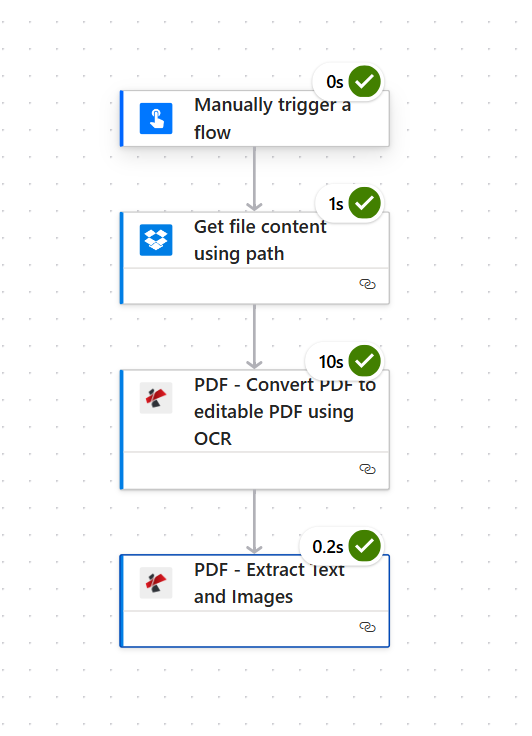
Input: One PDF (image-based or text-based). Output: Text content in texts array and images in images array with fileName and streamFile (Base64).
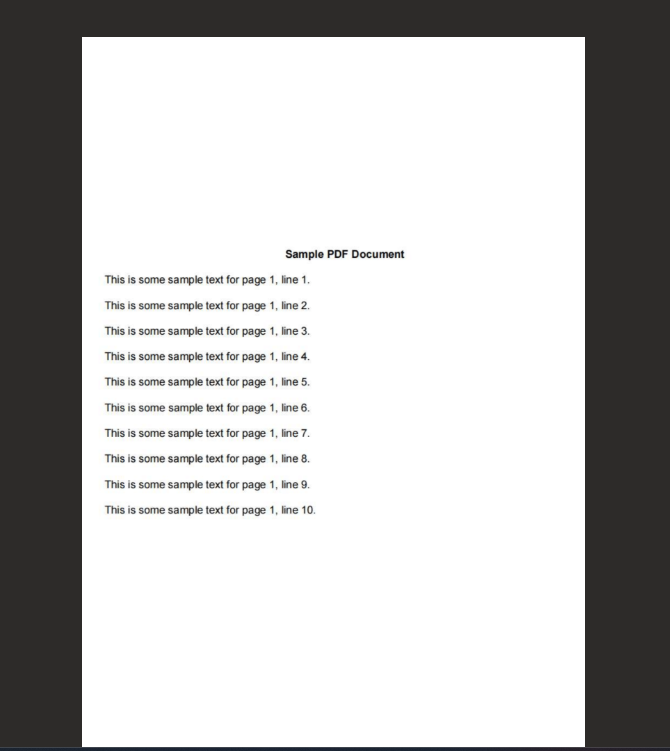
Example input: image-based PDF with extractable text after OCR
Step 1: Trigger + Get File Content.
Flow so far: Trigger → Get file content.
- Add Manually trigger a flow (or When a file is created in Dropbox for automation).
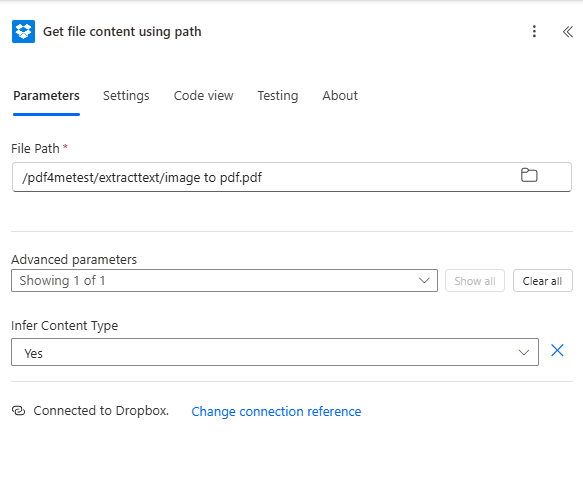
- Add Dropbox → Get file content using path.
- Parameters:
- File Path * — Enter the path to your PDF, e.g.
/pdf4metest/extracttext/image to pdf.pdf. Use the folder icon to browse if needed. - Advanced parameters → Infer Content Type — Set to Yes.
- File Path * — Enter the path to your PDF, e.g.
- Connection — Ensure Connected to Dropbox.
The output is the file content (binary). Map it to File Content in the OCR action (and later in Extract Text and Images).
Heads up: Make sure you map the actual File Content output—not the file path or metadata. Power Automate sometimes offers several options in the dropdown; pick the one that contains the binary file.
Step 2: Convert PDF to Editable PDF Using OCR (for Image-Based PDFs).
Flow so far: Trigger → Get file content → Convert PDF to editable PDF using OCR.
If your PDF is scanned or image-based, add this step so text becomes searchable before extraction. If your PDF already has selectable text—try copying a word in a reader—you can skip to Step 3 and pass the file content directly to Extract Text and Images.
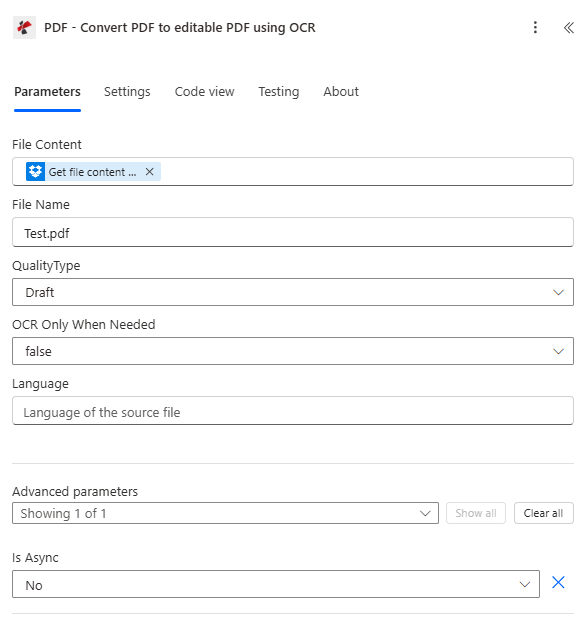
- Add PDF4me → PDF – Convert PDF to editable PDF using OCR.
- Parameters:
- File Content * — Map Get file content using path output (the PDF binary).
- File Name * — Enter a name such as
Test.pdfor the source filename. - QualityType — Draft for normal PDFs (1 API call per file) or High for scanned/image-based PDFs (2 API calls per page).
- OCR Only When Needed — false to always run OCR, or Yes to skip if the PDF is already searchable (saves API calls).
- Language — Set to the source document language (e.g.
en) if needed for better OCR accuracy. - Is Async — No for synchronous (recommended for flows).
- Connection — Connected to PDF4me PDF.
Step 3: Extract Text and Images.
Flow so far: … → Convert PDF to editable PDF using OCR → Extract Text and Images.
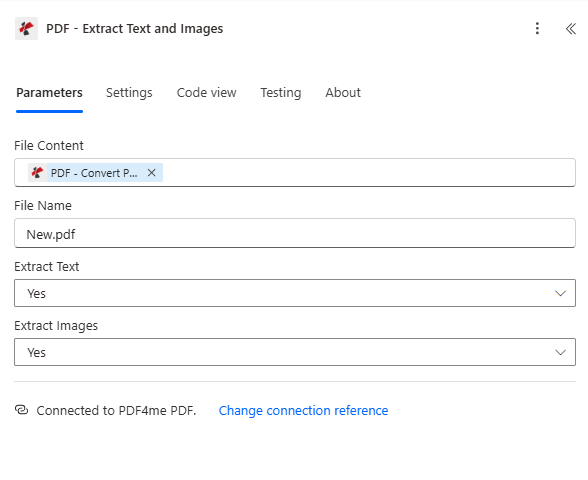
- Add PDF4me → PDF – Extract Text and Images.
- Parameters:
- File Content * — Map the output from PDF – Convert PDF to editable PDF using OCR (or directly from Get file content if you skipped OCR).
- File Name * — Enter a name such as
New.pdfor the source filename. - Extract Text — Yes to extract text.
- Extract Images — Yes to extract embedded images (or No if you only need text).
- Connection — Connected to PDF4me PDF.
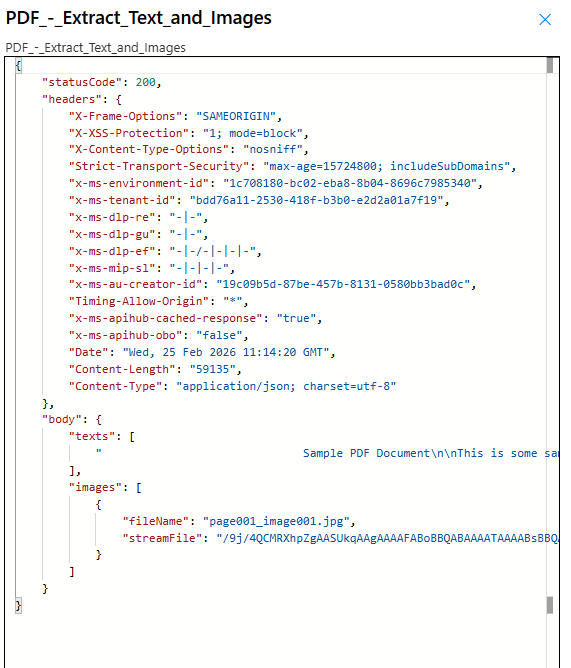
Output: The action returns body with:
- texts — Array of strings with all extracted text (line breaks as
\n). - images — Array of objects:
fileName(e.g.page001_image001.jpg) andstreamFile(Base64). Use these in downstream actions to save or process the images.
Parameters and Output Reference.
Here’s a quick cheat sheet of what we used. Tweak these to fit your setup.
| Step | Parameter | Value | Notes |
|---|---|---|---|
| Get file | File Path | /pdf4metest/extracttext/... | Your Dropbox path |
| Get file | Infer Content Type | Yes | Helps Power Automate handle the file |
| OCR | QualityType | Draft | Use High for tricky scanned docs |
| OCR | OCR Only When Needed | false | Set to Yes to save API calls if text is already searchable |
| Extract | Extract Text / Images | Yes / Yes | Turn off what you don’t need to speed things up |
| Output | body.texts | Array of strings | All extracted text |
| Output | body.images | fileName, streamFile | Base64 image data for each image |
For full parameter details, see Extract Text and Images — Power Automate and Convert PDF to editable PDF using OCR.
Troubleshooting.
Things go wrong sometimes. Here’s what usually fixes it:
Usually means the wrong field was mapped. Use the one that contains the actual file content—not the path or a reference. Power Automate’s dropdown can be tricky here. See Zapier and Power Automate Tips for Base64 and file handling.
Extract Text and Images needs a PDF. If your source is an image, convert it first with Convert to PDF, then pass the result.
Check PDF4me Troubleshooting for 401 (API key), 402 (credits), and platform-specific fixes.
Try the API Interactively.
Test the Extract Text and Images API without Power Automate using our API Tester—upload a PDF and see the response:
Next Steps.
- Drop a test PDF into your folder and run the flow—check the body output for
textsandimages. - Feed
textsinto Compose, Parse JSON, or Conditions; useimageswith Create file or any storage action. - Swap Manually trigger for When a file is created (Dropbox) and wire the trigger’s file path to Get file content for hands-off automation.