How Do You Extract PDF Form Data in n8n? Dropbox Download, PDF4me, Then Save a Summary File.
This walkthrough builds a four-node n8n workflow: you run it manually, download a fillable PDF from Dropbox, extract field values with PDF4me – Extract form data from PDF, then upload a small text file back to Dropbox built from expressions (for example, name, email, and price). The sample paths match the screenshots: PDF at /blog data/extract form data from pdf/sample_form.pdf, text output at /blog data/extract form data from pdf/output/Form data.txt. Adjust paths to match your account.
1. When clicking “Execute workflow” (manual test) → 2. Dropbox – Download a file → binary field data → 3. PDF4me – Extract form data from PDF (data in, document.pdf as document name) → 4. Dropbox – Upload a file (text content from expressions, not binary upload).
Dropbox stores the downloaded bytes in a field (this guide uses data). The PDF4me node must read the same field under Input Binary Field. If you rename it, update both nodes so they still match.
Build this workflow: your todo list
Work through these in order. Pause after each block and Execute step (or Test workflow) before moving on.
- Credentials: In n8n, add Dropbox OAuth2 API and PDF4me credentials. Confirm you can list or browse Dropbox and that PDF4me accepts a test call.
- Source file: Upload
sample_form.pdf(or your form) to the Dropbox path you will use in the Download node. - Canvas: Add the four nodes in sequence and connect them left to right so one item flows through.
- Download node: Set File Path and map binary output to
data(or your chosen name—then mirror it in PDF4me). - Extract node: Choose Binary Data, set Input Binary Field to
data, and set Document Name (for exampledocument.pdf). - Upload node: Turn binary upload off, point File Path to your output
.txtpath, and paste an expression that reads$json.formData.*fields. - End-to-end test: Run the workflow and confirm JSON on the extract node, then the new file in Dropbox.
What the PDF looks like (input)
The sample Sample Invoice Form uses a few labeled fields. Values such as Mr. Albert, [email protected], item 20, quantity 100, and price 5000 are what the extractor turns into keys under formData.
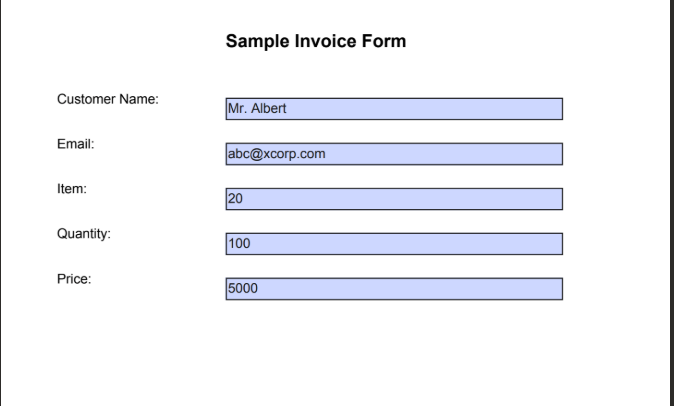
Source PDF: fillable fields, not a flat scan.
At a glance: four nodes
Workflow canvas
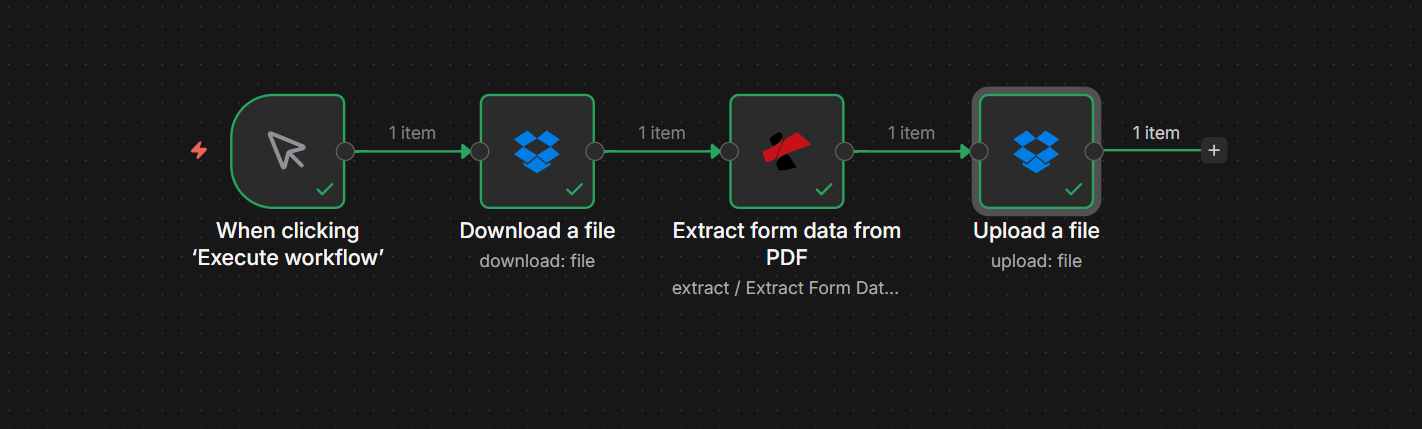
Four steps, one item per hop, green success state after a test run.
Step 1: Download a file (Dropbox)
- Add Dropbox → Download (resource: File).
- File Path — Example:
/blog data/extract form data from pdf/sample_form.pdf. - Put Output File in Field —
data(keeps the binary where the next node expects it). - Execute step and open the Binary tab: you should see
sample_form.pdf,application/pdf, and size metadata.
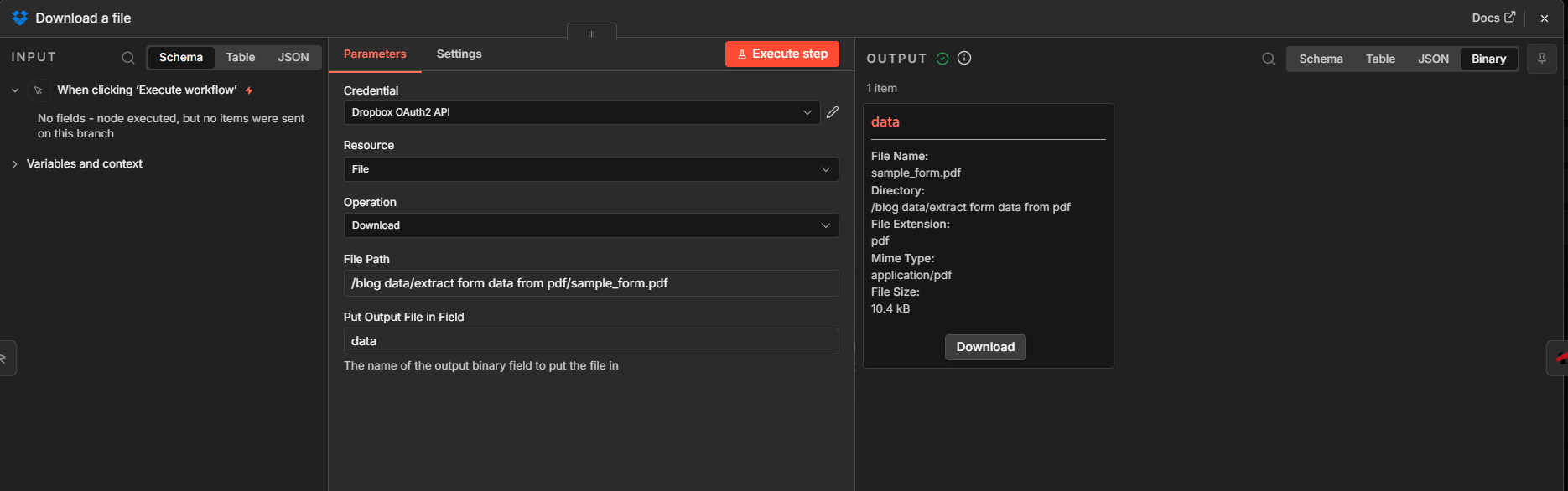
Step 1: path + binary field name for downstream mapping.
Step 2: Extract form data from PDF (PDF4me)
Upstream: Download node → Extract node.
- Add PDF4me and choose Extract form data from PDF (under Extract operations).
- Input Data Type — Binary Data.
- Input Binary Field —
data(must match step 1). - Document Name — For example
document.pdf(processing label; keep the.pdfextension). - Execute step. In OUTPUT, confirm
formDatawith your field keys and values.
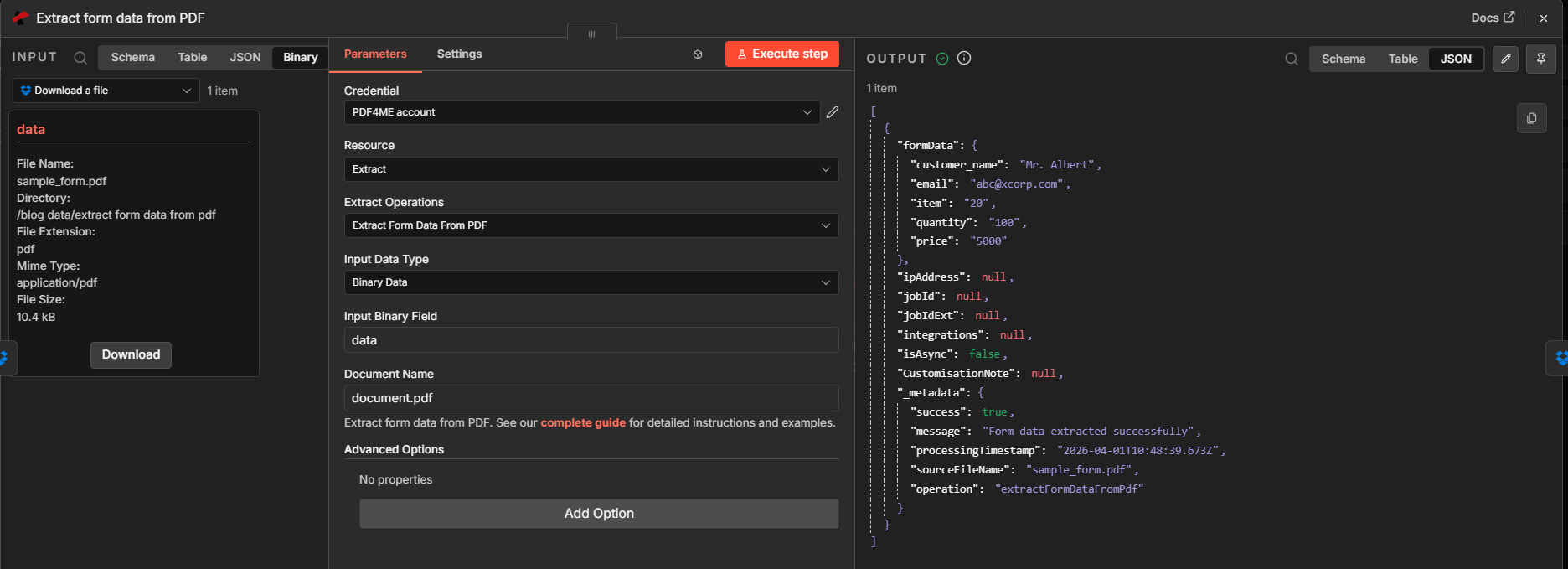
Step 2: binary in, structured JSON out.
Expand: example JSON fields
A successful run typically includes formData plus status fields such as success, message, sourceFileName, and operation. Exact keys depend on connector version.
{
"formData": {
  "customer_name": "Mr. Albert",
  "email": "[email protected]",
  "item": "20",
  "quantity": "100",
  "price": "5000"
},
"success": true,
"message": "Form data extracted successfully",
"sourceFileName": "sample_form.pdf",
"operation": "extractFormDataFromPdf"
}
Step 3: Upload a file (Dropbox, text built from expressions)
Upstream: Extract node → Upload node.
- Add Dropbox → Upload (resource: File).
- File Path — Example destination:
/blog data/extract form data from pdf/output/Form data.txt. Create theoutputfolder in Dropbox if it does not exist. - Binary Data — Off for this pattern (you are writing text, not re-uploading the PDF bytes).
- File Content — Use an expression that concatenates the fields you need. Example (paste into the expression editor):
{{ $json.formData.customer_name }} {{ $json.formData.email }} {{ $json.formData.price }}
- Check the preview under the expression editor (example line:
Mr. Albert [email protected] 5000). - Execute step and verify the Dropbox response shows the new file name and size.
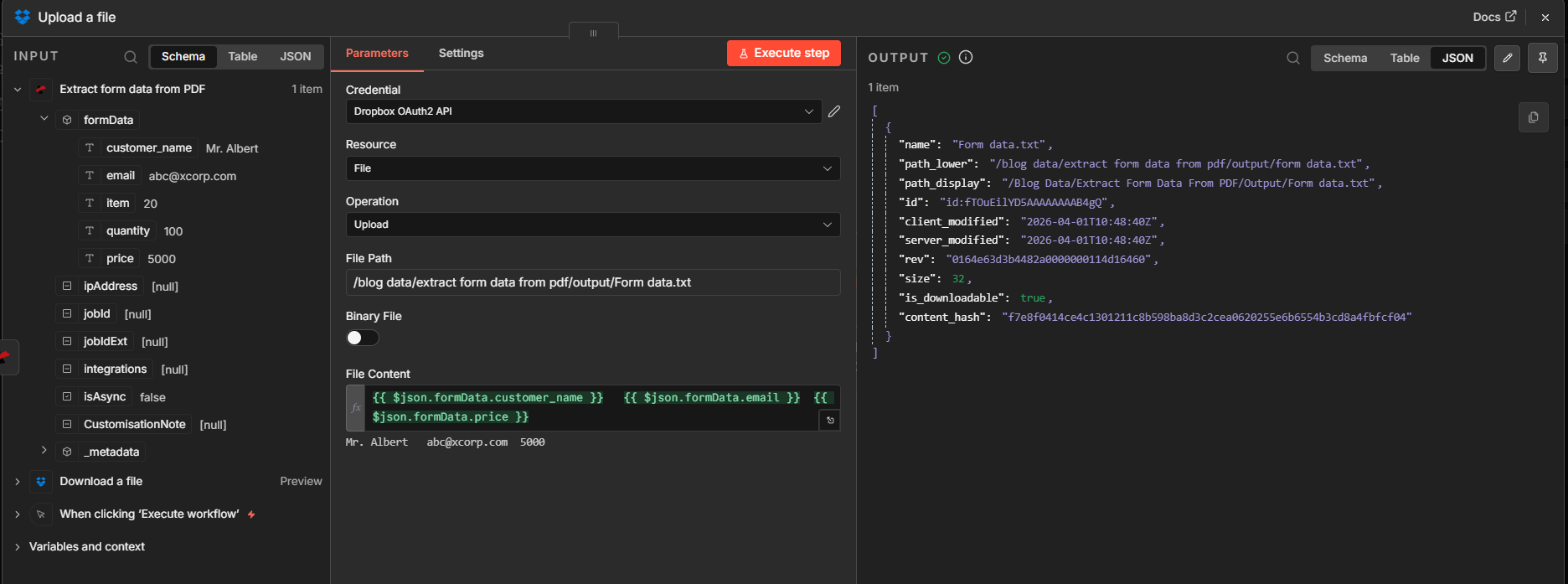
Step 3: optional human-readable export alongside JSON in the prior node.
Result: open the text file
After the run, open Form data.txt in Dropbox (or the viewer). You should see the same values you previewed—here, name, email, and price on one line.
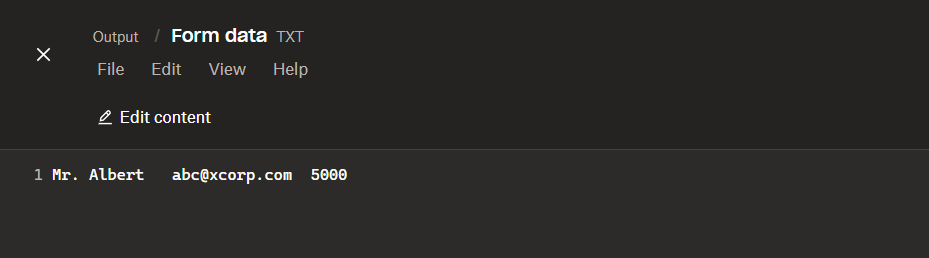
Quick sanity check that the upload step wrote what you expect.
Quick reference
| # | Node | What to remember |
|---|---|---|
| 1 | When clicking “Execute workflow” | Use for design-time testing; swap for a schedule or webhook later |
| 2 | Download a file | Correct Dropbox path; binary field = data |
| 3 | Extract form data from PDF | Binary Data + Input Binary Field = data; Document Name with .pdf |
| 4 | Upload a file | Text mode; expression reads $json.formData.* |
Node reference: Extract Form Data From PDF — n8n. API: Extract Form Data from PDF (API). Getting started: n8n integration guide.
Troubleshooting
Confirm the PDF has real AcroForm fields. Flattened or image-only PDFs will not return the same structure.
If Download writes to data, Extract must use data as Input Binary Field. Rename both sides together.
Open the Extract node output JSON and copy exact formData key names (they must match your PDF field names).
What to try next
You now have a repeatable path: download the form PDF, extract structured fields, and publish whatever slice of that data you need—whether a text summary in Dropbox, a row in a database, or a webhook payload in a later node.