How Do You Pull PDF Form Answers into Power Automate? A Simple Dropbox + PDF4me Extract Flow.
If you already store filled or fillable PDFs in Dropbox, you do not need to retype what is on the page. This walkthrough wires three steps: you start the flow yourself, Dropbox loads the PDF bytes, and PDF – Extract Form Data (PDF4me) turns AcroForm field values into structured data you can pass to Excel, Dataverse, email, or another API.
The screenshots use Dropbox path /blog data/extract form data from pdf/sample_form.pdf and a PDF4me File Name of Test.pdf. Swap in your folder, file name, and connection—the pattern stays the same.
1. Manually trigger a flow → 2. Dropbox – Get file content using path (your PDF) → 3. PDF – Extract Form Data — map File Content from step 2, set File Name to a .pdf name → read form field values from the action output (often under a formData-style object in the response body).
File Content must be the PDF binary from Get file content (not a path string). The PDF should contain real form fields (interactive AcroForm)—a “flat” scan with no fields will not return the same kind of structured map. File Name should be a valid PDF filename (e.g. Test.pdf or the dynamic name from your flow); it identifies the job for processing even if Dropbox stored the object under a different path.
What you get when it works
On a successful run you typically see HTTP 200 in the action output and a JSON body where field names from the PDF appear as keys with their filled values as strings (or similar). In the reference run below, keys such as customer_name, email, item, quantity, and price mirror the form definition in sample_form.pdf. Your PDF will emit your field names—treat the screenshot as one real example, not a fixed schema.
At a glance: all three steps
Why this layout is easy to live with
Dropbox supplies one binary payload. The extract action always receives the same shape of input, whether you later switch the path to SharePoint or email attachments.
Once fields are key–value data, you can parse JSON, map to columns, or POST to an API without maintaining fragile string splitting in expressions.
After extraction, add Condition branches, Apply to each for batches, or swap the manual trigger for Dropbox – When a file is created—the extract step stays put.
Before you start
- Power Automate with permission to create cloud flows.
- PDF4me API key and connector connection — first-time help: Connect PDF4me to Power Automate.
- Dropbox connection that can read the folder where the PDF lives.
- A PDF that actually has fillable form fields (open it in Acrobat Reader and tab through fields to confirm).
The flow at a glance (three steps)
- Manually trigger a flow — Run while you design and test.
- Get file content using path (Dropbox) — Loads
sample_form.pdf(or your file) as binary content. - PDF – Extract Form Data (PDF4me) — Consumes that content and returns field values in the output JSON.
Flow overview
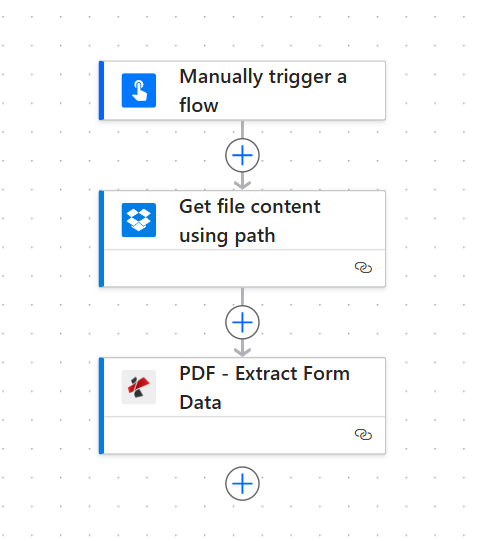
Three-step chain: trigger → Dropbox file bytes → PDF4me extraction.
Step 1: Get file content using path (Dropbox)
Flow so far: Trigger → Get file content.
- Add Dropbox → Get file content using path (wording may vary slightly by connector version).
- File Path — Point to your PDF. This guide uses
/blog data/extract form data from pdf/sample_form.pdf. - Under Show advanced options, set Infer Content Type to Yes so the connector treats the payload correctly.
- Save and Test this step; confirm File content appears in Dynamic content for the next action.
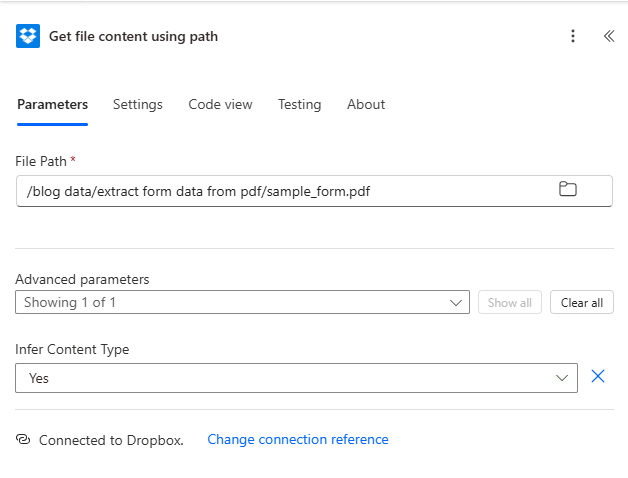
Step 1: path to the PDF in Dropbox and content-type inference enabled.
Step 2: PDF – Extract Form Data (PDF4me)
Flow so far: Trigger → Get file content → Extract Form Data.
- Add PDF – Extract Form Data (PDF4me).
- File Content — From Dynamic content, choose File content (or equivalent) from Get file content using path.
- File Name — Enter a PDF name with extension, e.g.
Test.pdf, or map a dynamic name if your flow creates or renames files. It does not have to match the Dropbox path string; it must be a plausible.pdflabel for the job. - Save, then run the flow and open the action Outputs.
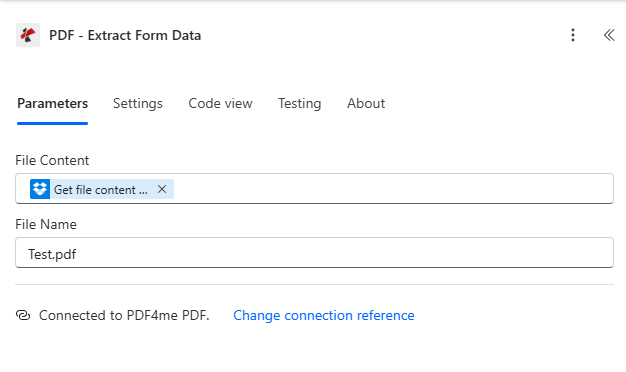
Step 2: binary from Dropbox mapped into File Content; File Name set for processing.
Output: from PDF fields to JSON you can use
After a successful run, inspect PDF – Extract Form Data → Outputs. You should see statusCode: 200 and a body that carries the extracted values. Field keys follow the PDF form definition—the example below is exactly what this sample form produced in one run.
Expand: example run output (screenshot + sample JSON)
The connector wraps the usual HTTP-style envelope (statusCode, headers, body). Inside body, look for the object that lists your fields (here formData). You may also see metadata such as isAsync depending on version and run mode.
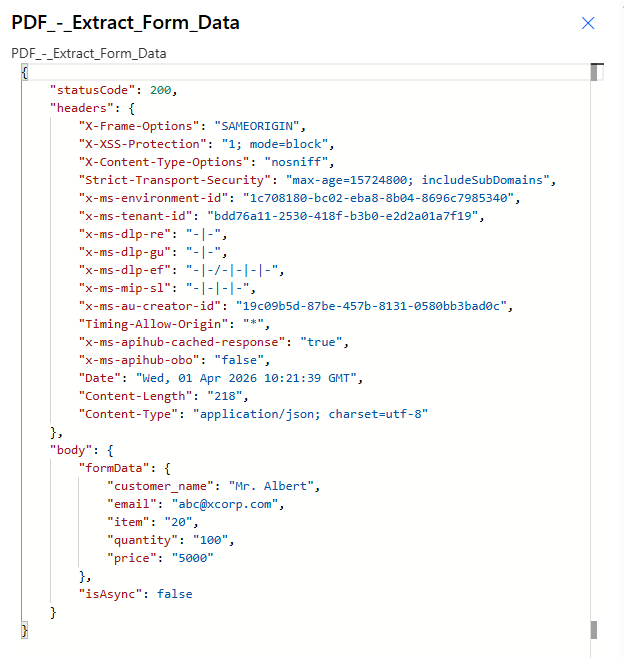
Reference output: same values appear in Dynamic content for later steps.
{
"statusCode": 200,
"body": {
  "formData": {
    "customer_name": "Mr. Albert",
    "email": "[email protected]",
    "item": "20",
    "quantity": "100",
    "price": "5000"
  },
  "isAsync": false
}
}
Tip: In a follow-up action, use Dynamic content to pick individual fields, or Parse JSON with a schema that matches your form. Numbers often arrive as strings—convert where needed.
Optional next steps: Append to Excel, Send an email with selected fields, HTTP to a line-of-business API, or Update a row in Dataverse—each field is now a first-class token.
Quick reference
| # | Action | What to set |
|---|---|---|
| 1 | Manually trigger a flow | Run on demand while building |
| 2 | Get file content using path | Dropbox path to PDF + Infer Content Type = Yes |
| 3 | PDF – Extract Form Data | File Content from step 2; File Name = *.pdf |
Full parameter list and integration notes: Extract Form Data from PDF — Power Automate. API reference: Extract Form Data from PDF (API).
Troubleshooting
Confirm the PDF has interactive form fields and that they were filled (not only drawn text). Open the file in a desktop reader and use Highlight existing fields if unsure.
Re-map File Content from Get file content output. Do not pass the path string, file ID alone, or a link—Power Automate needs the binary column from the Dropbox action.
PDF4me Troubleshooting — API key, subscription/credits, and re-authenticating the PDF4me connection.
What to try next
Production idea: Replace the manual trigger with Dropbox – When a file is created on the same folder, then keep the Get file content and Extract Form Data pair so each new upload is processed automatically.
That covers the essentials: correct binary mapping, a real .pdf filename, and a fillable source file. Reuse the same structure for SharePoint or email triggers, and refer to the Extract Form Data docs when you extend the flow with parsing, storage, or notifications.