How Do You Convert Excel to PDF in n8n? Dropbox Download, PDF4me, Then Upload the PDF.
This guide wires a four-node n8n workflow you can test with Execute workflow: pull an .xlsx from Dropbox, run PDF4me – Convert to PDF on the binary payload, then upload the resulting PDF to an output path. The screenshots use /blog data/excel to pdf/new invoice.xlsx as the source and /blog data/excel to pdf/output/Excel to Pdf.pdf as the destination filename. Swap paths and names to match your workspace.
1. When clicking “Execute workflow” → 2. Dropbox – Download a file (binary field data) → 3. PDF4me – Convert to PDF (binary in/out on data) → 4. Dropbox – Upload a file (binary upload to your output path).
Dropbox download should write bytes to a single field (this walkthrough uses data). The Convert to PDF node must read that same binary property, and the Upload node must read the converted PDF from the output binary field (here again data). If you rename one side, rename all three.
Build checklist
- Credentials: Add Dropbox OAuth2 API and PDF4me in n8n.
- Source file: Place your workbook in Dropbox (example path:
/blog data/excel to pdf/new invoice.xlsx). - Output folder: Ensure the target folder exists (example:
/blog data/excel to pdf/output/). - Canvas: Connect the four nodes left to right; confirm 1 item passes each hop when you test.
- Convert step: Set Input Data Type to Binary Data and align Input File Name with an
.xlsxname so the converter detects Excel. - Upload step: Enable binary upload and map the PDF bytes from Convert to PDF.
What the spreadsheet contains
The sample New Invoice sheet lists line items (Laptop, Mouse, Keyboard, Monitor), quantities, unit prices, line totals, and a Grand Total of 1090. That is the data you should see reflected in the PDF after conversion.
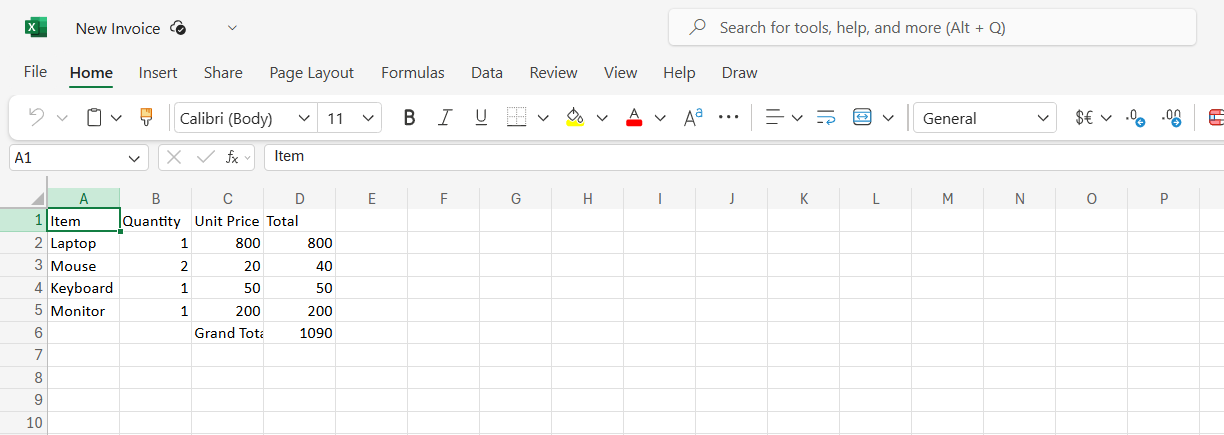
Source workbook before PDF export.
At a glance: four nodes
Workflow canvas
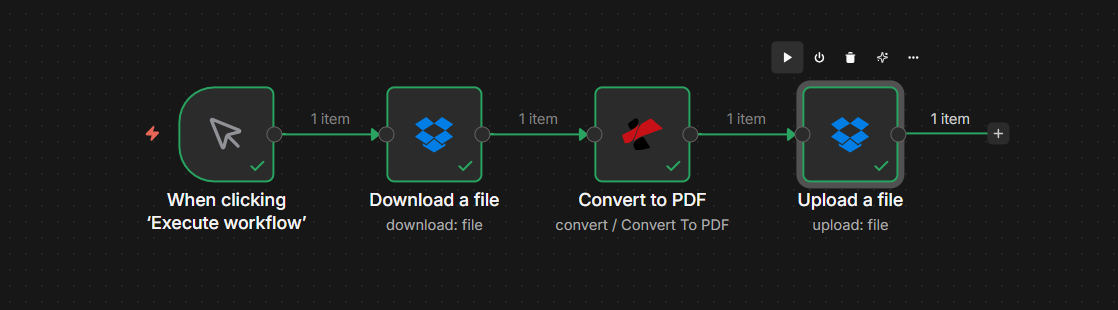
Linear flow: fetch Excel bytes, convert, push PDF to Dropbox.
Step 1: Download a file (Dropbox)
- Add Dropbox → Download (resource: File).
- File Path — Example:
/blog data/excel to pdf/new invoice.xlsx. - Put Output File in Field —
data. - Execute step and confirm the Binary tab shows
.xlsx, spreadsheet MIME type, and file size.
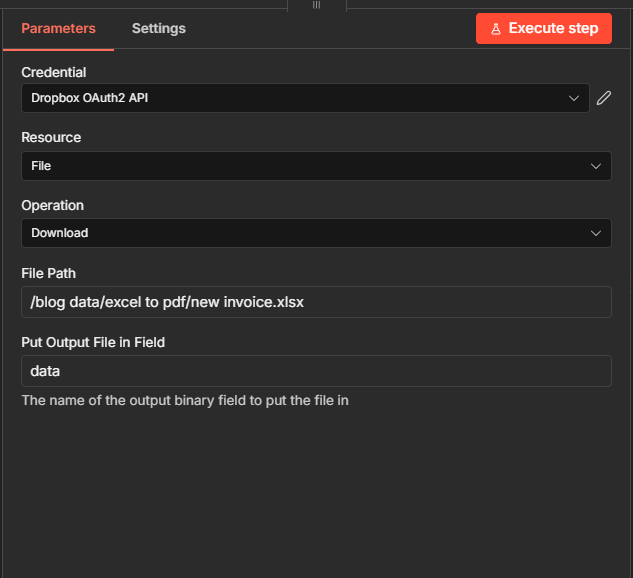
Step 1: locked path + binary field for the next node.
Step 2: Convert to PDF (PDF4me)
Upstream: Download → Convert to PDF.
- Add PDF4me → Convert → Convert to PDF.
- Input Data Type — Binary Data.
- Binary Property —
data(must match step 1). - Input File Name — Use a name that ends with
.xlsx(example from the run:Test .xlsxornew invoice.xlsx). The extension tells the service how to interpret the bytes. - Output File Name — Example:
output.pdf. - Binary Data Output Name —
data(so the PDF replaces the binary payload for the upload step). - Execute step and verify OUTPUT shows
application/pdfand anoutput.pdffilename.
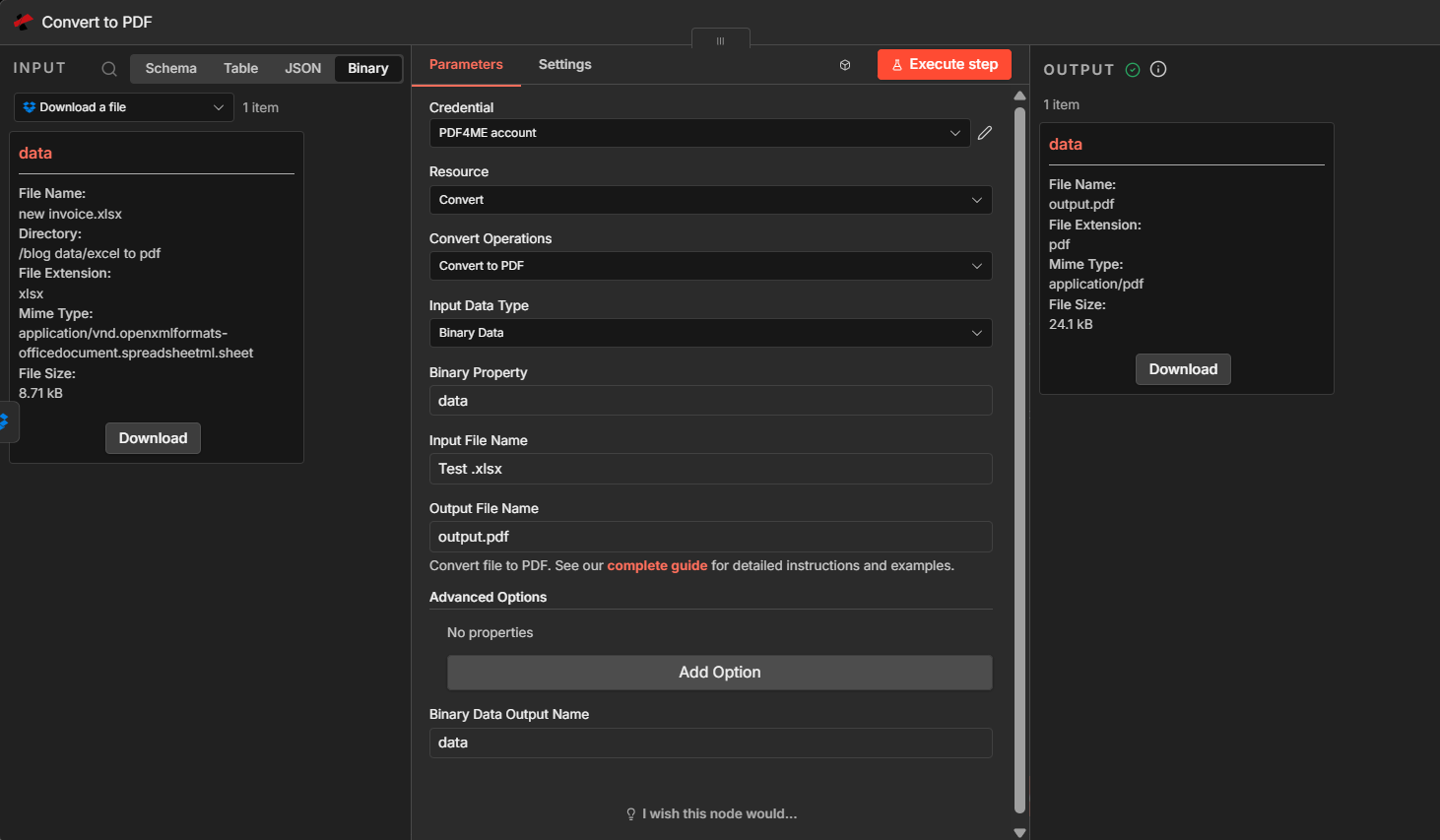
Step 2: Excel bytes in, PDF bytes out on the same binary key.
Step 3: Upload a file (Dropbox)
Upstream: Convert to PDF → Upload a file.
- Add Dropbox → Upload (resource: File).
- File Path — Full path including filename, e.g.
/blog data/excel to pdf/output/Excel to Pdf.pdf. - Binary File — On (you are uploading file content, not a text expression).
- Input Binary Field —
data(the PDF from step 2). - Execute step and open OUTPUT JSON: confirm
name,size, andis_downloadable.
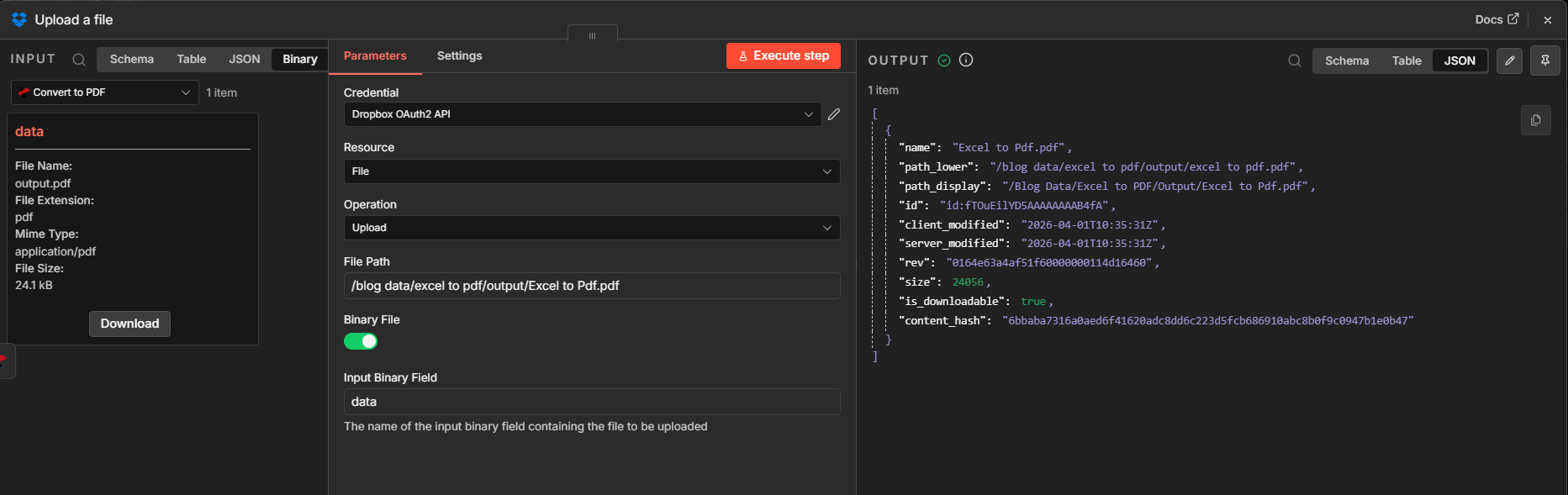
Step 3: write the converted PDF to your output folder.
Result: open the PDF
Expand: invoice table in the PDF
Open Excel to Pdf.pdf in Dropbox or locally. You should see the same line items and Grand Total 1090 as in the workbook.
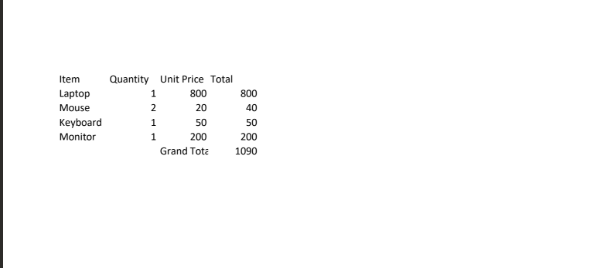
Visual check after conversion.
Quick reference
| # | Node | Remember |
|---|---|---|
| 1 | When clicking “Execute workflow” | Manual test; swap for Cron or Dropbox trigger later |
| 2 | Download a file | Path to .xlsx; binary output field = data |
| 3 | Convert to PDF | Binary Data; property data; .xlsx input name; PDF output on data |
| 4 | Upload a file | Binary on; destination path includes .pdf filename |
Node reference: Convert to PDF — n8n. API: Convert to PDF (API). Getting started: n8n integration guide.
Troubleshooting
Re-check that every node uses the same binary property name (data in this guide). If Convert outputs to a different field, point Upload at that field instead.
Ensure Input File Name ends with .xlsx (or the correct extension for your source file).
See PDF4me Troubleshooting for API key, credits, and connection issues.
What to try next
You now have a testable pipeline: pull an Excel file from Dropbox, convert it with PDF4me, and store the PDF under a path you control. When you are ready for production, replace the manual trigger with a schedule or a Dropbox event, and keep the three binary mappings aligned end to end.