How Do You Turn a Dropbox Excel Upload into a PDF in Power Automate? A Three-Step Flow.
Teams often want a single, reliable PDF after someone saves a spreadsheet to the cloud. This guide builds an automated cloud flow with three actions: Dropbox detects a new file, PDF4me – Convert to PDF turns the workbook into a PDF, and Dropbox – Create file writes the result into an output folder. The walkthrough uses folder /blog data/excel to pdf, sample workbook New Invoice.xlsx, and output path /blog data/excel to pdf/output. Replace those paths with yours, and keep the same wiring.
1. Dropbox – When a file is created on your intake folder → 2. PDF – Convert to PDF (PDF4me): map File Content and File Name from the trigger → 3. Dropbox – Create file: Folder Path = your output folder; File Name and File Content from the converter output.
File Content must be the file bytes from the trigger (the dynamic value usually named File Content). File Name must include the real extension, e.g. New Invoice.xlsx, so the engine detects Excel. In Dropbox flows, the encoded name token headers/x-ms-file-name-encoded (or the plain name field your connector exposes) is the usual source.
What you are automating
You turn Excel workbooks dropped into a watched Dropbox folder into PDFs stored elsewhere (here, an output subfolder). The sample sheet lists line items (Laptop, Mouse, Keyboard, Monitor), quantities, unit prices, line totals, and a Grand Total of 1090; the generated PDF preserves that layout for sharing or archiving.
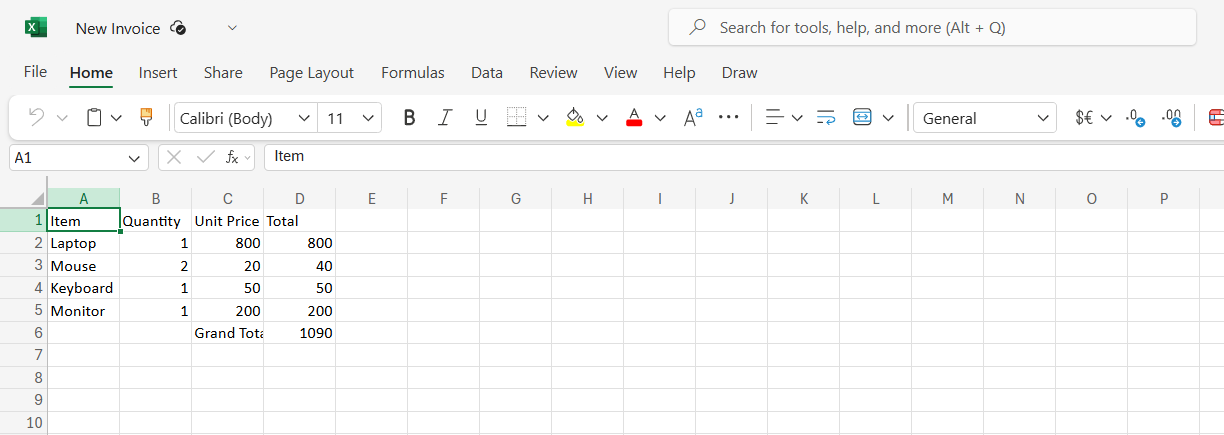
Sample source workbook used in this walkthrough.
At a glance: all three steps
Why this pattern works
The flow starts when a file appears, so you do not poll folders or run schedules for simple drop-and-convert scenarios.
Convert to PDF accepts many office formats; for .xlsx, PDF4me returns PDF File Content and a suggested File Name you can pass straight into Create file.
Saving PDFs under output keeps originals and deliveries apart. If your trigger folder includes that subfolder, add a Condition so only Excel files run the converter (see troubleshooting).
Before you start
- Power Automate with permission to create automated cloud flows.
- PDF4me API key and connector connection. Setup help: Connect PDF4me to Power Automate.
- Dropbox connection with access to the intake folder and the output folder.
- An
.xlsxfile to test (upload triggers the flow).
Folder layout (before and after)
The intake directory holds the Excel file and an Output subfolder. After a successful run, the PDF appears alongside that structure under output.

Before: workbook in the watched folder, output destination ready.

After: New Invoice.pdf in output.
The flow at a glance
- When a file is created (Dropbox) — folder
/blog data/excel to pdf. - Convert to PDF (PDF4me) — feed File Content and File Name from the trigger.
- Create file (Dropbox) — write to
/blog data/excel to pdf/outputusing the converter’s File Name and File Content.
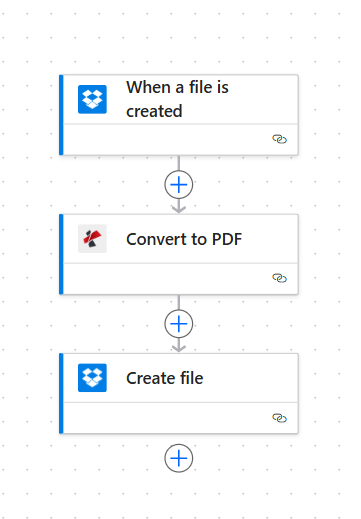
End-to-end chain: trigger, convert, save.
Step 1: When a file is created (Dropbox)
- Create an automated cloud flow. Add trigger Dropbox – When a file is created (wording may vary by connector version).
- Folder — Set the path that should start the flow. This example uses
/blog data/excel to pdf. - Save the trigger. In Dynamic content, confirm you see File Content and a file name field (sometimes under
headers).
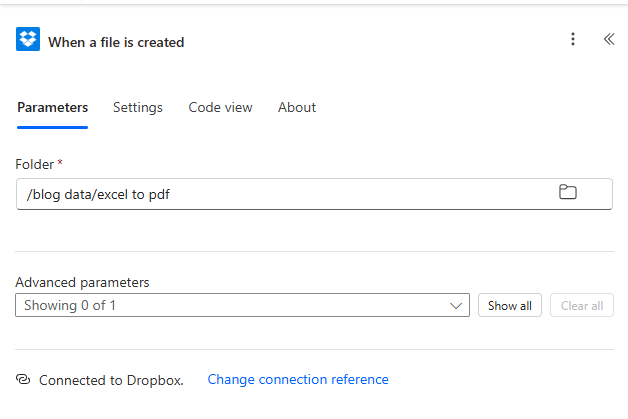
Step 1: intake folder path on the trigger.
Step 2: Convert to PDF (PDF4me)
Flow so far: Trigger → Convert to PDF.
- Add PDF – Convert to PDF (PDF4me). Sign in or select your PDF4me connection.
- File Content — Map File Content from When a file is created.
- File Name — Map the trigger’s filename token (example:
headers/x-ms-file-name-encoded), or any dynamic value that resolves to the full name with.xlsx. - Save the action. Run the flow with a test upload and open Outputs to confirm PDF bytes are returned.
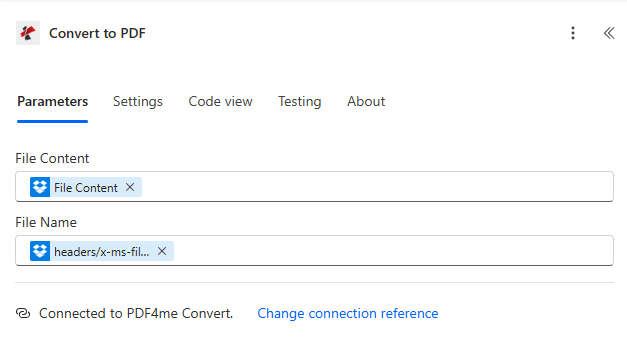
Step 2: binary and filename from Dropbox into PDF4me.
Step 3: Create file (Dropbox)
Flow so far: Trigger → Convert to PDF → Create file.
- Add Dropbox – Create file.
- Folder Path — Destination folder for PDFs. This walkthrough uses
/blog data/excel to pdf/output. - File Name — Map File Name from Convert to PDF (PDF4me supplies a PDF name, typically the original base name with a
.pdfextension). - File Content — Map File Content from Convert to PDF.
- Save and run the full flow. Verify the new object in Dropbox.
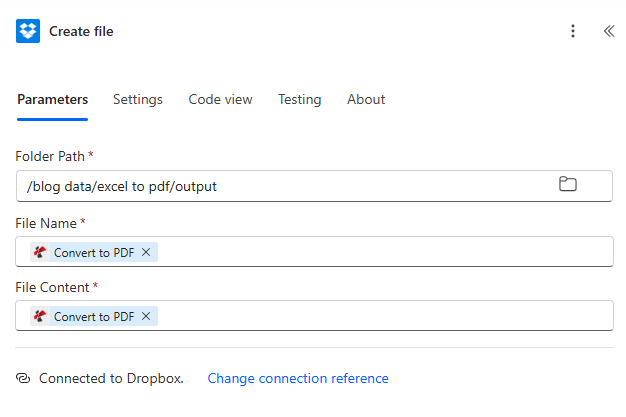
Step 3: write the converted PDF into the output folder.
Output check: open the PDF
Expand: rendered PDF preview (sample run)
The exported PDF should reflect the spreadsheet layout: columns Item, Quantity, Unit Price, Total, and the Grand Total row.

Visual check after conversion: data matches the source workbook.
Quick reference
| # | Action | Main mapping |
|---|---|---|
| 1 | When a file is created | Folder = intake path (e.g. /blog data/excel to pdf) |
| 2 | Convert to PDF | File Content + File Name from trigger |
| 3 | Create file | Folder = output path; Name + Content from step 2 |
Action reference: Convert to PDF — Power Automate. API: Convert to PDF (API).
Troubleshooting
If the trigger folder contains the output subfolder, some setups still fire on new PDFs. Add a Condition after the trigger (for example, filename ends with .xlsx, or path does not contain /output, depending on what your connector exposes).
Confirm File Name keeps the .xlsx extension. Re-map File Content from the trigger’s binary output, not from metadata or a sharing link.
See PDF4me Troubleshooting for API key, credits, and connection issues.
What to try next
You now have a complete loop: upload an Excel file, let PDF4me produce the PDF, and store it in a dedicated output folder. Adjust folder paths, add a file-type condition if needed, and keep the official Convert to PDF documentation handy when you change formats or filenames.