How Do You Extract PDF Form Data in Make? Dropbox Watch Files, Download, Then PDF4me.
Teams often automate PDF forms the same way: watch a cloud folder for new files, download the PDF bytes, then extract field names and values into structured data for sheets, CRMs, or databases. This guide builds that path in Make (Make.com): Dropbox – Watch Files on /Blog Data/Extract Form Data From PDF/, Dropbox – Download a File with the path coming from the trigger, and PDF4me – Extract PDF Form Data with File name and Document mapped from Download. The run output shows Form Data such as customer_name, email, item, quantity, and price for sample_form.pdf.
Upload sample_form.pdf into the watched Dropbox folder (or your own path). The file is a fillable AcroForm PDF—the same type this module expects.
- Follow steps 1 → 2 → 3 in order. Run the scenario after each new mapping so Make shows the correct fields in the pill picker.
- Make labels modules with numbers (e.g. 5, 4, 2) based on when they were added. Your numbers may differ—map by meaning: path from Watch Files → Download; file name + data from Download → PDF4me.
- Wrench icons between modules open the mapping between steps.
1. Dropbox – Watch Files → folder /Blog Data/Extract Form Data From PDF/, subfolders off, set a Limit (e.g. 2) → 2. Dropbox – Download a File → Map a file path → path from the watch output (screenshot: 5. Path display) → 3. PDF4me – Extract PDF Form Data → Map → File name and Document from Download (screenshot: 4. File Name, 4. Data).
Extract PDF Form Data reads PDF form fields (AcroForm). A flat scan or a PDF with only drawn text will not return the same Form Data object. The sample Sample Invoice Form below shows the kind of labeled fields this flow is built for.
Build checklist
- Accounts: Make, Dropbox, and PDF4me connections.
- Folder: Create
/Blog Data/Extract Form Data From PDF/(or yours) and dropsample_form.pdfinside for testing. - Watch settings: Decide Limit (max files per cycle); start with a small number while testing.
- Order: Add Watch → Download → Extract; map path from watch into Download, then file name + buffer into PDF4me.
Sample form (input)
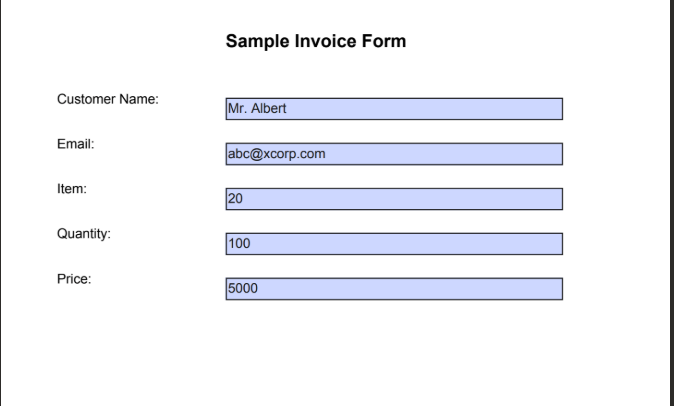
Example source PDF: field keys match the JSON keys in the extractor output.
At a glance: three modules
Scenario overview
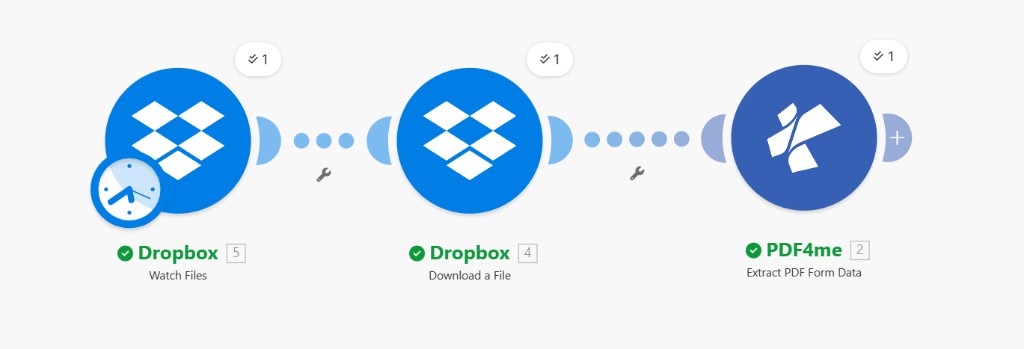
Left to right: watch folder → download by path → extract form fields. Module numbers in the UI may vary.
Why this pattern is useful
Watch Files starts a run when new PDFs appear, so you are not polling manually.
Mapping Path display (or equivalent) from the trigger into Download keeps the path dynamic for each new file.
Form Data is easy to split, store, or send to the next module (Sheets, HTTP, Data store).
Step 1: Dropbox – Watch Files
Scenario so far: trigger only.
- Add Dropbox → Watch Files (scheduled / polling trigger with clock badge).
- Connection — Your Dropbox account.
- Folder search method — Select from list (or equivalent) and choose the folder, e.g.
/Blog Data/Extract Form Data From PDF/. - Watch also subfolders — No unless you need nested paths.
- Limit — Maximum files per execution cycle (example: 2). Lower values are easier while testing.
- Save and run the scenario once with a test file in the folder so the next module receives a bundle with a path field.
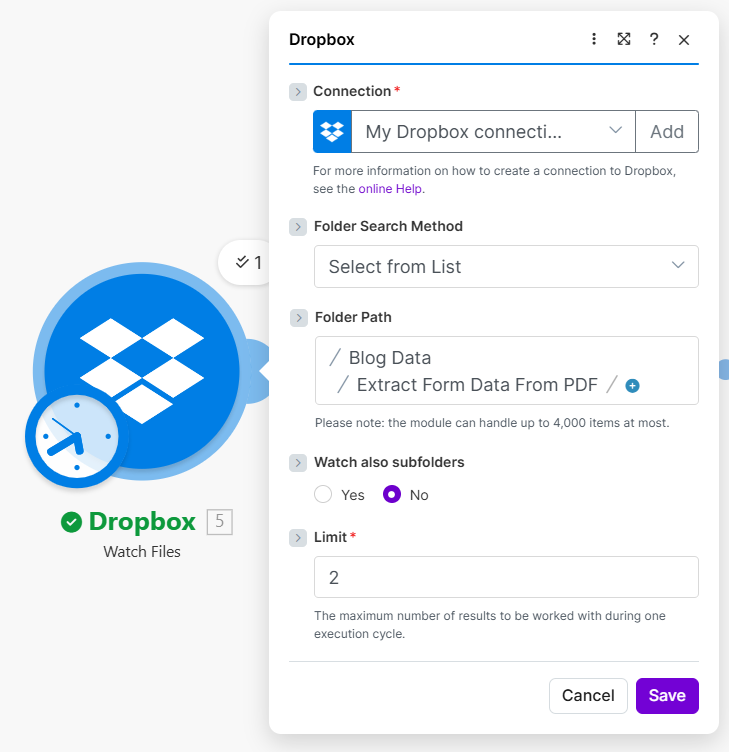
Step 1: watched folder and per-cycle limit.
Step 2: Dropbox – Download a File
Scenario so far: Watch → Download.
- Add Dropbox → Download a File.
- Way of selecting files — Map a file path (not static browse).
- File Path — Map the path field from the watch module (reference screenshot:
5. Path display). If your watch module has a different number, pick the item that contains the full Dropbox path for the new file. - Save and Run once so outputs include File Name and Data (PDF buffer) for PDF4me.
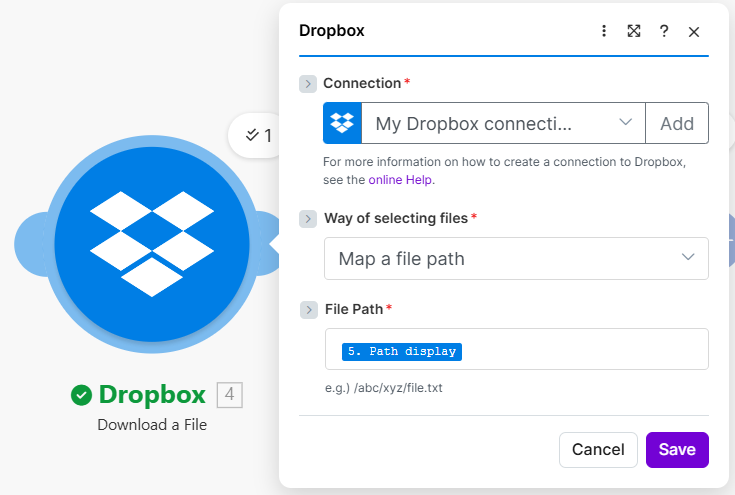
Step 2: path comes from the watch trigger output.
Step 3: PDF4me – Extract PDF Form Data
Scenario so far: Watch → Download → Extract PDF Form Data.
- Add PDF4me → Extract PDF Form Data.
- Under file inputs, choose Map (not only the Dropbox shortcut).
- File name — Map from Download (reference:
4. File Name). Must be a.pdfname. - Document / public file URL — Map the file buffer from Download (reference:
4. Data). - Save and run the scenario. Open the operation detail for this module to inspect Form Data.
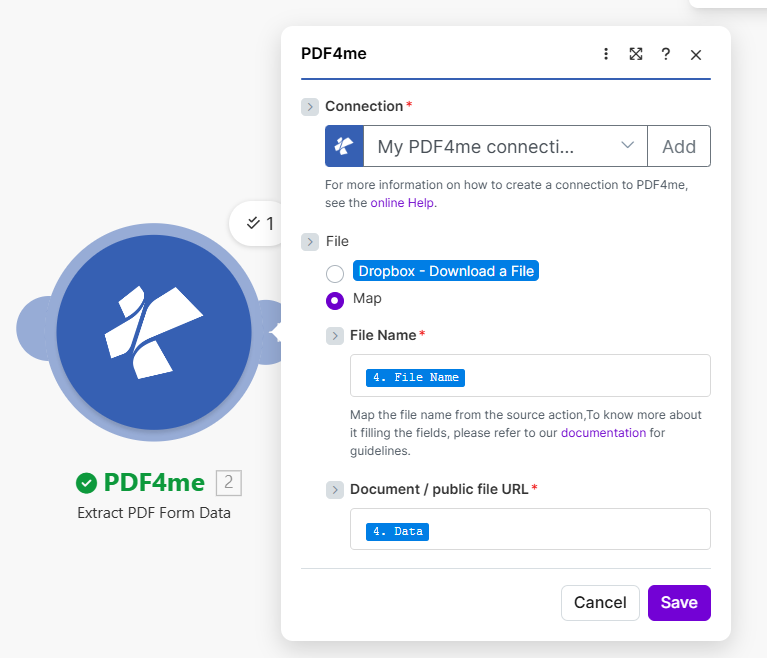
Step 3: name + binary from Download into PDF4me.
Output: Form Data and credits
After a successful run, the PDF4me module shows input sample_form.pdf and output Form Data with your field keys. The reference execution used 1 operation and 1 credit.
Expand: execution detail (screenshot)
Exact keys follow your PDF form definition. The sample run produced customer_name, email, item, quantity, and price.
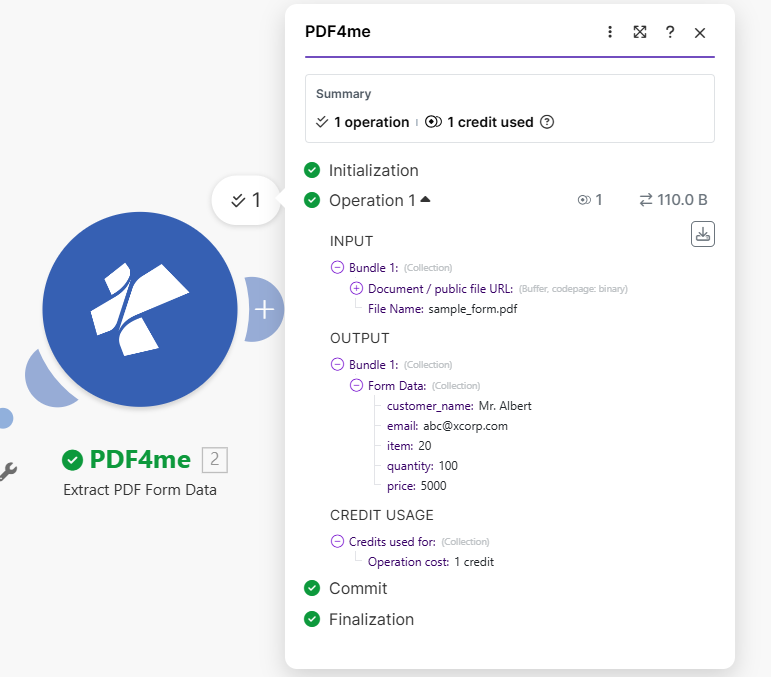
Module execution: input file name, output Form Data, credit usage.
{
"customer_name": "Mr. Albert",
"email": "[email protected]",
"item": "20",
"quantity": "100",
"price": "5000"
}
Quick reference
| # | Module | What to configure |
|---|---|---|
| 1 | Dropbox – Watch Files | Folder path; subfolders; Limit per run |
| 2 | Dropbox – Download a File | Map file path from watch (e.g. Path display) |
| 3 | PDF4me – Extract PDF Form Data | Map: File name + Document (Data) from Download |
Module reference: Extract PDF Form Data — Make. API: Extract Form Data from PDF (API). Connection: Connect PDF4me to Make.
Troubleshooting
Confirm the PDF has interactive form fields. Open it in a desktop reader and use “highlight fields” if unsure.
Re-map File Path to the watch output field that matches a full Dropbox path for the detected file. Run the watch module alone and inspect the bundle field names.
N. pill in the mapperPills show module order in your scenario, not always left-to-right. Always select the bundle from Watch for the path and from Download for name + data.
What to try next
You now have a repeatable Make pattern: watch a Dropbox folder, download each new PDF by path, and extract form fields into Form Data for downstream steps. Hook up Google Sheets, HTTP, or a datastore next, and keep the official module docs open when field names change.