How Do You Convert Excel to PDF in Make? Dropbox, PDF4me, and Three Modules.
Make (Make.com) is a common choice when you want visual scenarios: drag modules, connect them, and map fields without writing code. This guide mirrors a working setup: Dropbox fetches an Excel file, PDF4me converts it to PDF, and Dropbox writes the PDF to an Output folder. The screenshots use /Blog Data/Excel to PDF/sample_excel_file.xlsx and /Blog Data/Excel to PDF/Output/. Your paths can differ; keep the same mapping idea—module 1 feeds PDF4me, module 2 feeds the final Upload.
- Download the sample files below, then open each step in order (1 → 2 → 3).
- Run Run once on module 1, then 2, then the whole scenario—so Make shows the correct
1.and2.pills when you map fields. - Wrench icons between circles open the mapping between modules; green checks mean that module succeeded in a test run.
Upload sample_excel_file.xlsx to Dropbox at /Blog Data/Excel to PDF/sample_excel_file.xlsx (create folders as needed), or change module 1 to point at your own path. The PDF is optional—use it to confirm your conversion matches the expected invoice layout.
1. Dropbox [1] – Download a File → pick sample_excel_file.xlsx → 2. PDF4me [2] – Convert to PDF → Map → File name = 1. File Name, Document / public file URL = 1. Data → 3. Dropbox [3] – Upload a File → folder Output → File Name = 2. Name, Data = 2. Document.
Convert to PDF uses Map (not only the Dropbox shortcut) so you set 1. File Name and 1. Data from Download. On Upload a File, the reference UI leaves Folder with Map off and selects /Blog Data/Excel to PDF/Output/ in the tree; under File, turn Map on and map 2. Name and 2. Document from PDF4me. You can turn Folder Map on later if the destination path comes from another module.
Build checklist
- Accounts: Make login, PDF4me connection, and Dropbox connection.
- Dropbox layout: Upload the sample workbook to
/Blog Data/Excel to PDF/sample_excel_file.xlsx(or change the path in module 1 to match your file). - Output folder: Create
/Blog Data/Excel to PDF/Output/(or equivalent) for module 3. - Order: Add modules as Download → Convert to PDF → Upload; run once after each step to refresh output fields for mapping.
- Extensions: The value mapped to File name must include
.xlsxso PDF4me detects Excel.
What the Excel file contains
The New Invoice workbook lists Item, Quantity, Unit Price, and Total for Laptop, Mouse, Keyboard, and Monitor, with Grand Total 1090. After conversion, the PDF should preserve that table structure.
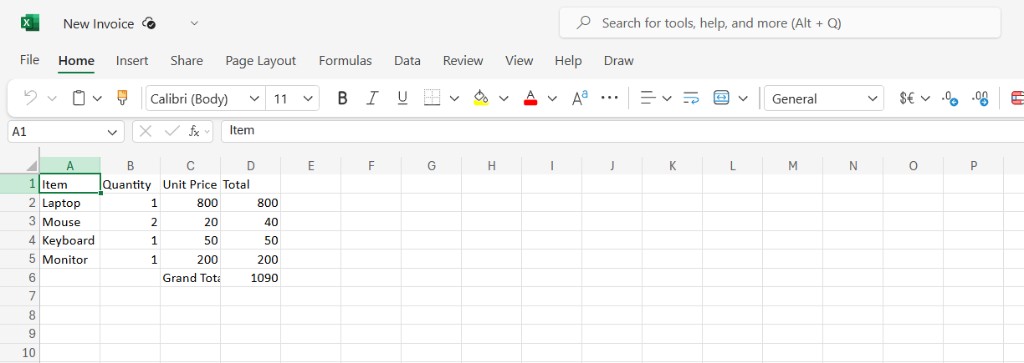
Source data before PDF4me conversion.
At a glance: three modules
Scenario overview
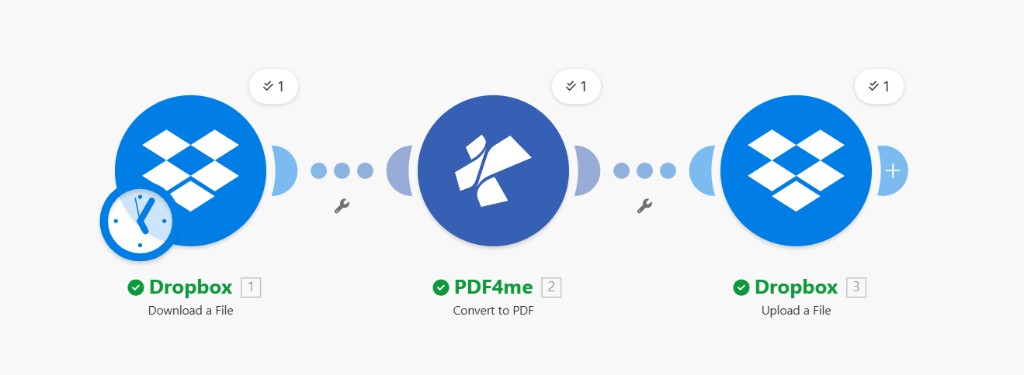
Three modules in one line; green checks show a successful test run.
Why this layout works
Module 1 supplies both the filename and the file bytes PDF4me needs—no manual copy-paste between apps.
Convert to PDF returns a Name and Document (or equivalent) bundle you wire straight into Upload.
Add a router, filter, or Dropbox watch trigger in front of Download when you move from manual tests to production runs.
Step 1: Dropbox – Download a File
Scenario so far: Module 1 only.
- Create a new scenario in Make. Add Dropbox → Download a File.
- Connection — Select your Dropbox connection (or add one).
- Way of selecting files — Select a file (browse the tree), unless you switch to a mapped path for production.
- File — Keep the Map toggle off here if you are browsing; choose
/Blog Data/Excel to PDF/sample_excel_file.xlsx(or your file). The clock badge on the Dropbox icon in the designer can indicate a scheduled run—your first tests can still use Run once on the whole scenario. - Save, then Run once on this module. In the output bundle, locate File Name and Data (file body)—you will need both in step 2.
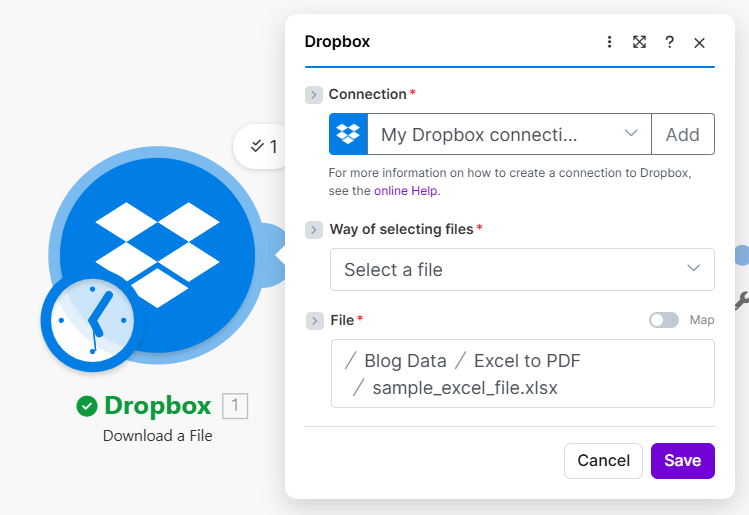
Step 1: fixed path to the source Excel file.
Step 2: PDF4me – Convert to PDF
Scenario so far: Download → Convert to PDF.
- Add PDF4me → Convert to PDF. Connect your PDF4me API key if prompted.
- For File name and file content, choose the Map option (not only the Dropbox shortcut), so you can pick fields from module 1.
- File name (required) — Map
1. File Name. The built-in help text applies: include the real extension (e.g..xlsx) so PDF4me detects the format; do not type a.pdfextension here—that field describes the source file, not the output. - Document / public file URL (required) — Map
1. Data(“Map the file Data from the source action”). - Save and Run once on module 2. In the output, find the PDF Name and Document (or equivalent) for step 3.
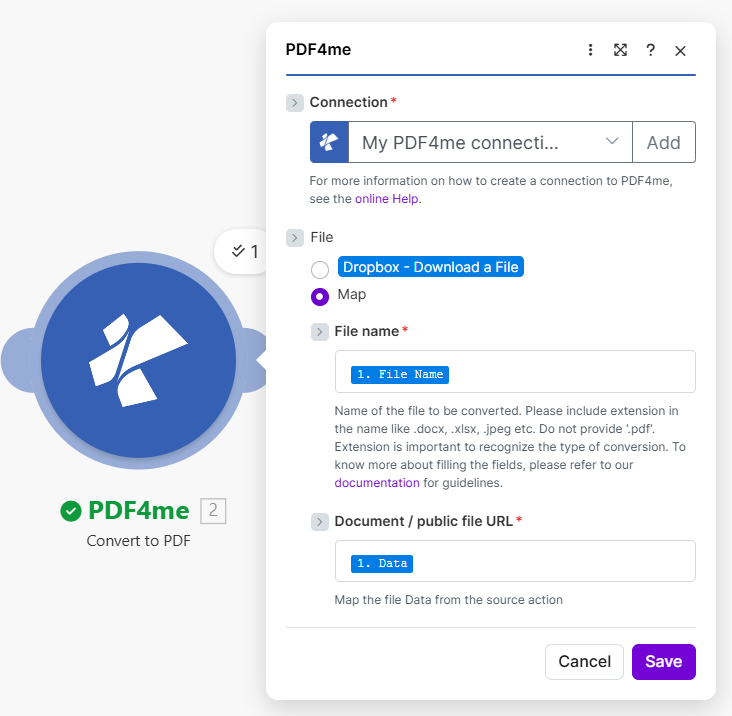
Step 2: explicit mapping from Dropbox module 1.
Step 3: Dropbox – Upload a File
Scenario so far: Download → Convert → Upload.
- Add Dropbox → Upload a File.
- Folder — Pick the destination, e.g.
/Blog Data/Excel to PDF/Output/. In the reference screenshot, Folder uses the folder picker with Map off; turn Map on only if the path should come from a prior module. - Under File, select the Map option (not “Dropbox” / “PDF4me” static shortcuts) so you can bind fields from PDF4me [2].
- File Name — Map
2. Name(must include the.pdfextension in the value). - Data — Map
2. Document(PDF bytes from Convert to PDF). If your bundle labels differ, choose the field that holds the binary PDF body. - Save and run the whole scenario. Open Dropbox under Output and open the new PDF.
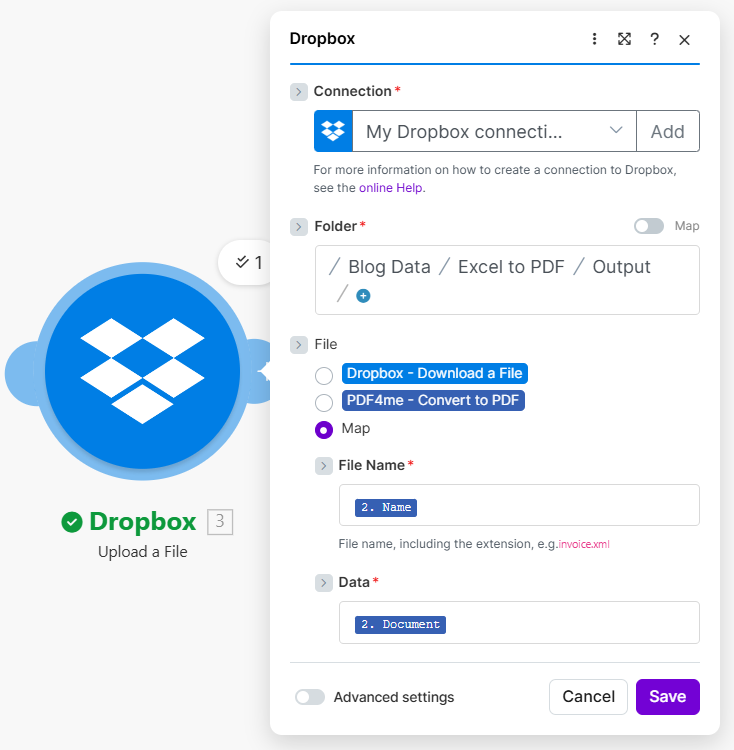
Step 3: write PDF4me output into the Output folder.
Result: check the PDF
Expand: table view after conversion
Open the generated PDF. Line totals and Grand Total 1090 should match the Excel source.
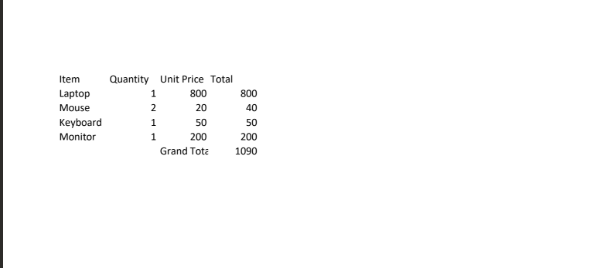
Expected layout after a successful conversion.
Quick reference
| # | Module | Highlights |
|---|---|---|
| 1 | Dropbox – Download a File | Path to .xlsx; yields File Name + Data |
| 2 | PDF4me – Convert to PDF | Map: File name ← 1. File Name; Document ← 1. Data |
| 3 | Dropbox – Upload a File | Folder: pick Output (Map off in ref); File: Map on → 2. Name, 2. Document |
Module reference: Convert to PDF — Make. API: Convert to PDF (API). Connection help: Connect PDF4me to Make.
Troubleshooting
Confirm File name still shows .xlsx and that Data is the binary payload from Download, not a path string.
Re-run module 2, then open the mapping panel for module 3 and select the field that holds the PDF bytes from Convert to PDF (often Document).
PDF4me Troubleshooting — API key, subscription, and Make connection refresh.
1. or 2. in the mapping pillsNumbers refer to module position in the scenario. If you insert a router or extra module, re-open the mapping panel and pick the Dropbox Download bundle for PDF4me, and the PDF4me bundle for Upload—not the old index.
What to try next
You now have a reproducible Make path from Excel on Dropbox to PDF on Dropbox, with explicit Map wiring between modules. Adjust paths for your folders, then consider a scheduled or watched-folder entry point when you move from testing to production.