Rename PDFs by Barcode in Power Automate : One Flow, One Expression, Done.
PDFs with barcodes or QR codes—shipping labels, invoices, inventory sheets—often need to be renamed by the value inside the barcode so you can find them later. Doing that manually doesn’t scale.
Here’s the approach: A Power Automate cloud flow in four actions: trigger → get file content (Dropbox) → Barcode – Read Barcode from PDF (PDF4me) → create file (Dropbox) with the barcode text as the filename. One expression for the file name; no code. Same PDF, new name.
Result: barcode.pdf in a folder becomes e.g. PDF4me Barcode Sample.pdf in your output folder—named by whatever the barcode says.
Every action name, parameter, path, and the File Name expression below are taken from a real run—use this as a setup guide from scratch.
What Do You Need Before You Start?
- Power Automate — Open Power Automate, sign in (Microsoft 365 / Power Platform), and create a new cloud flow (e.g. Automated cloud flow or Instant cloud flow). You’ll add one trigger and three actions.
- PDF4me API key — Get your PDF4me API key (free to start). When you add the Barcode – Read Barcode from PDF action, you’ll create a connection; the status will show Connected to PDF4me Connect. First time? Follow Connect PDF4me to Power Automate.
- File storage — This guide uses Dropbox for Get file content and Create file so you can follow the screenshots step by step. It’s not Dropbox-only: the same flow works with SharePoint, OneDrive, Google Drive, or other connectors that can get file content and create a file. Swap in the equivalent “get file” and “create file” actions for your storage—the logic (trigger → get PDF → read barcode → save with barcode as name) stays the same and won’t create a big issue.
From scratch: Create the flow → Add Manually trigger a flow (or another trigger) → Add the three actions in order: Get file content → Barcode – Read Barcode from PDF → Create file. Configure each step as below.
What Does the Flow Look Like? (4 Steps!)
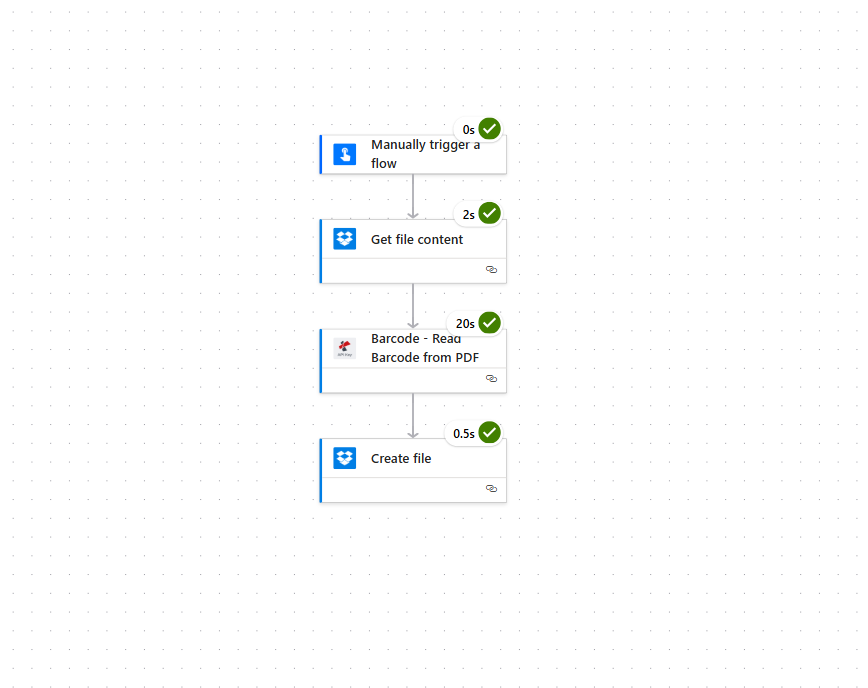
The flow runs in this order (screenshot from a real run—trigger ~0s, Get file content ~2s, Read Barcode ~20s, Create file ~0.5s):
- Manually trigger a flow — Starts the flow on demand (or use When a file is created in Dropbox for automation).
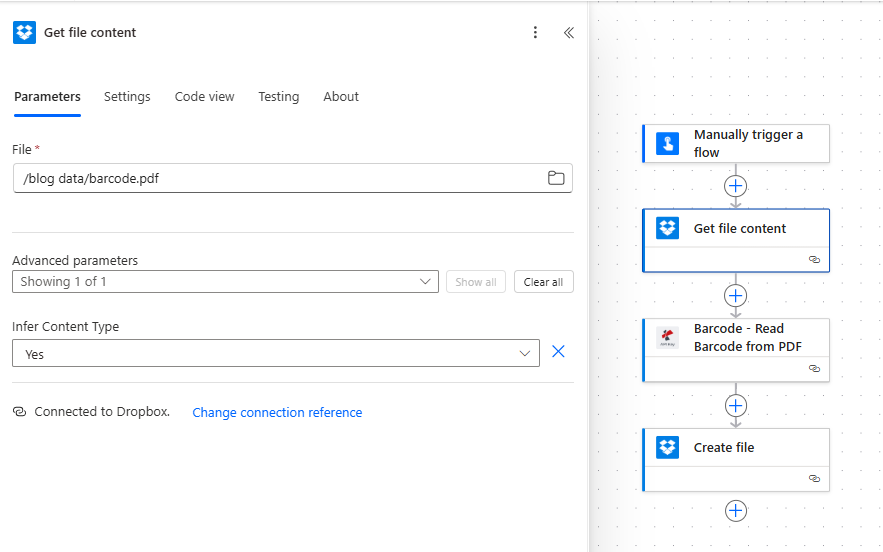
- Get file content (Dropbox) — Fetches the PDF. In the Parameters tab set File to the path (e.g.
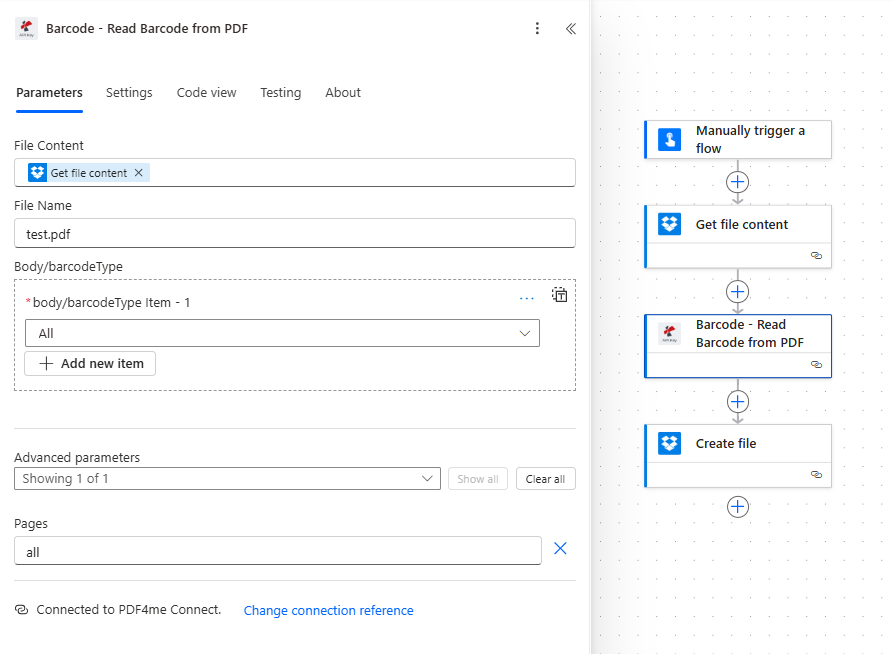
/blog data/barcode.pdf) and under Advanced parameters set Infer Content Type to Yes. Output: file content (binary) for the next two actions. - Barcode – Read Barcode from PDF (PDF4me) — File Content = output from Get file content; File Name = e.g.
test.pdf; body/barcodeType = All; Pages (under Advanced parameters) = all. Output: body/barcodes array; each item has value (decoded text). You’ll use the first value for the new filename. Read Barcode from PDF — Power Automate. - Create file (Dropbox) — Folder Path = e.g.
/pdf4meoutput; File Name = expression (see Step 3 below); File Content = from Get file content (not from Read Barcode). Saves the same PDF under the barcode name.
Same file, new name—every time.
Step 1: Trigger + Get File Content—How?
Add the trigger, then add the Dropbox action that loads the PDF. The rest of the flow will use this file content twice (read barcode + create file).
So far: Trigger → Get file content.
- Add trigger — Click + New step and add Manually trigger a flow (for testing) or When a file is created (Dropbox) for automation.
- Add action — + New step → search Dropbox → choose Get file content.
- In the Parameters tab:
- File (required) — Enter the path to your PDF exactly as in your Dropbox, e.g.
/blog data/barcode.pdf(use the folder icon to browse if needed). - Open Advanced parameters → set Infer Content Type to Yes.
- File (required) — Enter the path to your PDF exactly as in your Dropbox, e.g.
- Connection — At the bottom it should say Connected to Dropbox. If not, sign in or Change connection reference.
The output is the file content (binary). You’ll map this to File Content in the next action and again in Create file.
Step 2: Read the Barcode—Which Action?
Add the PDF4me action that reads the barcode and returns the text you’ll use as the new filename. The action name in the flow is Barcode – Read Barcode from PDF.
So far: Trigger → Get file content → Barcode – Read Barcode from PDF.
- Add action — + New step → search PDF4me or Barcode → select Barcode – Read Barcode from PDF.
- In the Parameters tab (fact-checked from screenshot):
- File Content — Click the field and pick the Get file content output (dynamic content: the PDF binary from the previous step).
- File Name — Enter the source PDF name, e.g.
test.pdf(or use a dynamic value if your path varies). - body/barcodeType — Set to All to detect all barcode types (QR Code, Code128, etc.). You can Add new item to restrict to specific types.
- Advanced parameters — Expand and set Pages to all so every page is scanned.
- Connection — Bottom of the card should show Connected to PDF4me Connect. If not, create a connection with your PDF4me API key.
The action output includes body/barcodes — an array of barcodes. Each has a value (decoded text). For the new filename you use the first: body/barcodes[0]/value.
For all parameters and output details, see the Read Barcode from PDF action reference in our Power Automate documentation.
Step 3: Create the File with the Barcode as Name—Really?
Yes—Create file (Dropbox) saves the same PDF with a dynamic File Name from the Read Barcode output. The screenshot below shows the exact expression.
- Add action — + New step → Dropbox → Create file.
- In the Parameters tab (fact-checked from screenshot):
- Folder Path (required) — Target folder in Dropbox, e.g.
/pdf4meoutput. - File Name (required) — Set via Expression (click fx or the expression tab). Paste this exactly (action name must match your flow):
This takes the first barcode’s value from Barcode – Read Barcode from PDF and appends
concat(
  outputs('Barcode - Read_Barcode_from_PDF')?['body/barcodes'][0]?['value'],
  '.pdf'
).pdf. If your action title has different spaces/underscores (e.g.Barcode - Read_Barcode_from_PDF), use the name shown when you insert Dynamic content from that action—then copy it into the expression. - File Content (required) — Pick File Content (or Body) from Get file content in dynamic content. Do not use output from Read Barcode—that is JSON; the PDF bytes come only from Get file content.
- Folder Path (required) — Target folder in Dropbox, e.g.
- Connection — Connected to Dropbox. should appear at the bottom.
Run the flow. A new file appears in the folder, e.g. PDF4me Barcode Sample.pdf, with the same content as the original—renamed by the barcode value.
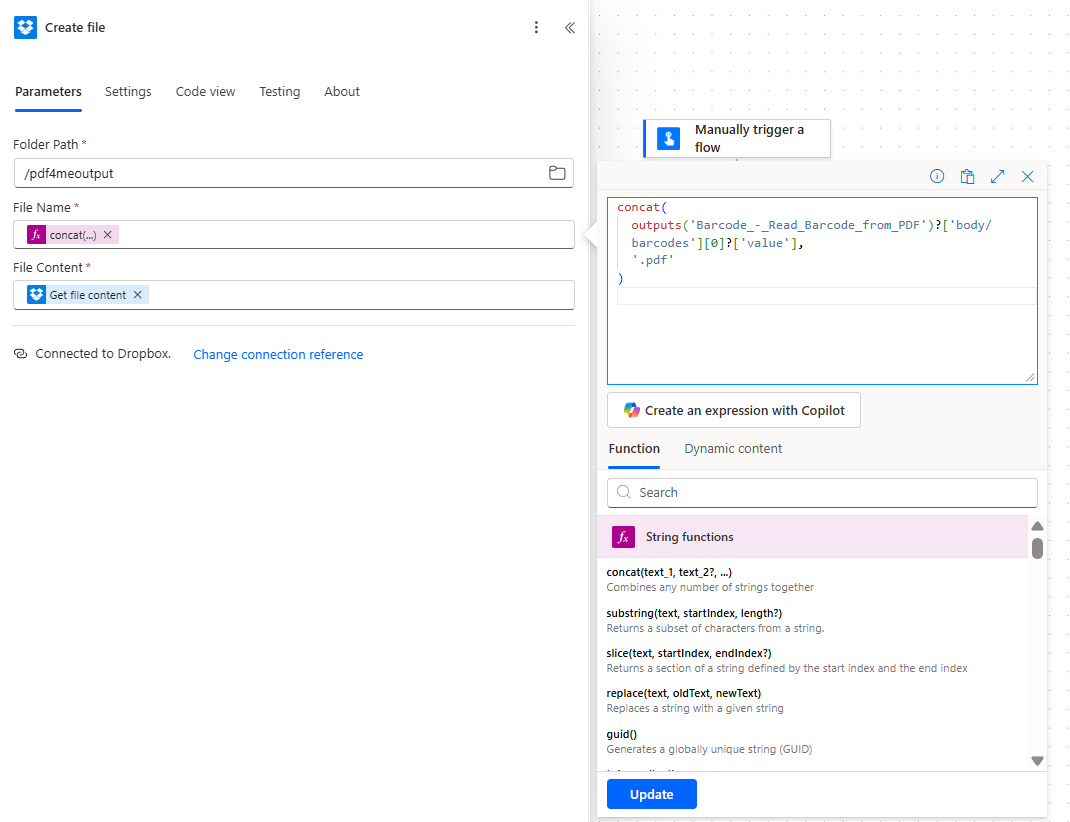
Summary: File Content in Create file must come from Get file content. File Name must come from the Read Barcode action’s body/barcodes[0]/value (plus .pdf). If your action name has different spacing, adjust the outputs('...') part to match (e.g. Barcode - Read_Barcode_from_PDF or as shown in your flow).
Tip: For a second barcode use index [1] instead of [0]. For a fallback when no barcode is found, you can extend the expression or add a condition that checks whether body/barcodes has at least one item before running Create file.
How Does It All Fit Together?
In a Nutshell!
- Get file content gives you the PDF binary. You pass it to Barcode – Read Barcode from PDF (to read) and to Create file (to save).
- Barcode – Read Barcode from PDF returns body/barcodes; each item has a value. Use
outputs('...')?['body/barcodes'][0]?['value']in the File Name expression. - Create file saves the same PDF to your folder with that barcode value +
.pdfas the name—e.g.PDF4me Barcode Sample.pdfin/pdf4meoutput. - Need help connecting PDF4me? See Connect PDF4me to Power Automate.
Where Can You Use This?
Shipping labels and tracking numbers
Problem: An operations team receives shipping label PDFs. Files arrive as label_001.pdf, label_002.pdf—hard to find a specific package by tracking number.
Solution: Use this flow to rename each file by the tracking barcode (e.g. 1Z999AA10123456784.pdf or TRK-ABC123.pdf). Each file is searchable by tracking ID.
Extract field: Tracking number (from barcode)
Trigger: Manual, or “When a file is created” in a Dropbox folder
Inventory and serial numbers
Problem: Equipment or asset PDFs with generic names; each has a serial number barcode.
Solution: Rename by serial barcode (e.g. SN-2024-88765.pdf). Match documents to assets in your system.
Extract field: Serial number (from barcode)
Trigger: Dropbox, SharePoint, or schedule
Invoices with QR or barcode IDs
Problem: Supplier invoices include a QR code or barcode with the invoice ID.
Solution: Rename by that ID (e.g. INV-QR-202601-12345.pdf). No manual lookup.
Extract field: Invoice ID (from barcode/QR)
Trigger: When a file is created in a folder, or email attachment (with a step to save to Dropbox first)
Product catalogs and SKUs
Problem: PDF product sheets with product code barcodes.
Solution: Rename by SKU (e.g. SKU-ABC-789.pdf). Direct mapping to your catalog.
Extract field: Product code / SKU (from barcode)
Trigger: Dropbox, SharePoint, or schedule
Stuck? Common Questions.
- What if no barcode is found? The expression may fail or return empty. Add a condition that checks whether body/barcodes has length > 0 before running Create file, or use a fallback in the expression (e.g.
concat(..., '.pdf')with a default string when the barcode value is empty). - What if I have multiple barcodes? Use a different index in the expression:
['body/barcodes'][1]?['value']for the second barcode. You can also combine several values withconcat(). - Can I use SharePoint or OneDrive instead of Dropbox? Yes. Use Get file content (or equivalent) from your connector and Create file (or equivalent) to the same or another folder. The flow pattern is the same: get PDF → read barcode → create file with barcode value as name.
Want to Go Deeper?
| Resource | Description |
|---|---|
| Connect PDF4me to Power Automate | Create the PDF4me connection and add your API key |
| Read Barcode from PDF — Power Automate | Full action reference: parameters, output, and flow ideas |
| Rename PDFs by barcode on Make | Same idea (get file → read barcode → create/upload) on Make |
| Rename PDFs by barcode in n8n | Same idea in n8n |
| Rename files with Parse Document (n8n) | Rename PDFs using extracted text instead of barcodes |
Off-page (open in new tab):
- PDF4me API key dashboard — Get or manage your API key
- Power Automate — Create and run flows
What to Do Next!
Recap: Trigger → Get file content → Barcode – Read Barcode from PDF → Create file. File Name = first barcode value + .pdf.
- Get an API key — PDF4me API key dashboard (free to start). Use it when Power Automate asks for the PDF4me connection.
- New to PDF4me + Power Automate? — Connect PDF4me to Power Automate walks you through the connection. Then open Power Automate → Create → Automated cloud flow (or Instant) → add trigger + the three actions in order.
- Build the flow from scratch — Follow Steps 1–3 above: trigger → Get file content (File = e.g.
/blog data/barcode.pdf, Infer Content Type = Yes) → Barcode – Read Barcode from PDF (File Content from Get file content, File Name =test.pdf, barcodeType = All, Pages = all) → Create file (Folder =/pdf4meoutput, File Name = expression, File Content from Get file content). - Full action reference — Read Barcode from PDF — Power Automate for all parameters and output.