Got Barcodes on Your PDFs? Rename Them Automatically on Make in 3 Steps !
You receive PDFs—shipping labels, inventory sheets, invoices—each with a barcode or QR code holding the tracking number, serial ID, or product code you need. You want them renamed by that value so you can find them later. Doing that by hand doesn't scale.
The fix: A Make scenario with three modules: download the PDF from Dropbox → read the barcode with PDF4me Read Barcodes from PDF → upload the same file with the barcode text as the new name. No code. Same content, new filename.
Before: barcode.pdf in a folder → After: PDF4me Barcode Sample.pdf (or whatever your barcode says) in your output folder—easy to search and organize.
This guide walks you through each step. All paths, file names, and outputs below match a real Make run so you can follow along with confidence.
What You Need
- A Make account — Create a free Make account if you don’t have one. To use PDF4me inside Make, add the app from the PDF4me integration on Make.com.
- A PDF4me API key — Get your PDF4me API key (free to start). First time connecting? Follow Connect PDF4me to Make to create the connection in your scenario.
- File storage — We use Dropbox for the Download and Upload modules so the steps match our screenshots. This isn’t Dropbox-only: you can use Google Drive, OneDrive, SharePoint, or any Make module that downloads a file (binary) and uploads a file with a dynamic name. Swap in the right modules for your storage—the flow (download → read barcode → upload with barcode as filename) stays the same and won’t create a big issue.
The Flow at a Glance
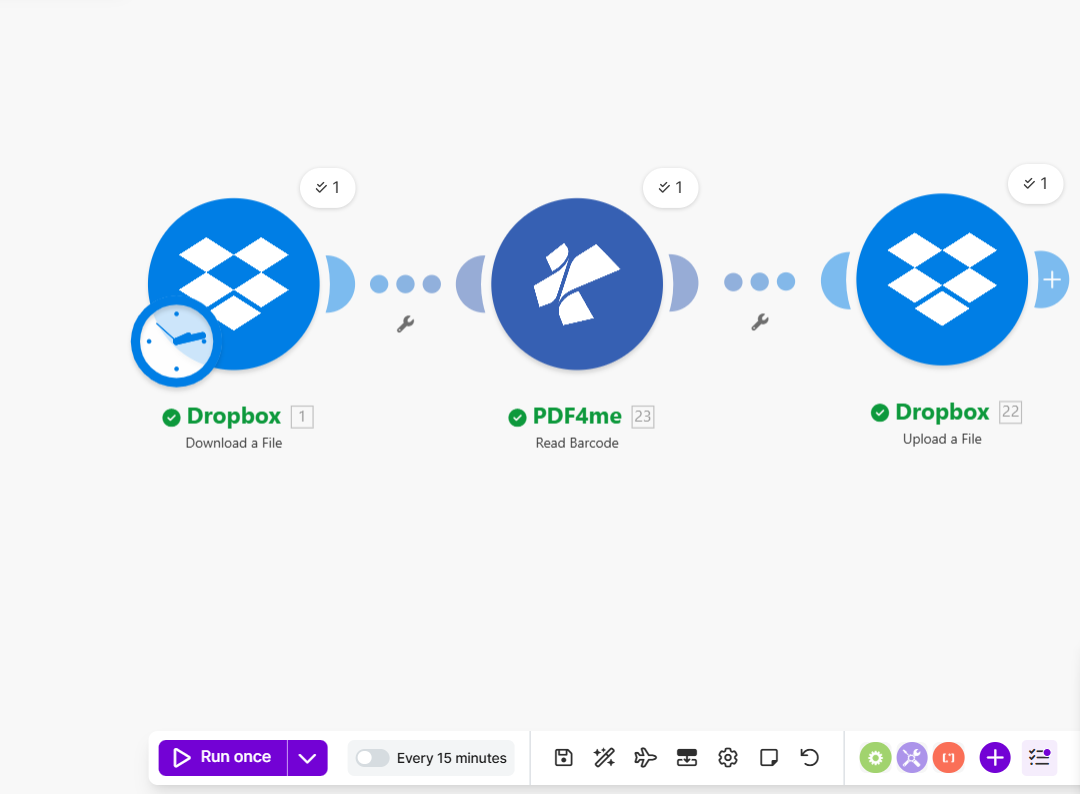
Your Make scenario has three modules in a row:
- Dropbox – Download a File — Gets the PDF from a folder (e.g.
/pdf4metest/Shyam/Make-Blog/barcode.pdf). You can trigger it on a schedule or when a new file appears (clock icon). Output: the file content plus file name and size. - PDF4me – Read Barcodes from PDF — Sends that PDF to PDF4me and gets back a Barcodes list. Each barcode has Barcode Type (e.g. QR Code) and Barcode Text (the decoded value you want as the filename). You’ll use the first barcode’s text—or pick another—for the new name. Full details: Read Barcodes from PDF — Make documentation.
- Dropbox – Upload a File — Takes the same PDF (from the Download module) and saves it to a folder (e.g.
/pdf4meoutput) with File Name set to the barcode text from step 2 (e.g.PDF4me Barcode Sample.pdf). The wrench icons on the connections are optional filters; the main idea is: map the barcode text into the Upload module’s File Name field.
Same file, new name—every time.
What You’re Working With
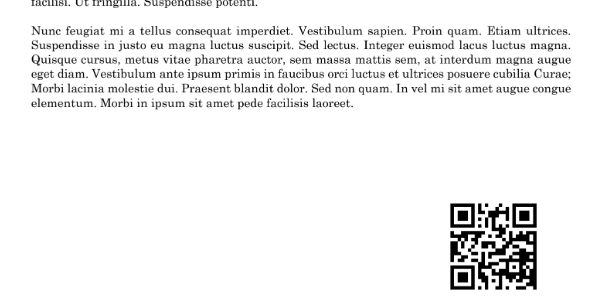
Input: A PDF that contains at least one barcode or QR code. In our example we use barcode.pdf (about 45 KB) from Dropbox at /pdf4metest/Shyam/Make-Blog/barcode.pdf. The PDF has multiple pages; one page has a QR code in the bottom-right corner (see below). The rest can be any content.
Output: The same PDF, saved to another folder (e.g. /pdf4meoutput) with a new name = the text read from the barcode. In our run the barcode contained PDF4me Barcode Sample, so the file was saved as PDF4me Barcode Sample.pdf. You can then search and organize files by that value.

Step 1: Download the File and Read Its Barcodes
Get the PDF into Make, then extract the barcode value with PDF4me Read Barcodes from PDF. The file content and barcode data will flow to the next step.
Flow so far: Dropbox Download a File → PDF4me Read Barcodes from PDF.
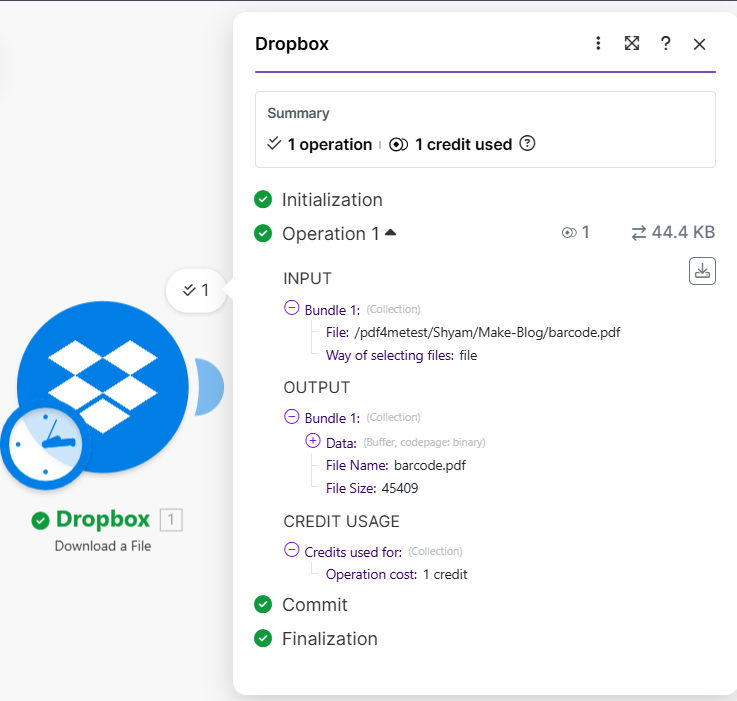
- Add Dropbox – Download a File
- Set File to your PDF path (e.g.
/pdf4metest/Shyam/Make-Blog/barcode.pdf). - Way of selecting files: e.g.
file. - Run the module. You’ll see 1 operation, 1 credit used. Output includes Data (the file content), File Name (e.g.
barcode.pdf), and File Size (e.g. 45,409 bytes). You’ll pass Data and File Name to the next module.
- Set File to your PDF path (e.g.
- Add PDF4me – Read Barcodes from PDF
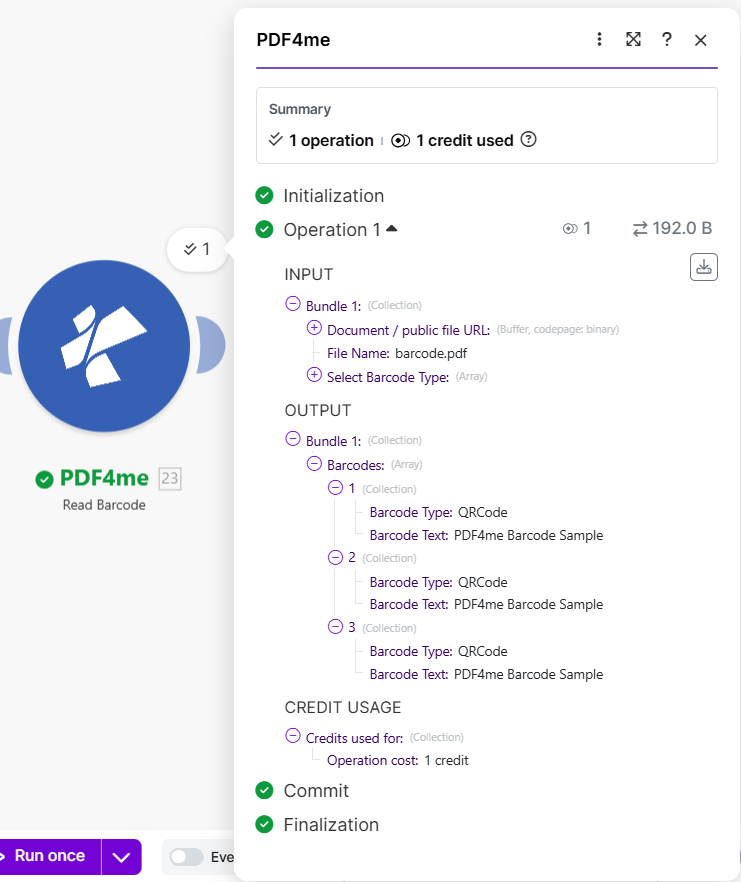
- Document / public file URL: Click to map and select the Data from the Dropbox Download module (the PDF content).
- File Name: Map the File Name from the previous module (e.g.
barcode.pdf). - Select Barcode Type: Choose e.g. QRCode or All Types.
- Run the module. Output: Barcodes — a list of detected barcodes. In our example, 3 barcodes were found; each has Barcode Type: QRCode and Barcode Text:
PDF4me Barcode Sample. You’ll use this Barcode Text (usually the first one) as the new filename in Step 2.
For all parameters and options, see the Read Barcodes from PDF module reference in our Make documentation.
Step 2: Upload the File with the Barcode as the Filename
In Make you don’t need a separate “merge” step. The Dropbox – Upload a File module gets the same PDF from the Download module and uses the barcode text from the Read Barcode module as the new filename.
- Add Dropbox – Upload a File
- Data: Click to map → choose Data from Dropbox – Download a File (this is the PDF content you’re uploading).
- Folder: Enter your target folder (e.g.
/pdf4meoutput). - File Name: Click to map → choose the Barcode Text from the PDF4me – Read Barcodes from PDF module (e.g. the first barcode’s text). Add
.pdfso the full name is e.g.PDF4me Barcode Sample.pdf. Make will show you the available fields from previous modules when you map. - Overwrite an existing file: Set to
falseif you don’t want to replace existing files. - Run the scenario. You’ll see 1 operation, 1 credit used. Output: Name
PDF4me Barcode Sample.pdf, Path display/pdf4meoutput/PDF4me Barcode Sample.pdf, Size 45,409 bytes.
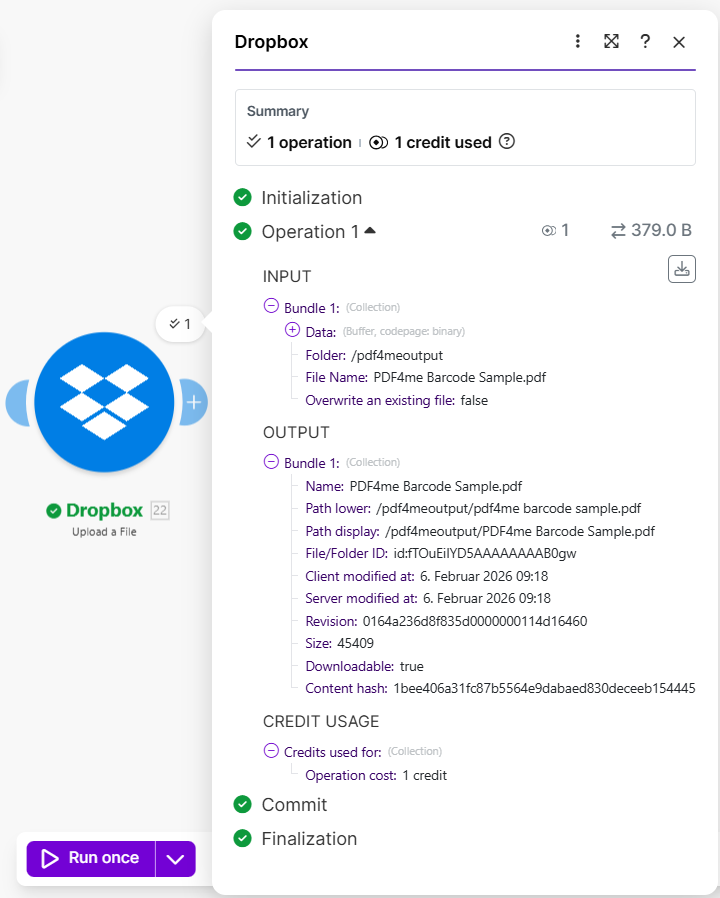
Summary: The File Name in the Upload module must come from the Barcode Text (or the barcode field you chose) of the Read Barcodes from PDF module. The wrench icons on the connections are optional filters; you can ignore them for this basic flow.
Tip: For multiple barcodes, pick the array item you need (e.g. second barcode) when mapping File Name. If no barcode is found, add a fallback name or a router so those files go to a different path.
Why This Works
Key takeaways
- Download gives you the PDF (Data) and its name. You pass Data to both Read Barcode (to read) and Upload (to save).
- Read Barcodes from PDF returns a list of barcodes; each has Barcode Text (the value you want as the filename). Map that into Upload’s File Name.
- Upload saves the same PDF to your folder with the barcode text as the new name—e.g.
PDF4me Barcode Sample.pdfin/pdf4meoutput. - Each module uses 1 credit per run. Need help connecting PDF4me to Make? See Connect PDF4me to Make.
Real-World Scenarios
Scenario 1: Shipping Labels and Tracking Numbers
Problem: An operations team receives shipping label PDFs. Files arrive as label_001.pdf, label_002.pdf—hard to find a specific package by tracking number.
Solution: Use this Make scenario to rename each file by the tracking barcode (e.g. 1Z999AA10123456784.pdf or TRK-ABC123.pdf). Each file is searchable by tracking ID.
Extract field: Tracking number (from barcode)
Trigger: Dropbox watch folder or schedule
Scenario 2: Inventory and Serial Numbers
Problem: Equipment or asset PDFs with generic names; each has a serial number barcode.
Solution: Rename by serial barcode (e.g. SN-2024-88765.pdf). Match documents to assets in your system.
Extract field: Serial number (from barcode)
Trigger: Dropbox, schedule, or webhook
Scenario 3: Invoices with QR or Barcode Identifiers
Problem: Supplier invoices include a QR code or barcode with the invoice ID.
Solution: Rename by that ID (e.g. INV-QR-202601-12345.pdf). No manual lookup.
Extract field: Invoice ID (from barcode/QR)
Trigger: Dropbox folder, schedule, or email (if you add a step to save attachment to Dropbox)
Scenario 4: Product Catalogs and SKUs
Problem: PDF product sheets with product code barcodes.
Solution: Rename by SKU (e.g. SKU-ABC-789.pdf). Direct mapping to your catalog.
Extract field: Product code / SKU (from barcode)
Trigger: Dropbox, schedule, or API
Quick FAQ
- What if no barcode is found? When mapping File Name in the Upload module, you can add a fallback (e.g. a default name like
no-barcode-found.pdf) or use a router so only files with at least one barcode reach the Upload step. - What if I have multiple barcodes? When you map File Name, choose the barcode you want (e.g. the second item in the Barcodes list). You can also combine several barcode values if your scenario needs it.
- Can I use Google Drive or OneDrive instead of Dropbox? Yes. Use any Make module that can download the PDF and any module that can upload a file with a custom name. The flow is the same: Download → Read Barcode → Upload, with the barcode text as the filename.
Related documentation
Use these links to set up and deepen your Make + PDF4me setup:
| Resource | Description |
|---|---|
| Connect PDF4me to Make | Create the PDF4me connection in Make and add your API key |
| PDF4me Make integration — Getting started | Overview of PDF4me in Make and available modules |
| Read Barcodes from PDF — Make | Full module reference: parameters, output, and scenario ideas |
| Rename PDFs by barcode in n8n | Same idea (download → read barcode → upload) in n8n |
| Rename files with Parse Document (n8n) | Rename PDFs using extracted text instead of barcodes |
Off-page (open in new tab):
- PDF4me API key dashboard — Get or manage your API key
- PDF4me app on Make.com — Add the PDF4me integration to your Make scenario
Next Steps
In short: Download the PDF → Read Barcodes from PDF → Upload with File Name = barcode text. Each PDF is saved under the value read from its barcode or QR code.
- Get an API key — Open the PDF4me API key dashboard (free to start). Use it in Make after you add the PDF4me module.
- New to Make + PDF4me? — Connect PDF4me to Make shows how to create the connection and add your first PDF4me module. To add the app in Make, open the PDF4me integration on Make.com.
- Build the scenario — Add the three modules (Dropbox Download → PDF4me Read Barcodes from PDF → Dropbox Upload) and map the fields as in Steps 1 and 2.
- Full module reference — Read Barcodes from PDF — Make for all parameters and options.