Turn Barcode or QR Text Into PDF Filenames using n8n in 4 Steps !
You receive PDFs—shipping labels, inventory sheets, invoices—each with a barcode or QR code holding the tracking number, serial ID, or product code you need. You want them renamed by that value so you can find them later. Doing that by hand? It eats hours.
Sound familiar? You're not alone. Manual renaming doesn't scale.
The fix: an n8n workflow that downloads the PDF, uses Read Barcode From PDF (PDF4me) to extract the value from the barcode or QR code, merges that value with the file, and uploads it with the new name. Same content, new filename—no manual renaming.
This guide walks you through the full flow: download the PDF, read its barcode value, then merge and upload the file with the barcode as the new filename.
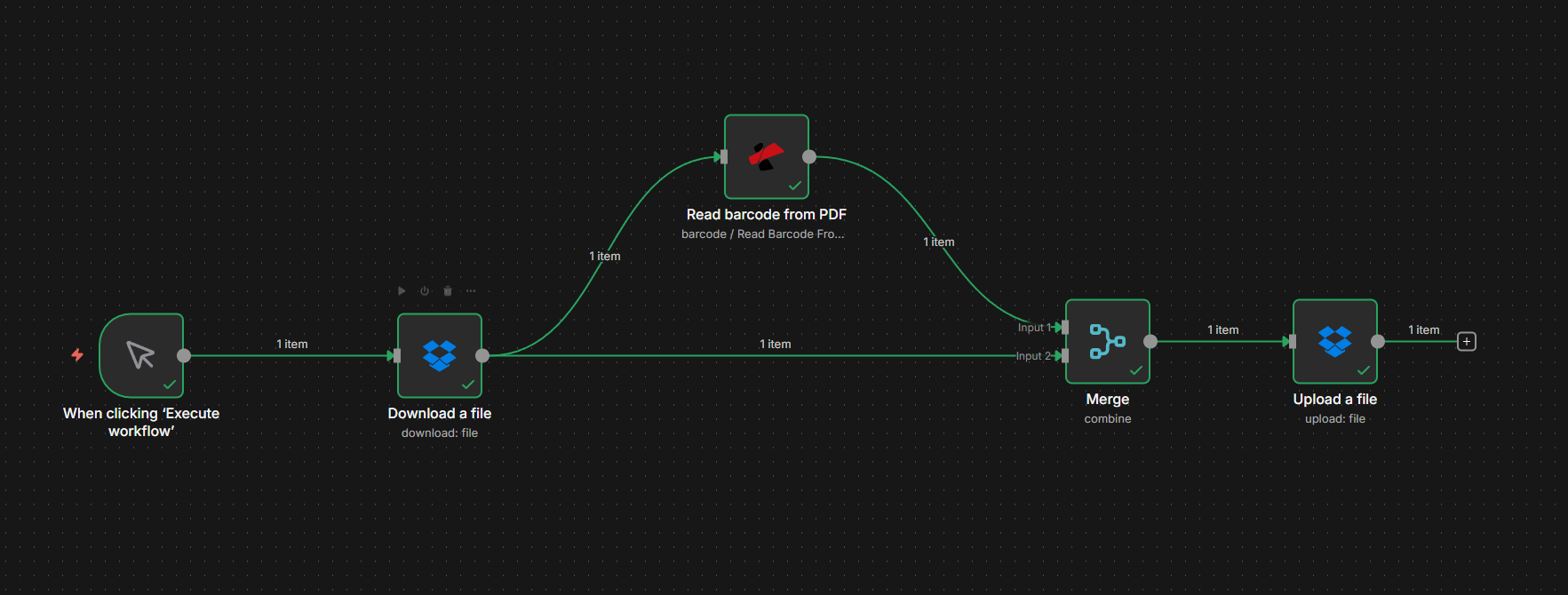
The Flow at a Glance
Your n8n workflow for renaming PDFs by barcode value looks like this:
- Trigger — Manual for testing, or automated (e.g. Dropbox, email, webhook) when a new PDF is available.
- Download a file — Fetches the PDF from your source (e.g. Dropbox) and outputs it as binary in a field such as
document. - Read Barcode From PDF (PDF4me) — Reads barcodes/QR codes from the PDF and outputs structured data (e.g.
barcodeData.barcodeswith avalueper barcode). The original PDF stays on the Download node. - Merge — Combines the Read Barcode output (barcode data) and the Download output (PDF binary) into one item so the next node has both the new filename and the file content.
- Upload a file — Saves the PDF with the path/filename set to the barcode value (e.g.
PDF4me Barcode Sample.pdforTRK-ABC123.pdf).
Same file, new name—every time. Below we walk through each part in detail.
Step 1: Download the File and Read Its Barcodes
Next, get the PDF into n8n and extract the naming value with PDF4me Read Barcode. The file can come from Download a file (e.g. Dropbox), Google Drive, email, or any node that outputs binary.
Flow so far: Trigger → Download a file → Read Barcode From PDF.
Important: Read Barcode returns the barcode data (e.g. in barcodeData.barcodes with a value for each barcode)—it does not pass through the PDF. The file content stays on the Download node. In Step 2 you'll merge both so the Upload node has the file and the new name.
- Add a trigger — Manual for testing; for production, use an automated trigger (e.g. Dropbox, Email, Google Drive, webhook).
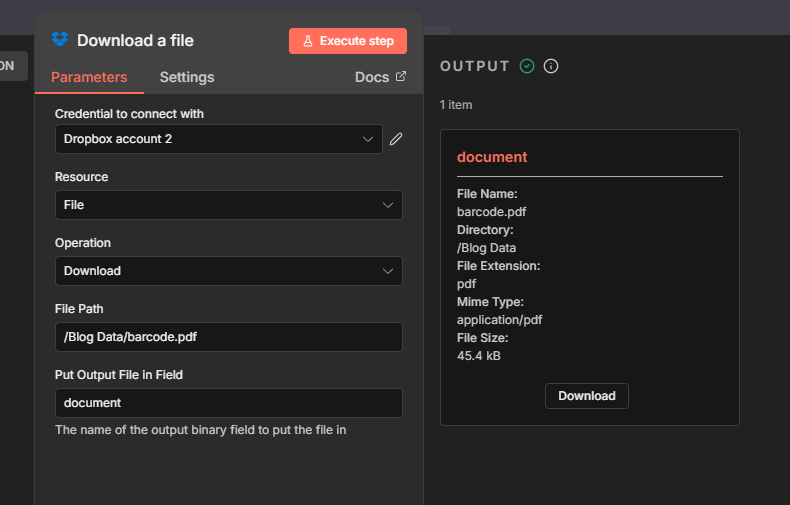
- Add Download a file (e.g. Dropbox) — Set File Path to your PDF location (e.g.
/Blog Data/barcode.pdf) and Put Output File in Field todocumentso the PDF is available as binary for the next nodes. - Add a PDF4me node → Barcode → Read Barcode From PDF.
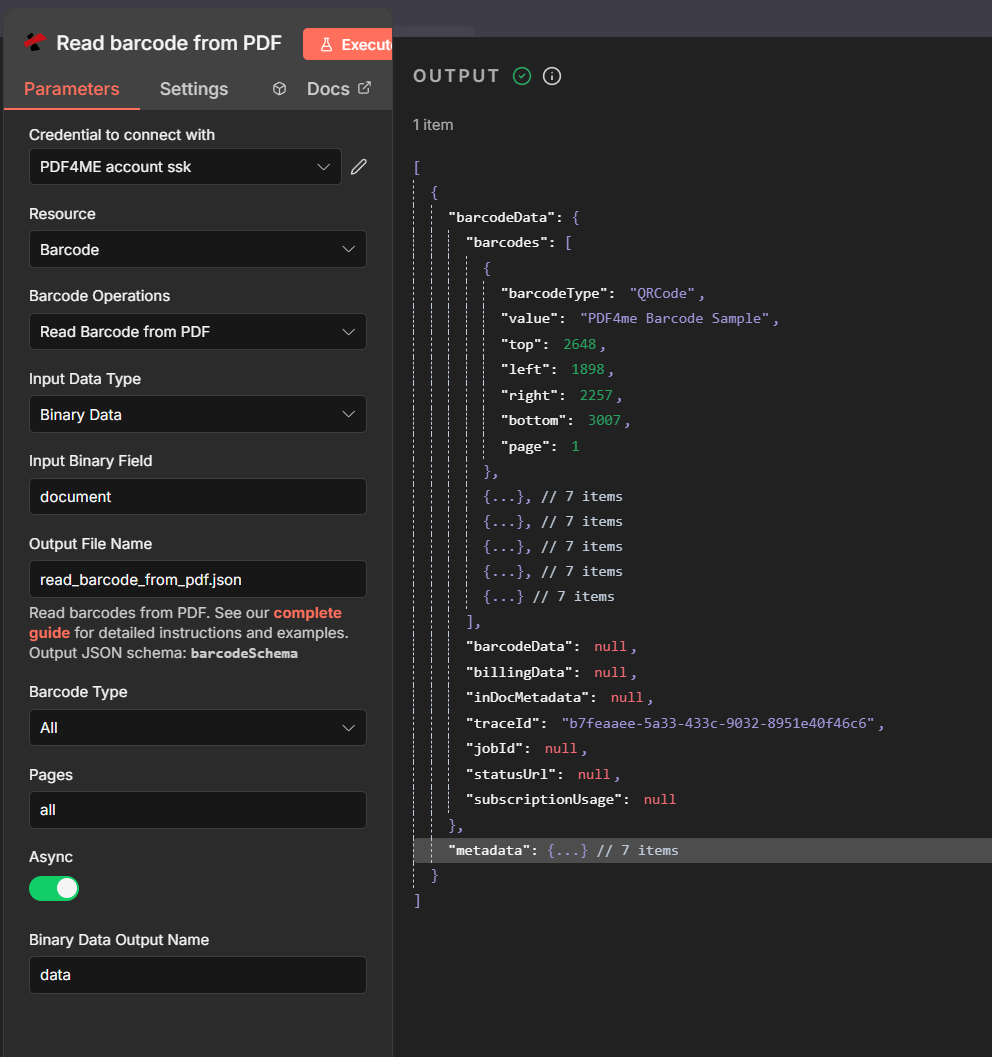
- Configure the Read Barcode node:
- Input Data Type: Binary Data.
- Input Binary Field:
document(same as the Download node's output field). - Output File Name: e.g.
read_barcode_from_pdf.json. - Barcode Type:
All(or specific types like QR Code, Code 128). - Pages:
all(or e.g.0for first page only). - Async: Turn on for larger PDFs if needed.
- Binary Data Output Name:
data.
- Run the node. The output includes barcodeData with a barcodes array; each barcode has value (the decoded text), barcodeType, page, and position. You'll use
barcodeData.barcodes[0].valuefor the filename in the Upload step.
Full parameter reference: Read Barcode From PDF (n8n).
Step 2: Merge and Upload with the New Name
You need both the PDF binary (from Download) and the barcode data (from Read Barcode From PDF) in one item so the Upload node can save the file under the new name. A Merge node combines them; the Upload node then uses the barcode value as the path or filename.
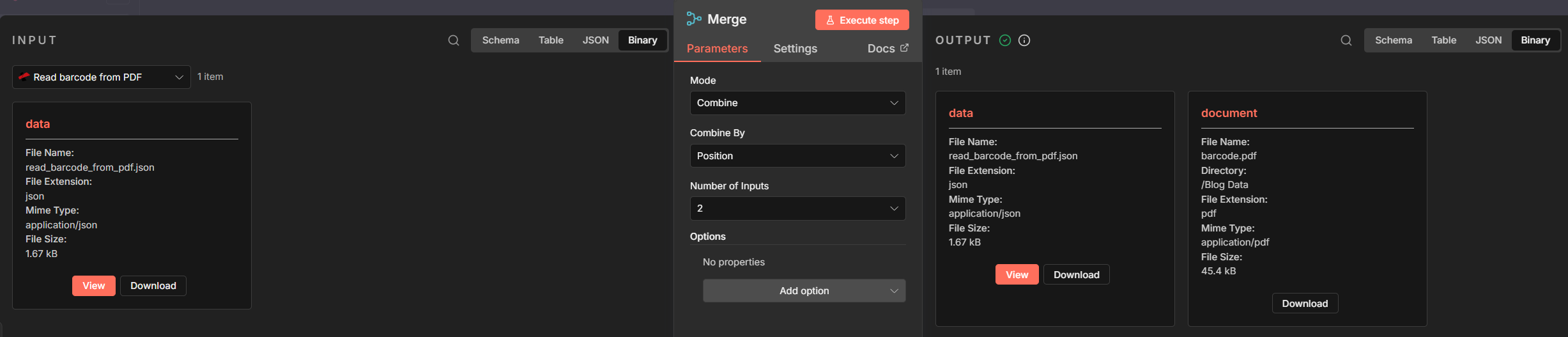
- Add a Merge node
- Mode: Combine.
- Combine by: Position (first item from Input 1 with first from Input 2).
- Number of Inputs: 2.
- Input 1: Connect from Read Barcode From PDF (provides barcode data; the merged item will include the JSON with
barcodeData). - Input 2: Connect from Download a file (provides
binary.document). - Output: One merged item with both the barcode JSON and
binary.document, so the next node has the new filename and the file content.
- Add an Upload node (e.g. Dropbox Upload a file, or any node that accepts binary + path)
- File Path (expression): e.g.
/Blog Data/{{ $json.barcodeData.barcodes[0].value }}.pdf
The PDF4me Read Barcode node outputs the decoded barcode text in value (e.g."PDF4me Barcode Sample"). You can also reference the node by name:$('Read barcode from PDF').item.json.barcodeData.barcodes[0].value. - For the second or third barcode use
barcodes[1].valueorbarcodes[2].value. Add|| 'no-barcode-found'if you want a fallback when no barcode is detected. - Binary File: ON.
- Input Binary Field:
document. - The file is uploaded with the barcode value as its name; the PDF content is unchanged.
- File Path (expression): e.g.
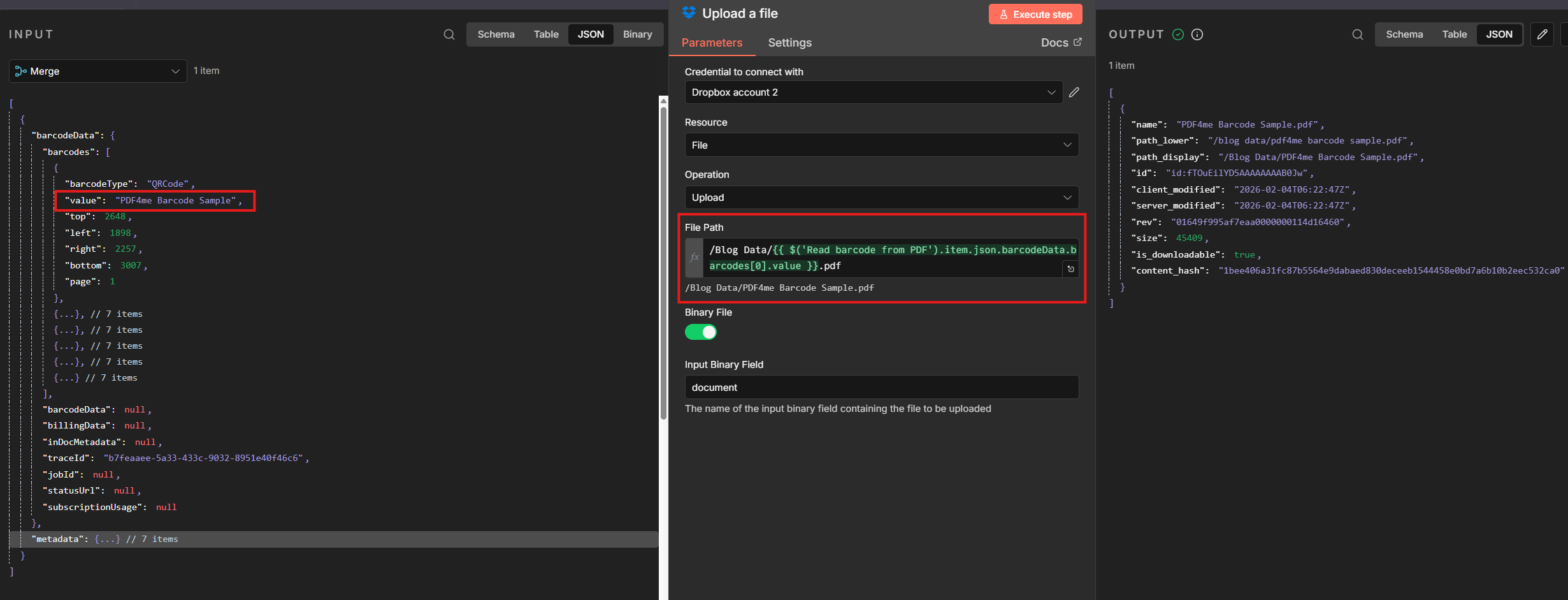
The same Merge + Upload pattern works with Google Drive, email, or any storage that accepts binary and a dynamic path. Tip: For Dropbox, enable read and write in the Dropbox App Console (Permissions → Files and folders)—e.g. read for Download, files.content.write for Upload—and use a new access token after changing permissions.
Gotcha: If Upload reports missing binary, ensure Merge Input 2 is from Download a file, not from Read Barcode.
Why This Works
Key points
- Trigger — Use a manual trigger for testing or an automated trigger (Dropbox, email, webhook) so the workflow runs whenever a new PDF is available—whatever fits your workflow.
- Read Barcode From PDF extracts barcode/QR data from the PDF and outputs
barcodeData.barcodeswith avalueper barcode (the decoded text). It does not pass through the PDF; the file stays on the Download node. - Merge (Combine by Position) pairs Read Barcode output (barcode data) with Download output (file binary) so the next node receives one item with both
binary.documentandbarcodeData. - Upload (or save) uses
$json.barcodeData.barcodes[0].valuefor the path/filename andbinary.documentfor the content—so each file is renamed by its barcode value.
Real-World Scenarios
Scenario 1: Shipping Labels and Tracking Numbers
Problem: An operations team receives shipping label PDFs. Files arrive as label_001.pdf, label_002.pdf—hard to find a specific package by tracking number.
Solution: Use this workflow to rename each file by the tracking barcode (e.g. 1Z999AA10123456784.pdf or TRK-ABC123.pdf). Each file is searchable by tracking ID.
Extract field: Tracking number (from barcode) Trigger: Dropbox folder, email attachment, or webhook
Scenario 2: Inventory and Serial Numbers
Problem: Equipment or asset PDFs with generic names; each has a serial number barcode.
Solution: Rename by serial barcode (e.g. SN-2024-88765.pdf). Match documents to assets in your system.
Extract field: Serial number (from barcode) Trigger: Dropbox, email, webhook
Scenario 3: Invoices with QR or Barcode Identifiers
Problem: Supplier invoices include a QR code or barcode with the invoice ID.
Solution: Rename by that ID (e.g. INV-QR-202601-12345.pdf). No manual lookup.
Extract field: Invoice ID (from barcode/QR) Trigger: Email, shared folder, webhook
Scenario 4: Product Catalogs and SKUs
Problem: PDF product sheets with product code barcodes.
Solution: Rename by SKU (e.g. SKU-ABC-789.pdf). Direct mapping to your catalog.
Extract field: Product code / SKU (from barcode) Trigger: Dropbox, email, API/webhook
Quick FAQ
- What if no barcode is found? Use a fallback in the File Path expression:
{{ $json.barcodeData.barcodes[0].value || 'no-barcode-found' }}. You can add a conditional branch to skip Upload or send those files to a separate folder. - What if I have multiple barcodes? Use the index in the File Path expression:
barcodes[1].valuefor the second, or concatenate:{{ $json.barcodeData.barcodes[0].value }}-{{ $json.barcodeData.barcodes[1].value }}. - Can I use this for Google Drive or email? Yes. Same pattern: use any node that gives you the file as binary and any Upload (or save) node that accepts binary plus a dynamic path.
Next Steps
Recap: Trigger → Download a file → Read Barcode From PDF → Merge → Upload. The barcode value (from barcodeData.barcodes[0].value) becomes the filename. Each PDF is saved with the decoded barcode or QR content as its name.
- Get your API key — Use the same PDF4me account for n8n. Free to start.
- Build your n8n flow — Trigger → Download a file → Read Barcode From PDF → Merge → Upload with the File Path set to the barcode value.
- Read the full docs — Read Barcode From PDF (n8n).