Rename PDFs by What's Inside using Parse Document of PDF4me & n8n (No Code!)
You receive PDFs—invoices, contracts, purchase orders, reports—and need them renamed by invoice number, customer name, order ID, or contract reference so you can find them later. Doing that by hand? It eats hours.
Sound familiar? You're not alone. Manual renaming doesn't scale.
The fix: an n8n workflow that downloads the file, uses PDF4me Parse Document to extract the value from inside the PDF, merges that value with the file, and uploads it with the new name—automatically. Same content, new filename. No code required.
This guide walks you through three steps: create a parse template in the PDF4me dashboard, wire up Download → Parse document in n8n, then add Merge and Upload so the file is saved with the extracted value as its name.
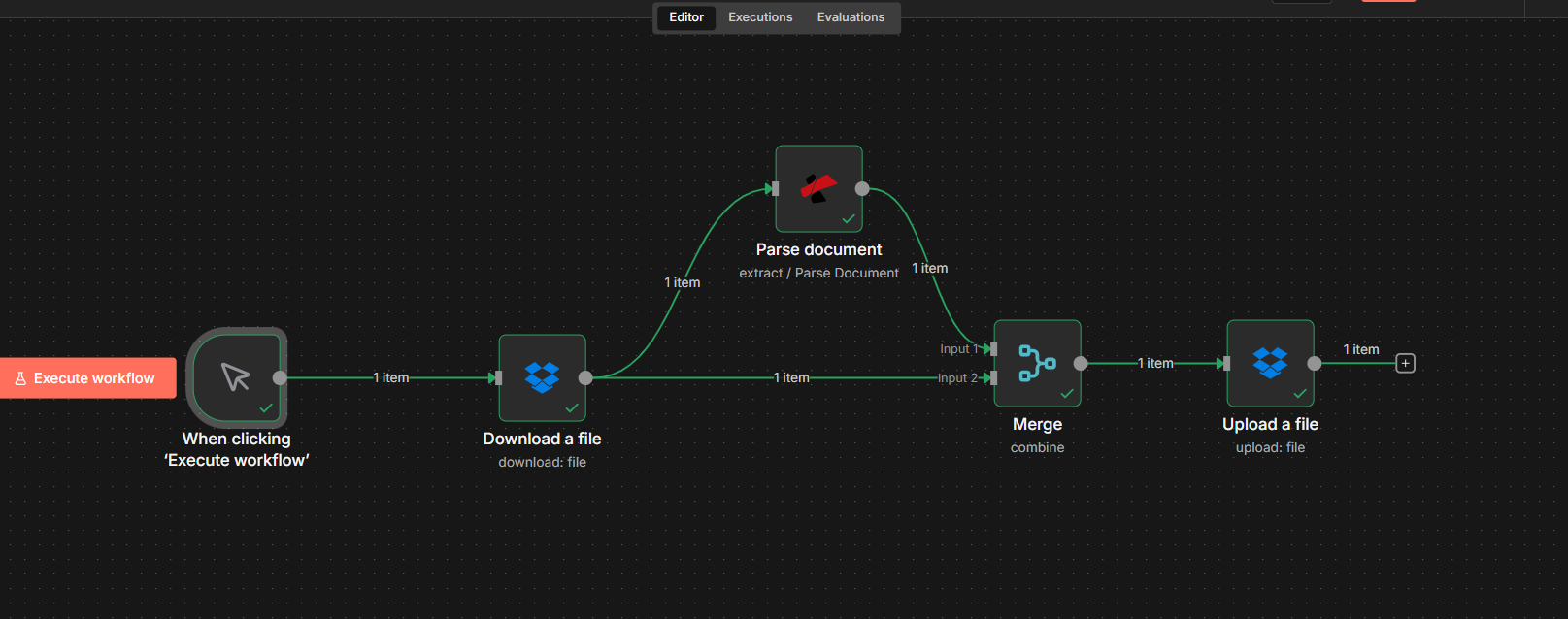
The Flow at a Glance
Your n8n workflow for dynamic file renaming with PDF4me looks like this:
- Trigger — Use a manual trigger for testing, or an automated trigger (e.g. Dropbox, email, webhook) so the workflow runs whenever a new PDF is available.
- Download a file — Gets the PDF from your source (e.g. Dropbox) and outputs it as binary (e.g.
document). - Parse document (PDF4me) — Extracts the field you need (invoice number, customer name, order number) into
parseInfo. Output is JSON only; the binary stays with the previous node. - Merge — Combines Parse output and Download output into one item so you have both the file content and the new filename.
- Upload a file — Saves the file with the path/filename set to the extracted value (e.g.
Invoice #Pdf4me-202601-32324.pdf).
Same file, new name—every time. Below we walk through each part in detail.
Step 1: Create the Parse Template and Get the Parse ID
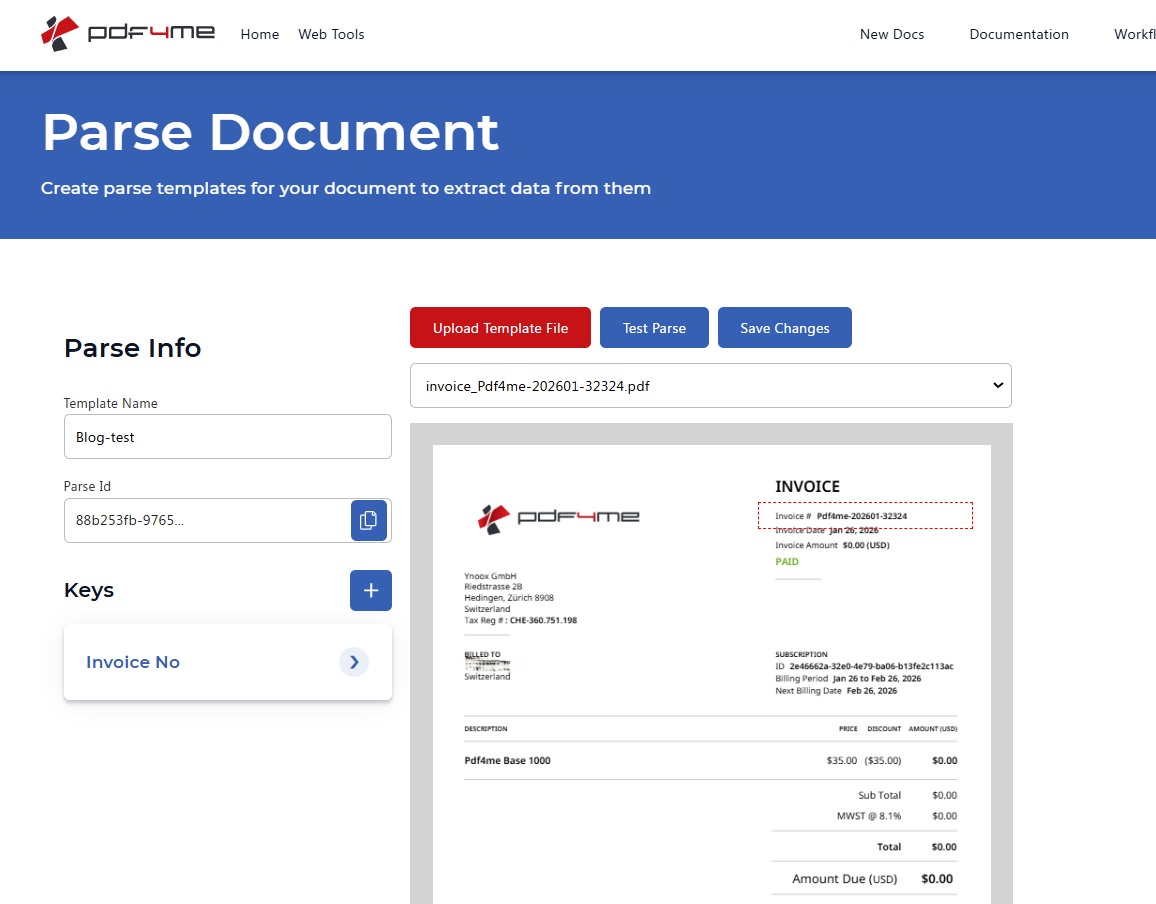
First, define what to extract for your file names. A PDF4me parse template tells the API which field to pull from each document—e.g. invoice number, customer name, or order number. You'll use the template's Parse ID in n8n in Step 2.
Use the same PDF4me account for both: log in to the dashboard to create the template and use that account's API key in n8n when you add the Parse document node.
- Sign in or create an account at the PDF4me Dashboard.
- Go to Parse Document (or use the login link with return URL if needed).
- Create a template: Upload a sample PDF that matches the documents you'll receive. Add keys for each field you want to extract (e.g.
invoiceNr,customerName,orderNumber) and draw capture areas on the document for each key. - Click Test Parse to see the extracted values, then Save Changes.
- Copy the Parse ID from the dashboard—you'll paste it into n8n in the next step.
For detailed template setup, see Prepare Parse Info for Document (capture areas, regex, multiple keys).
Step 2: Download the File and Parse It in n8n
Next, get the PDF into n8n and extract the naming value with PDF4me. The file can come from Download a file (e.g. Dropbox), Google Drive, email, or any node that outputs binary.
Flow so far: Trigger → Download a file → Parse document.
Important: Parse Document returns only JSON (parseInfo with your keys)—it does not pass through the binary file. The file content stays on the Download node. In Step 3 you'll merge both so the Upload node has the file and the new name.
- Add a trigger — A manual trigger works well for testing; for production, use an automated trigger (e.g. Dropbox, Email, Google Drive, webhook) so the workflow runs whenever a new PDF is available.
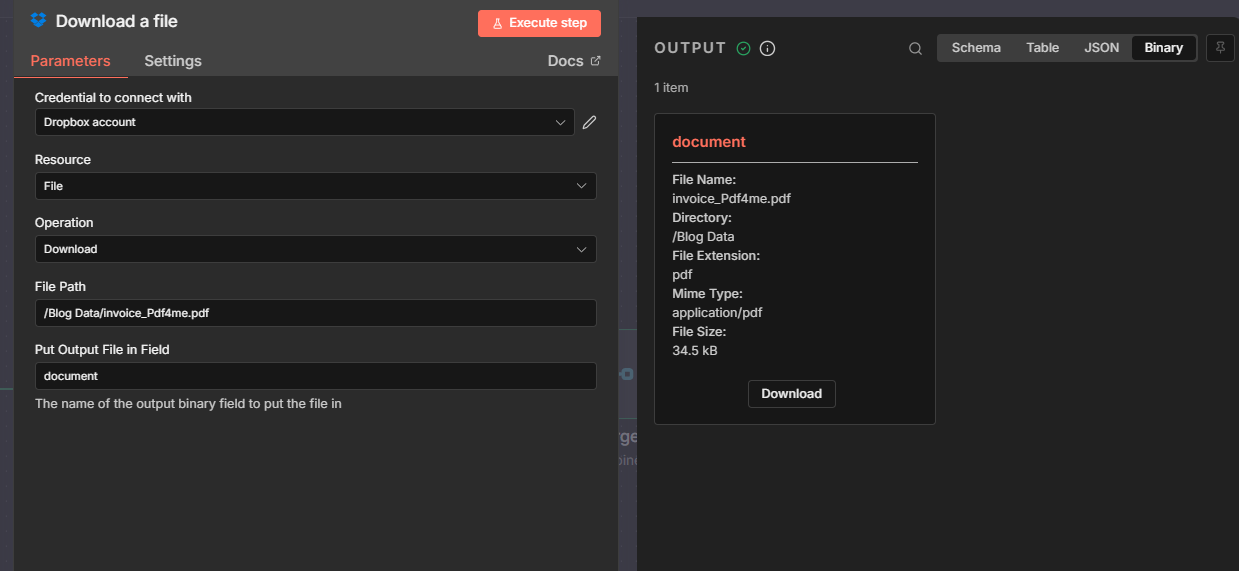
- Add a node that provides the file — e.g. Download a file (Dropbox) with Put Output File in Field:
document. - Add a PDF4me node → choose Extract → Parse document.
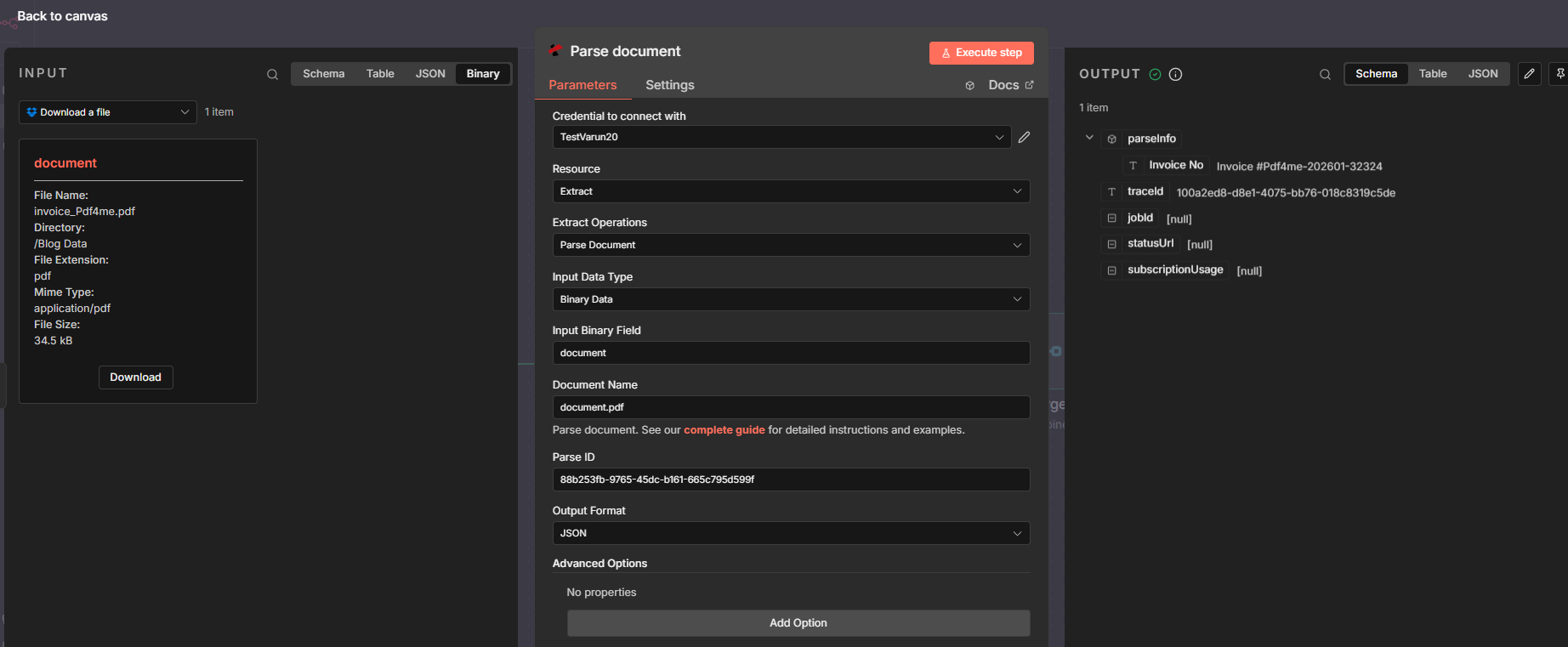
- Configure the Parse document node:
- Input Data Type: Binary Data.
- Input Binary Field:
document(or whatever field the Download node uses). - Document Name — e.g.
document.pdf. - Parse ID — Paste the Parse ID from Step 1.
- Output Format — e.g. JSON.
- Run the node. The OUTPUT will include
parseInfowith your keys (e.g.parseInfo['Invoice No']).
Full parameter reference: Parse Document (n8n).
Step 3: Merge and Upload with the New Name
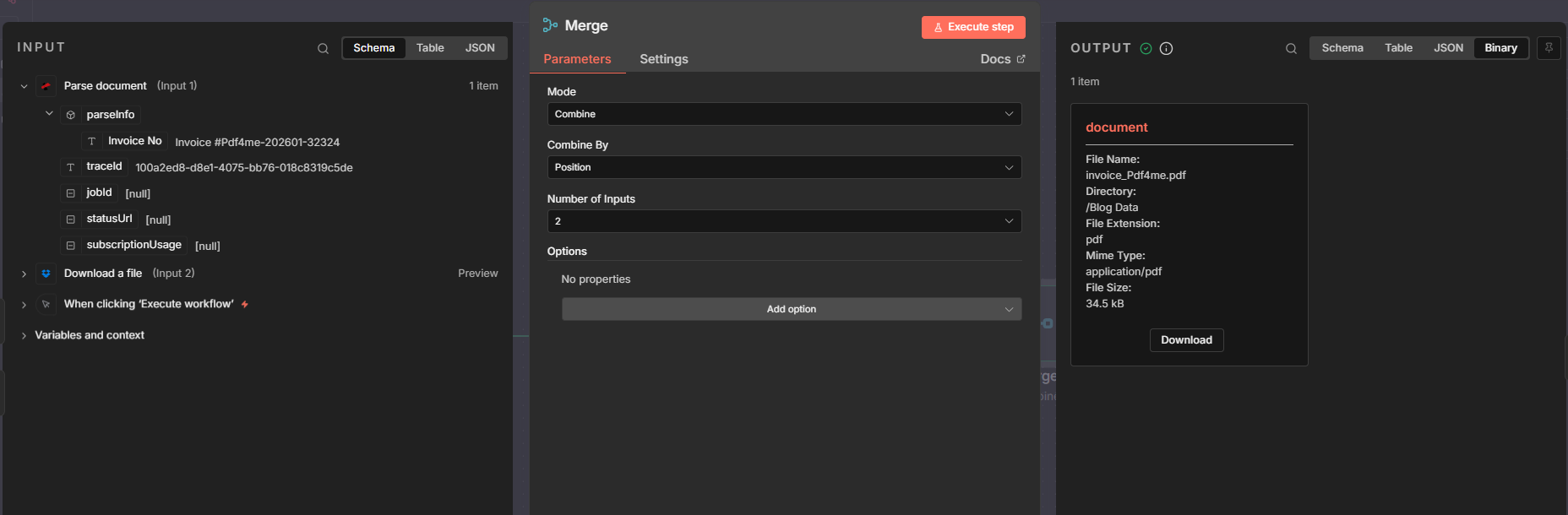
To save the same file with a new name, the next node needs both the file content (from Download) and the filename (from Parse). A Merge node combines them into one item; then an Upload node writes the file using the extracted value as the path or filename.
- Add a Merge node
- Mode: Combine.
- Combine by: Position (pairs the first item from Input 1 with the first from Input 2).
- Input 1: Connect from Parse document (provides
parseInfo). - Input 2: Connect from Download a file (provides
binary.document). - Output: One merged item containing both
json.parseInfoandbinary.document.
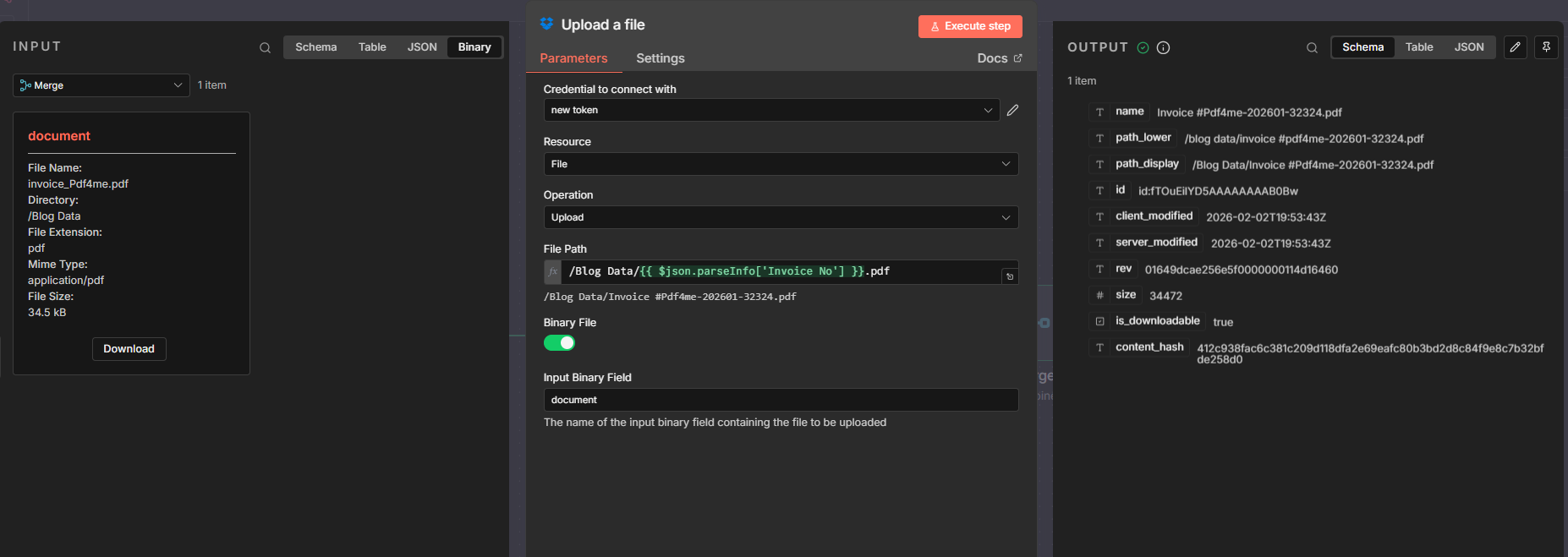
- Add an Upload node (e.g. Dropbox Upload a file, or any node that accepts binary + path)
- File Path (expression): e.g.
/Blog Data/{{ $json.parseInfo['Invoice No'] }}.pdf
If your parse template key has no space, use$json.parseInfo.invoiceNr. Keys with spaces use bracket notation:$json.parseInfo['Invoice No']. - Binary File: ON.
- Input Binary Field:
document. - Result: the file is uploaded with the new name; the content is the same as the downloaded file.
- File Path (expression): e.g.
The same pattern works for Google Drive, email, or any node that accepts binary plus a dynamic path. Tip: Using Dropbox to download and upload? Enable read and write permissions in the Dropbox App Console (Permissions → Files and folders)—e.g. read for Download, files.content.write for Upload. Use a fresh access token after enabling them.
Gotcha: If the Upload node says it's missing binary, double-check that Merge's Input 2 is connected from Download a file (not from Parse).
Why This Works
Key points
- Trigger — Use a manual trigger for testing or an automated trigger (Dropbox, email, webhook) so the workflow runs whenever a new PDF is available—whatever fits your workflow.
- Parse Document extracts the field you need (invoice number, customer name, order number) into
$json.parseInfo. It outputs only JSON, not the binary file. - Merge (Combine by Position) combines Parse output and Download output so the next node receives one item with both file content (
binary.document) and extracted filename (parseInfo). - Upload (or save) uses
$json.parseInfo['Invoice No'](or your key) for the path/filename andbinary.documentfor the content—so each file is renamed dynamically.
Real-World Scenarios
Scenario 1: Vendor Invoice Processing
Problem: A vendor receives dozens of PDF invoices per week from Dropbox, email, or an invoice generator. Files arrive as document.pdf or invoice (1).pdf—hard to find and match to payments.
Solution: Use this workflow to rename each file by invoice number (e.g. INV-202601-32324.pdf). Each file is searchable and traceable.
Extract field: Invoice number (or invoice ID) Trigger: Dropbox folder, email attachment, or webhook
Scenario 2: Purchase Order Documents
Problem: A procurement team gets PO PDFs from suppliers or internal systems. Generic filenames make it difficult to link documents to orders in their ERP.
Solution: Rename each PO PDF by order number (e.g. PO-98765.pdf).
Extract field: PO number Trigger: Dropbox, email, webhook
Scenario 3: Customer Contracts
Problem: A legal or sales team receives signed contracts from various sources. Finding a specific contract by client name or contract ID requires opening files one by one.
Solution: Rename by customer name or contract ID (e.g. Acme-Corp-202601.pdf).
Extract field: Customer name or contract ID Trigger: Email, shared folder, webhook
Scenario 4: Order Confirmations and Shipping Docs
Problem: An operations team receives order confirmations or shipping labels. Matching documents to orders for tracking and audit requires searchable filenames.
Solution: Rename by order number or tracking ID (e.g. ORD-12345.pdf or TRK-ABC123.pdf).
Extract field: Order number or tracking ID Trigger: Email, Dropbox, API/webhook
Quick FAQ
- What if I have multiple keys (e.g. invoice number and customer name)? Use them in the path, e.g.
/Folder/{{ $json.parseInfo.customerName }}-{{ $json.parseInfo.invoiceNr }}.pdf. - Can I use this for Google Drive or email? Yes. Same pattern: use any node that gives you the file as binary and any Upload (or save) node that accepts binary plus a dynamic path.
Next Steps
Recap: Trigger → Download a file → Parse document (PDF4me) → Merge → Upload. The Parse template (Step 1) defines the field; Merge brings file and name together; Upload saves with the new name.
- Get your API key — Use the same PDF4me account for the dashboard and for n8n. Free to start.
- Create your parse template — Define the field(s) you want in the filename (invoice number, customer name, etc.) in the Parse Document dashboard.
- Build your n8n flow — Trigger → Download a file → Parse document → Merge → Upload (or save) with dynamic filename.
- Read the full docs — Parse Document (n8n), Prepare Parse Info.