PDF - Resize - Page Dimension Control for Zapier
PDF4me PDF - Resize action adjusts PDF page dimensions in Zapier. Set IsPageSizeRequested, choose Page Size Type (e.g. CustomSize), specify Custom Width and Custom Height in mm, and optionally add padding. Standardize mixed-size documents, fit content to A4/Letter, or resize specific pages (e.g. cover or appendix) to match the rest of the document.
Key Features
- Custom Dimensions: Width and height in millimeters for precise control
- Predefined Sizes: A4, Letter, Legal, and other standard page types
- Page Targeting: Resize specific pages (1, 2, 1-5) or all
- Padding Control: Add top, bottom, left, right padding in mm
- Batch Processing: Resize PDFs from triggers (Dropbox, forms) automatically
Authenticating Your API Request
To access the PDF4me Web API through Zapier, every request must include proper authentication credentials.
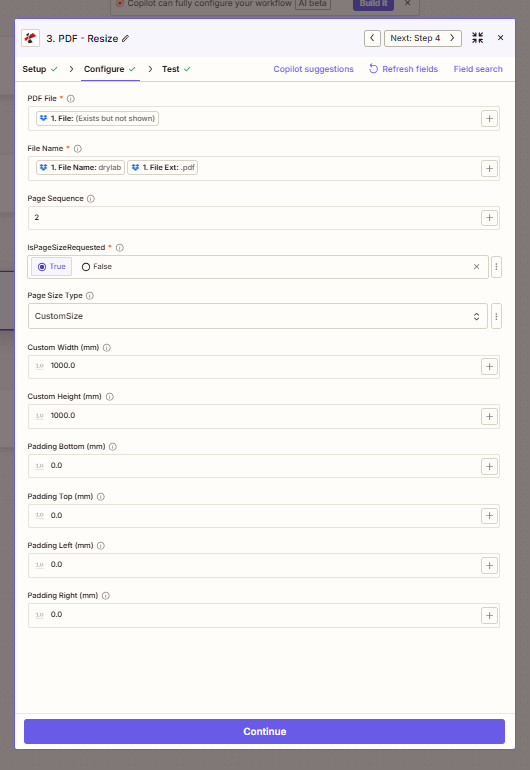
Configure step: Page Sequence, IsPageSizeRequested, CustomSize, dimensions, padding.
Configuration Fields (Fact-Checked)
Important: Parameters marked with an asterisk (*) are required.
File Input
| Parameter | Type | Required | Description | Example from UI |
|---|---|---|---|---|
| PDF File * | File | Yes | Input PDF from previous step | 1. File: (Exists but not shown) |
| File Name * | String | Yes | Output file name | 1. File Name: drylab + 1. File Ext: .pdf |
Page Selection
| Parameter | Type | Required | Description | Example from UI |
|---|---|---|---|---|
| Page Sequence | Text | No | Pages to resize (1, 2, 1-5, or all) | 2 |
Size Settings
| Parameter | Type | Required | Description | Example from UI |
|---|---|---|---|---|
| IsPageSizeRequested * | Boolean | Yes | Whether to apply custom page size | True |
| Page Size Type | Option | No | CustomSize, A4, Letter, etc. | CustomSize |
| Custom Width (mm) | Number | If CustomSize | Target width in millimeters | 1000.0 |
| Custom Height (mm) | Number | If CustomSize | Target height in millimeters | 1000.0 |
Padding (mm)
| Parameter | Type | Required | Description | Example from UI |
|---|---|---|---|---|
| Padding Bottom (mm) | Number | No | Bottom padding | 0.0 |
| Padding Top (mm) | Number | No | Top padding | 0.0 |
| Padding Left (mm) | Number | No | Left padding | 0.0 |
| Padding Right (mm) | Number | No | Right padding | 0.0 |
Troubleshooting
Set to True to apply custom dimensions. When False, the action may not change page size. Ensure Page Size Type is CustomSize when using Custom Width/Height.
Use 2 for page 2 only, 1-5 for a range, or leave empty for all pages. Resizing applies to the specified pages.
Add padding (e.g. 5.0, 10.0) to create margins around content. All four values default to 0.0 for no padding. Use the + button to map dynamic values.
Output
The PDF4me PDF - Resize action returns the resized PDF. Map File Url or File Content to the next step.
- Table
- Workflow Usage
| Parameter | Type | Description |
|---|---|---|
| File Content | Binary | Resized PDF ready for download or processing |
| File Url | String | Direct URL to access the resized PDF |
| File Name | String | Output filename without extension |
| Full File Name | String | Complete filename with .pdf extension |
- Standardization: Resize mixed sources to A4 or Letter
- Print Prep: Chain with Prepare for Print for consistent output
- Storage: Optimize dimensions before archiving
- Further Editing: Resize then Crop, Add Watermark, etc.
Workflow Examples
- Standardize to A4
- Cover Page Only
- Binding Margins
Standardize to A4
- Trigger: PDFs from various sources (forms, scans, exports)
- Resize PDF: Page Size Type A4, IsPageSizeRequested True
- Upload or Email: Distribute standardized documents
Benefit: Consistent page size across documents; easier printing and archiving.
Resize Cover Page Only
- Trigger: Multi-page report with mismatched cover
- Resize PDF: Page Sequence 1, Custom Size to match body (e.g. A4)
- Merge or Distribute: Unified document
Benefit: Fix cover dimensions without affecting body pages.
Add Margins for Binding
- Trigger: Document for physical binding
- Resize PDF: Padding Left 15mm (binding edge), others as needed
- Prepare for Print or Upload: Print-ready with binding margin
Benefit: Preserve content while adding binding space.
Industry Use Cases
- Document Standardization
- Print Production
- Archiving
- Publishing
- Forms
Document Standardization
Organizations receive PDFs from multiple sources—forms, scans, exports from different software—resulting in mixed page sizes (Letter, A4, Legal, custom). Resize PDF standardizes all documents to a target size (e.g. A4 or Letter) for consistent printing, archiving, and distribution. Set IsPageSizeRequested True, choose Page Size Type (A4, Letter, or CustomSize with dimensions in mm), and process documents as they arrive. Ensures uniform appearance in document management systems, simplifies print batches, and meets policies that require a standard page size for records.
Print Production
Print shops and in-house print rooms receive PDFs that don't match press or printer specifications. Resize PDF adjusts page dimensions to the required size—A4, Letter, or custom press sizes in millimeters. Use Page Sequence to resize only specific pages (e.g. covers) when the body is already correct. Add padding (Padding Left, Right, Top, Bottom) for bleed or binding margins. Ensures print-ready output without manual resizing in design software, supports high-volume format conversion, and integrates with prepress and print-queue workflows.
Archiving
Long-term archival benefits from normalized dimensions—consistent page sizes simplify storage, retrieval, and future reproduction. Resize PDF converts mixed-format incoming documents to a standard size (A4 or Letter) before archival upload. Use padding to add margins if needed for binding or scanning compatibility. Ensures archival collections have uniform dimensions, reduces variability in document management systems, and supports compliance with retention policies that specify standard formats for permanent records.
Publishing
Publishers and content producers adapt documents for different output formats—print (A4, Letter), digital (screen dimensions), or regional standards (US Letter vs. ISO A4). Resize PDF adjusts page dimensions when repurposing content across formats. Use Page Sequence for documents where only certain pages (e.g. covers, inserts) need resizing. Add padding for print bleed or safe margins. Supports multi-format publishing workflows, regional edition preparation, and content reuse across print and digital channels.
Forms
Forms and applications are often received in inconsistent sizes—scanned at different resolutions, exported from various tools, or submitted in non-standard formats. Resize PDF standardizes form dimensions for scanning pipelines, OCR processing, or print reproduction. Set target size (e.g. A4) and use padding to ensure content fits within scan or print margins. Integrates with form-processing workflows, supports batch normalization of submitted documents, and ensures consistent handling in forms management and approval systems.
Related Actions
- Prepare for Print — Optimize resized PDFs for printing
- Crop PDF — Trim content; Resize changes page dimensions
- Add Margin to PDF — Add margins (alternative to padding)