Crop PDF - Rectangle & Border Cropping for Zapier
PDF4me Crop PDF action trims PDF pages in Zapier using two methods: Crop using Rectangle (lower-left X/Y, width, height) or Crop using Border (left, right, top, bottom margins). Remove scanner margins, extract specific regions (e.g. signature blocks, form fields), or standardize document edges. All fields are fact-checked from the live Zapier configuration screenshots.
Key Features
- Two Crop Modes: Rectangle (exact region) or Border (margin removal)
- Precise Control: PDF coordinate system—origin (0,0) at lower-left
- Border Cropping: Remove uniform or uneven margins (left, right, top, bottom)
- Rectangle Cropping: Extract a region by lower-left corner + width + height
- Dynamic Values: Map crop dimensions from forms, spreadsheets, or computed steps
- Batch Ready: Process PDFs from triggers (Dropbox, Drive, forms) automatically
Authenticating Your API Request
To access the PDF4me Web API through Zapier, every request must include proper authentication credentials.
Method 1: Crop using Rectangle
Define the crop area by specifying the lower-left corner and dimensions.
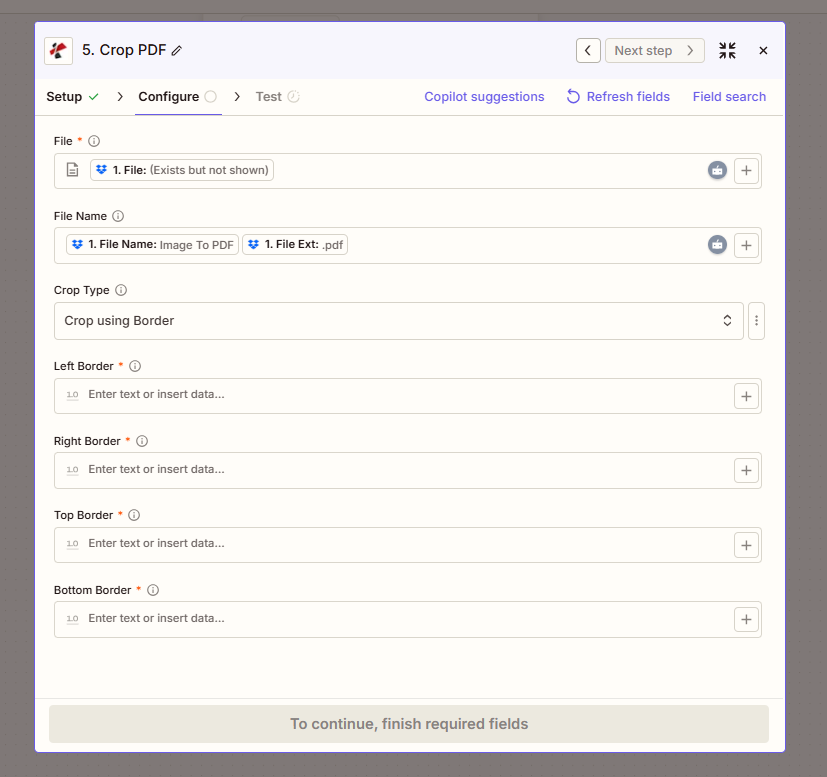
| Parameter | Type | Required | Description | Example |
|---|---|---|---|---|
| File * | File | Yes | Input PDF from previous step | 1. File: (Exists but not shown) |
| File Name | String | No | Output file name | 1. File Name: Image To PDF + 1. File Ext: .pdf |
| Crop Type | Dropdown | - | Select Crop using Rectangle | Crop using Rectangle |
| Lower Left X * | Number | Yes | X-coordinate of lower-left corner | 1.0 |
| Lower Left Y * | Number | Yes | Y-coordinate of lower-left corner | 1.0 |
| Width * | Number | Yes | Width of crop rectangle | 1.0 |
| Height * | Number | Yes | Height of crop rectangle | 1.0 |
Method 2: Crop using Border
Remove margins by specifying border values (left, right, top, bottom).
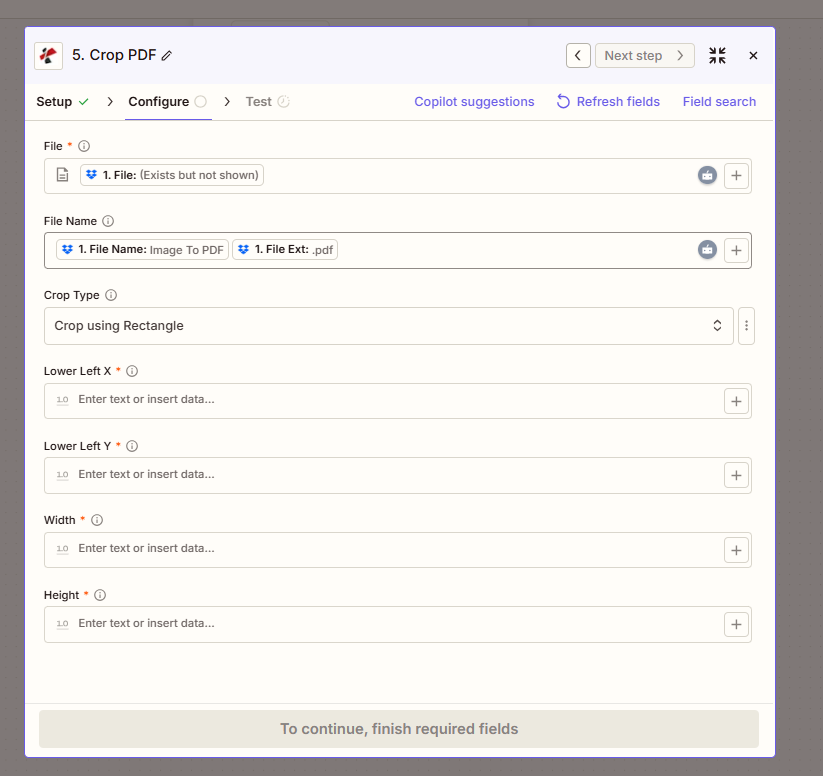
| Parameter | Type | Required | Description | Example |
|---|---|---|---|---|
| File * | File | Yes | Input PDF from previous step | 1. File: (Exists but not shown) |
| File Name | String | No | Output file name | 1. File Name: Image To PDF + 1. File Ext: .pdf |
| Crop Type | Dropdown | - | Select Crop using Border | Crop using Border |
| Left Border * | Number | Yes | Left margin to remove | 1.0 |
| Right Border * | Number | Yes | Right margin to remove | 1.0 |
| Top Border * | Number | Yes | Top margin to remove | 1.0 |
| Bottom Border * | Number | Yes | Bottom margin to remove | 1.0 |
Troubleshooting
All fields marked with * must be filled. For Rectangle: Lower Left X, Y, Width, Height. For Border: Left, Right, Top, Bottom. Values are typically in points; use numeric input (e.g. 1.0, 10, 72).
PDF coordinates: origin (0,0) is typically bottom-left. Rectangle: (X, Y) = lower-left corner; Width and Height define the crop box. Border values remove that amount from each edge.
Use the + button to map values from previous steps—e.g. crop dimensions from a form, or computed values from a spreadsheet.
Output
The PDF4me Crop PDF action returns the cropped PDF. Map File Url or File Content to the next step (Upload, Email, further processing).
- Table
- Workflow Usage
| Parameter | Type | Description |
|---|---|---|
| File Content | Binary | Cropped PDF ready for download or processing |
| File Url | String | Direct URL to access the cropped PDF |
| File Name | String | Output filename without extension |
| Full File Name | String | Complete filename with .pdf extension |
- Storage: Save to Dropbox, Google Drive, SharePoint
- Email: Send trimmed PDFs to clients or internal teams
- Print Prep: Chain with Prepare for Print for standardized output
- Extraction: Crop then Extract Text or Form Data from specific regions
Workflow Examples
- Scanner Margins
- Signature Region
- Standardize Size
Remove Scanner Margins
- Trigger: New scanned PDF in folder
- Crop PDF (Border): Left 10, Right 10, Top 15, Bottom 15
- Upload or OCR: Save or make searchable
Benefit: Clean edges; consistent appearance across scans.
Extract Signature or Form Region
- Trigger: Signed contract or form PDF
- Crop PDF (Rectangle): Lower Left X/Y, Width, Height for target region
- Store or Archive: Save extracted region for records
Benefit: Isolate critical sections without manual editing.
Standardize Document Size
- Trigger: Mixed-size PDFs (reports, forms)
- Crop PDF (Border): Trim to consistent content area
- Prepare for Print: Fit to standard paper size
Benefit: Uniform print output; fewer layout issues.
Industry Use Cases
- Document Scanning
- Forms Processing
- Archiving
- Print Production
- Compliance
Document Scanning
Scan-to-PDF workflows often produce documents with unwanted borders—scanner bed edges, skew margins, or inconsistent framing. Use Crop PDF with Border mode to remove left, right, top, and bottom margins uniformly. When new scans arrive in a watched folder, the Zap applies predefined crop values (e.g. 10pt each side) and outputs clean, edge-to-content PDFs. Ensures consistent appearance across batch scans, improves OCR accuracy by removing blank margins, and prepares documents for archiving or downstream processing.
Forms Processing
Signed contracts, applications, and forms often require extraction of specific regions—signature blocks, date fields, or witness sections. Use Crop PDF with Rectangle mode to isolate regions by lower-left coordinates and dimensions. The Zap crops to the target area and stores the result for verification, archival, or integration with form-processing systems. Reduces manual extraction, standardizes region capture, and supports automated compliance workflows that require isolated signature or field images.
Archiving
Long-term archiving benefits from content-only PDFs without headers, footers, page numbers, or decorative margins. Crop PDF removes borders or extracts the main content rectangle to produce compact, content-focused files. When documents are approved for archive, the Zap crops to the content area and stores the result in document management or legal hold systems. Reduces storage footprint, simplifies future retrieval, and meets archival policies that require trimmed, content-only records.
Print Production
Print-ready PDFs may include bleed marks, crop marks, or registration targets that must be removed before final output. Use Crop PDF (Border or Rectangle) to trim these elements and expose the finished page area. When a print file is finalized, the Zap crops to the live area and outputs a clean file for the press or print-on-demand service. Ensures consistent trim, avoids misaligned cuts, and automates pre-press preparation for high-volume printing.
Compliance
Some compliance workflows require documents without internal headers, footers, watermarks, or annotations that could influence interpretation. Crop PDF can remove these regions by targeting the content rectangle or using border values to strip top/bottom margins where headers and footers typically reside. When preparing documents for external audit, regulatory submission, or discovery, the Zap produces sanitized, content-only versions that meet disclosure or redaction requirements.
Related Actions
- Crop Image — Crop images before PDF creation
- Prepare for Print — Optimize cropped PDFs for printing
- Add Margin to PDF — Add margins (inverse of border crop)