PDF - Create Hyperlinks - Link Builder for Zapier
PDF4me PDF - Create Hyperlinks action converts specified text in a PDF into clickable hyperlinks. Map the PDF from a previous step, define the text to link, and set the destination URL. Use New Text to replace the visible text while keeping the link—ideal for adding tutorial links, documentation references, product URLs, or dynamic URLs from forms and CRM. Perfect for transforming static PDFs into interactive documents for customer portals, knowledge bases, and marketing materials.
Key Features
- Exact Text Matching: Converts specific text strings into clickable links
- Optional Text Replacement: Use New Text to show different display text than the destination URL
- Page Targeting: Apply links to specific pages with Page Sequence (1, 2, 1-5, or all)
- Dynamic URLs: Map URLs from forms, CRM, spreadsheets, or previous steps
- Batch Processing: Add multiple Create Hyperlinks steps for different text–URL pairs
- Output Ready: Returns modified PDF for upload, email, or further editing
Authenticating Your API Request
To access the PDF4me Web API through Zapier, every request must include proper authentication credentials.
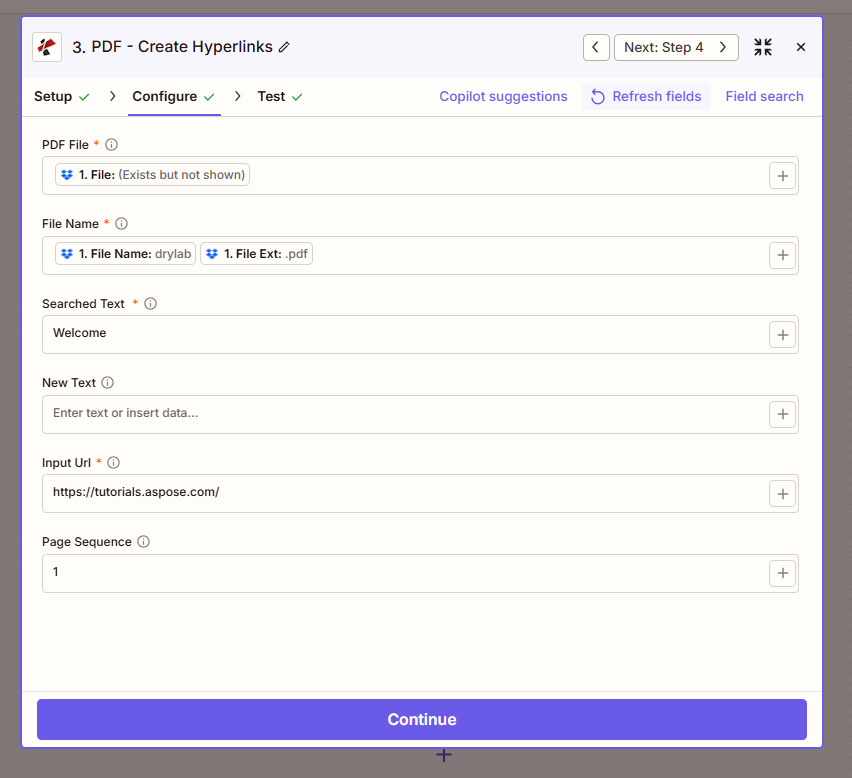
Configure step: PDF File, File Name (drylab.pdf), Searched Text, New Text, Input Url, Page Sequence.
Configuration Fields (Fact-Checked from Screenshot)
Important: Parameters marked with an asterisk (*) are required. Use the + button to map dynamic data from previous steps.
Required Fields
| Parameter | Type | Description | Example from UI |
|---|---|---|---|
| PDF File * | File | The PDF document to process. Map from a previous step (e.g. Dropbox, trigger) | 1. File: (Exists but not shown) |
| File Name * | String | Output file name. Map 1. File Name and 1. File Ext from the input step | 1. File Name: drylab + 1. File Ext: .pdf |
| Searched Text * | Text | Exact text in the PDF to convert into a hyperlink | Welcome |
| Input Url * | URL | Destination URL for the new hyperlink | https://tutorials.aspose.com/ |
Optional Fields
| Parameter | Type | Description | Example from UI |
|---|---|---|---|
| New Text | Text | Replace the searched text with different display text while keeping the link | Enter text or insert data... |
| Page Sequence | Text | Pages where the hyperlink is created. Use numbers (1, 2, 3) or ranges (1-3) | 1 |
Troubleshooting
That option can pass a reference instead of file content. Ensure the trigger or previous step has Include file contents? Yes. Pick the field with actual file content for reliable processing.
Text must match exactly, including spaces and case. For scanned PDFs, run Make PDF Searchable / OCR first so text is selectable. Check the target page with Page Sequence.
Add the action multiple times with different Searched Text and Input Url values, or use a Formatter/Loop step to iterate over a list of text–URL pairs.
Output
The PDF4me PDF - Create Hyperlinks action returns:
- Table
- Workflow Usage
| Parameter | Type | Description |
|---|---|---|
| File Content | Binary | PDF with new hyperlink(s) embedded |
| File Url | String | Direct URL to access the modified PDF |
| File Name | String | Output filename without extension |
| Full File Name | String | Complete filename with .pdf extension |
- Upload: Save to Google Drive, Dropbox, SharePoint
- Email: Send via Gmail, Outlook with link-enabled PDF
- Customer Portal: Publish interactive docs for clients
- Further Editing: Chain with Add Watermark, Add Header/Footer, etc.
Workflow Examples
- Documentation
- Invoice Payment
- Product Catalog
Documentation with Tutorial Links
- Trigger: New PDF uploaded to Dropbox (e.g. user guide)
- Create Hyperlinks: Convert "See tutorial" →
https://docs.example.com/tutorial - Upload File: Save linked version to shared folder or portal
Benefit: Readers click through to tutorials without copying URLs.
Invoice with Payment Portal Link
- Trigger: Invoice generated from accounting system
- Create Hyperlinks: Convert "Pay Now" → dynamic payment URL from step 1
- Send Email: Attach invoice with clickable payment link
Benefit: One-click payment from invoice; faster collections.
Product Catalog with Product URLs
- Trigger: New product PDF from e-commerce or form
- Create Hyperlinks: Convert product names/codes → product page URLs
- Distribute: Email or upload to sales team
Benefit: Interactive catalog; direct path to purchase.
Industry Use Cases
- Documentation
- Invoicing
- Marketing
- Education
- Legal & Compliance
Documentation
Technical writers and documentation teams convert static PDFs into interactive guides by linking phrases like "See tutorial," "Learn more," or "API reference" to the corresponding URLs. When a new user guide or release notes PDF is uploaded, the Zap applies Create Hyperlinks with predefined or dynamic URLs. Readers click through to tutorials, FAQs, changelogs, or support articles without leaving the document or copying links. Improves engagement, reduces support requests, and keeps documentation current across distributed teams.
Invoicing
Invoices often include "Pay Now" or "Pay online" text—Create Hyperlinks connects that text to your payment portal or Stripe/PayPal link. When an invoice is generated from Xero, QuickBooks, or your billing system, the Zap maps the payment URL and converts the CTA into a clickable link. Customers receive invoices with one-click payment, accelerating collections and reducing manual steps. Works with dynamic payment links that include invoice ID or customer reference.
Marketing
Marketing teams create interactive PDFs for brochures, case studies, and whitepapers. Convert product names, CTAs ("Download now," "Request demo"), or campaign-specific text into links to landing pages, product pages, or signup forms. When a new campaign asset is ready, the Zap applies hyperlinks and distributes the PDF via email or portal. Enables click-through tracking, improves conversion from PDF viewers, and keeps marketing materials actionable.
Education
Educators and course creators link citations, references, and supplementary materials in syllabi, handouts, and course packs. When a new document is published, the Zap converts footnote references, "See also" mentions, or resource names into links to articles, videos, or external resources. Students and readers access linked content without manually typing URLs—improving learning flow and compliance with accessibility guidelines for clickable references.
Legal & Compliance
Legal and compliance teams link terms, policies, and external references in contracts, disclaimers, and regulatory documents. Convert "Terms of Service," "Privacy Policy," or statute references into links to the latest version on your website or official sources. Ensures recipients always access current legal text, reduces version-control errors, and simplifies document maintenance when URLs change. Ideal for contracts, NDAs, and policy acknowledgments.
Related Actions
- Update Hyperlinks Annotation — Change existing link destinations
- Delete Hyperlinks from PDF — Remove links before sharing
- Extract Hyperlinks from PDF — Audit or extract existing links