Swiss QR Invoice PDFs: Rename by Creditor, Amount, or Reference in n8n !
You get PDFs—invoices, payment slips—each with a Swiss QR code that holds who’s paying, how much, and which reference. You want those files renamed by that data so you can find and sort them in a snap. Doing it by hand doesn’t scale.
The fix: an n8n workflow that downloads the PDF, uses Read Swiss QR Code (PDF4me) to pull out that structured payment data, merges it with the file, and uploads it with a new name—by creditor, amount, reference, or whatever you need. Same file, better filename, zero manual renaming.
This guide walks you through the full flow: download the PDF, read its Swiss QR code, then merge and upload with a filename built from the data you care about—creditor name and city, amount and reference, or debtor details.
The Flow at a Glance
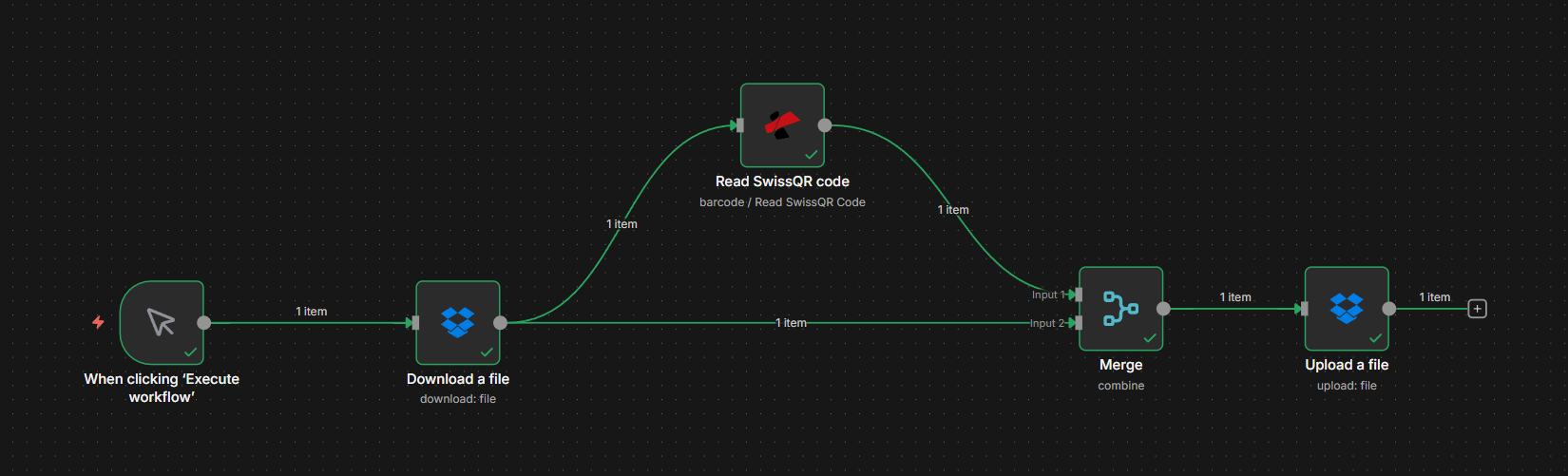
Your n8n workflow for renaming PDFs by Swiss QR data looks like this:
- Trigger — Manual for testing, or automated (e.g. Dropbox, email, webhook) when a new PDF is available.
- Download a file — Fetches the PDF from your source (e.g. Dropbox) and outputs it as binary in a field such as
document. - Read Swiss QR Code (PDF4me) — Extracts Swiss QR-bill data from the PDF and outputs structured data (
swissQrData: creditorcr_Name,cr_City,cr_Country, debtorud_Name,Amount,Currency,Reference, etc.). The original PDF stays on the Download node. - Merge — Combines the Read Swiss QR Code output (Swiss QR data) and the Download output (PDF binary) into one item so the next node has both the new filename and the file content.
- Upload a file — Saves the PDF with the path/filename set to the Swiss QR fields you choose (e.g.
Test AG_Zurich_Switzerland.pdfor1000_CHF_REF123.pdf).
Same file, new name—every time. Below we walk through each part in detail.
Step 1: Download the File and Read Its Swiss QR Code
Get the PDF into n8n and extract the naming value with PDF4me Read Swiss QR Code. The file can come from Download a file (e.g. Dropbox), Google Drive, email, or any node that outputs binary.
Flow so far: Trigger → Download a file → Read Swiss QR Code.
Important: Read Swiss QR Code returns the payment data (in swissQrData)—it does not pass through the PDF. The file content stays on the Download node. In Step 2 you'll merge both so the Upload node has the file and the new name.
- Add a trigger — Manual for testing; for production, use an automated trigger (e.g. Dropbox, Email, Google Drive, webhook).
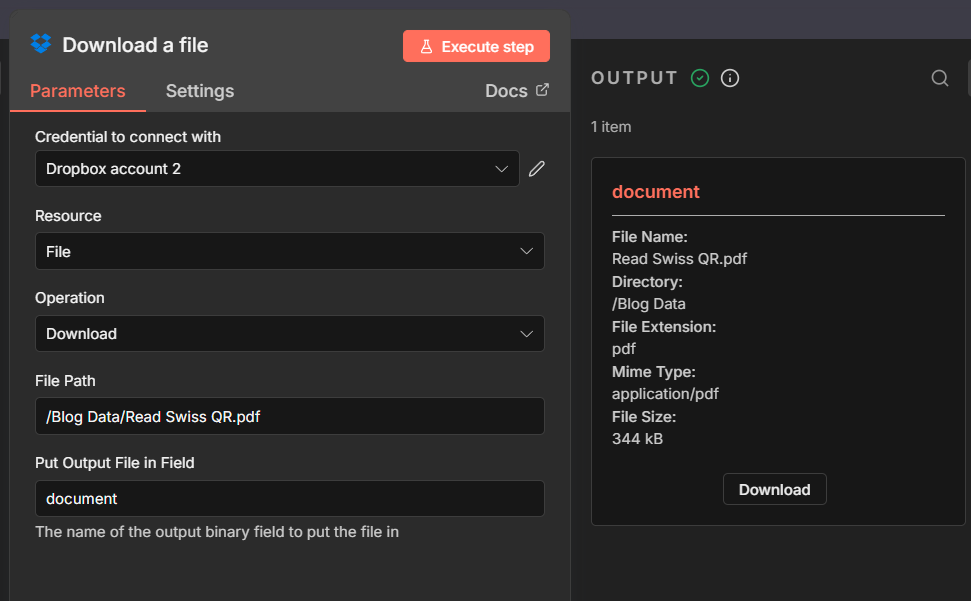
- Add Download a file (e.g. Dropbox) — Set File Path to your PDF location (e.g.
/Blog Data/Read Swiss QR.pdf) and Put Output File in Field todocumentso the PDF is available as binary for the next nodes. - Add a PDF4me node → Barcode → Read Swiss QR Code.
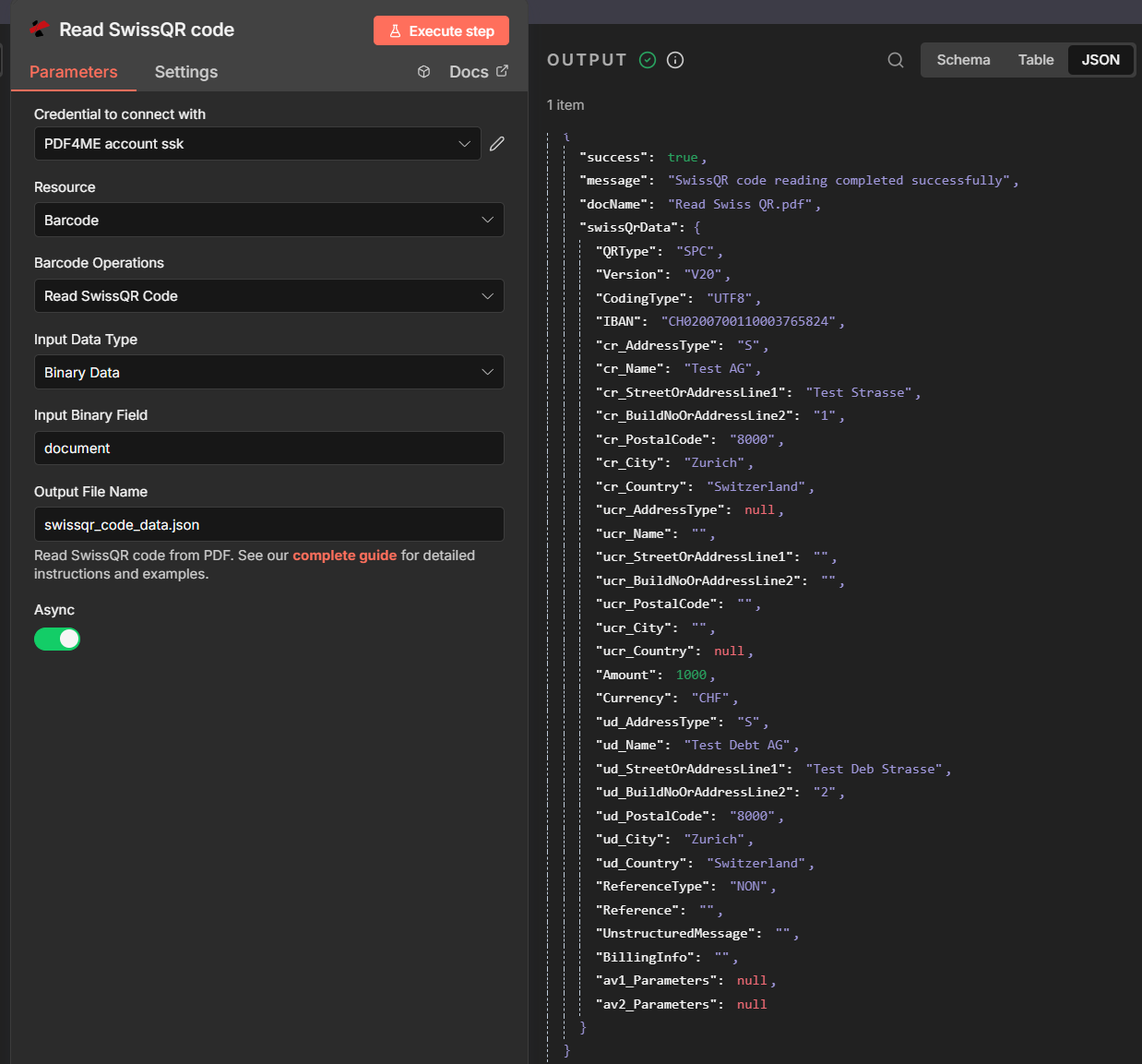
- Configure the Read Swiss QR Code node:
- Credential to connect with: Your PDF4me account.
- Resource: Barcode → Barcode Operations: Read Swiss QR Code.
- Input Data Type: Binary Data.
- Input Binary Field:
document(same as the Download node's output field). - Output File Name: e.g.
swissqr_code_data.json. - Async: Turn on for larger PDFs if needed.
- Run the node. The output includes success, docName, and swissQrData with creditor (
cr_Name,cr_City,cr_Country), debtor (ud_Name, etc.), Amount, Currency, Reference, IBAN, and more. You'll use these fields for the filename in the Upload step.
Full parameter reference: Read Swiss QR Code (n8n).
Step 2: Merge and Upload with the New Name
You need both the PDF binary (from Download) and the Swiss QR data (from Read Swiss QR Code) in one item so the Upload node can save the file under the new name. A Merge node combines them; the Upload node then uses the Swiss QR fields as the path or filename.
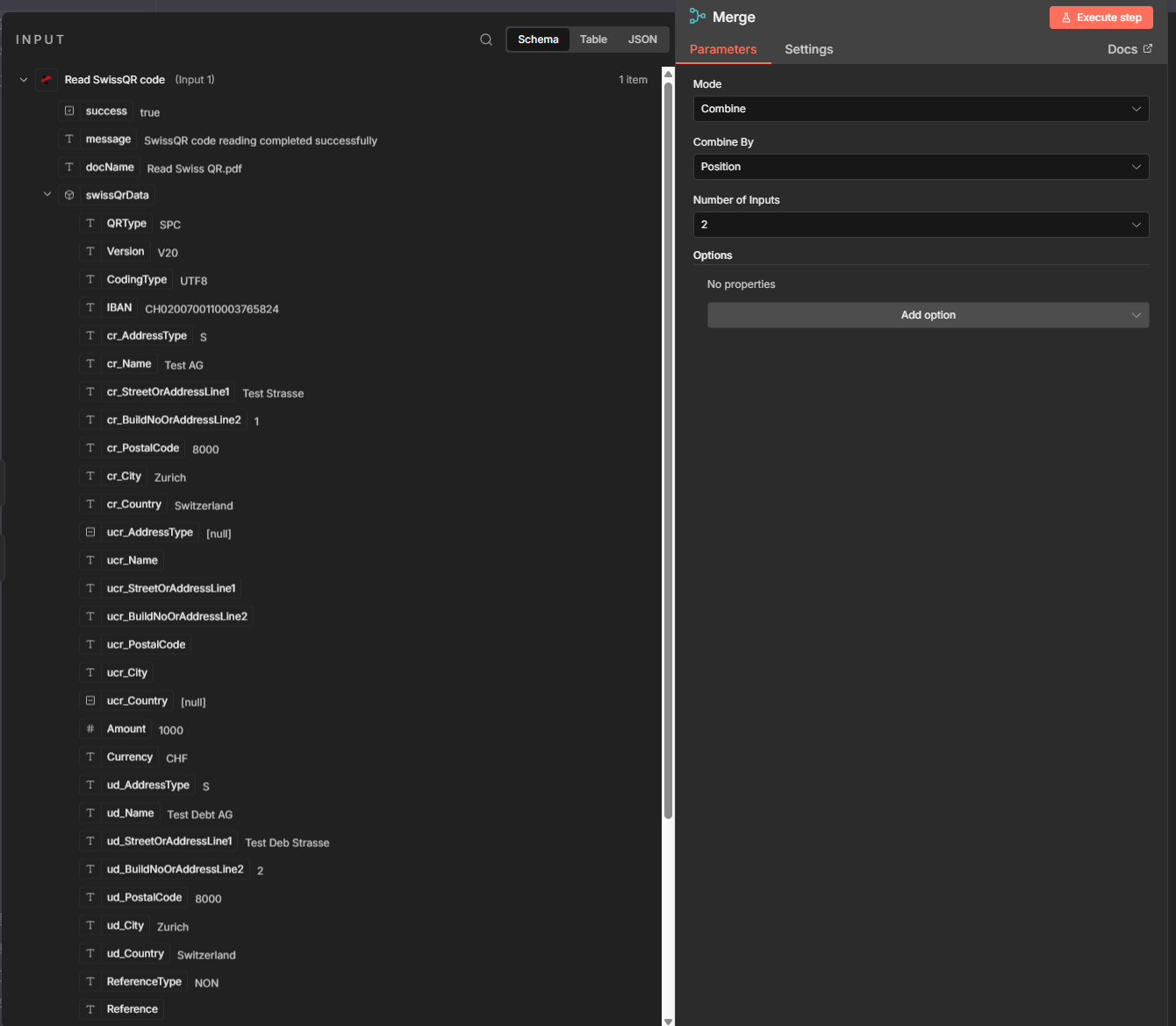
- Add a Merge node
- Mode: Combine.
- Combine by: Position (first item from Input 1 with first from Input 2).
- Number of Inputs: 2.
- Input 1: Connect from Read Swiss QR Code (provides
swissQrData). - Input 2: Connect from Download a file (provides
binary.document). - Output: One merged item with both the Swiss QR JSON and
binary.document, so the next node has the new filename and the file content.
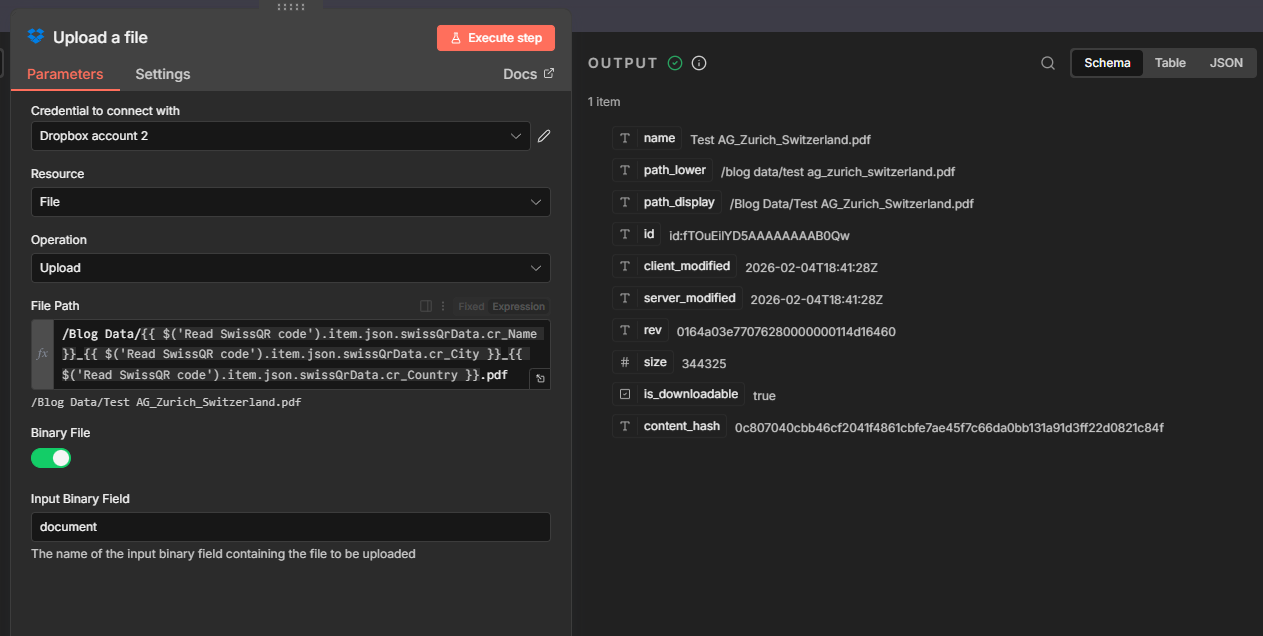
- Add an Upload node (e.g. Dropbox Upload a file, or any node that accepts binary + path)
- File Path (expression): Use the Read Swiss QR Code output. You can reference the node by name:
$('Read SwissQR code').item.json.swissQrData. - Binary File: ON.
- Input Binary Field:
document. - The file is uploaded with the Swiss QR–derived name; the PDF content is unchanged.
- File Path (expression): Use the Read Swiss QR Code output. You can reference the node by name:
- Creditor (Name_City_Country)
- Debtor name
- Amount and reference
Use creditor name, city, and country for the filename (e.g. Test AG_Zurich_Switzerland.pdf):
/Blog Data/{{ $('Read SwissQR code').item.json.swissQrData.cr_Name }}_{{ $('Read SwissQR code').item.json.swissQrData.cr_City }}_{{ $('Read SwissQR code').item.json.swissQrData.cr_Country }}.pdf
Resolves to: /Blog Data/Test AG_Zurich_Switzerland.pdf
Use ultimate debtor name:
/Blog Data/{{ $('Read SwissQR code').item.json.swissQrData.ud_Name }}.pdf
Or with city: {{ $('Read SwissQR code').item.json.swissQrData.ud_Name }}_{{ $('Read SwissQR code').item.json.swissQrData.ud_City }}.pdf
Use amount, currency, and reference for payment-based naming:
/Blog Data/{{ $('Read SwissQR code').item.json.swissQrData.Amount }}_{{ $('Read SwissQR code').item.json.swissQrData.Currency }}_{{ $('Read SwissQR code').item.json.swissQrData.Reference || 'no-ref' }}.pdf
The same Merge + Upload pattern works with Google Drive, email, or any storage that accepts binary and a dynamic path. Tip: For Dropbox, enable read and write in the Dropbox App Console (Permissions → Files and folders)—e.g. read for Download, files.content.write for Upload—and use a new access token after changing permissions.
Gotcha: If Upload reports missing binary, ensure Merge Input 2 is from Download a file, not from Read Swiss QR Code.
Why This Works
Key points
- Trigger — Use a manual trigger for testing or an automated trigger (Dropbox, email, webhook) so the workflow runs whenever a new PDF is available.
- Read Swiss QR Code extracts Swiss QR-bill data and outputs
swissQrData(creditorcr_*, debtorud_*,Amount,Currency,Reference, etc.). It does not pass through the PDF; the file stays on the Download node. - Merge (Combine by Position) pairs Read Swiss QR Code output with Download output so the next node receives one item with both
binary.documentandswissQrData. - Upload uses an expression like
$('Read SwissQR code').item.json.swissQrData.cr_Name(andcr_City,cr_Country, or other fields) for the path/filename andbinary.documentfor the content—so each file is renamed by Swiss QR data.
Real-World Scenarios
Scenario 1: Invoices Renamed by Creditor
Problem: Incoming invoice PDFs with generic names; you need to find them by supplier (creditor) and location.
Solution: Rename by creditor name, city, and country (e.g. Test AG_Zurich_Switzerland.pdf). Each file is searchable by who sent the bill.
Extract fields: cr_Name, cr_City, cr_Country
Trigger: Dropbox folder, email attachment, or webhook
Scenario 2: Payment Slips by Amount and Reference
Problem: Payment slip PDFs need to be filed by amount and payment reference for reconciliation.
Solution: Rename by amount, currency, and reference (e.g. 1000_CHF_210000000003139471430009017.pdf). Match documents to bank transactions.
Extract fields: Amount, Currency, Reference
Trigger: Dropbox, email, webhook
Scenario 3: Debtor-Based Filing
Problem: You need to group PDFs by customer (ultimate debtor) for accounting.
Solution: Rename by debtor name (e.g. Test Debt AG.pdf) or debtor name + city. Direct mapping to customer records.
Extract fields: ud_Name, ud_City
Trigger: Email, shared folder, webhook
Quick FAQ
- What if no Swiss QR code is found? Use a fallback in the File Path expression, e.g.
{{ $('Read SwissQR code').item.json.swissQrData?.cr_Name || 'no-qr-found' }}. You can add a conditional branch to skip Upload or send those files to a separate folder. - Can I use creditor and amount together? Yes. Example:
{{ $('Read SwissQR code').item.json.swissQrData.cr_Name }}_{{ $('Read SwissQR code').item.json.swissQrData.Amount }}_{{ $('Read SwissQR code').item.json.swissQrData.Currency }}.pdf. - Can I use this for Google Drive or email? Yes. Same pattern: use any node that gives you the file as binary and any Upload (or save) node that accepts binary plus a dynamic path.
Next Steps
Recap: Trigger → Download a file → Read Swiss QR Code → Merge → Upload. The filename is built from swissQrData (e.g. creditor name, city, country, or amount/reference). Each PDF is saved with the extracted Swiss QR data as its name.
- Get your API key — Use the same PDF4me account for n8n. Free to start.
- Build your n8n flow — Trigger → Download a file → Read Swiss QR Code → Merge → Upload with the File Path set to the Swiss QR expression you need.
- Read the full docs — Read Swiss QR Code (n8n).
- Try the API — Test the Read Swiss QR Code endpoint with your own PDF in the API Tester.