Stop Renaming Swiss QR PDFs by Hand—Let Power Automate and SharePoint Do It !
You get PDFs with Swiss QR codes—payment slips, bills, invoices—and need them organized so you can find them by creditor name, IBAN, reference, or amount, match them to payments, reconcile accounts, or meet audit and archiving needs. Manual renaming doesn't scale.
Sound familiar? You're not alone.
Power Automate can use Dropbox, Google Drive, or SharePoint as the file source. The PDF4me Read SwissQR Code action extracts the data from the QR (creditor, IBAN, amount, currency, reference, debtor, and more), so you can save the file with a dynamic name—no code.
This guide describes the SharePoint automated flow: when a file is created or modified in a document library, the flow runs, extracts the Swiss QR data, and renames the file (e.g. creditor+IBAN that is Test AG_CH0200700110003765824.pdf). The same pattern works with Dropbox or Drive triggers.
This guide walks you through the SharePoint flow step by step.
The Flow at a Glance
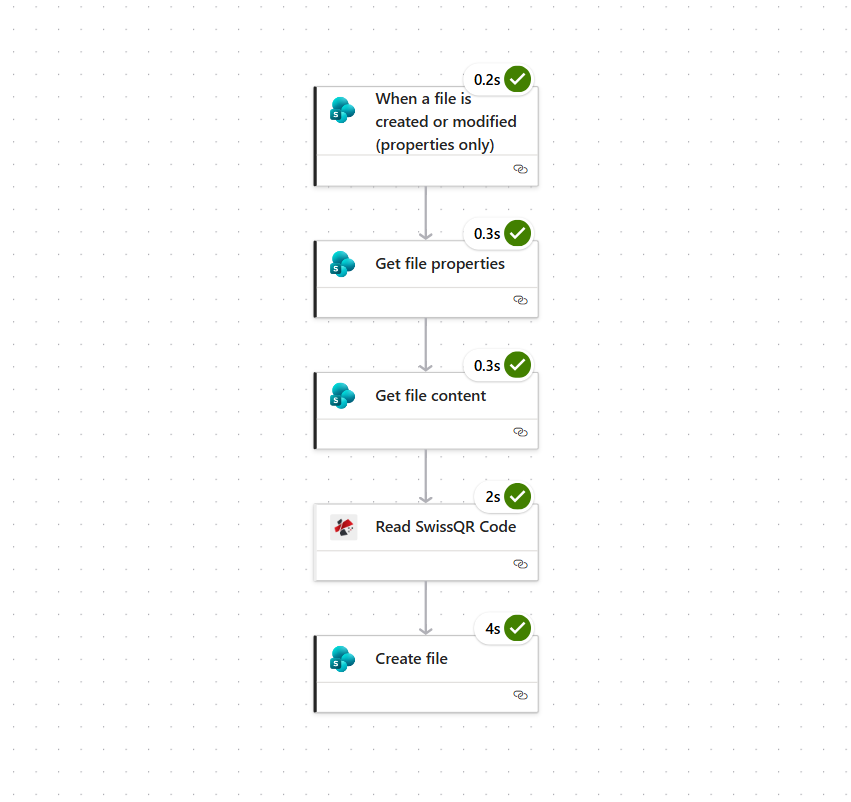
Your Power Automate flow for dynamic file renaming with Swiss QR data looks like this:
- Trigger — "When a file is created or modified (properties only)" in a SharePoint document library. The flow runs automatically whenever a new or updated PDF appears.
- Get file properties — Fetches metadata for the file that triggered the flow (same site and library; uses the trigger's file Id).
- Get file content — Retrieves the actual PDF binary from SharePoint (using Identifier from the previous step; set Infer Content Type to Yes).
- Read SwissQR Code (PDF4me) — Extracts payment and party data from the Swiss QR code in the PDF. Returns structured data (e.g.
body.cr_Name,body.IBAN) that you use directly in the next step. File Content = Body from Get file content; File Name from the trigger or a static value for testing. - Create file — Saves the file in SharePoint (same site, e.g. folder
/Test) with File Name from the Read SwissQR Code output (e.g. creditor name + underscore + IBAN +.pdf), and File Content = Body from Get file content.
Below we walk through each part in detail.
Step 1: Configure the Trigger
Start with the SharePoint trigger so the flow runs whenever a file is added or changed in your library.
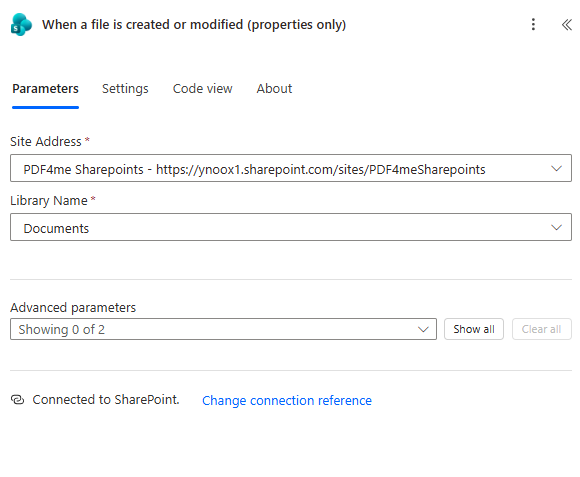
- Add the trigger "When a file is created or modified (properties only)".
- Set Site Address to your SharePoint site (e.g. the site that holds your PDFs).
- Set Library Name to the document library you want to watch (e.g. Documents).
- Ensure the flow is Connected to SharePoint.
The trigger only returns file properties at first; you'll get the full file content in a later step. This keeps the flow efficient and event-driven—no manual run needed.
Step 2: Get File Properties and Content
Next, retrieve the file's properties and then its binary content so you can send the PDF to Read SwissQR Code.
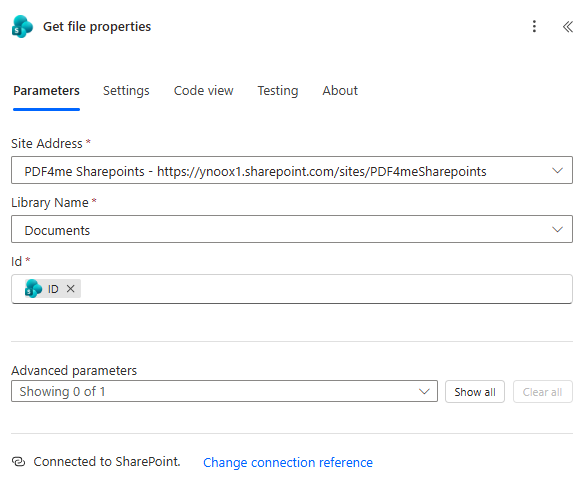
Get file properties
- Use the same Site Address and Library Name as the trigger.
- Set Id to the dynamic Id from the trigger (the file that started the flow). In the Id field, open the dynamic content picker and choose Id from the trigger.
Get file content
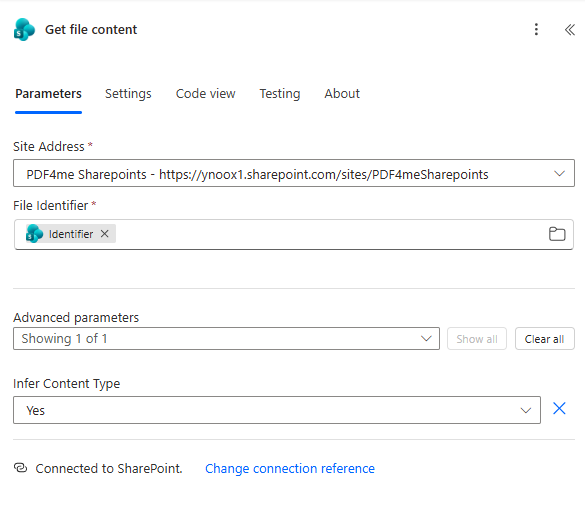
- Use the same Site Address as above.
- Set Identifier to the Identifier from Get file properties using the dynamic content picker.
- Turn Infer Content Type to Yes so Power Automate detects the file type correctly.
The output Body from Get file content is the PDF binary you'll pass to Read SwissQR Code and later use as the new file's content.
Step 3: Read SwissQR Code
Extract the Swiss QR code data with PDF4me. The action returns structured data (e.g. cr_Name, IBAN) that you use directly in the Create file step for the filename.
Read SwissQR Code — From the PDF4me SwissQR connector: add an action, search for PDF4me SwissQR, then choose Read Swiss QR or Read SwissQR Code. See Read SwissQR Code for full details.
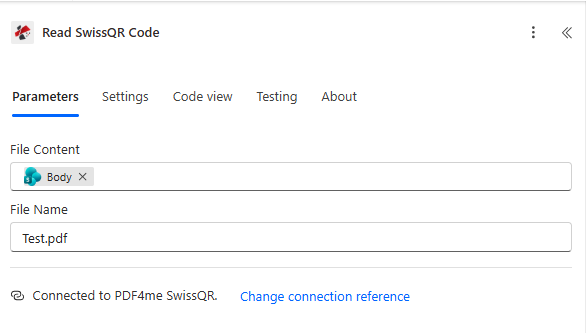
- File Content — Set to Body from the Get file content action (the PDF binary).
- File Name — You can enter a fixed value like
Test.pdfor use the Name field from the "Get file properties" action by selecting it from dynamic content. - Ensure you're Connected to PDF4me SwissQR (use your PDF4me API key in the connection).
The action returns structured data (e.g. creditor name, IBAN, reference) that you use directly in the Create file action for the filename.
Step 4: Create File with Dynamic Name
Save the file in SharePoint with a new name built from the Read SwissQR Code output.
Create file (SharePoint)
- Site Address — Same SharePoint site as the trigger.
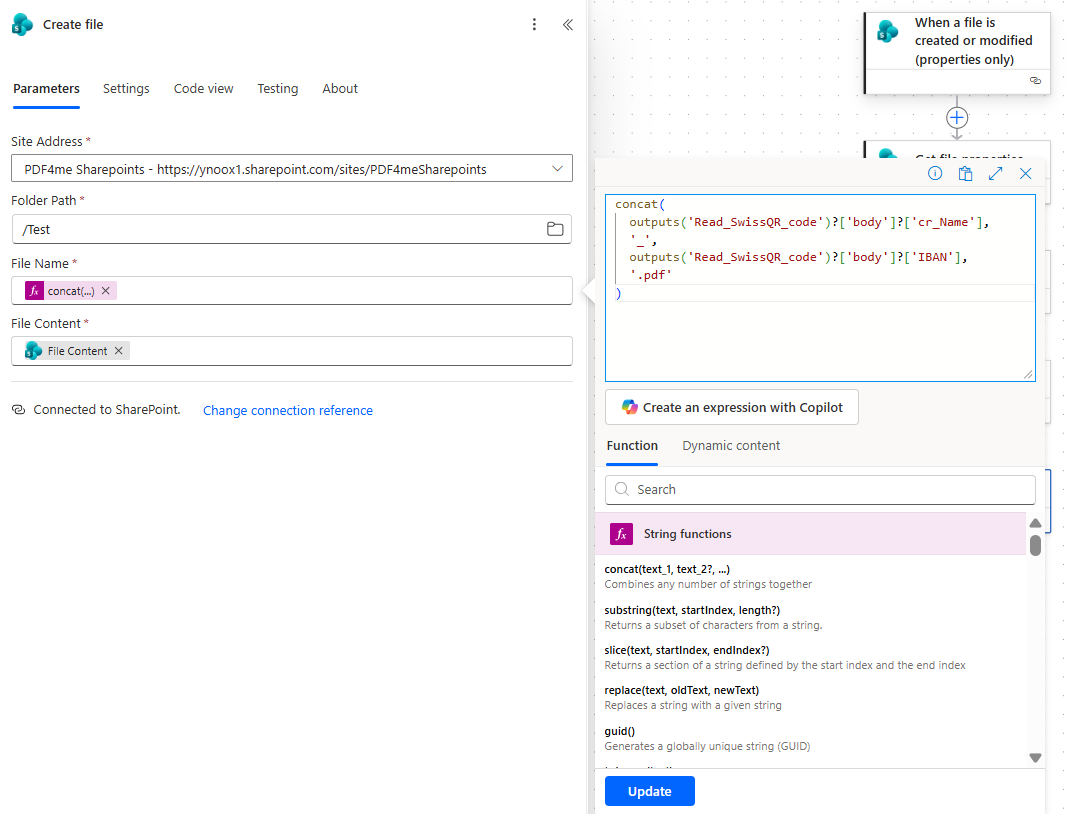
- Folder Path — Target folder, e.g.
/Test, or the library root (e.g./). - File Name — Use an expression so the name is dynamic. For a pattern like CreditorName_IBAN.pdf (e.g.
Test AG_CH0200700110003765824.pdf):
concat(
  outputs('Read_SwissQR_code')?['body']?['cr_Name'],
  '_',
  outputs('Read_SwissQR_code')?['body']?['IBAN'],
  '.pdf'
)
- File Content — Set to Body from Get file content (the original PDF binary). File Content is the binary from Get file content—in the dynamic content list it is often labeled Body or Content; use that, not the JSON body from Read SwissQR Code.
The flow creates a new file with this name and the same content. The original file remains in its location unless you add a separate step to delete or move it.
Result
After the flow runs, you'll see a new PDF in the target folder with a name like Test AG_CH0200700110003765824.pdf—creditor name, underscore, Swiss IBAN, and .pdf. Each file is renamed from its own Swiss QR code data, so the flow is fully dynamic and content-based.

Gotcha: The Create file action creates a new file with the new name; it does not rename the original in place. If you want to avoid keeping both copies, add a step to delete or move the original file after Create file succeeds.
Why This Works
The trigger runs when a file is created or updated in SharePoint; Get file properties and Get file content fetch that file; Read SwissQR Code (PDF4me SwissQR connector) returns structured fields like cr_Name and IBAN; Create file uses them in the filename and the original binary as content.
Real-World Scenarios
Scenario 1: Payment Slips in SharePoint
Problem: Your team stores Swiss QR payment slip PDFs in a SharePoint library. Files arrive as document.pdf or scan_001.pdf—hard to find a specific slip by creditor or IBAN.
Solution: Use this flow to rename each file by creditor name and IBAN (e.g. Test AG_CH0200700110003765824.pdf). Every file is searchable and traceable.
Trigger: When a file is created or modified in the SharePoint Documents library
Scenario 2: Incoming Swiss QR Invoices
Problem: Invoices with Swiss QR codes are uploaded to SharePoint. Matching them to payments or accounting records requires opening each PDF to see creditor and IBAN.
Solution: Rename each invoice by creditor and IBAN so you can search and match by filename. Reduces manual lookup and speeds up reconciliation.
Trigger: SharePoint folder where invoices are uploaded
Scenario 3: Bank and AR Reconciliation
Problem: You need to match bank statements or payment advices (with Swiss QR data) to customer accounts. Generic filenames make it difficult to link documents to the right account.
Solution: Rename by creditor name and IBAN so filenames align with your AR or banking data. Enables faster matching and audit trails.
Trigger: SharePoint library used for payment/bank documents
Scenario 4: Archive and Compliance
Problem: Long-term storage of Swiss QR documents requires consistent, searchable naming for audits and retrieval.
Solution: Automatically name every new or updated file by creditor and IBAN. Your archive stays consistent and searchable without manual renaming.
Trigger: When a file is created or modified in the archive library
Quick FAQ
What if I want more fields in the filename?
Add them to the concat expression, e.g. reference number: concat(outputs('Read_SwissQR_code')?['body']?['cr_Name'], '_', outputs('Read_SwissQR_code')?['body']?['IBAN'], '_', outputs('Read_SwissQR_code')?['body']?['Reference'], '.pdf'). The Read SwissQR Code response body includes these fields (e.g. Reference, Amount).
Can I use a different folder?
Yes. Change Folder Path in the Create file action to any folder in the same SharePoint site (e.g. /Invoices/2026).
What if Read SwissQR returns no code or fails?
The flow will error unless you add error handling. You can add a parallel branch or condition to check for a valid response and only run Create file when Swiss QR data is present; otherwise send the file to a "manual review" folder or skip renaming.
Next Steps
Recap: Trigger in SharePoint → get file → Read SwissQR → Create file with cr_Name_IBAN.pdf (e.g. Test AG_CH0200700110003765824.pdf).
- Get your API key — Use the same PDF4me account for the Read SwissQR Code connection in Power Automate. Free to start.
- Build your flow — In Power Automate, add the trigger and actions as above. Connect to your SharePoint site and PDF4me SwissQR.
- Read the full docs — Read SwissQR Code (Power Automate), Connect to Power Automate.
Want the same idea with barcodes or QR codes in n8n? See Rename PDFs using barcode in n8n.