How to Convert HTML to PDF in Make: Download, Convert, Upload—Automated.
You have HTML—from a template, a form, or cloud storage. You need a PDF for email, archiving, or distribution. Manually exporting doesn't scale. Make plus PDF4me turns HTML into PDF in three modules: download the file from Dropbox (or Google Drive), run Convert HTML to PDF, and upload the result. No code, no servers. Connect your storage, map the HTML file, and get a ready-to-use PDF.
In a nutshell: Dropbox – Download a File (e.g. /Blog Data/HTML/sample.html) → PDF4me – Convert HTML to PDF (map Document from Download, File Name with .html) → Dropbox – Upload a File. Output: PDF ready to store, email, or pass to the next module.
Why-Based Q&A
Why use Make for HTML to PDF? Make's visual scenario builder connects 1,500+ apps without code. When HTML lives in Dropbox, Google Drive, or a triggered path, a scenario can download it, convert to PDF, and upload the result—ideal for reports, invoices, and certificates.
Why map Document from Download? Convert HTML to PDF needs the HTML file content (Buffer). Map File or Data from the Download module so Make passes the actual bytes to PDF4me—not just a path.
Why PDF4me Convert HTML to PDF? The module preserves CSS, images, and layout. You get Portrait/Landscape control and direct integration with Dropbox, Google Drive, or email—no extra upload-then-convert steps.
What You'll Get
Input: An HTML file in Dropbox or Google Drive (e.g. sample.html). Output: A PDF file—ready to upload, email, or pass to the next module.
What You Need
- Make — Create a Make account and open a new scenario.
- PDF4me API key — Get your API key. Connect it when you add the PDF4me module. First time? See Connect PDF4me to Make.
- Dropbox or Google Drive — For the HTML file and (optionally) the output PDF folder.
The Scenario at a Glance
- Download a File (Dropbox / Google Drive) — Gets the HTML file from a path.
- PDF4me – Convert HTML to PDF — Converts the HTML to PDF. Map Document from Download, set File Name (with .html), and Layout.
- (Optional) Upload a File — Saves the PDF to an output folder.
Complete scenario overview
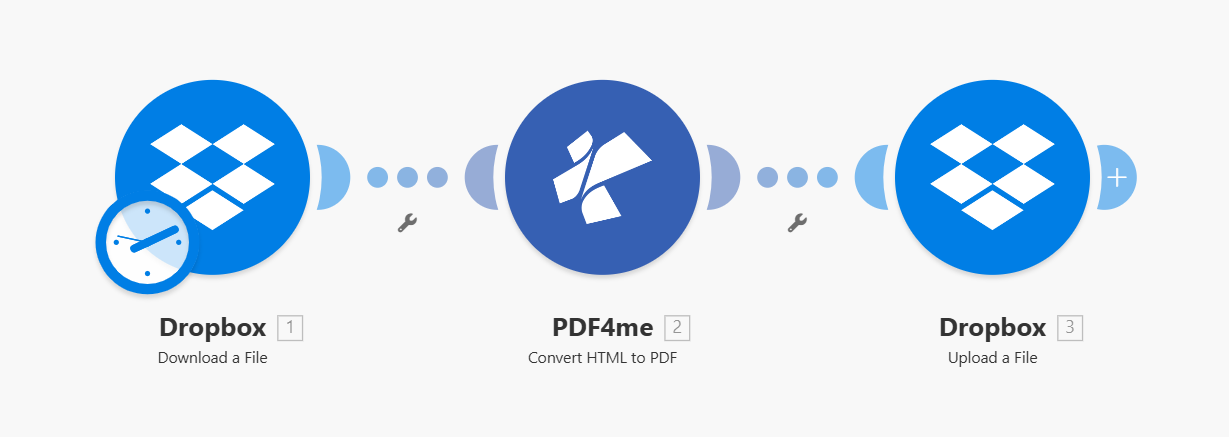
Three modules in sequence: Download → Convert HTML to PDF → Upload. Each module shows a green checkmark when configured. The file from Download is passed into PDF4me, and the PDF output is uploaded.
Step 1: Download the HTML File
Scenario so far: Download only.
- Add Dropbox (or Google Drive) → Download a File.
- Connection — Select your connection.
- Way of selecting files — Select a file (or use Map for dynamic paths).
- File — Enter the path, e.g.
/Blog Data/HTML/sample.html. - Run the module to confirm the file is retrieved.
Dropbox – Download a File: Configuration
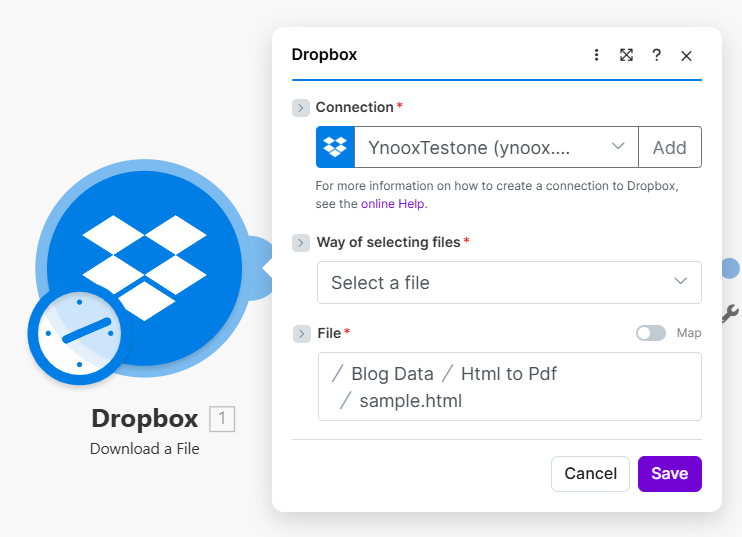
Download module: File path set to the HTML location. The output (File, Data, or Document) is passed to the Convert HTML to PDF module. Use Map to pull the path from a trigger for automation.
Step 2: Convert HTML to PDF
Scenario so far: Download → Convert HTML to PDF.
- Add PDF4me → Convert HTML to PDF.
- File Name — The HTML filename with extension, e.g.
sample.html. Map from the Download module if using dynamic paths. - Document — Map the file content from the Download module (e.g. Data or File—the buffer/binary output).
- Layout — Portrait or Landscape.
- Connect your PDF4me account if prompted.
- Run the module to test.
PDF4me – Convert HTML to PDF: File and layout
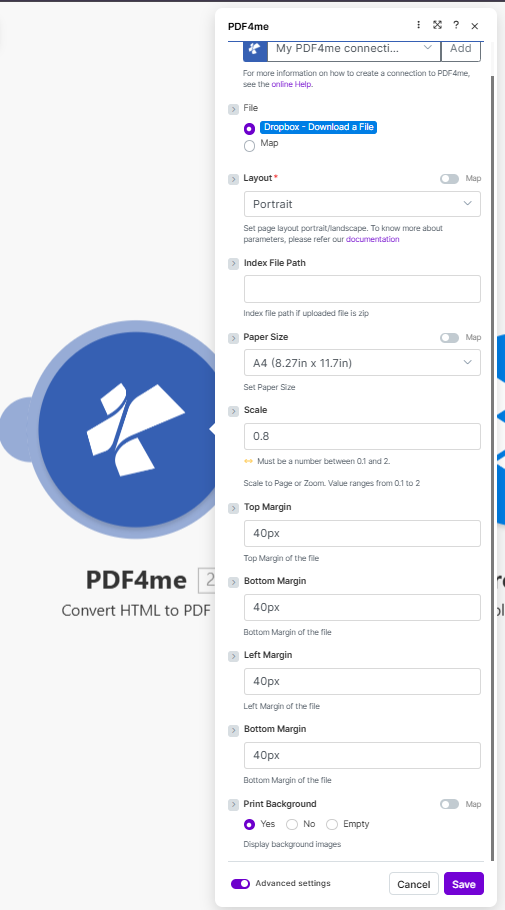
Convert HTML to PDF: File Name (with .html extension), Document mapped from the Download module, Layout set to Portrait or Landscape. PDF4me preserves CSS and images from the HTML.
Step 3: Upload the PDF (Optional)
Scenario so far: Download → Convert HTML to PDF → Upload.
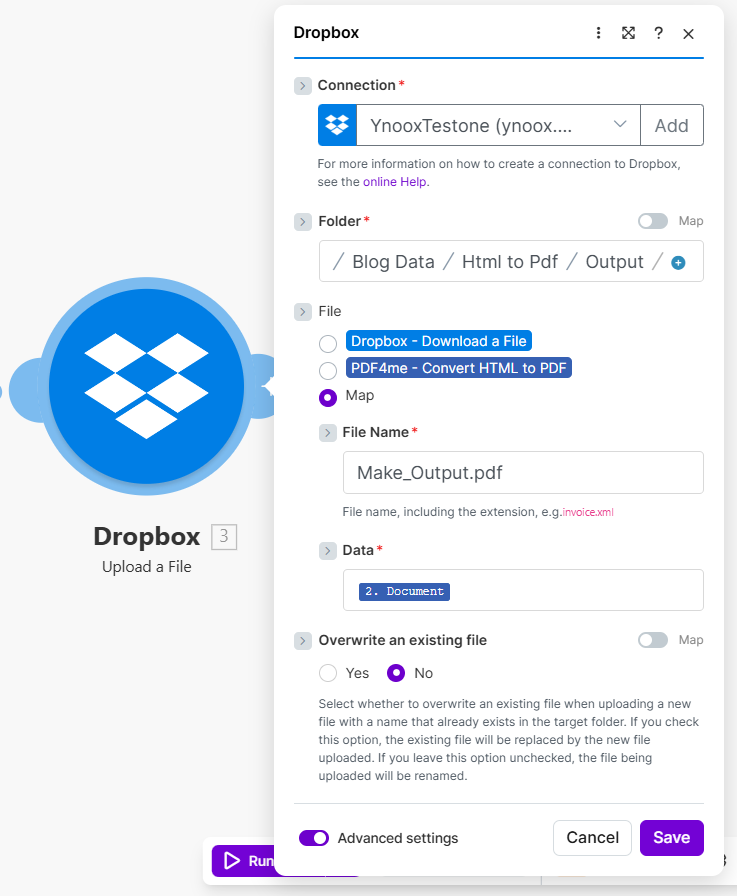
- Add Dropbox (or Google Drive) → Upload a File.
- Folder — e.g.
/Blog Data/HTML/Output. - File — Map Doc Data (or Document) from the Convert HTML to PDF module.
- File Name — e.g.
output.pdfor map from the Convert module's Name output. - Run to save the PDF.
Output: PDF from Convert HTML to PDF
Output from Convert HTML to PDF: Name (output filename), Doc Data (PDF buffer). Map Doc Data into the Upload module's File field to save the PDF to cloud storage.
Image-based fact check: Input and output
Visual confirmation of what goes in and what comes out.
Example HTML input file
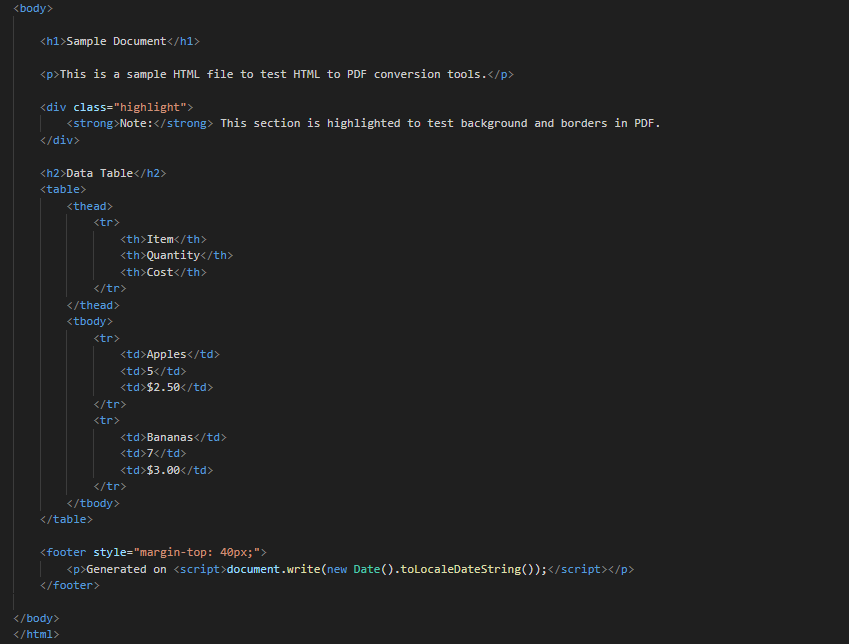
Sample HTML input: raw HTML or rendered content. The Download module fetches this file; Convert HTML to PDF preserves CSS, images, and structure in the PDF.
Example PDF output file
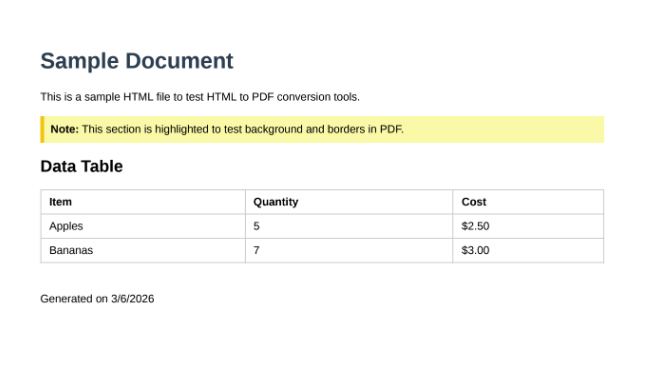
Generated PDF: same content as the HTML in PDF form. Use the Upload module to save to Dropbox, Google Drive, or pass to the next scenario action.
Use Cases: When to Use HTML to PDF in Make
Invoices and quotes: Generate HTML from Airtable, Google Sheets, or a database. Save to a folder; the scenario converts to PDF and uploads or emails automatically.
Reports and dashboards: HTML reports from BI tools or templates can be dropped in a folder. Make converts them to PDF for distribution or archiving.
Certificates and badges: Create HTML certificates from event or training data. Convert to PDF and send via email or store in a document system.
Quick Reference: Key Settings
| Module | Setting | Example |
|---|---|---|
| 1. Download a File | File | /Blog Data/HTML/sample.html |
| 2. Convert HTML to PDF | Document | From Download (Data/File) |
| 3. Upload a File | File | Doc Data from Convert HTML to PDF |
For full parameter details, see Convert HTML to PDF — Make.
Troubleshooting
Ensure you map the actual file content (Data, File, or buffer) from the Download module to Document—not just the file path or metadata. Make may label it differently depending on the connector; use the field that contains the binary/ buffer.
The Convert HTML to PDF module uses File Name to identify the format. Include the .html extension (e.g. sample.html).
PDF4me Troubleshooting covers 401 (API key), 402 (credits), and more.