PDFs Piling Up? Convert Them to PDF/A in Make into Archival Format, Automated !
Banks keep loan agreements for decades. Courts store electronic filings for generations. Regulators expect records that stay readable even when software and hardware change. PDF/A (ISO 19005) is the standard for that—fonts and images embedded, no external links, no encryption. Your document remains accessible and verifiable for years. In Make, you can automate the whole thing: download from Dropbox, compress (optional), convert to PDF/A, and upload the archival file. Four modules. One scenario.
In a nutshell: Dropbox Download → Compress PDF (optional, reduces size) → Create PDF/A (choose compliance level, e.g. PDF/A-1b) → Dropbox Upload to an output folder. Input: Sample PDF.pdf. Output: Result.pdf in PDF/A format.
Why PDF/A? Courts, Banks, and Regulators Rely on It
Standard PDFs can break over time—fonts might be missing, colors can shift, external references can disappear. PDF/A solves that. It’s self-contained: every font, image, and color profile lives inside the file. No encryption, no scripts, no links to resources that might vanish. That’s why courts use it for electronic filings they must preserve for decades, and banks use it for loan documents and transaction records that regulators expect to remain accessible. Healthcare, government, and legal sectors rely on PDF/A for long-term preservation and compliance.
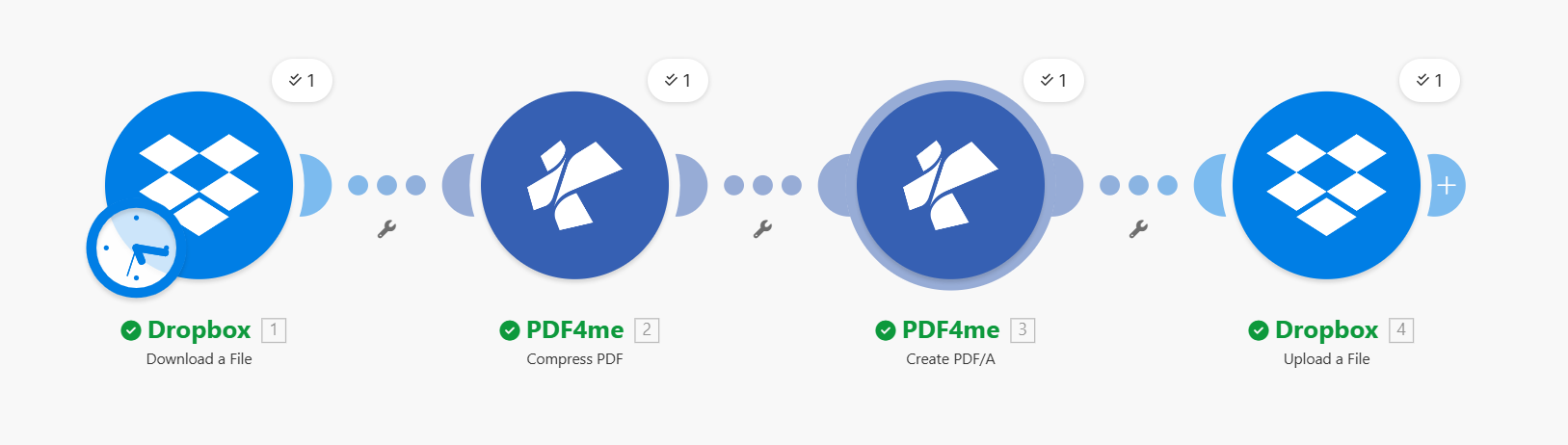
Workflow: download, compress, convert to PDF/A, upload. Each module processes 1 item.
What You’ll Get
Input: A regular PDF (e.g. Sample PDF.pdf) in a folder like /Blog Data/PDFA. Output: An archival PDF/A file (e.g. Result.pdf) in /Blog Data/PDFA/Output—ready for long-term storage, regulatory submission, or court filing.
What You Need
- Make — Create a Make account and open a new scenario.
- PDF4me API key — Get your API key. Connect it when you add PDF4me modules. First time? See Connect PDF4me to Make.
- Dropbox — For input and output folders. Any storage with download and upload works (Google Drive, OneDrive, etc.).
The Scenario: 4 Modules
- Dropbox – Download a File — Gets the source PDF.
- PDF4me – Compress PDF — Shrinks the file before archiving (optional but often useful).
- PDF4me – Create PDF/A — Converts to an archival-compliant format.
- Dropbox – Upload a File — Saves the PDF/A to your output folder.
Step 1: Grab the PDF from Dropbox
Scenario so far: Download only.
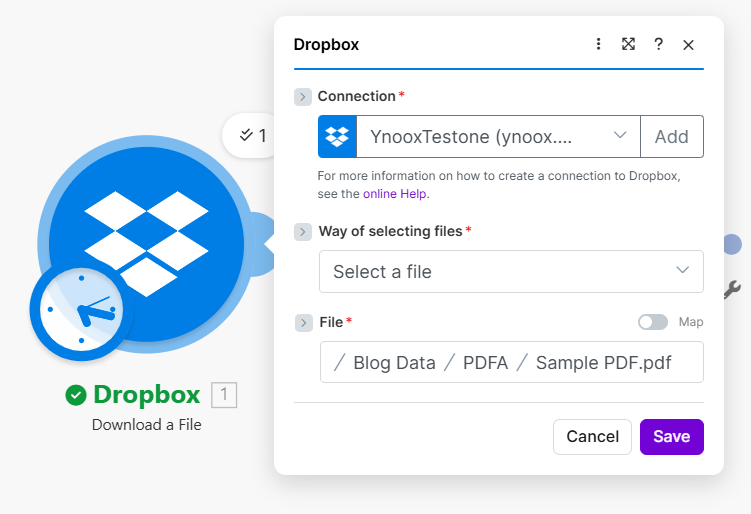
- Add Dropbox → Download a File.
- Connection — Select your Dropbox connection (e.g. YnooxTestone).
- Way of selecting files — Select a file (or use Map for dynamic paths).
- File — Enter the path, e.g.
/Blog Data/PDFA/Sample PDF.pdf.
Step 2: Compress the PDF (Optional)
Scenario so far: Download → Compress.
- Add PDF4me → Compress PDF.
- Connection — My PDF4me connection.
- File — Select Dropbox – Download a File (or Map and pick the file from step 1).
- Profile — Max (or a lighter profile if you prefer).
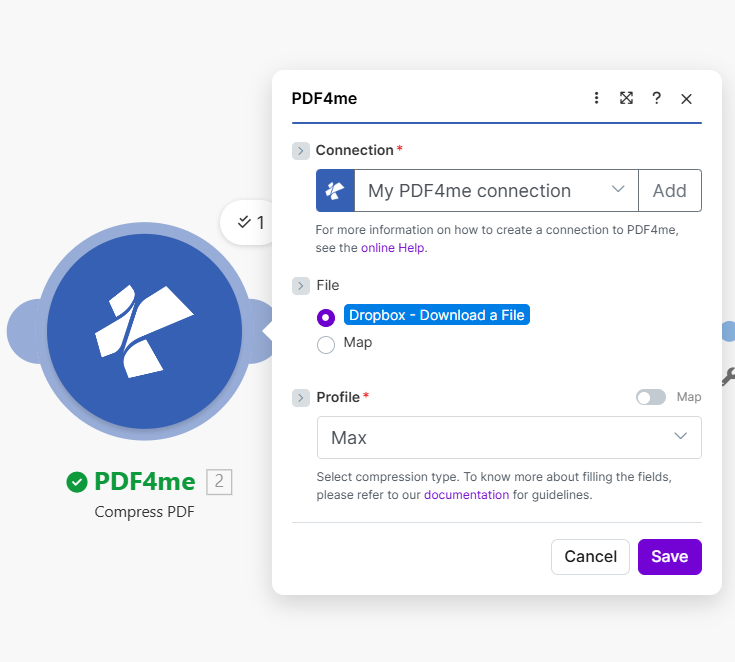
Why compress first? Smaller files archive and transfer faster. If you skip this step, connect Dropbox – Download a File directly to Create PDF/A.
Step 3: Convert to PDF/A
Scenario so far: Download → Compress → Create PDF/A.
- Add PDF4me → Create PDF/A.
- Connection — My PDF4me connection.
- File — Select PDF4me – Compress PDF (or Dropbox if you skipped compression).
- PDF/A Compliance — Choose a level:
- PDF/A-1b — Basic visual preservation (common for archives).
- PDF/A-1a — Accessible, with document structure.
- PDF/A-2b, 2u, 2a — Newer features, Unicode, accessibility.
- PDF/A-3b, 3u, 3a — Allows embedding other files (e.g. XML, Excel).
- Allow Downgrade — No (keep the requested level; fail if not achievable) or Yes (allow a lower level if needed).
- Allow Upgrade — Yes (upgrade if possible) or No (stick to the chosen level).
- Xmp Meta Data — Optional. Add metadata for better tracking and discoverability.
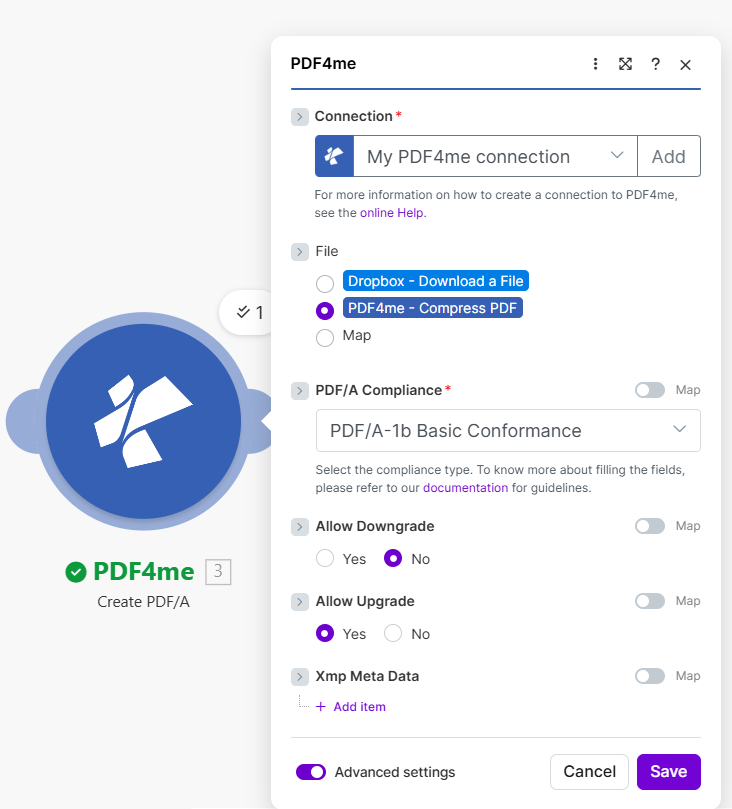
Choosing a compliance level
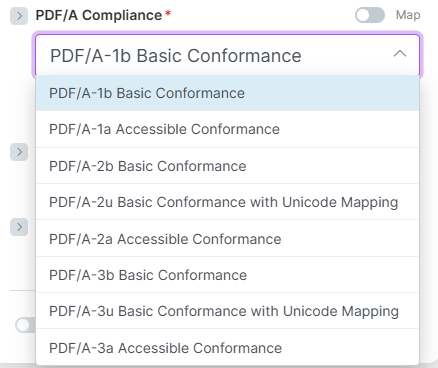
Basic (b) focuses on visual integrity; Accessible (a) adds structure for screen readers; Unicode (u) improves text handling.
Step 4: Save the Archival PDF to Dropbox
Scenario so far: Download → Compress → Create PDF/A → Upload.
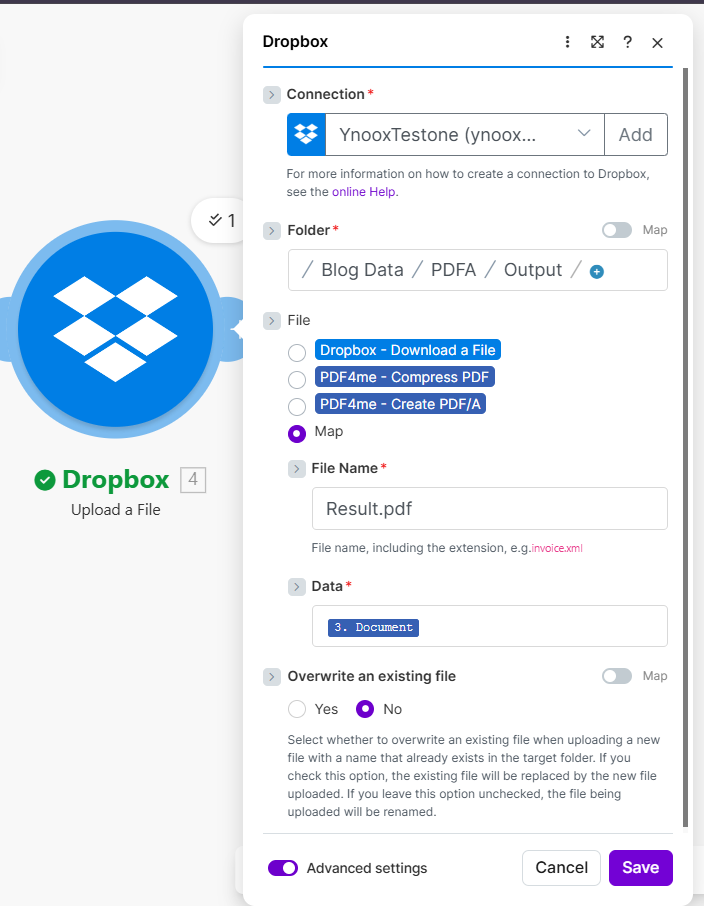
- Add Dropbox → Upload a File.
- Connection — Your Dropbox connection.
- Folder — Output path, e.g.
/Blog Data/PDFA/Output/. - File — Select PDF4me – Create PDF/A.
- File Name — e.g.
Result.pdf(or map dynamically from the source filename). - Data — Map 3. Document from the Create PDF/A module.
- Overwrite an existing file — No (rename if exists) or Yes (replace).
Who Uses PDF/A? Real-World Examples
Courts: Electronic court filings must often be preserved for 50 years or more. PDF/A ensures that decisions, pleadings, and exhibits remain readable and admissible regardless of future software changes.
Banks and financial services: Loan agreements, transaction records, and regulatory submissions must be retained for years. Auditors and regulators expect documents that won’t degrade—PDF/A meets that requirement.
Healthcare: Patient records, clinical trial documents, and regulatory filings often need to stay accessible for decades. PDF/A supports long-term preservation while supporting compliance.
Quick Reference: Key Settings
| Module | Setting | Example |
|---|---|---|
| Dropbox Download | File | /Blog Data/PDFA/Sample PDF.pdf |
| Compress PDF | Profile | Max |
| Create PDF/A | PDF/A Compliance | PDF/A-1b Basic Conformance |
| Create PDF/A | Allow Downgrade / Upgrade | No / Yes |
| Dropbox Upload | Folder | /Blog Data/PDFA/Output/ |
For full parameter details, see Create PDF/A — Make.
Troubleshooting
Some PDFs use features PDF/A doesn’t allow (e.g. certain fonts, encryption). Try Allow Downgrade: Yes to let the converter pick a lower compliance level, or choose a different level (e.g. PDF/A-2b instead of PDF/A-1b).
PDF/A embeds all fonts and resources. Use Compress PDF before Create PDF/A to reduce size, or choose a compliance level that supports more compression (e.g. PDF/A-2).
PDF4me Troubleshooting covers 401 (API key), 402 (credits), and more.
What’s Next?
- Replace the manual path with a scheduled trigger or folder watch to process new PDFs automatically.
- Add a filter to convert only specific files (e.g. by name, size, or folder).
- Use Google Drive or OneDrive instead of Dropbox with the same pattern.