From Plain PDF to Branded: Add HTML Headers and Footers in n8n !(No Merge Needed)
If you're using n8n for automation, adding HTML headers and footers to your PDFs is straightforward—four nodes, no code. This guide shows you how to set up an n8n workflow that downloads a PDF from Dropbox, adds your custom header or footer using PDF4me, and uploads the branded file back. You paste HTML directly into the Add HTML header footer to PDF node—no separate header file needed.
What You Need
- n8n — Self-hosted or n8n Cloud. Add the PDF4me node from the n8n node panel.
- PDF4me API key — Get your PDF4me API key (free to start). First time? Follow Connect PDF4me to n8n.
- Dropbox — We use Dropbox for Download and Upload. You can use Google Drive, OneDrive, or any node that provides binary file input/output. Swap in the right nodes—the flow stays the same.
The Flow at a Glance
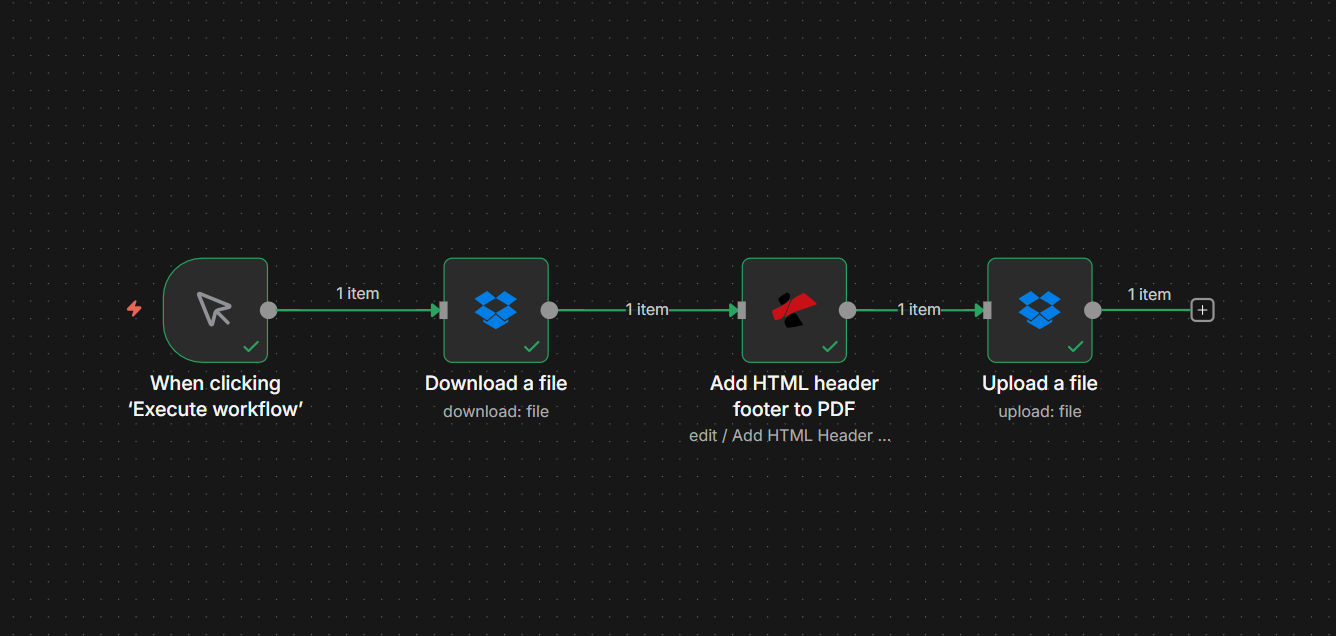
Your n8n workflow runs in four nodes:
- Trigger — When clicking 'Execute workflow' (manual) for testing, or an automated trigger (e.g. Dropbox, webhook) when a new file appears.
- Download a file (Dropbox) — Fetches the PDF from a path. Output goes into a binary field (e.g.
data). - Add HTML header footer to PDF (PDF4me) — Takes the PDF binary, pastes your HTML, applies it as header or footer. Outputs the modified PDF to a new binary field (e.g.
document). - Upload a file (Dropbox) — Saves the modified PDF to a folder with the name you choose.
No merge step—the Add HTML Header Footer node outputs the new PDF directly. Same file, branded; new name if you want.
Step 1: Trigger + Download a File
Add a trigger and the Dropbox Download a file node to load the PDF into the workflow.
- Add a trigger — When clicking 'Execute workflow' for testing, or e.g. Dropbox trigger when a file is created.
- Add Download a file (Dropbox)
- Credential to connect with — Your Dropbox account.
- Resource — File | Operation — Download.
- File Path — Full path to your PDF, e.g.
/Blog Data/sample_3_page.pdf. - Put Output File in Field —
data(or another name—you'll reference it in the next node).
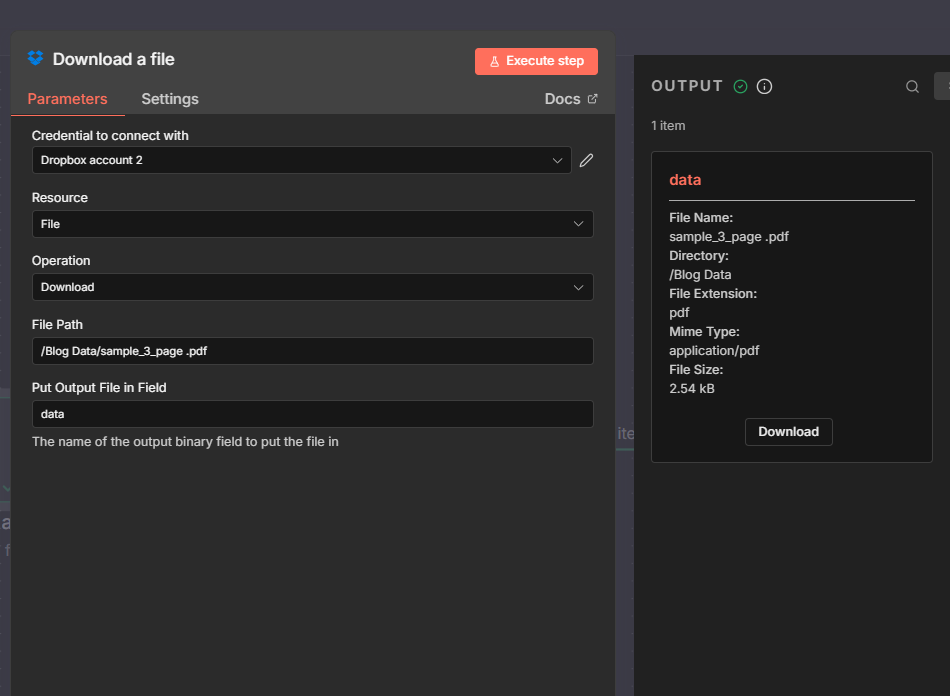
Run the node. The output will include 1 item with the PDF in the data binary field.
Step 2: Add HTML Header Footer to PDF
Add the PDF4me node and select Edit → Add HTML Header Footer to PDF. Paste your HTML, set location (header or footer), and margins.
- Add PDF4me node → Edit → Add HTML Header Footer to PDF.
- Credential to connect with — Your PDF4me account.
- Input Data Type — Binary Data.
- Input Binary Field —
data(same as the Download node's Put Output File in Field). - HTML Content (required) — Paste your header or footer HTML. Example:
<div style="width:100%; font-family: Segoe UI, Arial, sans-serif; color:#333; padding:12px 18px 8px 18px; box-sizing:border-box;">
  <table style="width:100%; border-collapse:collapse;">
    <tr>
      <td>Your Company Name</td>
      <td style="text-align:right;">Document Title | Page {{page}} of {{total}}</td>
    </tr>
  </table>
</div>
- Location — Header or Footer.
- Pages —
allor a range like1-3(pages 1 to 3). - Skip First Page — Off to apply to all pages; turn On to skip the first page.
- Margins (Px) — n8n uses pixels. Example: Margin Left 5, Margin Right 5, Margin Top 10, Margin Bottom 10.
- Output File Name — e.g.
document_with_html_header_footer.pdf. - Document Name — e.g.
document.pdf(source reference). - Binary Data Output Name —
document(the field the Upload node will read).
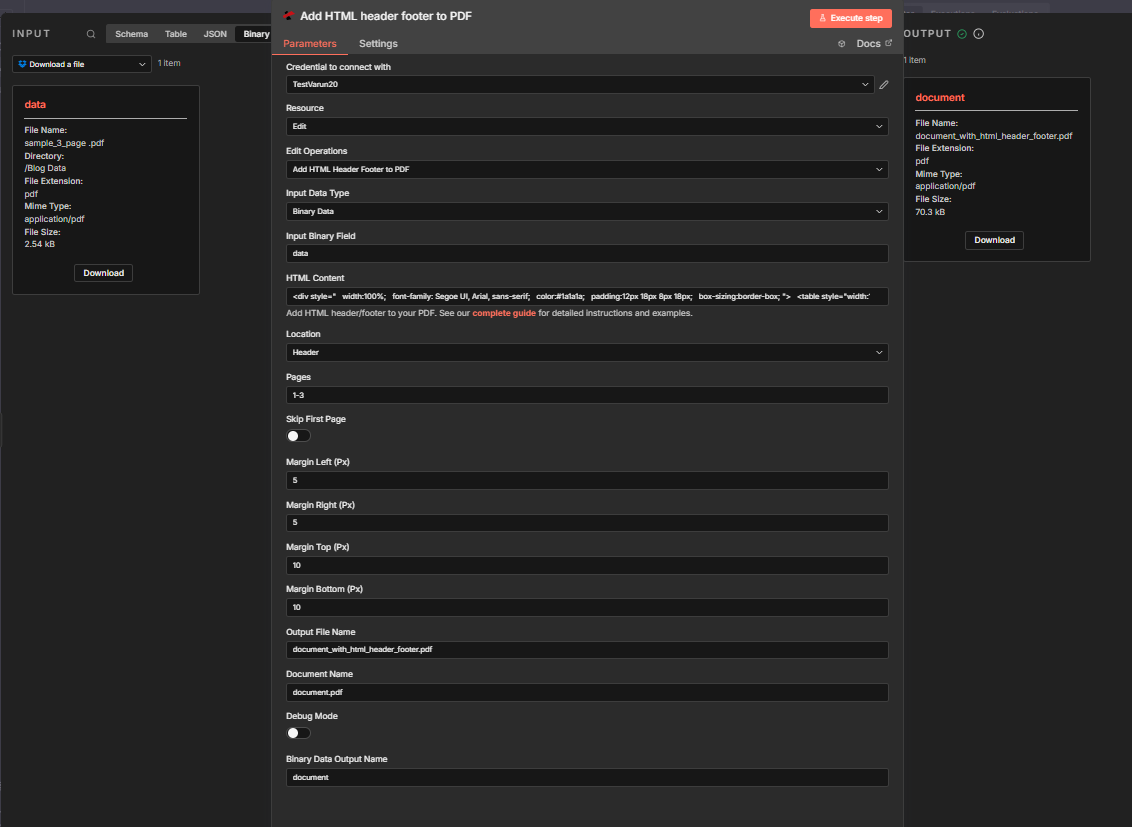
Run the node. The output includes the modified PDF in the document binary field (file size increases—e.g. 2.54 kB → 70.3 kB).
Step 3: Upload a File
Save the modified PDF back to Dropbox.
- Add Upload a file (Dropbox)
- Credential to connect with — Same Dropbox account.
- Resource — File | Operation — Upload.
- File Path — Full path including filename, e.g.
/Blog Data/Header_Added_Output.pdf. - Binary File — On.
- Input Binary Field —
document(from the Add HTML header footer node). Do not usedata—that's the original PDF.
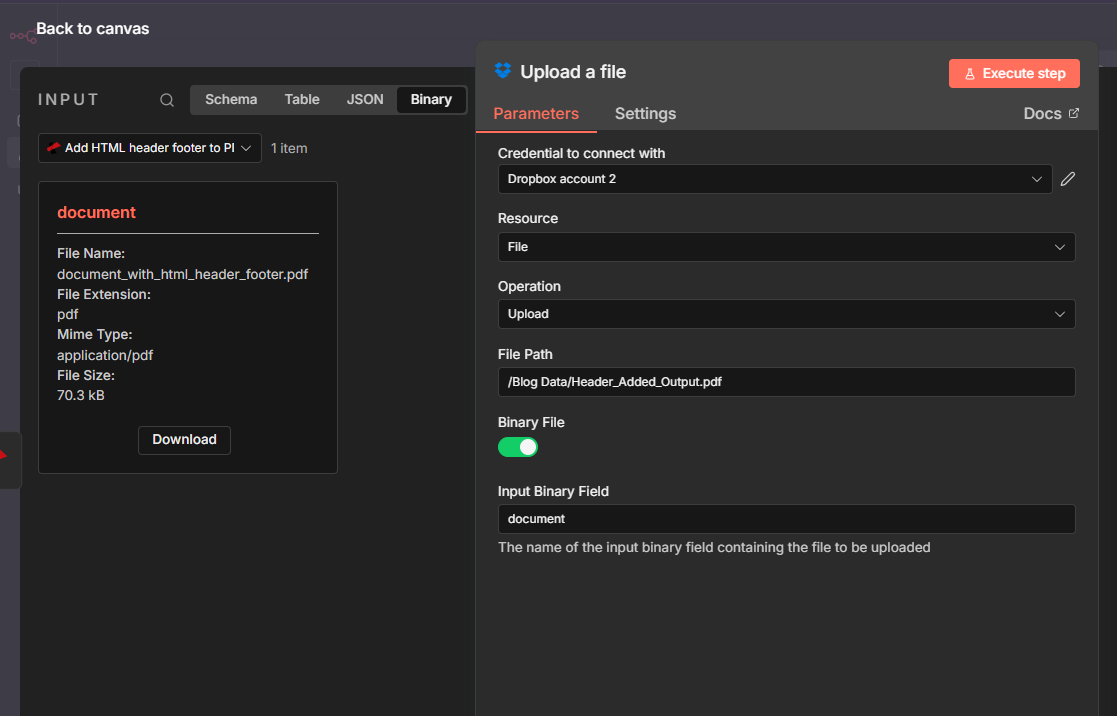
Run the workflow. The file Header_Added_Output.pdf (or your chosen name) will appear in Dropbox with the header or footer applied.
Sample HTML Snippets: Copy & Use in n8n
These PDF-friendly snippets work in the HTML Content field. Expand any block below to copy and paste.
Headers
Two-column (Author, Date, Revision)Right column aligned; replace with your text or n8n expressions.
<table style="width: 100%; border-collapse: collapse; font-family: Arial, sans-serif; font-size: 11px;">
  <tr>
    <td style="width: 50%; vertical-align: top;"></td>
    <td style="width: 50%; text-align: right; vertical-align: top;">
      Author: Per Nordqvist<br/>
      Date: 2025-11-12<br/>
      Revision: 4.24
    </td>
  </tr>
</table>
Simple centered one-line
<div style="text-align: center; font-family: Arial, sans-serif; font-size: 12px; color: #333333;">Document Title - Confidential</div>
Footers
Legal / confidential
<table style="width: 100%; border-collapse: collapse; font-family: Arial, sans-serif; font-size: 9px; color: #666666;">
  <tr>
    <td style="text-align: center; padding: 4px 0;">Confidential. For internal use only. All rights reserved.</td>
  </tr>
</table>
Page number onlyUse {{page}} and {{total}}; PDF4me replaces them per page.
<div style="text-align: center; font-family: Arial, sans-serif; font-size: 10px;">Page {{page}} of {{total}}</div>
Before You Paste HTML: A Quick Checklist
- Inline CSS — Use
style="..."on elements. External stylesheets are not applied. - Table or simple blocks — Use
<table>or divs with explicitwidthfor stable layout. - Units — n8n's margin settings are in pixels (Px). Inside HTML, use
pxor%. - Test first — Paste your snippet into the Add HTML Header Footer to PDF tester before wiring it into n8n.
Paste any snippet above into the Add HTML Header Footer to PDF tester with a sample PDF and your API key. Each code block is ready to copy.
Where to Use It: n8n vs Make vs Power Automate vs API
- n8n — Use the flow above: Download → Add HTML header footer to PDF → Upload. Margins in pixels.
- Make — Add HTML Header Footer in Make. Margins in millimeters.
- Power Automate — Add HTML Header Footer in Power Automate. Uses a separate header file from Dropbox.
- API — Call
POST /api/v2/AddHtmlHeaderFooterwith docContent, docName, htmlContent, and location.
The same HTML works everywhere.
Next Steps
- Run the workflow — Follow the three steps above, paste a snippet into HTML Content, and execute.
- Try the API — Use the Add HTML Header Footer to PDF tester to preview your HTML.
- Read the n8n docs — Add HTML Header Footer to PDF (n8n) for full parameters.
- Full API reference — Add HTML Header Footer to PDF (PDF4me API).