How to Add HTML Headers and Footers to PDFs in Make ? A No-Code 3-Step Guide !
If you're already using Make (formerly Integromat) to automate workflows, adding professional HTML headers and footers to your PDFs is straightforward—three modules, no code. This guide shows you exactly how to set up a Make scenario that downloads a PDF from Dropbox, adds your custom header or footer using PDF4me, and uploads the branded file back. You'll use the Add Html Header Footer to PDF action and paste your HTML directly into Make—no separate header file needed.
Your Make Flow: 3 Modules, One Goal
The scenario runs in three steps: Dropbox – Download a File → PDF4me – Add Html Header Footer to PDF → Dropbox – Upload a File. Each module connects to the next, and the PDF4me module is where you define your header or footer HTML.
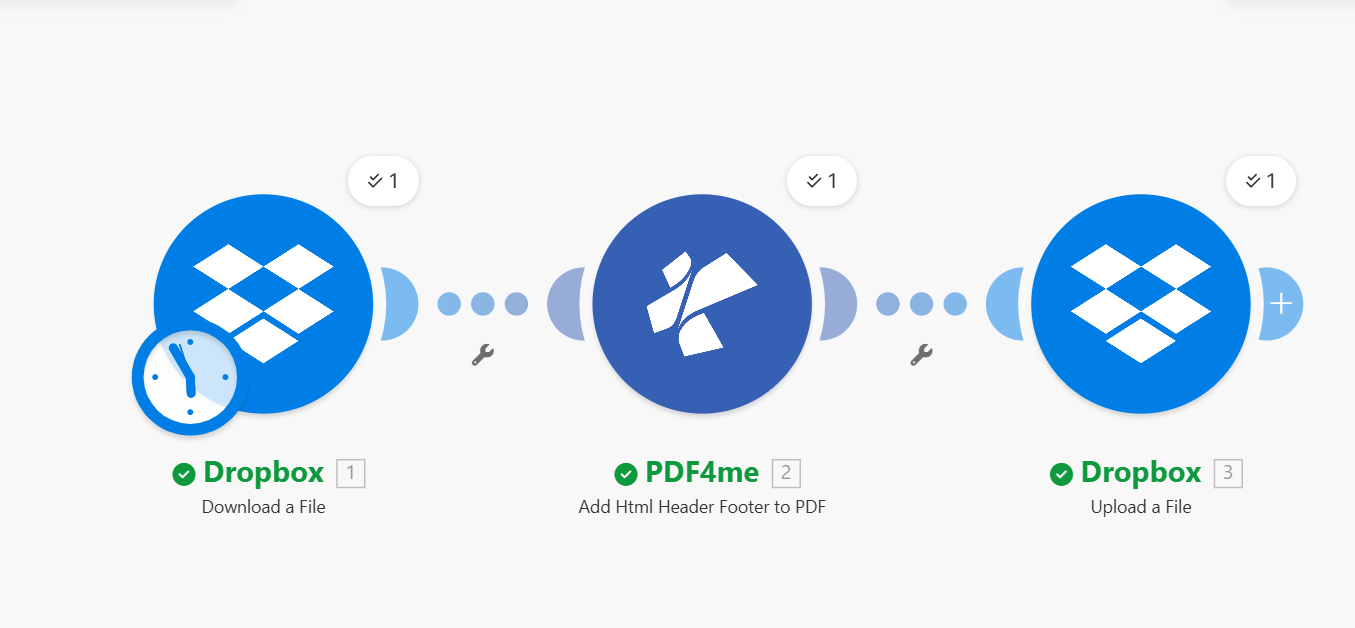
You’ll need a Dropbox connection (to read and write files) and a PDF4me connection (using your API key). Once both are set, the flow runs end-to-end in seconds.
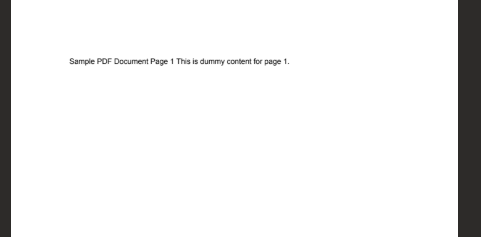
Input File
Output File

Step 1: Dropbox – Download a File
Start with the Dropbox module and choose Download a File. This step fetches the PDF you want to add a header or footer to.
- Add the Dropbox module → select Download a File.
- Connection (required) — Choose your Dropbox account or add a new one.
- Way of selecting files — Set to Select a file.
- File (required) — Enter the full path to your PDF, e.g.
/ Blog Data / sample_3_page.pdf. Use the folder icon to browse your Dropbox if needed.
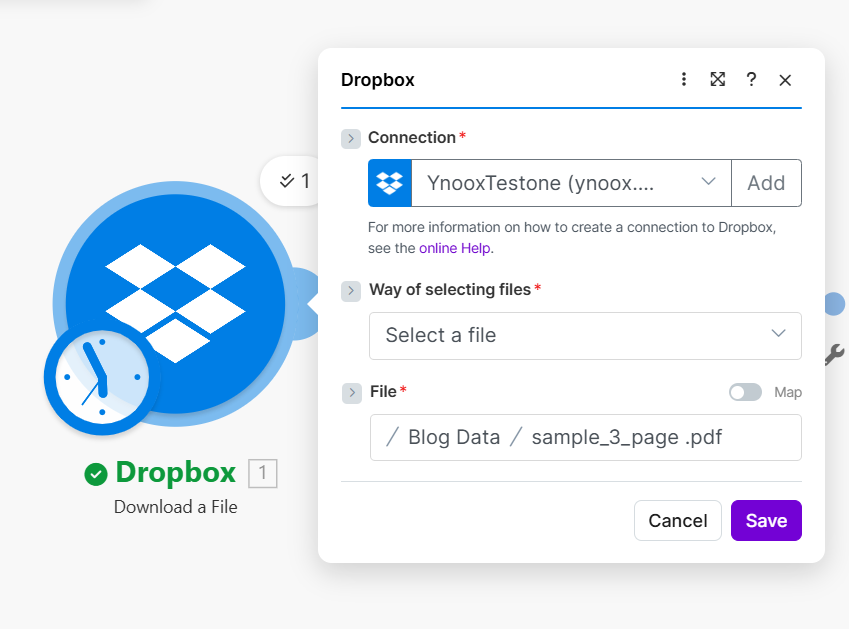
Click Save. The module outputs the file content, which you’ll pass to PDF4me in the next step.
Step 2: PDF4me – Add Html Header Footer to PDF
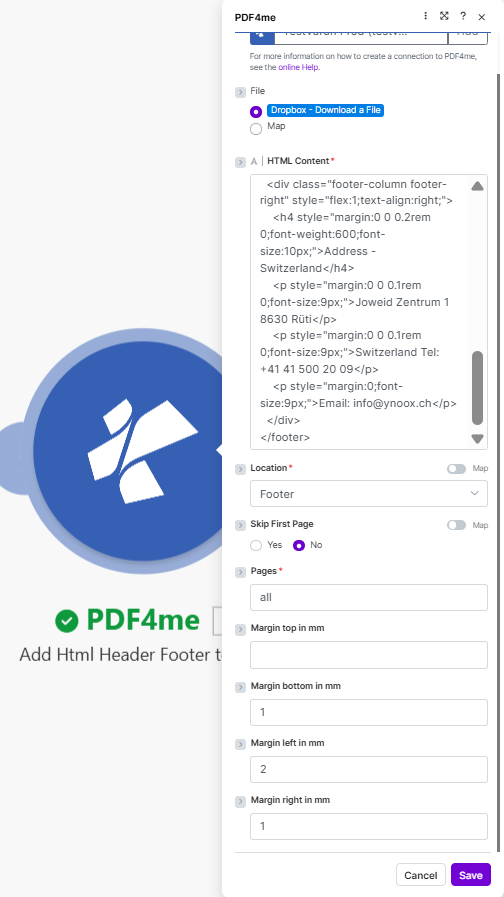
Add the PDF4me module and select Add Html Header Footer to PDF. Here you paste your HTML, set the location (header or footer), and fine-tune margins.
- Add the PDF4me module → select Add Html Header Footer to PDF.
- File (required) — Map the output from Dropbox – Download a File (the PDF binary).
- HTML Content (required) — Paste your header or footer HTML directly. Example footer:
<div class="footer-column footer-right" style="flex:1;text-align:right;">
  <h4 style="margin:0 0 0.2rem 0;font-weight:600;font-size:10px;">Address - Switzerland</h4>
  <p style="margin:0 0 0.1rem 0;font-size:9px;">Joweid Zentrum 1 8630 Rüti</p>
  <p style="margin:0 0 0.1rem 0;font-size:9px;">Switzerland Tel: +41 41 500 20 09</p>
  <p style="margin:0;font-size:9px;">Email: [email protected]</p>
</div>
- Location (required) — Choose Header or Footer depending on where you want the HTML.
- Skip First Page — No to apply to all pages; Yes if you want to skip the first page (e.g. cover).
- Pages — Set to all to add the header/footer to every page.
- Margins (in mm) — Make uses millimeters (not pixels). Example values: Margin bottom 1, Margin left 2, Margin right 1. Leave Margin top empty unless you use a header.
Click Save. PDF4me returns the branded PDF, which you’ll upload in step 3.
Step 3: Dropbox – Upload a File
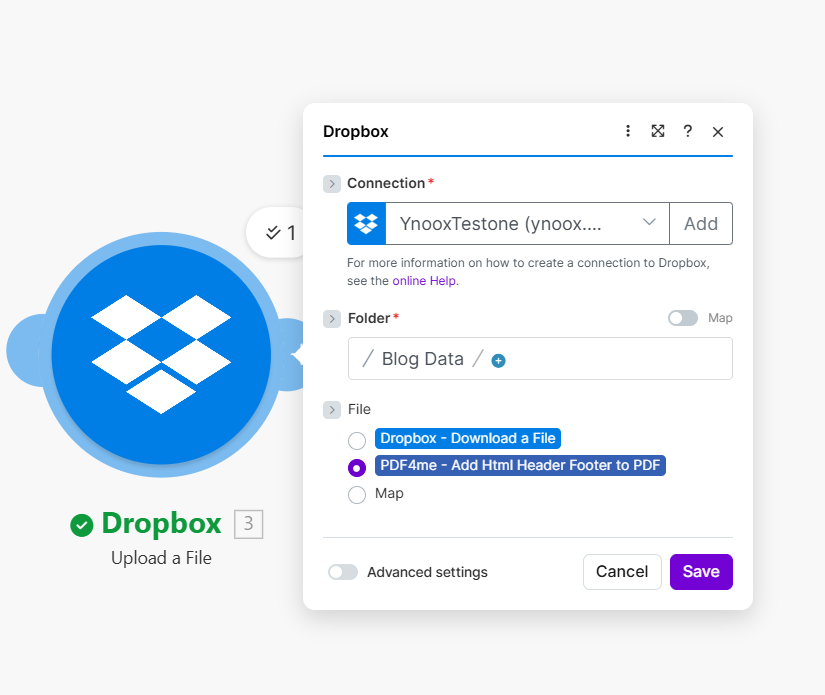
Save the modified PDF back to Dropbox using Dropbox – Upload a File.
- Add the Dropbox module → select Upload a File.
- Connection — Same Dropbox account as in step 1.
- Folder (required) — Path where the output should go, e.g.
/ Blog Data /. - File (required) — Map the output from PDF4me – Add Html Header Footer to PDF. Select the PDF from the PDF4me module, not from the Download step—that’s the original file; you want the new one with the header/footer applied.
Click Save and run the scenario. Your PDF will be branded and saved to the folder you chose.
Sample HTML Snippets: Copy & Use in Make
These PDF-friendly snippets work in Make’s HTML Content field. Expand any block below to copy and paste—replace placeholders with your own text or Make variables.
Headers
Two-column (Author, Date, Revision)Right column stays aligned; replace text with your own or Make variables.
<table style="width: 100%; border-collapse: collapse; font-family: Arial, sans-serif; font-size: 11px;">
  <tr>
    <td style="width: 50%; vertical-align: top;"></td>
    <td style="width: 50%; text-align: right; vertical-align: top;">
      Author: Per Nordqvist<br/>
      Date: 2025-11-12<br/>
      Revision: 4.24
    </td>
  </tr>
</table>
Header with page numbersUse placeholders {{page}} and {{total}}; PDF4me replaces them per page.
<table style="width: 100%; border-collapse: collapse; font-family: Arial, sans-serif; font-size: 11px;">
  <tr>
    <td style="width: 50%; vertical-align: top;">Document title</td>
    <td style="width: 50%; text-align: right;">
      Author: Your Name | Date: 2025-11-12 | Page 1 of 5
    </td>
  </tr>
</table>
Simple centered one-line
<div style="text-align: center; font-family: Arial, sans-serif; font-size: 12px; color: #333333;">Document Title - Confidential</div>
Footers
Legal / confidential
<table style="width: 100%; border-collapse: collapse; font-family: Arial, sans-serif; font-size: 9px; color: #666666;">
  <tr>
    <td style="text-align: center; padding: 4px 0;">Confidential. For internal use only. All rights reserved.</td>
  </tr>
</table>
Footer with address (like the Make example)Right-aligned address block—adapt for your company.
<div class="footer-column footer-right" style="flex:1;text-align:right;">
  <h4 style="margin:0 0 0.2rem 0;font-weight:600;font-size:10px;">Your Company Name</h4>
  <p style="margin:0 0 0.1rem 0;font-size:9px;">Street Address City Postal</p>
  <p style="margin:0 0 0.1rem 0;font-size:9px;">Country Tel: +1 234 567 890</p>
  <p style="margin:0;font-size:9px;">Email: [email protected]</p>
</div>
Page number only
<div style="text-align: center; font-family: Arial, sans-serif; font-size: 10px;">Page 1 of 5</div>
Before You Paste HTML: A Quick Checklist
The Add HTML Header Footer API expects plain HTML in the HTML Content field. For reliable PDF output in Make:
- Inline CSS — Use
style="..."on elements. External stylesheets are not applied in the header/footer area. - Table or simple blocks — Use a
<table>or divs with explicitwidthso columns don’t wrap or reflow in the PDF. - Units — Make’s margin settings are in millimeters (mm); inside HTML you can use
pxor%for font-size and layout. - Test first — Paste your snippet into the Add HTML Header Footer to PDF tester with a sample PDF and your API key before wiring it into Make.
Paste any snippet above into the htmlContent field of the Add HTML Header Footer to PDF tester, add your API key and a sample PDF, and choose Header or Footer. Each code block is ready to copy.
Company Logo, Customer-Specific Footers, and More
You can add a company logo in the header, different footer information per customer, and extra fields (invoice number, project code, account ID) by building the HTML from your data and passing it as HTML Content in the PDF4me module.
Header with company logo
Use an <img> tag with a public URL or Base64 data URI so the logo appears in the header or footer.
Example: header with logo and company nameReplace the logo URL; use Location = Header in Make.
<table style="width: 100%; border-collapse: collapse; font-family: Arial, sans-serif; font-size: 11px;">
  <tr>
    <td style="width: 80px; vertical-align: middle; padding-right: 12px;">
      <img src="https://your-domain.com/logo.png" alt="Logo" style="max-width: 72px; max-height: 36px; display: block;" />
    </td>
    <td style="vertical-align: middle;">
      <strong>Your Company Name</strong><br/>
      <span style="font-size: 9px; color: #666666;">Tagline or document type</span>
    </td>
  </tr>
</table>
Footer per customer
When you generate PDFs for multiple customers, build the HTML from customer data (name, account ID, document ref) and pass it to the PDF4me module. In Make, you can use data from previous modules or iterators to build the HTML dynamically.
Example: footer with customer name and account infoReplace placeholders with Make variables (e.g. from a previous module).
<table style="width: 100%; border-collapse: collapse; font-family: Arial, sans-serif; font-size: 9px; color: #666666;">
  <tr>
    <td style="text-align: center; padding: 4px 0;">
      Prepared for: Customer Name | Account: ACC-12345 | Doc ref: INV-2025-001
    </td>
  </tr>
</table>
Where to Use It: Make vs API
You can add headers and footers in two ways:
- Make — Use the Add HTML Header Footer module. Put your PDF in File (from Dropbox or another source), paste HTML in HTML Content, choose Header or Footer, set Pages (e.g.
all), and adjust margins in mm. - API — Call
POST /api/v2/AddHtmlHeaderFooterwith docContent (Base64 PDF), docName, htmlContent (plain HTML), and location. Optional: pages, skipFirstPage, and margin parameters (in mm).
The same HTML works in both. Use the snippets in this post in either place.
Next Steps
- Run the scenario — Follow the three steps above, paste a snippet into HTML Content, and run the flow.
- Try the API — Use the Add HTML Header Footer to PDF tester to preview your HTML with a sample PDF.
- Read the Make docs — Add HTML Header Footer in Make for full parameter details.
- Full API reference — Add HTML Header Footer to PDF (PDF4me API).