Split PDFs by Barcode in Make: Iterator + PDF4me Split by Barcode (Step-by-Step)
When you scan a stack of documents into one PDF, the easiest way to split it is by barcode separator pages. PDF4me’s Split by Barcode module does exactly that—and Make’s Iterator turns the split results into individual files you can upload to Dropbox.
This guide is fact‑checked from the provided Make screenshots, including the exact module names, fields, and sample values.
What You Need
- Make — Create a Make account and open a new scenario.
- PDF4me API key — Get your API key and connect it to PDF4me.
- Dropbox — This guide uses Dropbox, but any storage connector with download + upload works the same.
Flow Overview (4 Modules)
- Dropbox – Download a File — Downloads
barcode.pdffrom your folder. - PDF4me – Split by Barcode — Splits the PDF using barcode text and filter settings.
- Iterator — Loops through the Generated Documents[] array returned by PDF4me.
- Dropbox – Upload a File — Uploads each split PDF file.
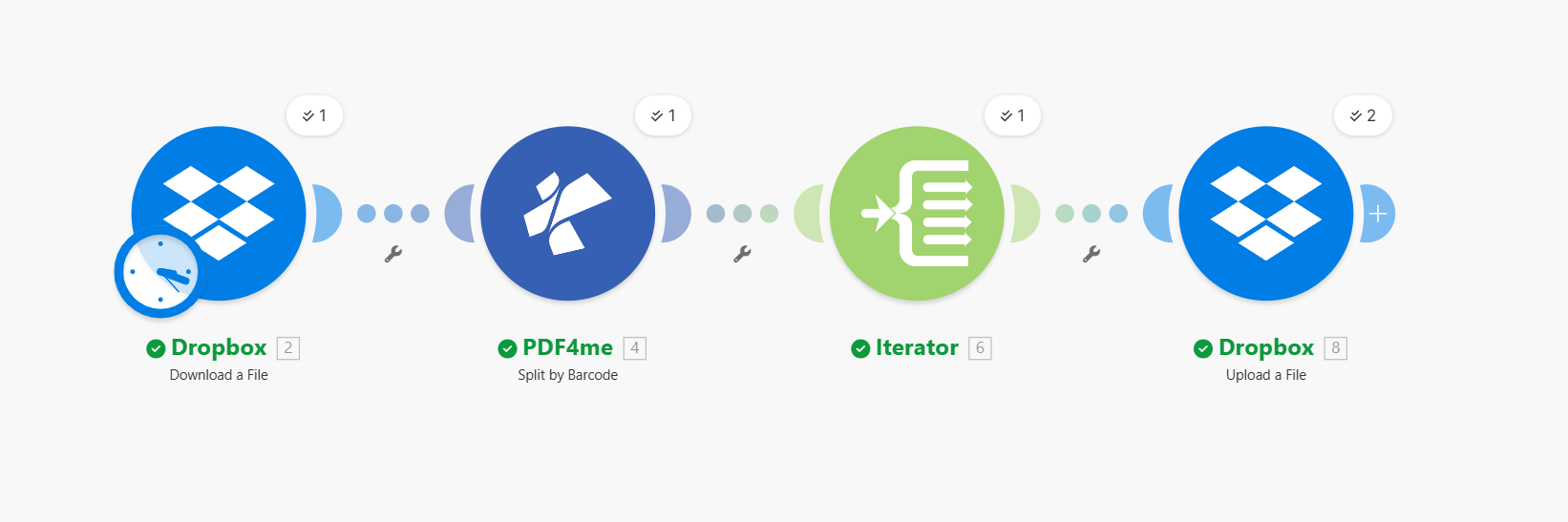
Input vs Output
Input: one PDF named barcode.pdf

Output: multiple files (barcode_1.pdf, barcode_2.pdf, etc.)

Step 1: Dropbox – Download a File
Flow so far: Download a File.
- Add Dropbox → Download a File.
- Connection — Select your Dropbox connection.
- Way of selecting files — Select a file.
- File —
/Blog Data/Split By Barcode/barcode.pdf.
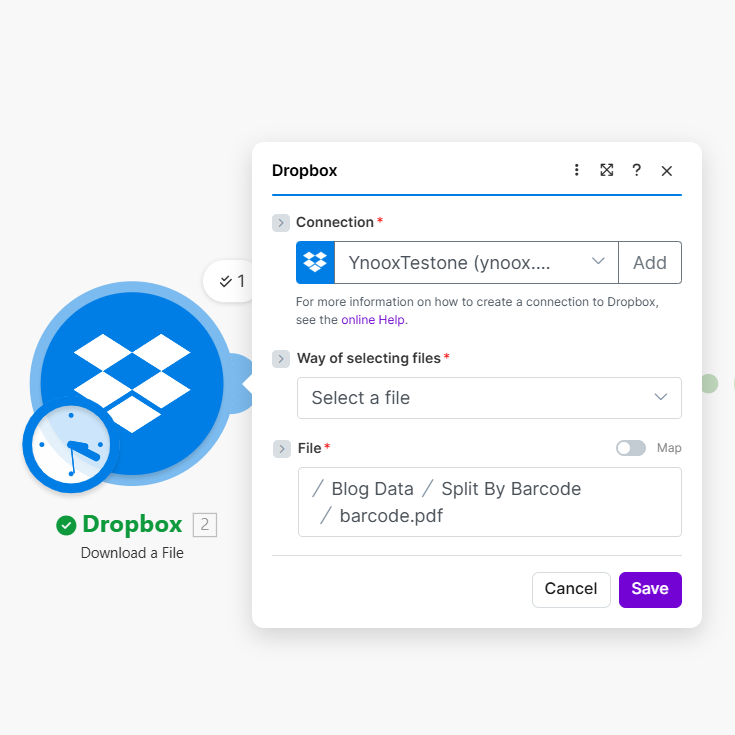
This outputs file content for the Split action.
Step 2: PDF4me – Split by Barcode
Flow so far: Download a File → Split by Barcode.
- Add PDF4me → Split by Barcode.
- Connection — Select your PDF4me connection.
- File — Map Dropbox – Download a File.
- Barcode Text —
PDF4me - Barcode Filter — Starts with
- Barcode Type — Any Type
- Split Barcode Page — Before the barcode
- PDF Render DPI —
150 - Combine pages with same barcodes — No
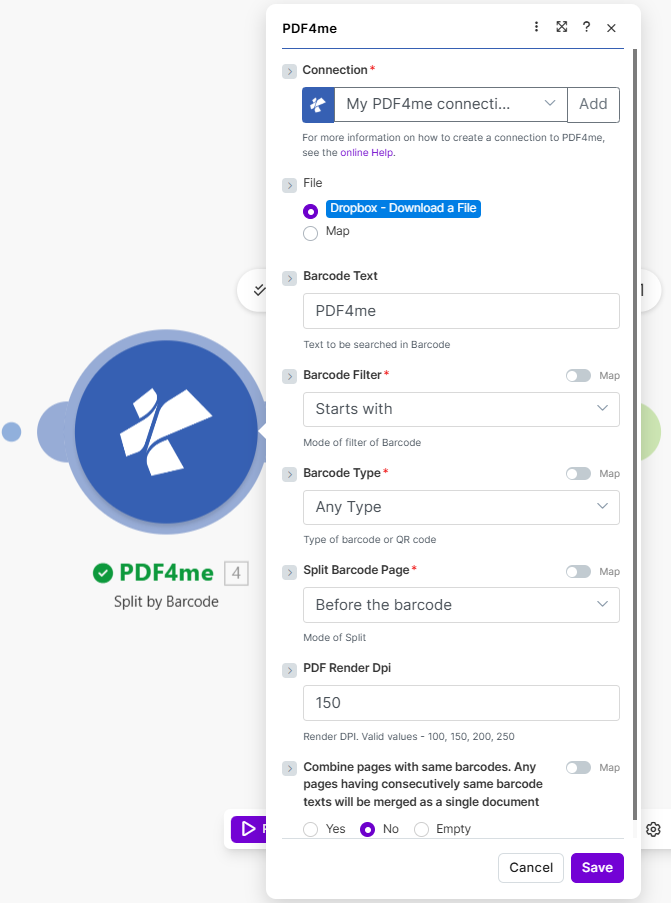
Output: An array of Generated Documents[] (each is a split PDF file).
Step 3: Iterator (Flow Control)
The PDF4me module returns Generated Documents[]. You must iterate over the array to upload each file.
- Add Flow Control → Iterator.
- Array — Map 4. Generated Documents[] from the Split by Barcode module.
![Iterator: Array mapped to 4. Generated Documents[]](/assets/images/blog/split-pdf-barcode-make/split-pdf-barcode-make-iterator.png)
Step 4: Dropbox – Upload a File
Inside the Iterator route, upload each split file.
- Add Dropbox → Upload a File.
- Folder —
/Blog Data/Split By Barcode. - File — Select Flow Control – Iterator (the current split file).
- Overwrite — No (or Yes if you want to replace).
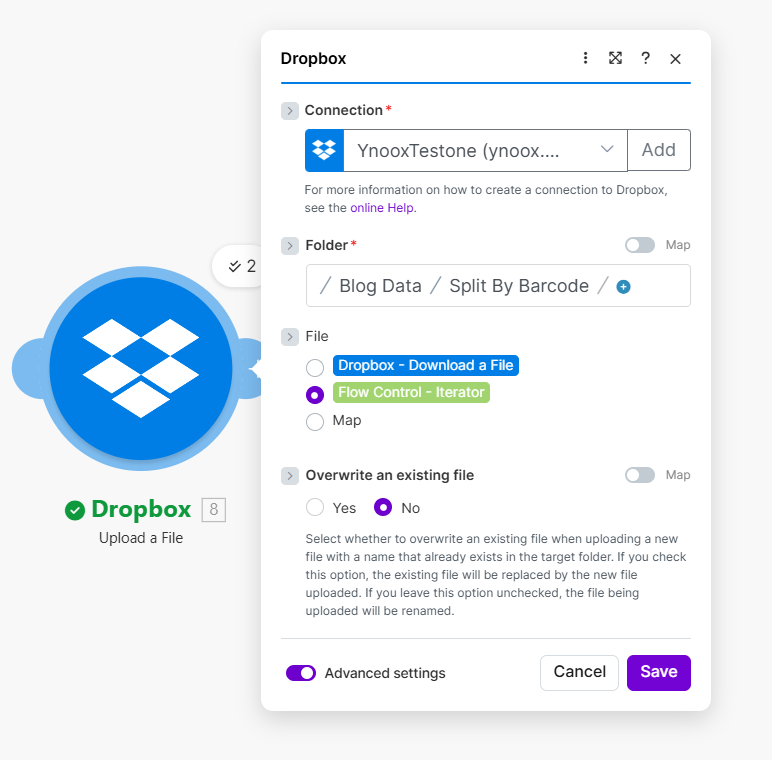
Each iteration uploads one split PDF.
Fact-Check Block (Key Values Used)
- Barcode Text:
PDF4me - Filter: Starts with
- Split Barcode Page: Before the barcode
- PDF Render DPI: 150
- Combine pages: No
- Array for Iterator:
Generated Documents[]