Dropbox Full of Swiss Payment Slips? Let Make Name Them by Creditor or Reference
You get PDFs—invoices, payment slips—each with a Swiss QR code that holds who’s paying, how much, and which reference. You want those files renamed by that data so you can find and sort them in a snap. Doing it by hand doesn’t scale.
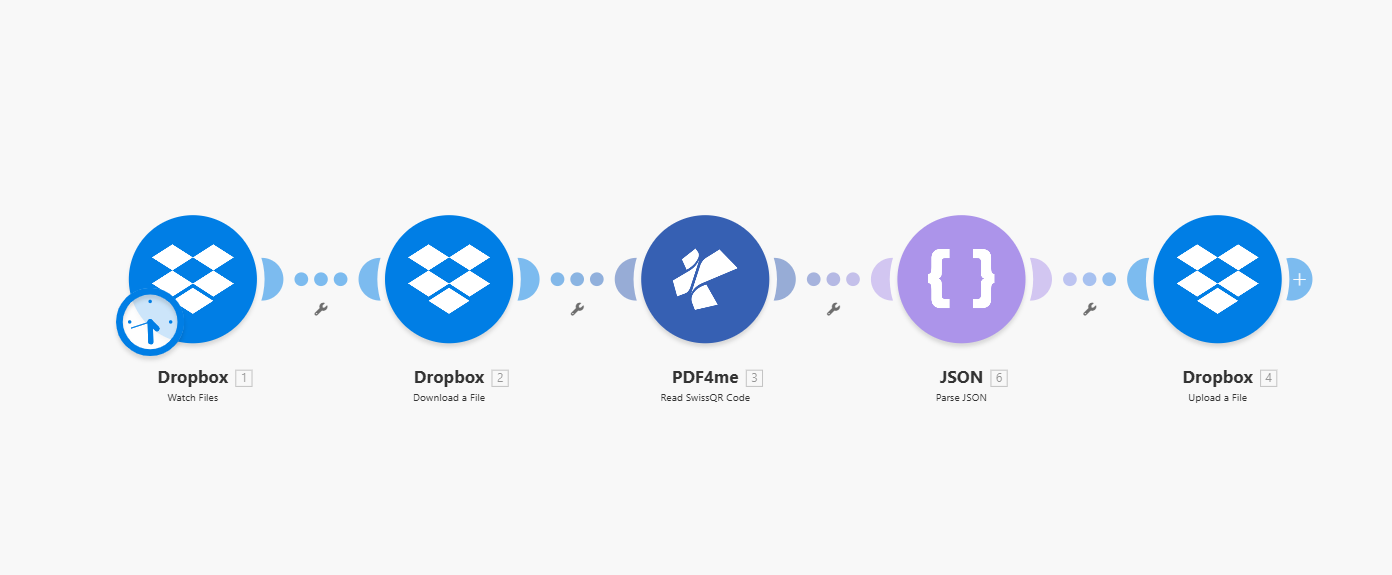
The fix: A Make scenario with five modules: Watch Files (Dropbox) → Download a File (Dropbox) → Read SwissQR Code (PDF4me) to extract the Swiss QR-bill data → Parse JSON so fields like creditor name and IBAN are easy to use → Upload a File (Dropbox) with the same PDF and a new filename built from those fields. Same file, better filename, zero manual renaming.
This guide walks you through each step. All parameters below are fact-checked from the Make UI in the screenshots so you can follow along with confidence.
What You Need
- A Make account — Create a free Make account if you don’t have one. To use PDF4me inside Make, add the app from the PDF4me integration on Make.com.
- A PDF4me API key — Get your PDF4me API key (free to start). First time connecting? Follow Connect PDF4me to Make to create the connection in your scenario.
- Dropbox — We use Dropbox for Watch Files, Download, and Upload so the steps match our screenshots. You can use Google Drive, OneDrive, or any Make module that watches a folder, downloads a file, and uploads a file with a dynamic name. Swap in the right modules—the flow (watch → download → read Swiss QR → upload with new name) stays the same.
The Flow at a Glance
Your Make scenario has five modules in a row:
- Dropbox – Watch Files — Trigger: monitors a folder (e.g.
/Blog Data/) for new or changed files. You set Folder Path, Limit, and whether to watch subfolders. When a file appears, the scenario runs. - Dropbox – Download a File — Gets the PDF from the path you map (e.g. the path from the Watch Files output). Output: Data (file content), File Name, File Size. You pass Data to Read SwissQR Code and again to Upload a File.
- PDF4me – Read SwissQR Code — Sends that PDF to PDF4me and returns Swiss QR-bill data as Barcode Text (JSON). Fields include creditor name (
cr_Name), IBAN, amount, reference, and more. Full details: Read SwissQR Code — Make. - JSON – Parse JSON — Parses the Barcode Text from the previous module so you can use individual fields (e.g.
cr_Name,IBAN) when building the upload filename. JSON string is mapped to 3. Barcode Text. - Dropbox – Upload a File — Uploads the same PDF (from Download) to a folder. You map the file content from 2. Data and set File Name using an expression that combines Swiss QR fields (e.g.
add(3.'Barcode Text'.cr_Name, 3.'Barcode Text'.IBAN, '.pdf')). Same file, new name—every time.
Step 1: Watch Files (Dropbox)
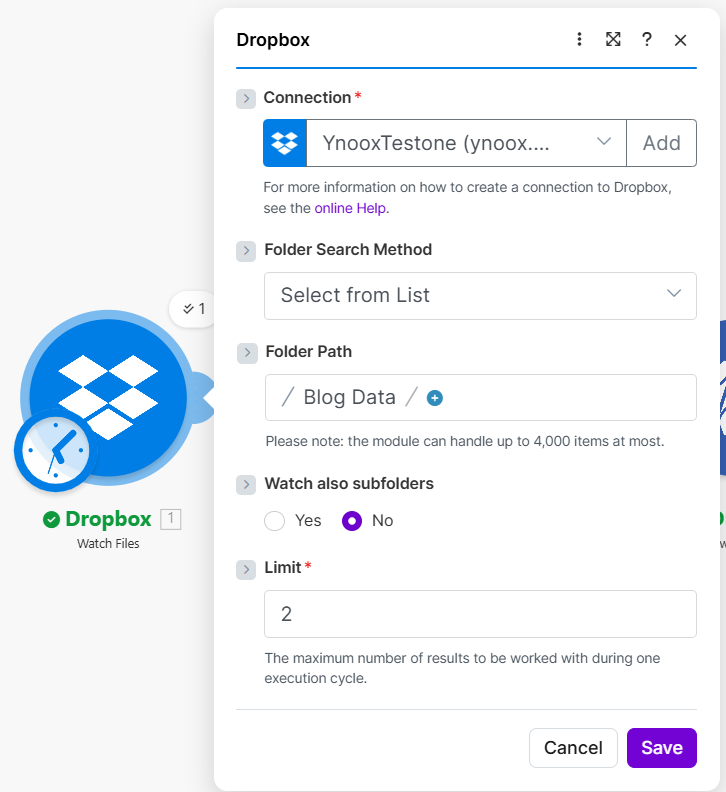
Configure the Dropbox – Watch Files module so the scenario runs when a new file appears in a folder. This is the trigger; the next step will download the file that was detected.
Flow so far: Dropbox Watch Files.
- Add Dropbox → Watch Files.
- Connection * — Choose your Dropbox connection (e.g. create one via Add if needed). For help, see the online Help link in the dialog.
- Folder Search Method — Set to Select from List (or the option that lets you pick the folder).
- Folder Path * — Enter the folder to watch, e.g.
/Blog Data/. Use the folder picker (plus icon) if available. The module can handle up to 4,000 items per execution cycle. - Watch also subfolders — No to watch only the chosen folder; set Yes to include subfolders.
- Limit * — Maximum number of results in one run (e.g. 2 in the screenshot). The UI describes this as the maximum number of results to be worked with during one execution cycle.
- Save. When a file is added or updated in that folder, the scenario will run and pass the file info to the next module.
Step 2: Download a File (Dropbox)
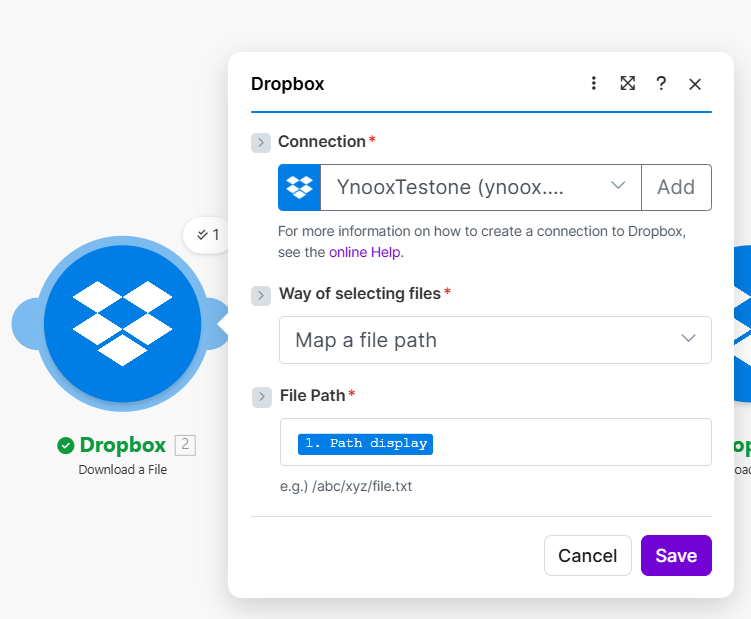
This step fetches the PDF so you can send it to PDF4me and later upload it with a new name. Map the file path from the Watch Files output (e.g. path of the file that triggered the run).
Flow so far: Dropbox Watch Files → Dropbox Download a File.
- Add Dropbox → Download a File.
- Connection * — Same Dropbox connection as in Step 1.
- Way of selecting files * — Choose Map a file path so you can map the path from the previous module (e.g. the path of the watched file).
- File Path * — Click map and select the path from Dropbox – Watch Files (e.g. the path display or file path field). Example format:
/abc/xyz/file.pdf. - Save. The module outputs Data (the PDF content), File Name, and File Size. You will pass Data to Read SwissQR Code and, in Step 5, Data again to Upload a File as 2. Data.
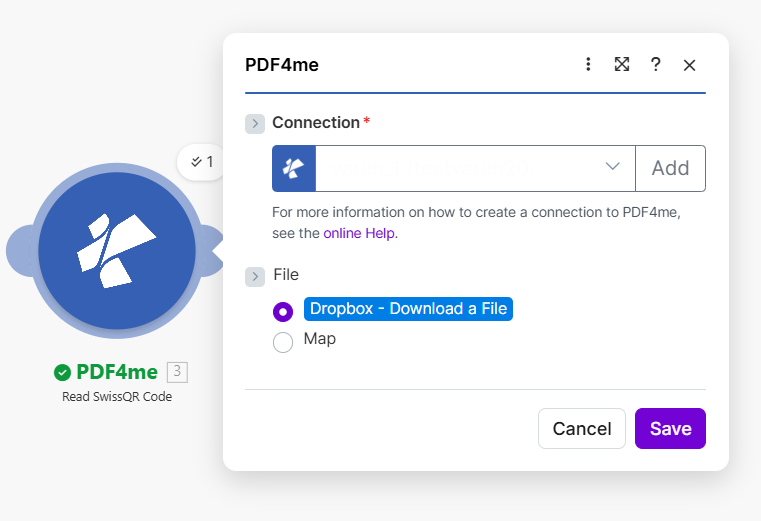
Step 3: Read SwissQR Code (PDF4me)
The PDF4me – Read SwissQR Code module takes the PDF and returns structured Swiss QR-bill data (creditor name and city, amount, reference, IBAN, etc.). You will use one or more of these fields as the new filename in Step 4.
Flow so far: Dropbox Watch Files → Dropbox Download a File → PDF4me Read SwissQR Code.
- Add PDF4me → Read SwissQR Code (under Barcode).
- Connection * — Choose your PDF4me connection (create one with your API key if needed). For more information, see the online Help link in the dialog.
- File — Select Dropbox - Download a File so the PDF content comes from the Download module you added in Step 2. (Alternatively use Map and map the Data and File Name from Dropbox – Download a File.)
- Save and run the module. The output includes swissQrData (or similar) with fields such as creditor name, city, country, amount, currency, reference. Use these when mapping File Name in the Upload step.
For all parameters and output fields, see the Read SwissQR Code module reference in our Make documentation.
Step 4: Parse JSON
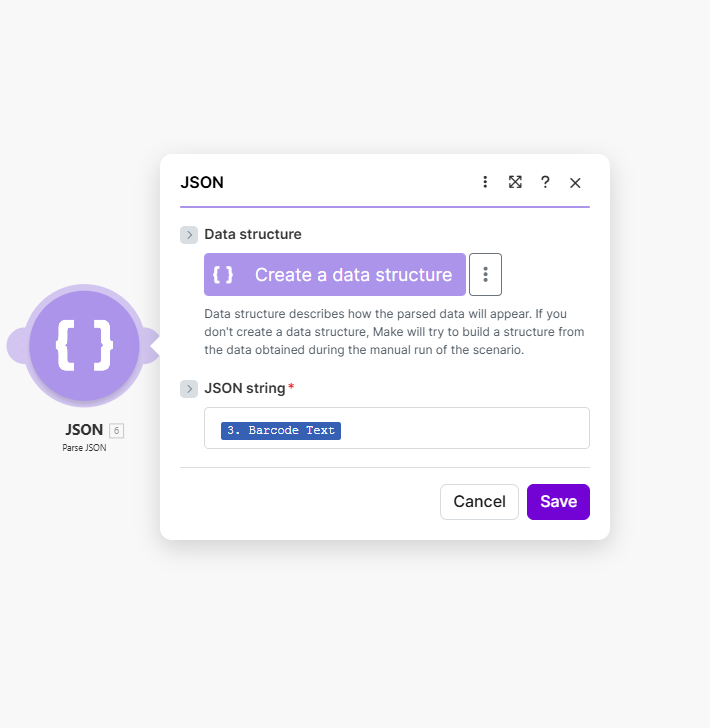
Read SwissQR Code returns the Swiss QR-bill data as Barcode Text (a JSON string). The JSON – Parse JSON module turns that string into structured fields you can pick in the next step (e.g. cr_Name, IBAN, reference). That way you can build the upload filename from specific fields without guessing the structure.
Flow so far: Dropbox Watch Files → Dropbox Download a File → PDF4me Read SwissQR Code → JSON Parse JSON.
- Add JSON → Parse JSON.
- JSON string * — Click map and select 3. Barcode Text from PDF4me – Read SwissQR Code. This is the raw JSON output from the previous module. Make will parse it so fields like
cr_Name,IBAN, and others are available for the Upload step. - Data structure — Optional. You can click Create a data structure to define the output shape, or leave it empty; Make can also infer the structure when you run the scenario.
- Save. The parsed fields will appear under this module and under the Read SwissQR Code output when you map in the next step.
Step 5: Upload a File (Dropbox)
The Dropbox – Upload a File module saves the same PDF (the one you downloaded in Step 2) to a folder and names it using Swiss QR fields. The file content always comes from Download a File; the name comes from Read SwissQR Code (Barcode Text).
Flow so far: Dropbox Watch Files → Dropbox Download a File → PDF4me Read SwissQR Code → JSON Parse JSON → Dropbox Upload a File.
- Add Dropbox → Upload a File.
- Connection * — Same Dropbox connection as in Steps 1 and 2 (e.g. create one via Add if needed).
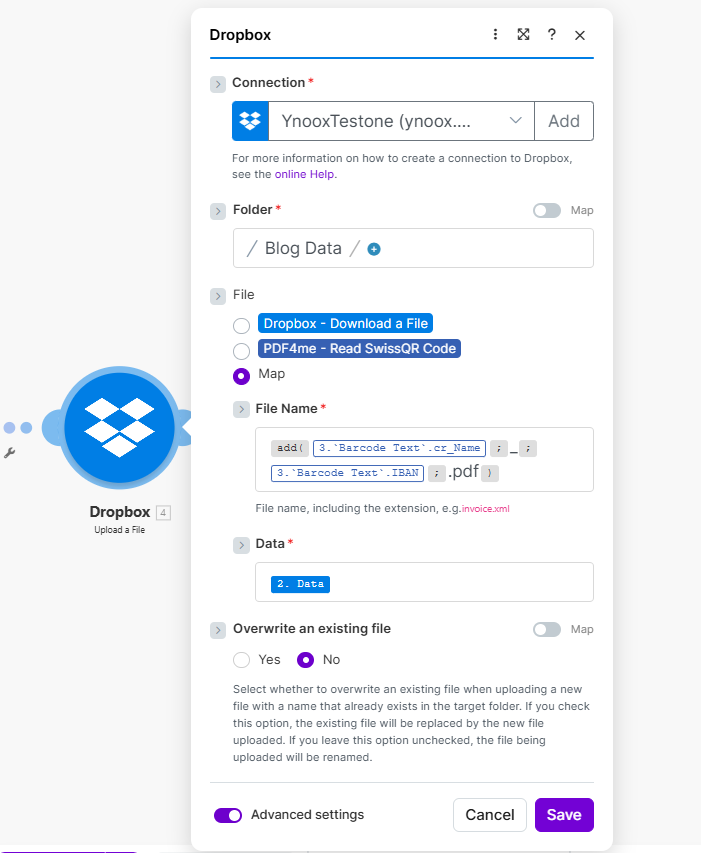
- Folder * — Enter the target folder path, e.g.
/Blog Data/. This is where the renamed PDF will be saved. - File — Choose Map. You are mapping the file content from a previous module, not selecting “Download a File” or “Read SwissQR Code” as the source here. The actual bytes must come from the downloaded PDF.
- File Name * — Build the filename from Swiss QR fields. Click the mapping panel and use the add() function to concatenate fields and the
.pdfextension. Example from the screenshot:add(3.'Barcode Text'.cr_Name, 3.'Barcode Text'.IBAN, '.pdf')— this uses creditor name and IBAN from module 3 (Read SwissQR Code). You can use other fields (e.g. reference, amount) or add separators like'_'inside add(). The tooltip reminds you: “File name, including the extension, e.g. invoice.xml”. - Data * — Map to 2. Data from Dropbox – Download a File. This is the PDF content you are uploading. Do not use the output of Read SwissQR Code or Parse JSON here—those modules return data, not the file.
- Overwrite an existing file — Set to No if you want Make to rename the new file when a file with the same name already exists in the folder. Set to Yes to replace the existing file.
- Advanced settings — Optional; expand if you need extra options.
- Save and run the scenario. The PDF will appear in the folder with the new name (e.g.
CompanyName_CH93....pdf).
Summary: Data = 2. Data (Download a File). File Name = expression using 3. Barcode Text fields (e.g. cr_Name, IBAN) plus .pdf. The wrench icons on the connections are optional filters; you can leave them as-is for this flow.
Why This Works
Key takeaways
- Watch Files triggers the scenario when a new file appears in the folder. You set the folder path and limit so each run processes the files you want.
- Download a File gives you the PDF as Data. You pass Data to Read SwissQR Code and again to Upload a File (as 2. Data).
- Read SwissQR Code returns Swiss QR-bill data as Barcode Text (JSON)—creditor name (
cr_Name), IBAN, amount, reference, etc. - Parse JSON parses 3. Barcode Text so you can use individual fields when building the upload File Name (e.g. in an
add()expression). - Upload a File maps Data to 2. Data (the PDF) and File Name to an expression like
add(3.'Barcode Text'.cr_Name, 3.'Barcode Text'.IBAN, '.pdf'). Same file, new name. Need help connecting PDF4me to Make? See Connect PDF4me to Make.
Real-World Scenarios
Scenario 1: Invoices Renamed by Creditor
Problem: Incoming invoice PDFs with generic names; you need to find them by supplier (creditor) and location.
Solution: Rename by creditor name, city, and country (e.g. Test AG_Zurich_Switzerland.pdf). Each file is searchable by who sent the bill.
Extract fields: creditor name, city, country from Read SwissQR Code
Trigger: Dropbox Watch Files on the folder where invoices land
Scenario 2: Payment Slips by Amount and Reference
Problem: Payment slip PDFs need to be filed by amount and payment reference for reconciliation.
Solution: Rename by amount, currency, and reference (e.g. 1000_CHF_REF123.pdf). Match documents to bank transactions.
Extract fields: Amount, Currency, Reference from Read SwissQR Code
Trigger: Dropbox Watch Files
Scenario 3: Debtor-Based Filing
Problem: You need to group PDFs by customer (ultimate debtor) for accounting.
Solution: Rename by debtor name (e.g. Test Debt AG.pdf) or debtor name + city. Direct mapping to customer records.
Extract fields: debtor name, city from Read SwissQR Code
Trigger: Dropbox Watch Files
Quick FAQ
- Which Swiss QR field should I use for the filename? Use whatever fits your process: reference, creditor name (
cr_Name), IBAN, amount + currency, or a combination. In the Upload module’s File Name, use the add() function and map fields from 3. Barcode Text (e.g.add(3.'Barcode Text'.cr_Name, 3.'Barcode Text'.IBAN, '.pdf')). - What if no Swiss QR code is found? The Read SwissQR Code module may return an error or empty data. You can add a fallback name in a later step or use a router so only files with valid Swiss QR data reach the Upload module.
- Can I use Google Drive or OneDrive instead of Dropbox? Yes. Use any Make module that can watch a folder, download the PDF, and upload a file with a custom name. The flow is the same: Watch → Download → Read SwissQR Code → Parse JSON → Upload, with the Swiss QR field(s) in an add() expression for the filename.
Next Steps
Recap: Watch Files → Download a File → Read SwissQR Code → Parse JSON → Upload a File. The filename is built from Swiss QR fields (e.g. cr_Name, IBAN) using an add() expression; the file content is always 2. Data from Download. Each PDF is saved with the new name in your chosen folder.
- Get an API key — Open the PDF4me API key dashboard (free to start). Use it in Make after you add the PDF4me module.
- New to Make + PDF4me? — Connect PDF4me to Make shows how to create the connection and add your first PDF4me module. To add the app in Make, open the PDF4me integration on Make.com.
- Build the scenario — Add the five modules (Dropbox Watch Files → Dropbox Download a File → PDF4me Read SwissQR Code → JSON Parse JSON → Dropbox Upload a File) and map the fields as in Steps 1–5. In Upload, set Data to 2. Data and File Name to your add() expression with 3. Barcode Text fields.
- Full module reference — Read SwissQR Code — Make for all parameters and options.