Rename PDFs in Make with Parse Document: Auto-Name Files by Invoice Number
PDFs named input.pdf or document.pdf are hard to search. You want the invoice number, customer name, or order ID in the filename—automatically. This guide shows a clean Make scenario that parses the PDF and renames it using the extracted value.
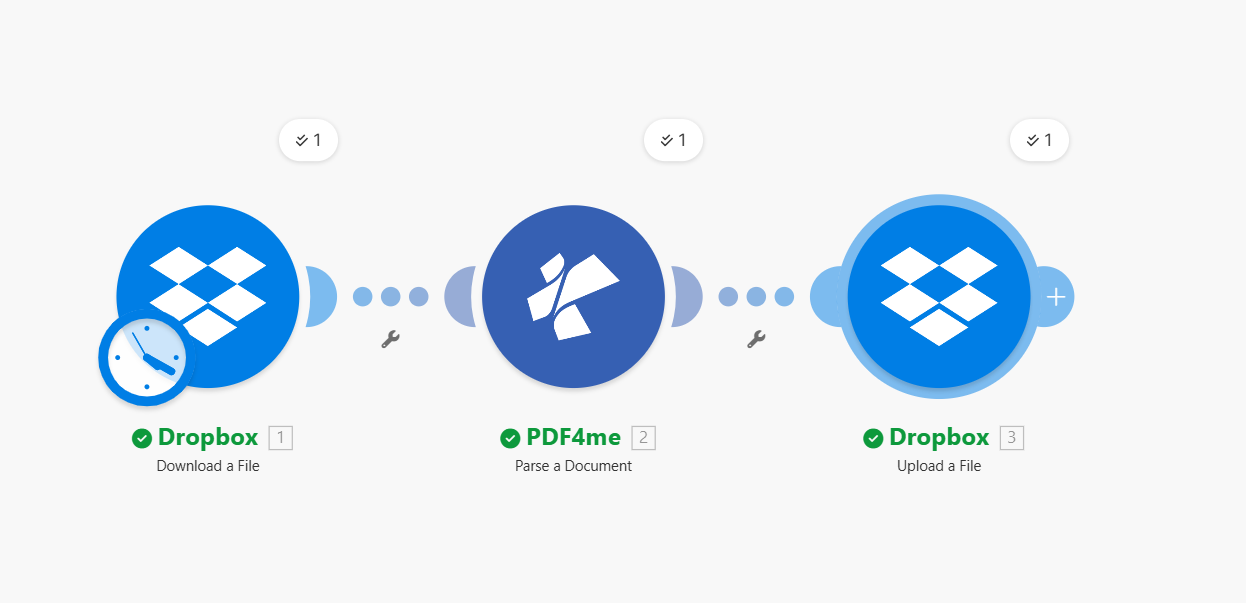
Flow (3 modules): Dropbox – Download a File → PDF4me – Parse a Document → Dropbox – Upload a File.
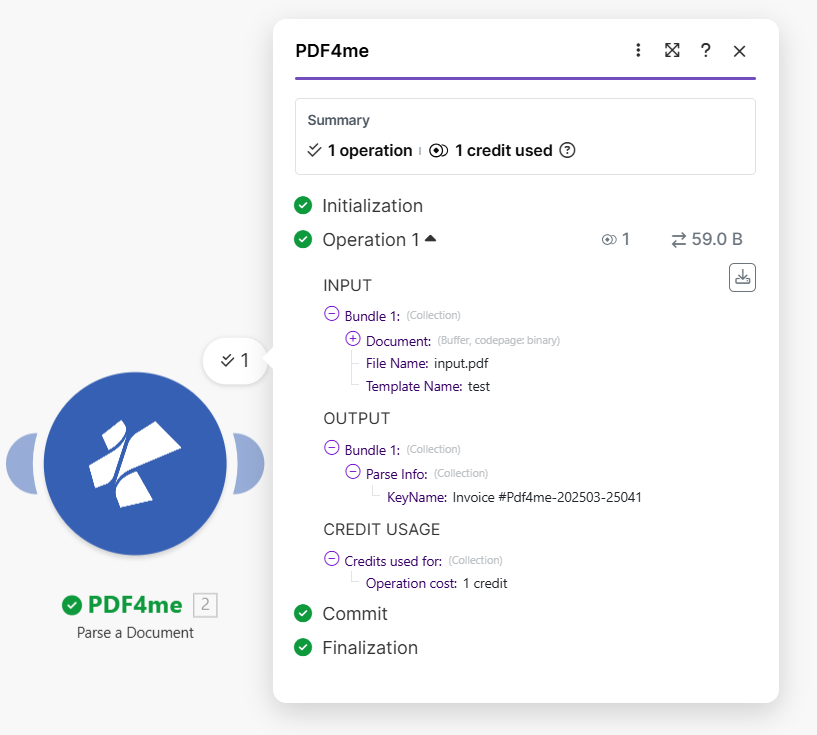
The Parse action returns Parse Info (e.g. KeyName: Invoice #Pdf4me-202503-25041), and you use that value as the new filename.
All steps below are fact-checked from the Make UI screenshots you provided.
What You Need
- Make — Create a Make account and open a new scenario.
- PDF4me API key — Get your PDF4me API key. First time? See Connect PDF4me to Make.
- Dropbox — This guide uses Dropbox, but Google Drive/OneDrive work the same if you can download and upload files.
What Does This Scenario Do?
- Download a PDF from Dropbox.
- Parse the PDF with your template (e.g.
test) and extract Parse Info. - Upload the same PDF with a new name based on the extracted value (e.g.
Invoice #Pdf4me-202503-25041.pdf).
Result: a PDF renamed by what’s inside it—no code.
Scenario Overview (3 Steps)
- Dropbox – Download a File — Gets the input PDF (
/Blog Data/Parse/input.pdf). - PDF4me – Parse a Document — Uses your template (
test) and returns Parse Info. - Dropbox – Upload a File — Saves the same file with a new name from Parse Info.
Before and After (Input vs Output)

Where Do You Set Up the Parse Template?
The template defines what to extract (invoice number, customer name, order ID). You create it on dev.pdf4me.com, then use the Template Name in Make.
Create Template
- Go to Parse Document.
- Click Add → enter the template name (e.g.
test) → Save. - Click Edit to configure.
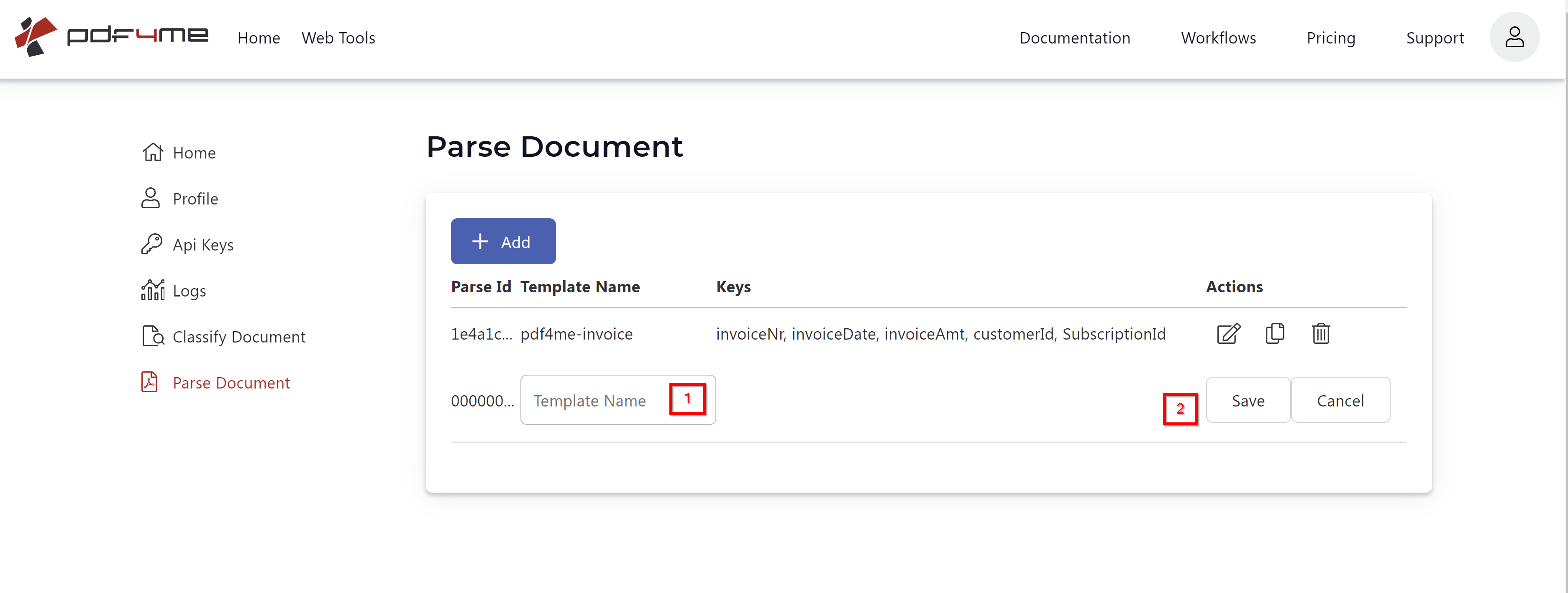
Configure Template
- Upload a sample PDF.
- Draw capture areas around the fields you want.
- Name the keys (e.g.
KeyName,Invoice No,Order ID). - Test and Save Changes.
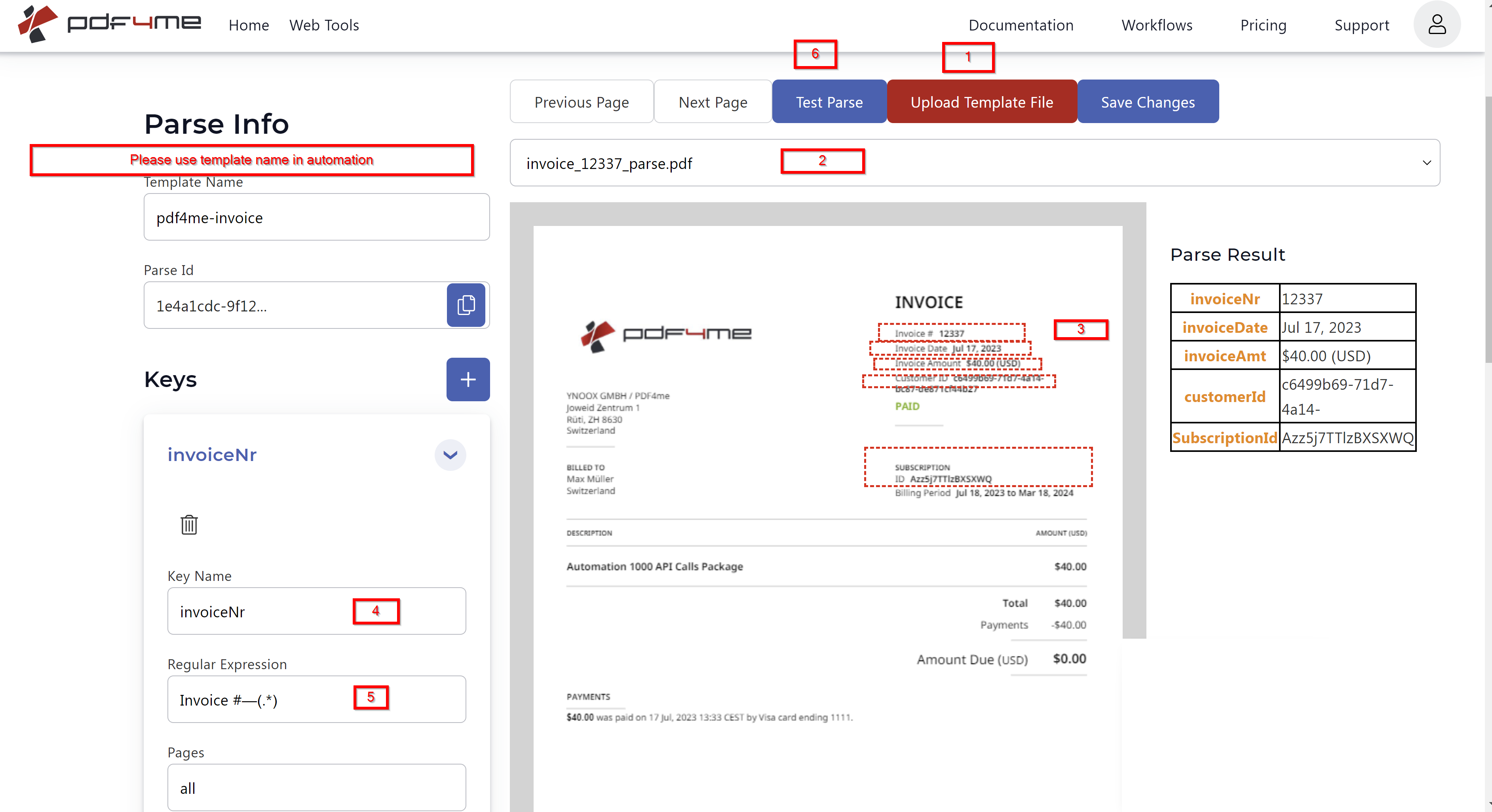
For details, see Prepare Parse Info for Document.
Step 1: Dropbox – Download a File
Flow so far: Download a File.
- Add Dropbox → Download a File.
- Connection — Select your Dropbox connection.
- Way of selecting files — Select a file.
- File — Choose
/Blog Data/Parse/input.pdf.
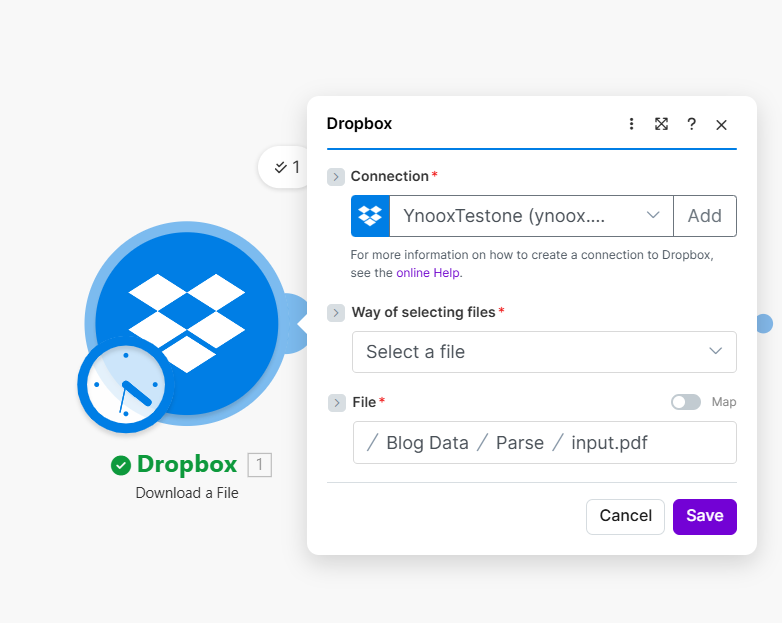
This outputs Data (file content) and File Name for the Parse step.
Step 2: PDF4me – Parse a Document
Flow so far: Download a File → Parse a Document.
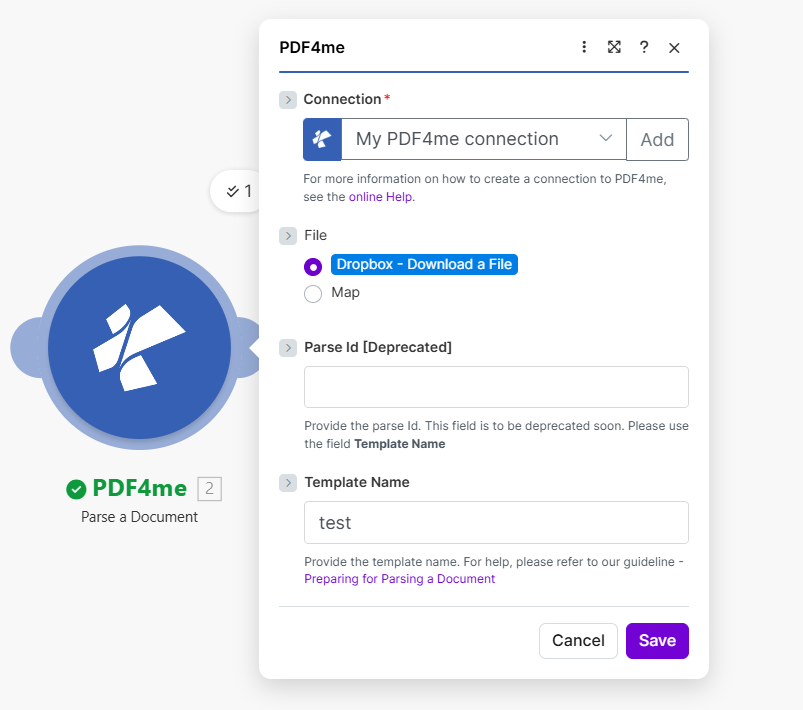
- Add PDF4me → Parse a Document.
- Connection — Select your PDF4me connection.
- File — Map Dropbox – Download a File.
- Parse Id [Deprecated] — leave empty.
- Template Name — enter your template name (e.g.
test).
Output (from module run): Parse Info returns the key you want to use for renaming.
In our example, it returns KeyName: Invoice #Pdf4me-202503-25041.
Step 3: Dropbox – Upload a File (Rename)
Flow so far: Download → Parse → Upload.
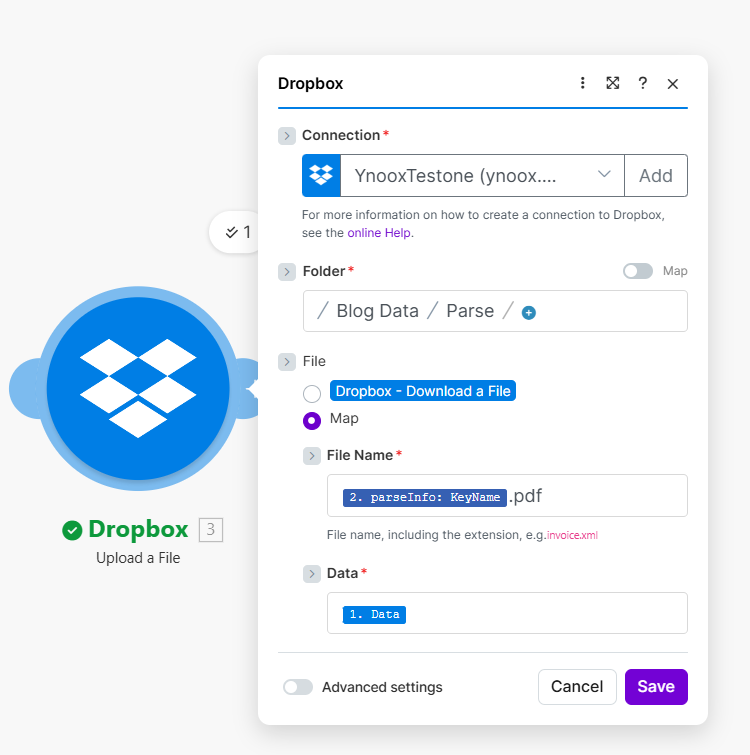
- Add Dropbox → Upload a File.
- Folder — Choose
/Blog Data/Parse/(or your output folder). - File — Map Dropbox – Download a File.
- File Name — Use the parsed value as the new name:
- File Name =
2. parseInfo: KeyName+.pdf
- File Name =
- Data — Map 1. Data from the Download step.
Quick Summary
| Step | Action | Key Value |
|---|---|---|
| 1 | Dropbox – Download a File | Input: /Blog Data/Parse/input.pdf |
| 2 | PDF4me – Parse a Document | Template: test, Output: KeyName |
| 3 | Dropbox – Upload a File | File Name = KeyName.pdf, Data = 1. Data |