Merge Multiple PDFs from a Folder in Make: Iterator, Array Aggregator, and PDF4me Step-by-Step
You have multiple PDFs in a Dropbox folder and want them merged into a single PDF automatically. The catch: PDF4me Merge Multiple PDFs expects an array of file data, but Dropbox Watch Files returns a list of file metadata—and Download a File returns one file at a time. To bridge that gap, you need Iterator and Array Aggregator: the Iterator processes each file one by one, and the Array Aggregator collects those results into the array that Merge expects.
This guide walks through the full Make scenario, with special focus on how the Iterator and Array Aggregator work and how to wire them to the PDF4me Make connector.
What You Need
- A Make account — Create a free Make account if you don't have one.
- PDF4me integration — Add PDF4me on Make and connect with your API key. See Connect PDF4me to Make if needed.
- Dropbox — Connect Dropbox to Make. We use a source folder (e.g.
/pdf4metest/Merge/mergetest/) and an output folder (e.g./pdf4meoutput/).
The Flow at a Glance
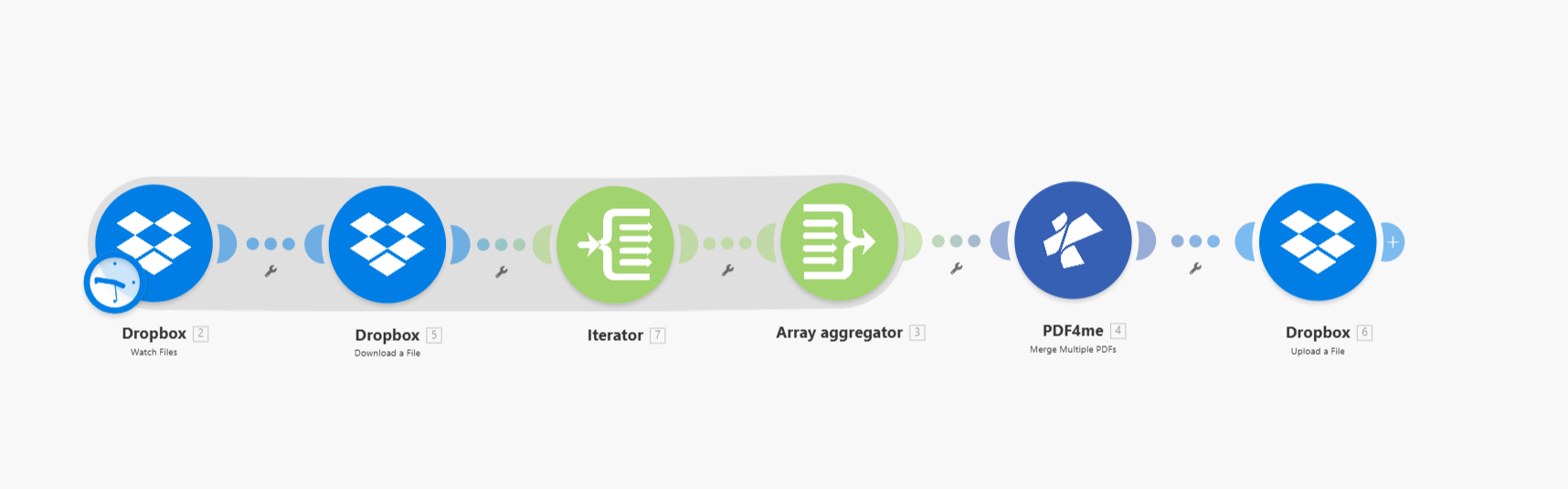
The scenario has 6 modules in this order:
- Dropbox – Watch Files — Monitors a folder for new or updated files. Outputs an array of file metadata (paths, names, sizes).
- Dropbox – Download a File — Downloads each file. Runs inside the Iterator route, once per file.
- Iterator — Takes the array from Watch Files and processes each item one by one. Everything connected after it runs once per file.
- Array Aggregator — Collects the output from each Iterator cycle (the downloaded file data) and bundles it into a single array formatted for PDF4me Merge.
- PDF4me – Merge Multiple PDFs — Receives the aggregated array, merges all PDFs into one, and outputs the merged file.
- Dropbox – Upload a File — Saves the merged PDF to your output folder.
Understanding Iterator and Array Aggregator
Before configuring, it helps to understand why these two modules are needed.
Why an Iterator?
Dropbox – Watch Files returns an array of file objects (each with path, name, size, etc.). PDF4me – Merge Multiple PDFs needs an array of file content (binary data), not metadata. To get the content, you must download each file. But Download a File works on one file per run—it needs a single path.
The Iterator solves this: it takes the array from Watch Files and splits it into individual items. For each item, it runs the modules in its route once. So:
- Watch Files outputs:
[file1, file2, file3] - Iterator runs the route 3 times: once for file1, once for file2, once for file3
- Download a File runs 3 times, each time using the current file’s path from the Iterator
Why an Array Aggregator?
After the Iterator runs, you have multiple separate executions of Download a File—one output per file. PDF4me Merge expects one array containing all file data. The Array Aggregator does the reverse of the Iterator: it collects the output from each Iterator cycle and combines it into a single array, structured so the Merge module can use it.
- Iterator produces: cycle 1 → file1 data, cycle 2 → file2 data, cycle 3 → file3 data
- Array Aggregator collects:
[file1 data, file2 data, file3 data] - Merge receives that array and produces one merged PDF
Step 1: Dropbox – Watch Files (Trigger)
This module monitors a folder and outputs an array of file metadata. When new or updated files appear, it triggers the scenario.
Flow so far: Watch Files.
- Add Dropbox → Watch Files (or List Files if you prefer polling).
- Connection * — Select your Dropbox connection.
- Folder Search Method — Choose Select from List (or your preferred method).
- Folder Path — Enter the folder containing the PDFs to merge (e.g.
/pdf4metest/Merge/mergetest/). - Watch also subfolders — Set No if you only want files in that folder; Yes to include subfolders.
- Limit * — Set the maximum number of files per run (e.g. 10). The module can handle up to 4,000 items.
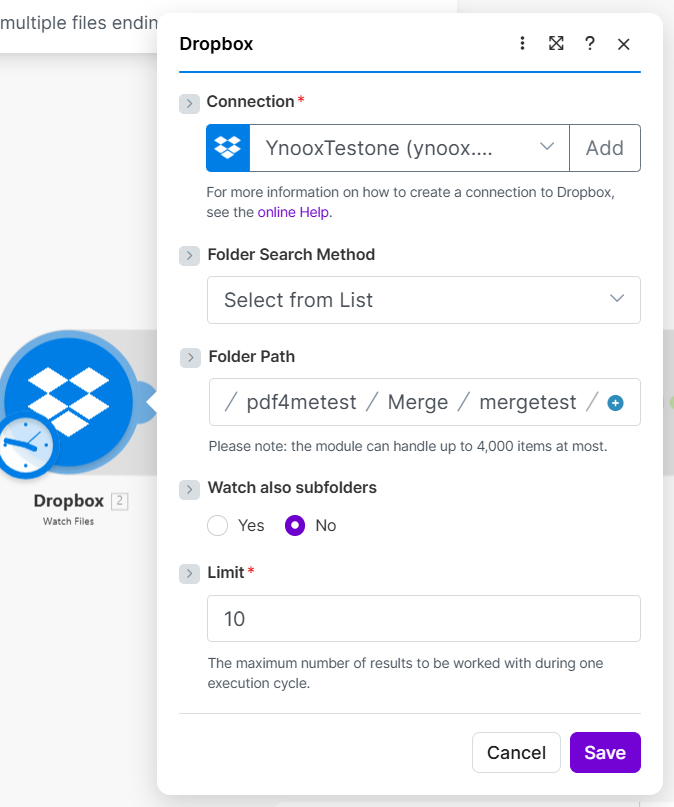
Output: An array of file objects. Each item has Path display, File Name, File Size, and similar fields. The Iterator will use this array next.
Step 2: Dropbox – Download a File (Inside Iterator Route)
Add this module after the Iterator (it will sit inside the Iterator route). It downloads one file per Iterator cycle using the path of the current item.
Flow so far: Watch Files → Iterator → Download a File.
- Add Dropbox → Download a File and connect it to the Iterator.
- Connection * — Select your Dropbox connection.
- Way of selecting files * — Choose Map a file path so you can use the path from the Iterator.
- File Path * — Map 2. Path display (or the path field from Watch Files). This ensures each iteration downloads the correct file.
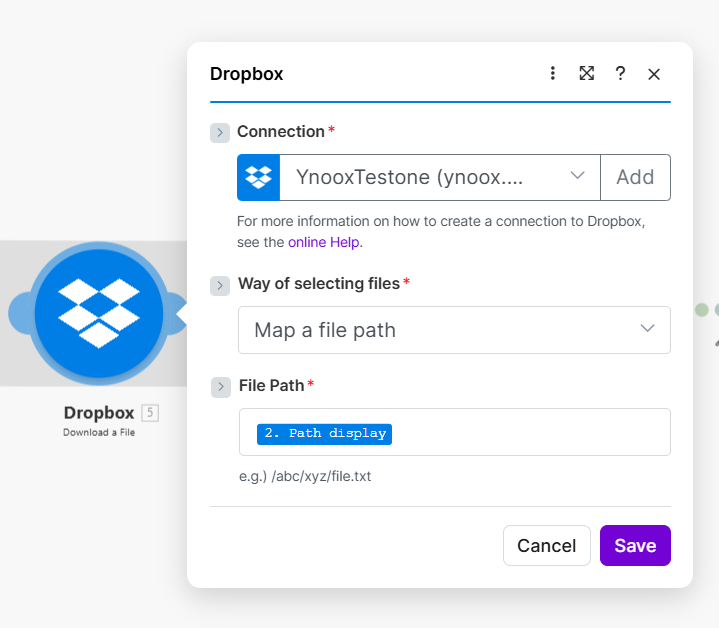
Output per cycle: Data (file content), File Name, File Size. The Array Aggregator will collect this Data for each cycle.
Step 3: Iterator (Flow Control)
The Iterator takes the array from Watch Files and runs the route below it once per item.
Flow so far: Watch Files → Iterator → [Download a File runs per item].
- Add Flow Control → Iterator and connect it to Watch Files.
- Array — Enable Map and select the array from Watch Files. You can map fields such as 5. File Name and 5. File Size (or the equivalent from your Watch Files module) so the Iterator knows what to iterate over. The Iterator exposes the current item’s fields (e.g. Path display, File Name) to modules in its route.
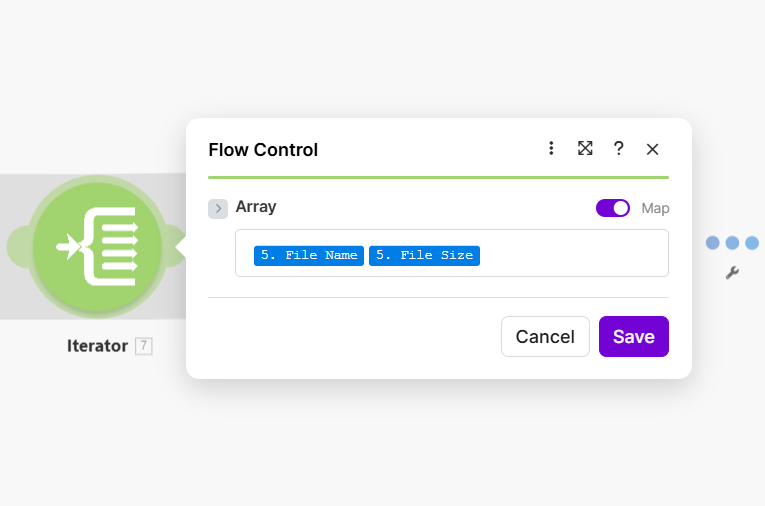
Behavior: If Watch Files returns 5 files, the Iterator runs its route 5 times. Each run, Download a File receives the path for that cycle’s file and downloads it.
Step 4: Array Aggregator (Flow Control)
The Array Aggregator collects the output from each Iterator cycle and builds a single array for the Merge module.
Flow so far: Watch Files → Iterator → Download a File → Array Aggregator.
- Add Flow Control → Array aggregator and connect it after the Iterator route (it aggregates across all cycles).
- Source Module * — Select Dropbox - Watch Files [2] (or your Watch Files module). This defines which scenario run the aggregator belongs to.
- Target structure — Select PDF4me - Merge Multiple PDFs [4...] (or your Merge module). This structures the aggregated data so Merge can consume it.
- Files → File — Select Dropbox - Download a File so the aggregator collects the file content (Data) from each download, not just metadata.
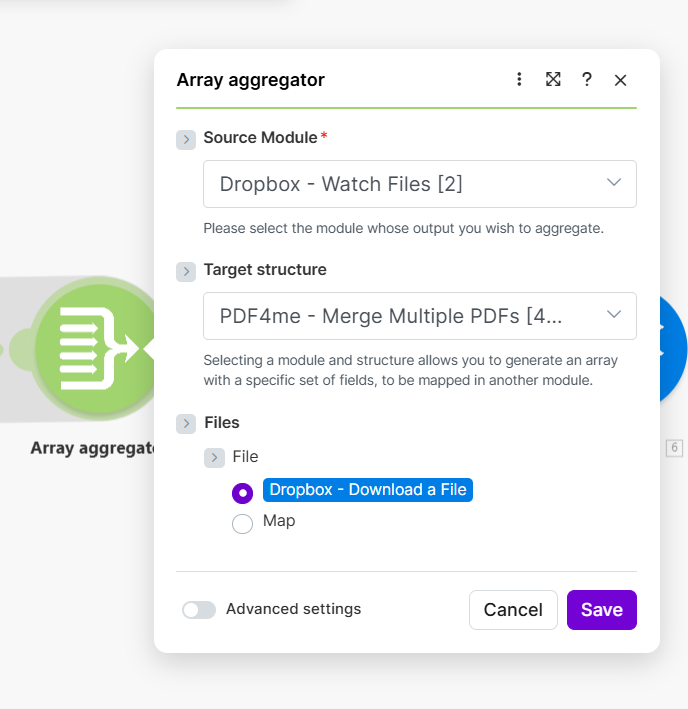
Output: A single array (e.g. 3. Array[]) containing all downloaded PDF data, in the format expected by PDF4me Merge.
Step 5: PDF4me – Merge Multiple PDFs
This module receives the aggregated array and merges all PDFs into one.
Flow so far: … → Array Aggregator → Merge Multiple PDFs.
- Add PDF4me → Merge Multiple PDFs (under Merge & Split) and connect it to the Array Aggregator.
- Connection * — Select your PDF4me connection.
- Files — Enable Map and select 3. Array[] (the output from the Array Aggregator). This passes the collected file data to the merge action.
- Output File name — Enter the name for the merged PDF (e.g.
merged_document.pdf). - Skip Protected Pdf's — Choose Yes to skip password-protected PDFs, No to try including them.
![PDF4me Merge Multiple PDFs: Files mapped to 3. Array[], Output File name, Skip Protected Pdf's](/assets/images/blog/merge-files-make/merge-files-make-5-merge-pdfs.png)
Output: Name and Doc Data (the merged PDF buffer). Pass Doc Data to the Upload module.
Step 6: Dropbox – Upload a File
Save the merged PDF to your output folder.
Flow so far: … → Merge Multiple PDFs → Upload a File.
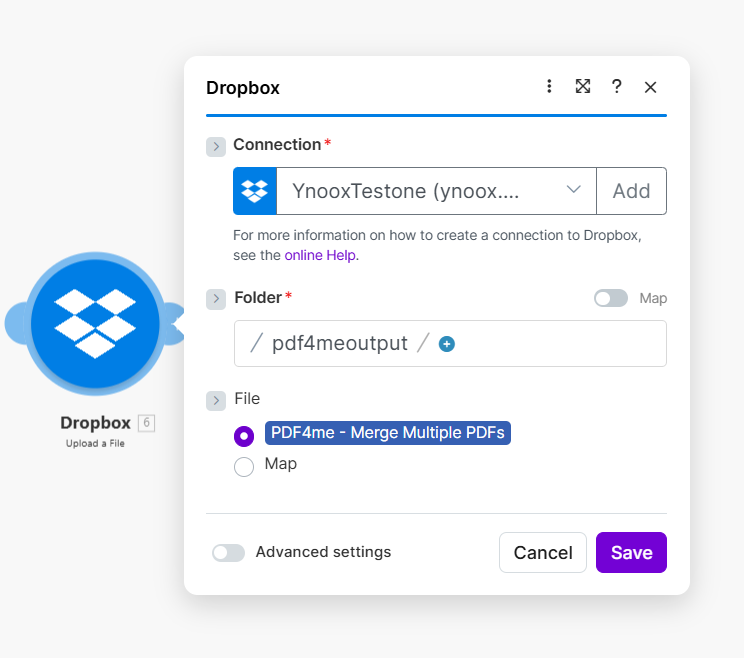
- Add Dropbox → Upload a File and connect it to the Merge module.
- Connection * — Select your Dropbox connection.
- Folder * — Enter the destination path (e.g.
/pdf4meoutput). - File * — Select PDF4me - Merge Multiple PDFs so the file content comes from the merge output.
Summary: Iterator and Aggregator in This Flow
| Module | Role |
|---|---|
| Iterator | Splits the Watch Files array into individual items. Runs Download a File once per file. |
| Array Aggregator | Collects each Download a File output and bundles it into one array for Merge. |
| Result | Merge receives [file1_data, file2_data, …] and produces one merged PDF. |
Without the Iterator, you could not download each file separately. Without the Array Aggregator, Merge would not receive the combined array it needs. Together they turn “many file metadata items” into “one array of file content” for PDF4me.
Next Steps
- Run the scenario — Add a few PDFs to the Watch Files folder and run the scenario. The merged file should appear in the output folder.
- Order of merge — Files are merged in the order they appear in the array (typically the order returned by Watch Files).
- Docs — For parameters and output details, see Merge Multiple PDFs — Make.