HTML from a form or template? Turn it into a PDF in Zapier—one trigger, one action, no code.
You have HTML—from a form (e.g. JotForm, Typeform), a template, or a web hook. You need a PDF for storage, email, or compliance. Manually saving as PDF doesn't scale. Zapier plus PDF4me turns HTML into PDF in one trigger and one action: when a new HTML file appears (or a form is submitted), run Convert HTML to PDF and get a ready-to-use PDF. No servers, no code. Connect Dropbox, Google Drive, or your form app; map the HTML file; done.
In a nutshell: New File in Folder (e.g. Dropbox folder with HTML files) or Form Submitted (e.g. JotForm with HTML output) → PDF4me – Convert HTML to PDF. Map the HTML file from the trigger, set layout (Portrait/Landscape), and get a PDF—ready to upload, email, or archive.
Why-Based Q&A
Why use Zapier for HTML to PDF? Zapier connects 6,000+ apps without code. When HTML comes from forms, CRMs, or cloud storage, a Zap can run on every new file or submission and produce a PDF automatically—ideal for invoices, reports, and certificates.
Why PDF4me Convert HTML to PDF? The action preserves CSS, images, and layout. You get a single-step conversion with Portrait/Landscape and file name control—no extra “upload then convert” steps when the file is already in the Zap.
Why map the File from the trigger? Convert HTML to PDF needs the actual HTML file (binary or URL). Map File from your trigger step so Zapier passes the content to PDF4me—not just a link or filename.
What You'll Get
Input: An HTML file (e.g. from Dropbox, Google Drive, or a form that provides HTML). Output: A PDF file—ready to pass to the next Zap step (e.g. Upload File, Send Email, or store in a document management system).
What You Need
- Zapier — Zapier account. Create a new Zap.
- PDF4me API key — Get your API key. Connect it when you add the PDF4me action. First time? See Connect PDF4me to Zapier.
- HTML source — A trigger that provides an HTML file (e.g. New File in Folder in Dropbox/Google Drive, or a form/app that outputs HTML).
The Zap at a Glance
- Trigger — e.g. Dropbox – New File in Folder (folder where you save or sync HTML files), or Google Drive – New File in Folder, or a form app that supplies an HTML file.
- Action — PDF4me – Convert HTML to PDF. Map the File from the trigger, set File Name and Layout (Portrait/Landscape).
Complete Zap overview
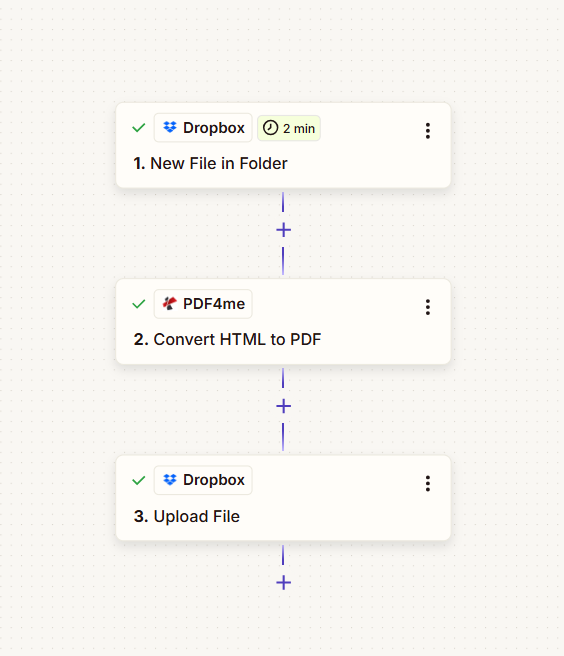
Two steps: trigger (e.g. New File in Folder) and Convert HTML to PDF. Each step shows a green checkmark when configured. The file from the trigger is passed into the PDF4me action.
Step 1: Set Up the Trigger
Zap so far: Trigger only.
- Add your trigger. Examples:
- Dropbox – New File in Folder — Choose the folder where HTML files appear (e.g. from a form, export, or sync).
- Google Drive – New File in Folder — Same idea for Drive.
- JotForm / Typeform / other — If the app can provide an HTML file or a URL to HTML, use that as the trigger and ensure the next step receives a File (or URL) Zapier can pass to PDF4me.
- Include file contents? — Set to Yes if the trigger offers it, so the file bytes are available for the action.
- Test the trigger. You should see at least one sample with a file (or URL).
Trigger: New File in Folder (Dropbox)
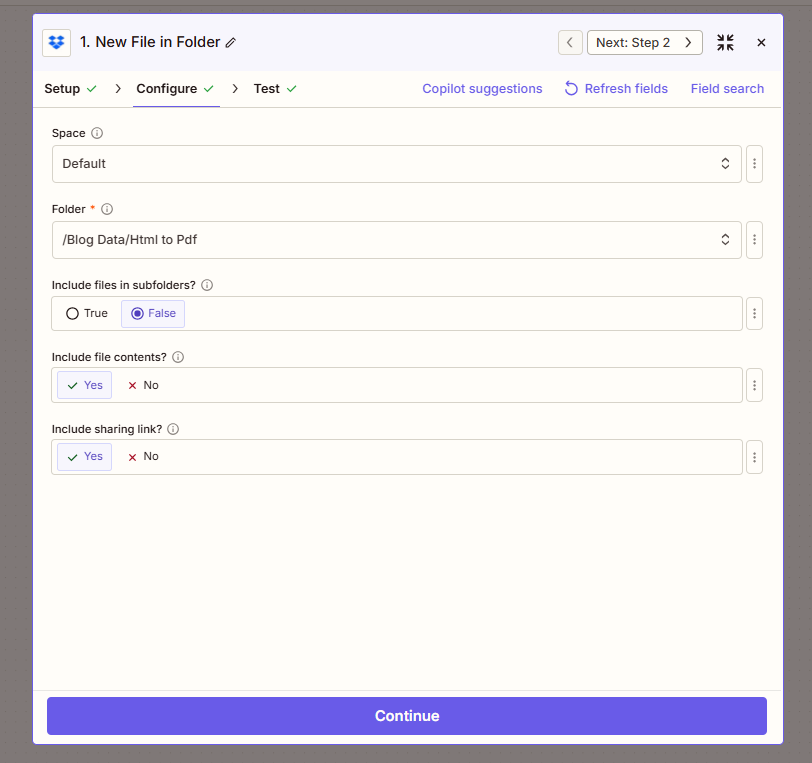
Trigger configuration: Folder selected, Include file contents set to Yes so the HTML file is passed to the next step. Test to confirm a file appears in the trigger data.
Step 2: Convert HTML to PDF
Zap so far: Trigger → Convert HTML to PDF.
- Add PDF4me → Convert HTML to PDF.
- File (required) — Map File from the trigger step (e.g. 1. File from New File in Folder). Use the field that contains the actual HTML file.
- File Name — Optional. e.g.
converted.pdfor map from trigger (e.g. 1. File Name with extension changed to.pdf). - Layout — Portrait or Landscape.
- Connect your PDF4me account if prompted.
- Test the action. You should get a PDF in the output.
PDF4me – Convert HTML to PDF: File and layout
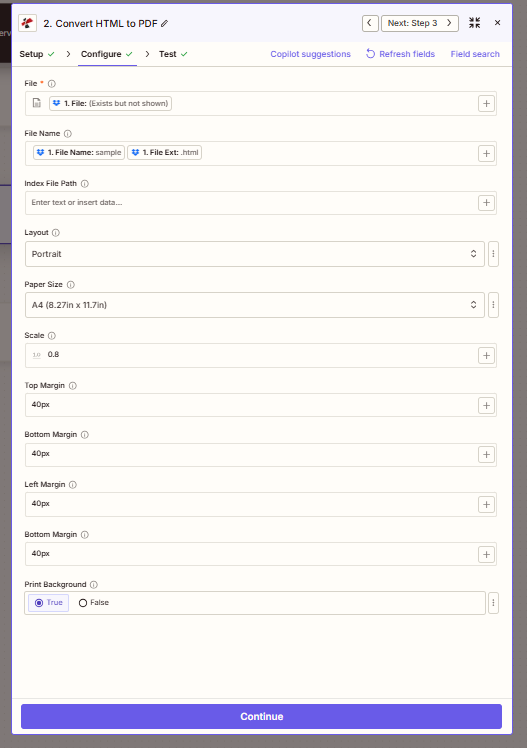
Action configuration: File mapped from the trigger (e.g. 1. File), File Name for the PDF output, Layout set to Portrait or Landscape. PDF4me preserves CSS and images from the HTML.
Step 3: Use the Output
The Convert HTML to PDF step returns a File (or URL) and File Name. Use it in the next step—e.g. Dropbox – Upload File, Google Drive – Upload File, Email – Send, or Slack – Send Message with the PDF attached.
Output: PDF from Convert HTML to PDF
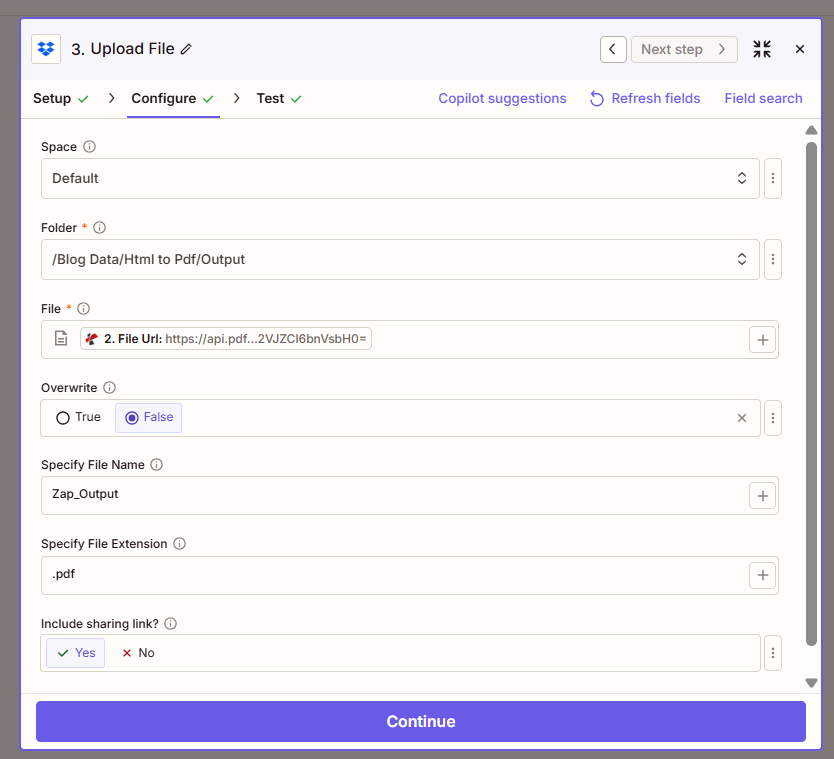
Output from Convert HTML to PDF: File (URL or binary), File Name, Full File Name, File Extension. Map these into the next action to upload, email, or store the PDF.
Image-based fact check: Input and output
Visual confirmation of what goes in and what comes out.
Example HTML input file
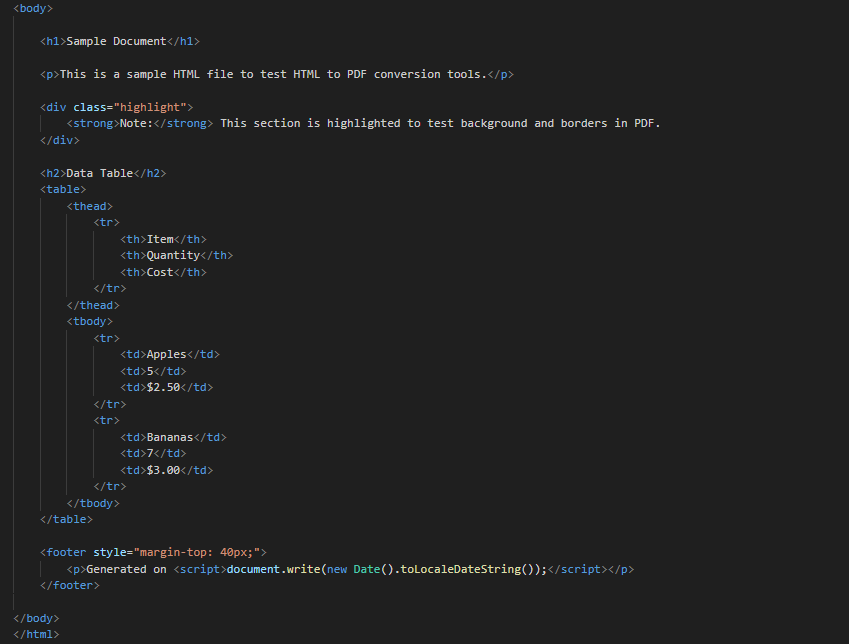
Sample HTML input: raw HTML or a rendered page. The Zap passes this file (or its URL) to PDF4me. CSS, images, and structure are preserved in the PDF.
Example PDF output file
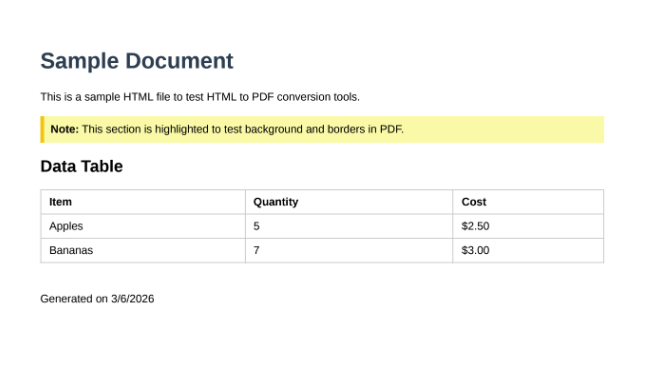
Generated PDF: same content as the HTML, in PDF form. Use this in the next Zap step to upload to cloud storage, attach to email, or send to a document system.
Use Cases: When to Use HTML to PDF in Zapier
Invoices and quotes: Generate HTML from CRM or spreadsheet data, save to Dropbox/Drive, and let the Zap convert to PDF for sending or archiving.
Form submissions: Forms that output HTML (e.g. confirmation pages or email bodies) can be turned into PDFs and stored or emailed automatically.
Reports and certificates: HTML reports from BI tools or certificate templates can be dropped in a folder and converted to PDF on a schedule or on each new file.
Web content archiving: Save web pages or HTML exports to a folder; the Zap converts them to PDF for compliance or long-term storage.
Quick Reference: Key Settings
| Step | Setting | Example |
|---|---|---|
| 1. Trigger | Include file contents | Yes (so File is available) |
| 2. Convert HTML to PDF | File | 1. File (from trigger) |
| 2. Convert HTML to PDF | Layout | Portrait or Landscape |
For full parameter details, see Convert HTML to PDF — Zapier.
Troubleshooting
Ensure the trigger has Include file contents set to Yes (if available) and map the actual File field from the trigger—not just the file name or URL, unless the action supports URL input.
Confirm the trigger is passing valid HTML (or a URL that returns HTML). Corrupted or non-HTML content will produce a bad or empty PDF.
PDF4me Troubleshooting covers 401 (API key), 402 (credits), and more.
What's Next?
- Add a third step: Upload File (Dropbox, Google Drive) to save the PDF to a folder.
- Add Email or Slack to send the PDF to a recipient or channel.
- Need to add headers/footers to the PDF? Use Add HTML Header Footer in Zapier after conversion or on existing PDFs.