Got HTML from a template or API? Turn it into a PDF in n8n! Three nodes only, no hosting required.
You have HTML—from a template, a web page, or an API response. You need a PDF. Manually exporting or copying into Word doesn't scale. n8n plus PDF4me turns HTML into PDF in three nodes: trigger → upload → convert. No servers, no custom code. Paste Base64 HTML, map the URL to the converter, and you get output.pdf—ready to download, email, or store.
In a nutshell: When clicking 'Execute workflow' (trigger) → Upload file to PDF4me (Base64 HTML) → Convert Html to PDF (maps documentUrl from Upload). Output: PDF binary (e.g. 29.2 kB) with Download, JSON, and Table views.
Why this workflow? PDF4me's Convert Html to PDF accepts HTML via URL, binary, or Base64. When your HTML is generated inside n8n (e.g. from a Code node or HTTP response), you first Upload file to PDF4me to get a temporary documentUrl, then pass that URL into Convert Html to PDF. Two PDF4me nodes. One flow.
Why-Based Q&A
Why upload before converting? The Convert node expects HTML from a URL, binary, or Base64. When HTML comes from an expression or another node's output (not a public URL), you must upload it first. PDF4me returns documentUrl—a temporary link the converter can fetch.
Why use Base64 instead of URL? Base64 is ideal when HTML is generated inside n8n—e.g. from a template, API, or Code node. You don't need to host a file anywhere. Paste the Base64 string, set retention (e.g. 2 hours), and the upload node handles the rest.
Why {{ $json.documentUrl }}? The Upload node outputs documentUrl in each item. The Convert node's HTML URL field needs that value. Use the expression {{ $json.documentUrl }} to pass it from the previous step.
Why set File Retention Hours? Uploaded files are stored temporarily. A value like 2 keeps the file available long enough for the Convert step to run. Adjust if your workflow has delays or loops.
What You'll Get
Input: Base64-encoded HTML (e.g. from a template or API). Output: A PDF file (e.g. output.pdf, ~29.2 kB) in the workflow output—viewable in Schema, Table, JSON, or Binary tabs, with a Download button.
What You Need
- n8n — Self-hosted or n8n Cloud. Add the PDF4me node from the node panel.
- PDF4me API key — Get your API key. Connect it when you add PDF4me nodes. First time? Follow Connect PDF4me to n8n.
- HTML content — In Base64 format for this workflow. Use a Code node or external source to produce it.
The Flow at a Glance
- When clicking 'Execute workflow' — Manual trigger for testing. Replace with a webhook, schedule, or file trigger for automation.
- Upload file to PDF4me — Sends Base64 HTML to PDF4me, returns
documentUrl. - Convert Html to PDF — Fetches HTML from
documentUrl, outputs PDF binary.
Complete workflow overview
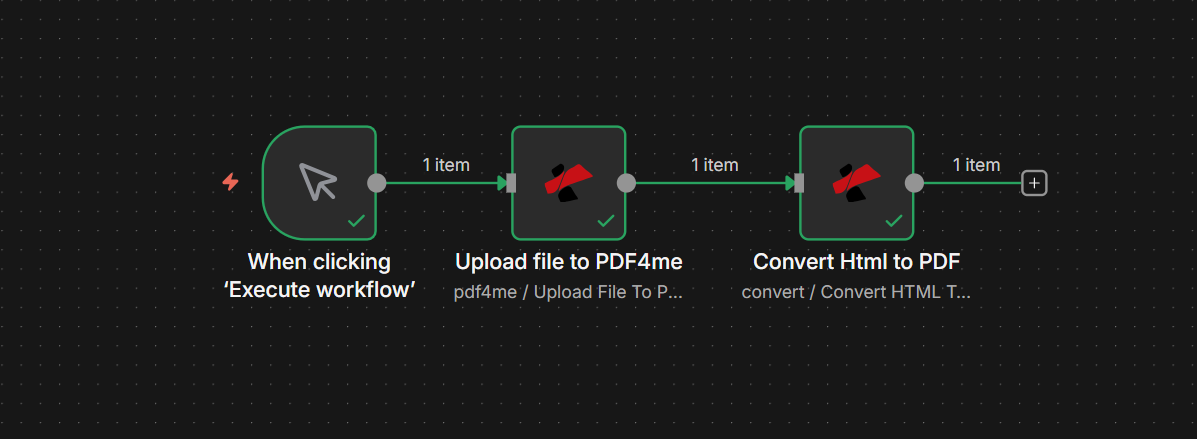
Three nodes in sequence: manual trigger → Upload file to PDF4me → Convert Html to PDF. Each connection shows "1 item" passing through. Green checkmarks indicate a successful run.
Step 1: Upload File to PDF4me
Scenario so far: Trigger only.
- Add PDF4me → PDF4me resource → Upload File To PDF4me operation.
- Credential to connect with — Select your PDF4me connection.
- Input Data Type — Base64 String.
- Base64 File Content — Paste your Base64-encoded HTML. Example start:
PCFET0NUWVBFIGh0bWw+...(decodes to<!DOCTYPE html>). - File Retention Hours — e.g. 2 (keeps the file available for the next step).
- Click Execute step to test. The output will include
documentUrl.
Upload File to PDF4me: Parameters panel
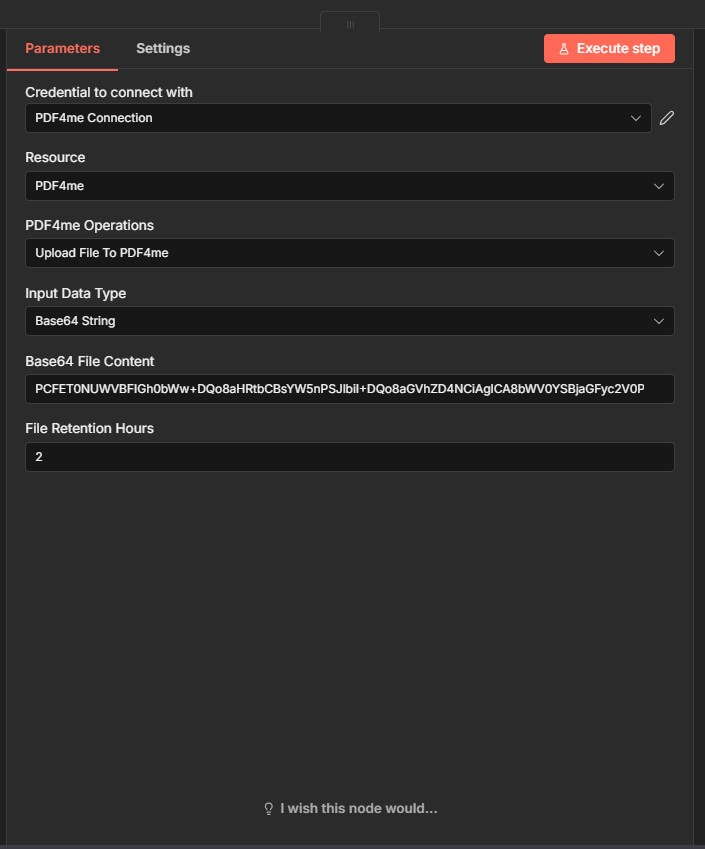
Parameters tab: Credential (PDF4me Connection), Resource (PDF4me), Operation (Upload File To PDF4me), Input Data Type (Base64 String), Base64 File Content field with HTML, and File Retention Hours set to 2.
Tip: If your HTML comes from another node (e.g. Code or HTTP Request), use an expression like {{ $json.base64Content }} instead of pasting. Ensure the value is valid Base64.
Step 2: Convert Html to PDF
Scenario so far: Trigger → Upload file to PDF4me.
- Add PDF4me → Convert resource → Convert Html to PDF operation.
- Credential to connect with — Same PDF4me connection.
- Input Data Type — URL.
- HTML URL — Switch to Expression and enter
{{ $json.documentUrl }}. This maps the URL from the Upload step. - HTML File Name — e.g.
document.html. - Index File Path — e.g.
index.html(for multi-file HTML projects). - Layout — Portrait (or Landscape).
- Format — A4.
- Scale —
0.8(100% = 1.0). - Top / Bottom / Left / Right Margin — e.g.
40pxeach. - Print Background — Off (or On if you need backgrounds).
- Display Header Footer — Off (or On for page numbers).
- Output File Name — e.g.
output.pdf. - Binary Data Output Name —
data(the field for the PDF binary). - Click Execute step. The output will show the PDF with File Name, File Extension, Mime Type, File Size, and a Download button.
Convert Html to PDF: Parameters and layout settings
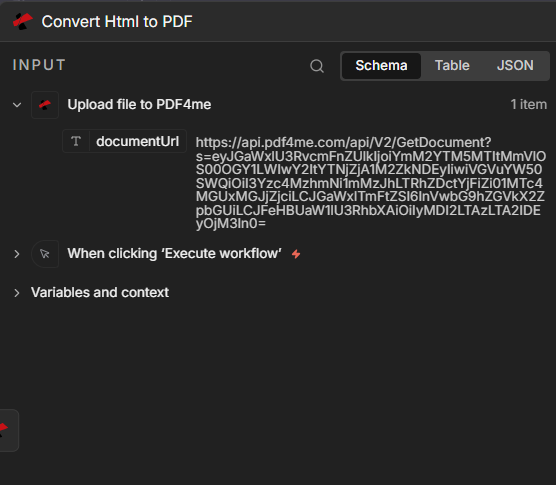
Parameters tab: Input Data Type (URL), HTML URL expression, HTML File Name (document.html), Index File Path (index.html), Layout (Portrait), Format (A4), Scale (0.8), margins (40px), Output File Name (output.pdf), and Binary Data Output Name (data).
Convert Html to PDF: Mapping documentUrl from Upload step
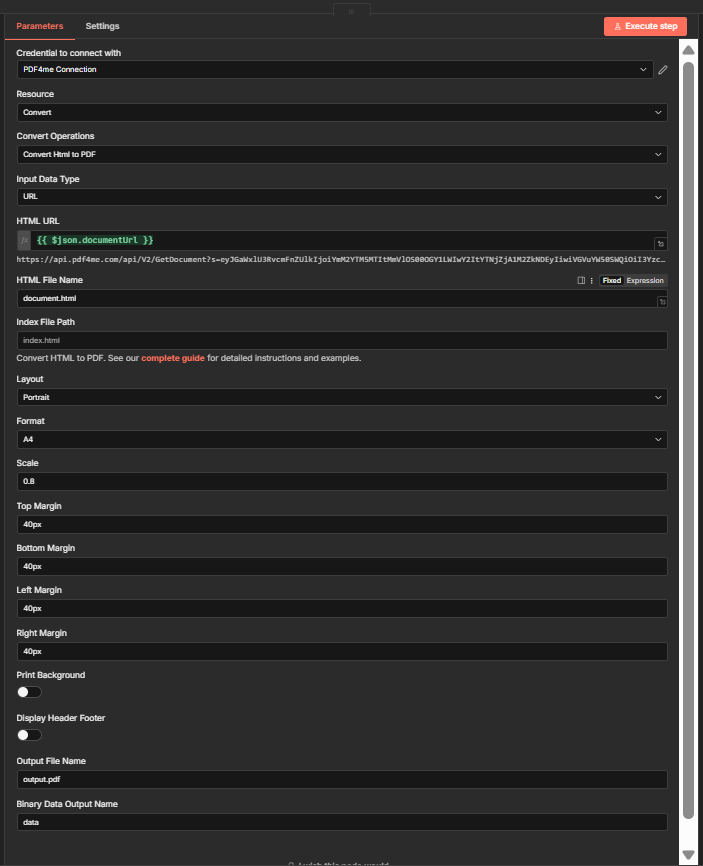
INPUT section expanded: documentUrl from "Upload file to PDF4me" is passed into the HTML URL field—the expression maps the temporary URL returned by the Upload node.
Step 3: Check the Output
The Convert node's OUTPUT panel shows:
| Field | Value |
|---|---|
| File Name | output.pdf |
| File Extension | |
| Mime Type | application/pdf |
| File Size | 29.2 kB (example) |
Use Schema, Table, JSON, or Binary tabs to inspect. The Download button saves the PDF locally.
Output: Generated PDF ready to download
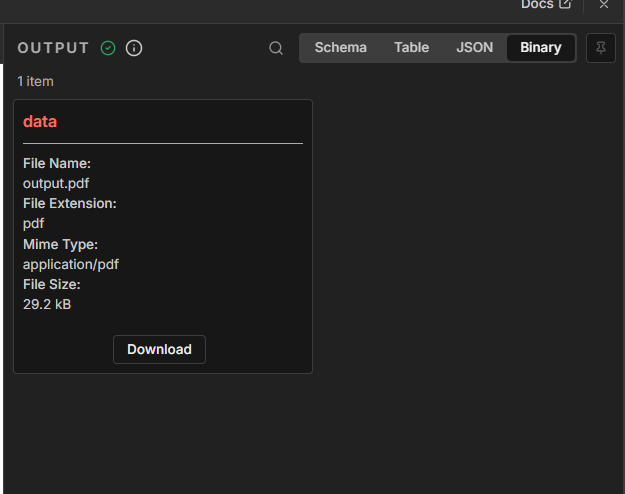
OUTPUT panel: 1 item with File Name (output.pdf), File Extension (pdf), Mime Type (application/pdf), File Size (29.2 kB), and a Download button. Binary tab selected for viewing the generated PDF.
Use Cases: When to Use HTML to PDF in n8n
Invoice and proposal generation: Build HTML from CRM or database data (e.g. Airtable, Google Sheets). Convert to PDF and email or upload to cloud storage. Same template, dynamic data.
Report generation with AI insights: Use an AI node to generate content, format it as HTML, then convert to PDF for stakeholders. Ideal for weekly digests, summaries, or analysis reports.
Certificates and badges: Create HTML certificates from training or event data. Convert to PDF and send via email or store in a document management system.
Document archiving and email-to-PDF: Parse HTML emails or web content, convert to PDF, and archive in Dropbox, Google Drive, or a compliance system.
Onboarding and compliance documentation: Generate personalized onboarding PDFs from templates and user data. Automate handbooks, policies, or compliance docs.
Quick Reference: Key Settings
| Node | Setting | Example |
|---|---|---|
| 1. Upload file to PDF4me | Input Data Type | Base64 String |
| 1. Upload file to PDF4me | File Retention Hours | 2 |
| 2. Convert Html to PDF | HTML URL | {{ $json.documentUrl }} |
| 2. Convert Html to PDF | Output File Name | output.pdf |
For full parameter details, see Convert HTML to PDF — n8n.
Troubleshooting
Ensure the Upload node runs before Convert and that you use {{ $json.documentUrl }} (or {{ $('Upload file to PDF4me').item.json.documentUrl }} if you have multiple nodes). The expression must reference the node that outputs documentUrl.
Verify your Base64 string is valid and does not include data-URI prefixes (e.g. data:text/html;base64,). If using a Code node, ensure Buffer.from(html).toString('base64') or equivalent produces clean Base64.
PDF4me Troubleshooting covers 401 (API key), 402 (credits), and more.
What's Next?
- Replace the manual trigger with a Webhook or Schedule to run the flow automatically.
- Add an Upload a file node (Dropbox, Google Drive) after Convert to save the PDF to cloud storage.
- Use HTML Code or Binary Data as Input Data Type if your HTML comes from a different source—see Convert HTML to PDF — n8n for all options.