New PDF in Your Folder? Auto-Convert to PDF/A in Zapier, Watch → Compress → Convert → Upload (4 Steps)
Tired of manually converting PDFs for your archive? Point Zapier at a folder, and every new PDF gets compressed, turned into PDF/A, and dropped into an output folder. No clicking, no batch runs. PDF/A keeps documents readable for years—everything’s embedded, nothing depends on external fonts or links. Here’s how to wire it up.
In a nutshell: New File in Folder watches /Blog Data/PDFA → Compress PDF (Maximum Compression) → Create PDF/A (e.g. PDF/A-1b) → Upload File to /Blog Data/PDFA/Output. Input: Sample PDF.pdf. Output: Zap_Output.pdf in PDF/A format.
What Is PDF/A, and Why Bother?
Regular PDFs can fall apart over time. Fonts go missing, colors drift, and links to external resources stop working. PDF/A fixes that. It’s an ISO standard (19005) built for archiving: fonts, images, and color profiles are all baked into the file. No encryption, no scripts, no dependencies that might disappear. The result? Documents that stay readable and verifiable for decades, no matter how software evolves.
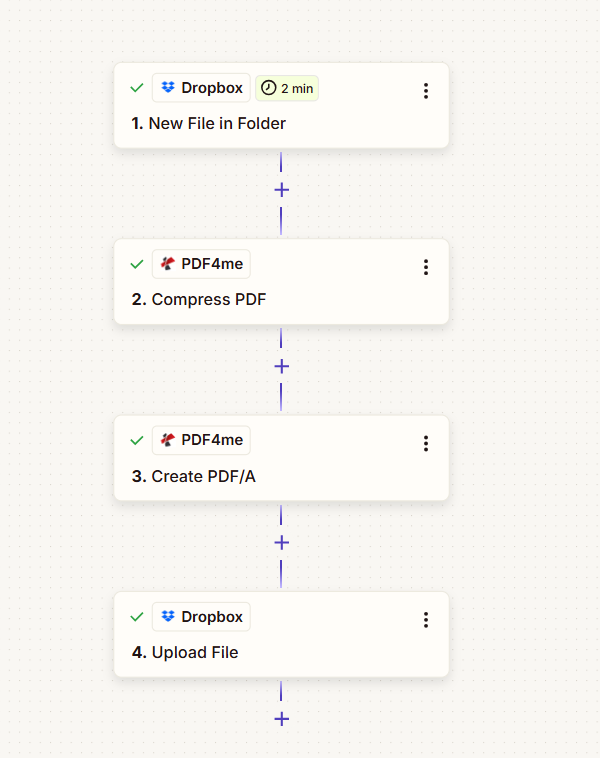
Zap: trigger, compress, convert to PDF/A, upload. Each step shows a green checkmark when configured.
What You’ll Get
Input: A regular PDF (e.g. Sample PDF.pdf) dropped into /Blog Data/PDFA. Output: An archival PDF/A file (e.g. Zap_Output.pdf) in /Blog Data/PDFA/Output—ready for long-term storage, archives, or regulatory submission.
What You Need
- Zapier — Zapier account. New Zap with one trigger and three actions.
- PDF4me API key — Get your API key. Connect it when you add PDF4me actions. First time? See Connect PDF4me to Zapier.
- Dropbox — For the watched folder and output. Any storage with New File in Folder and Upload File works (Google Drive, etc.).
The Zap: 4 Steps
- New File in Folder (Dropbox) — Triggers when a PDF appears in the folder. Polls every 2 minutes.
- Compress PDF (PDF4me) — Shrinks the file before archiving.
- Create PDF/A (PDF4me) — Converts to an archival-compliant format.
- Upload File (Dropbox) — Saves the PDF/A to your output folder.
Step 1: Watch the Folder (Trigger)
Zap so far: Trigger only.
- Add Dropbox → New File in Folder as the trigger.
- Space — Default (or your Dropbox space).
- Folder (required) —
/Blog Data/PDFA. - Include files in subfolders? — False (or True to include nested folders).
- Include file contents? — Yes. Required so the Zap can pass the file to Compress PDF and Create PDF/A.
- Include sharing link? — Yes (optional).
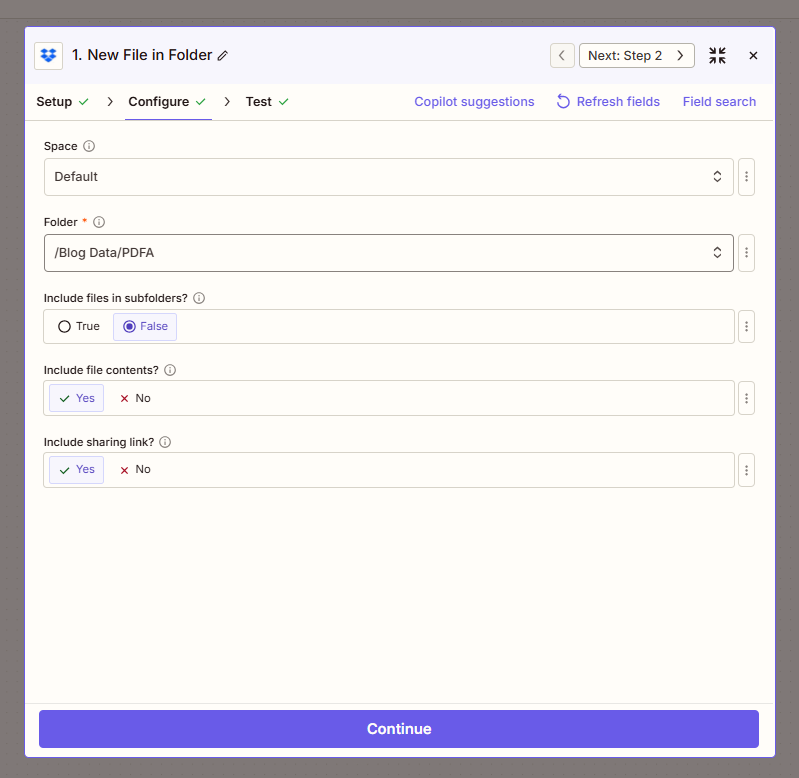
Include file contents? Must be Yes. If it’s No, Zapier passes a reference instead of the file, and the Compress/Create steps will fail.
Step 2: Compress the PDF
Zap so far: Trigger → Compress PDF.
- Add PDF4me → Compress PDF.
- File (required) — Map 1. File from the New File in Folder step (Zapier may show "1. File: (Exists but not shown)").
- File Name — Map 1. File Name and 1. File Ext from step 1 (e.g.
Sample PDF+.pdf). - Compression Type — Maximum Compression (or Standard, Minimum).
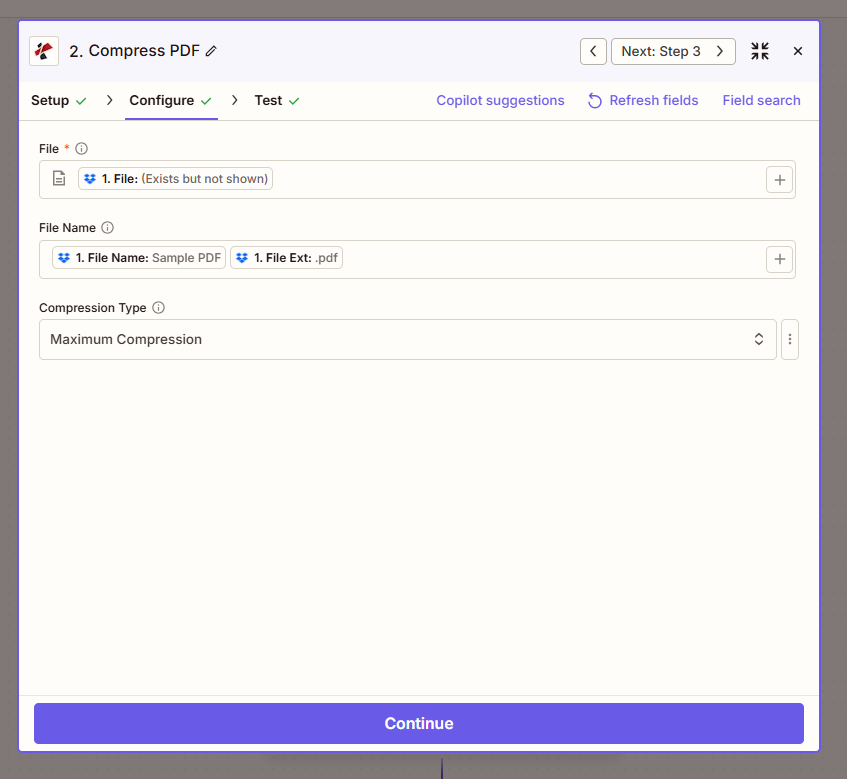
Why compress first? Smaller files archive and transfer faster. If you skip this step, connect 1. File directly to Create PDF/A and map 1. File Name and 1. File Ext there.
Step 3: Convert to PDF/A
Zap so far: Trigger → Compress PDF → Create PDF/A.
- Add PDF4me → Create PDF/A.
- File (required) — Map 2. File Url from the Compress PDF step.
- Specify File Name — e.g.
Zap_Output.pdf(or map from step 1 for dynamic naming). - PDF/A Compliance (required) — Choose a level, e.g. PDF/A-1b Basic Conformance.
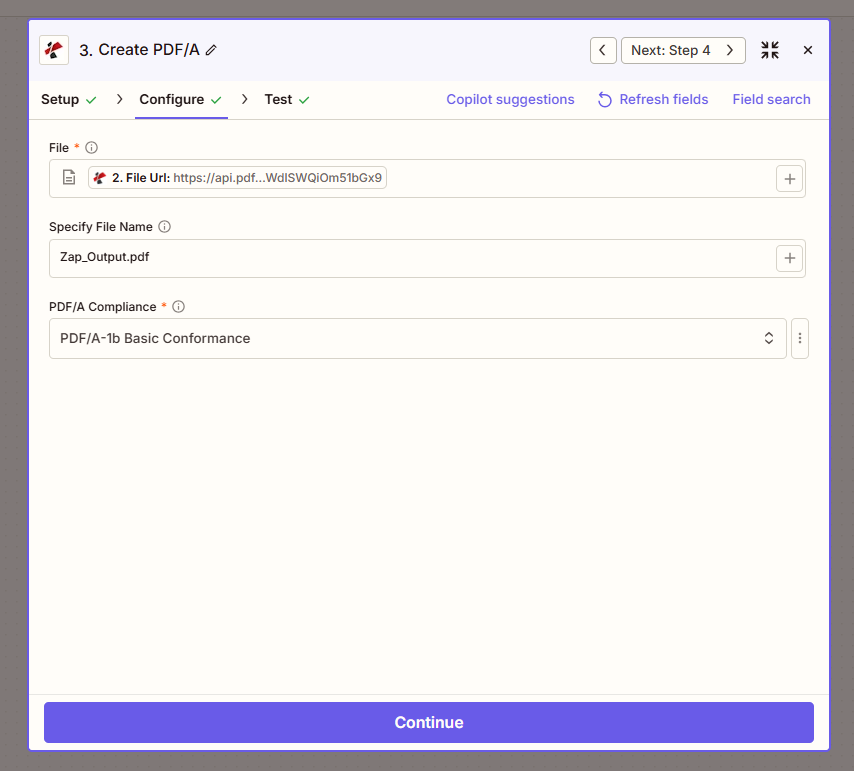
Choosing a compliance level
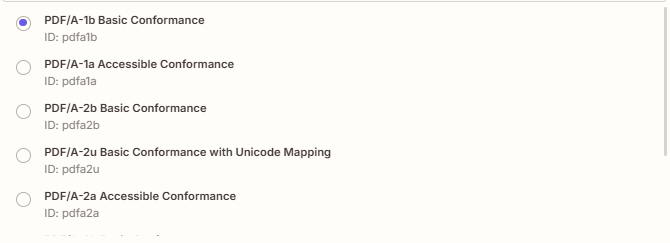
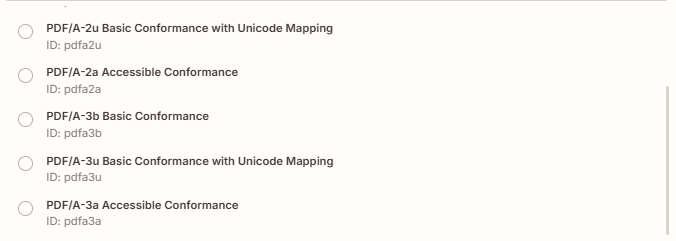
Basic (b) focuses on visual integrity; Accessible (a) adds structure for screen readers; Unicode (u) improves text handling. PDF/A-3 allows embedding other files (e.g. XML, Excel).
Step 4: Upload the Archival PDF
Zap so far: Trigger → Compress PDF → Create PDF/A → Upload File.
- Add Dropbox → Upload File.
- Space — Default.
- Folder (required) —
/Blog Data/PDFA/Output. - File (required) — Map 3. File Url from the Create PDF/A step.
- Overwrite — False (rename if exists) or True (replace).
- Specify File Name — e.g.
Zap_Output(or map from step 1). - Specify File Extension —
.pdf. - Include sharing link? — Yes (optional).
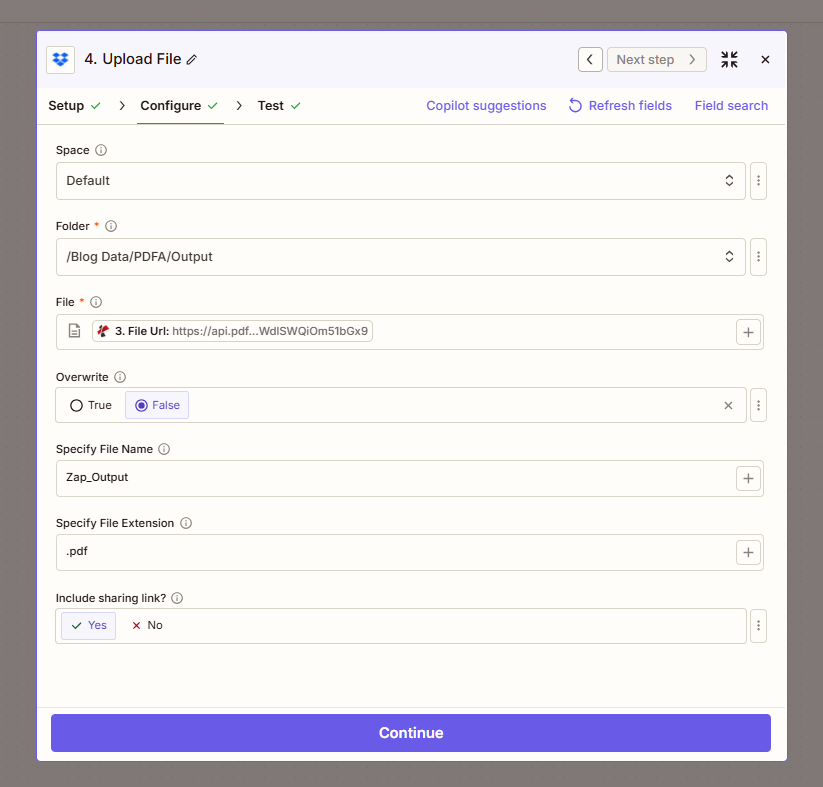
Possible Zap loop: If you upload to the same folder that triggers the Zap, the new file can retrigger it. Use a different output folder (e.g. /Blog Data/PDFA/Output) to avoid loops.
Who Uses PDF/A? Real-World Examples
Government archives and libraries: Public records, historical documents, and digital collections must stay accessible for generations. PDF/A lets archivists and librarians preserve scans and born-digital documents without worrying about format obsolescence.
Insurance and claims: Policy documents, claim forms, and audit trails often need to be retained for 7–10 years or more. Regulators and auditors expect files that won’t degrade; PDF/A delivers that.
Tax and accounting firms: Returns, financial statements, and supporting documents are kept for years. PDF/A ensures that what you archive today will still open and look correct when the IRS or clients ask for it years later.
Quick Reference: Key Settings
| Step | Setting | Example |
|---|---|---|
| 1. New File in Folder | Include file contents? | Yes |
| 2. Compress PDF | Compression Type | Maximum Compression |
| 3. Create PDF/A | PDF/A Compliance | PDF/A-1b Basic Conformance |
| 4. Upload File | Folder | /Blog Data/PDFA/Output |
For full parameter details, see Create PDF/A — Zapier.
Troubleshooting
Set Include file contents? Yes in the trigger. The Compress and Create PDF/A steps need the actual file bytes, not a reference.
Upload to a different folder than the trigger. Use /Blog Data/PDFA/Output so the new file doesn’t retrigger the Zap.
PDF4me Troubleshooting covers 401 (API key), 402 (credits), and more.
What’s Next?
- Add a Filter to convert only PDF files (exclude .docx, images, etc.).
- Map 1. File Name to the output filename so each PDF keeps its name (e.g.
Contract_2024.pdf→Contract_2024.pdfin PDF/A). - Same idea in Make if you prefer that platform.