Got a PDF at a Dropbox Path? Convert It to PDF/A in Power Automate—5 Steps to Archival Format
You have a PDF—maybe a form with fields, a signed contract, or a scanned document—and it needs to last. Regular PDFs can lose fonts, break links, or change appearance over time. PDF/A (ISO 19005) locks everything in: fonts, images, and color profiles stay embedded so the document stays readable for decades. In Power Automate, you can wire up a flow that grabs a file from a Dropbox path, compresses it, converts it to PDF/A, and saves the archival version to an output folder. Five steps. One flow. No manual conversion.
In a nutshell: Manually trigger a flow → Get file content using path (Dropbox, e.g. /blog data/pdfa/sample pdf.pdf) → PDF – Compress → PDF – Create PdfA (choose compliance, e.g. PdfA1b) → Create file to /blog data/pdfa/output. Input: any PDF. Output: an archival PDF/A file ready for long-term storage.
Why PDF/A? Because Ordinary PDFs Age Poorly
Think of a PDF you created five years ago. Open it today—does it look exactly the same? Fonts can disappear if they weren’t embedded. Colors can shift. Links to external resources may break. PDF/A is built for archiving: every font, image, and color profile lives inside the file. No encryption, no JavaScript, no external dependencies. Regulators, auditors, and archivists use it when documents must remain readable and verifiable for years. If you’re storing forms, contracts, or records you might need in a decade, PDF/A is the right choice.
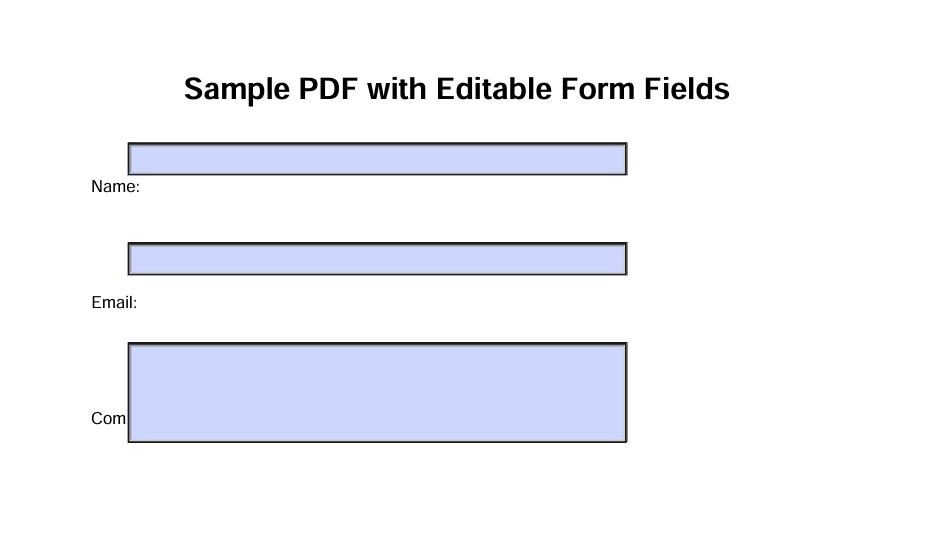
Example input: a PDF with form fields. PDF/A conversion preserves the visual content for long-term archival.
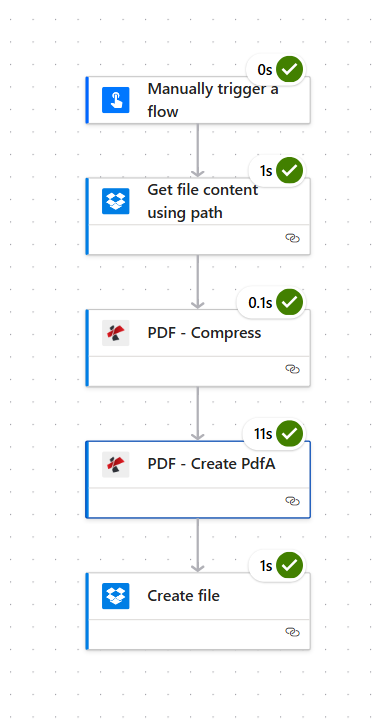
Flow overview: trigger, get file, compress, convert to PDF/A, save. Each step runs in sequence.
What You’ll Get
Input: A regular PDF at a known Dropbox path (e.g. /blog data/pdfa/sample pdf.pdf). Output: An archival PDF/A file (e.g. Output.pdf) in /blog data/pdfa/output—ready for compliance, audits, or long-term archives.
What You Need
- Power Automate — Open Power Automate. Create a new cloud flow (Instant or Automated).
- PDF4me API key — Get your API key. Connect it when you add PDF4me actions. First time? See Connect PDF4me to Power Automate.
- Dropbox — For getting file content and creating the output file. SharePoint or OneDrive work too if you swap the connector.
The Flow: 5 Steps
- Manually trigger a flow — Run on demand (or use When a file is created for automation).
- Get file content using path (Dropbox) — Fetches the PDF from a path like
/blog data/pdfa/sample pdf.pdf. - PDF – Compress (PDF4me) — Shrinks the file before archiving.
- PDF – Create PdfA (PDF4me) — Converts to an archival-compliant format.
- Create file (Dropbox) — Saves the PDF/A to your output folder.
Step 1: Trigger + Get File Content
Flow so far: Trigger → Get file content.
- Add Manually trigger a flow (or When a file is created in Dropbox if you want it to run automatically).
- Add Dropbox → Get file content using path.
- File Path * — Enter the path to your PDF, e.g.
/blog data/pdfa/sample pdf.pdf. Use the folder icon to browse. - Advanced parameters → Infer Content Type — Yes.
- Ensure Connected to Dropbox.
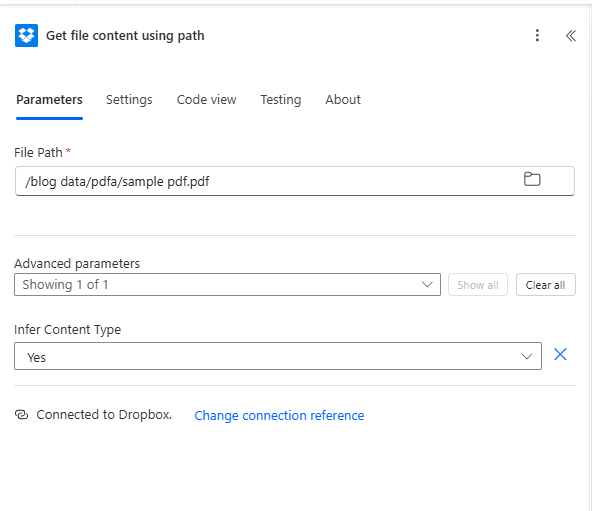
Map File Content, not path: The next steps need the binary file content. Map the File Content output from this action—not the file path or metadata.
Step 2: Compress the PDF
Flow so far: Trigger → Get file content → Compress PDF.
- Add PDF4me → PDF – Compress.
- File Content * — Map File Content from the Get file content step.
- File Name * — e.g.
Test.pdf(or use a dynamic name from the trigger). - Optimize Profile — Default, Maximum Compression, For Web, or For Print depending on your needs.
- Ensure Connected to PDF4me PDF.
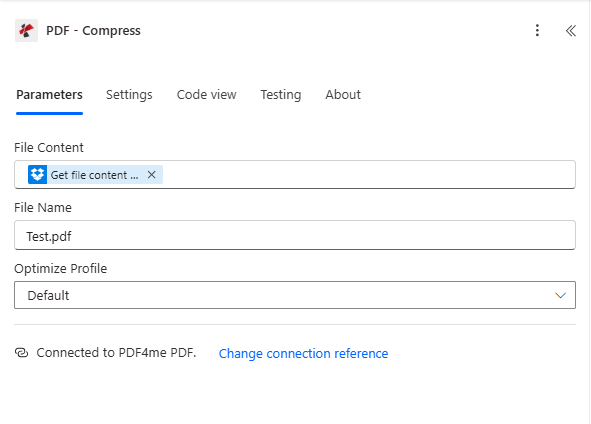
Why compress first? Smaller files archive and transfer faster. If you prefer to skip compression, pass the Get file content output directly to Create PdfA.
Step 3: Convert to PDF/A
Flow so far: Trigger → Get file content → Compress PDF → Create PdfA.
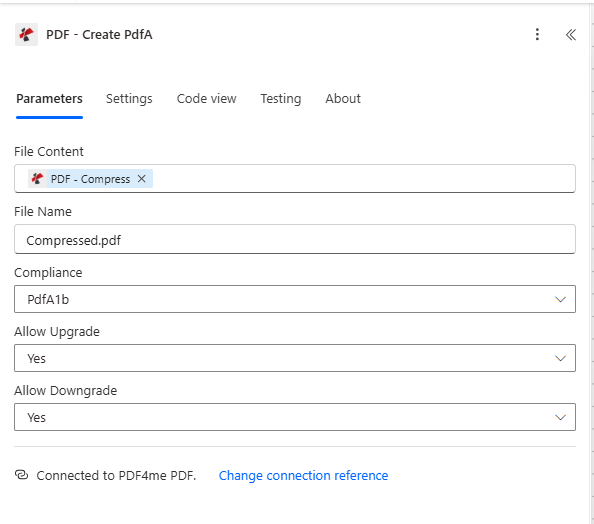
- Add PDF4me → PDF – Create PdfA.
- File Content * — Map File Content from the Compress PDF step (or from Get file content if you skipped compression).
- File Name * — e.g.
Compressed.pdf(or your preferred output name). - Compliance * — Choose a level. PdfA1b is common for basic archival; see the dropdown for other options.
- Allow Upgrade / Allow Downgrade — Set to Yes if you want flexibility for future compliance changes; No for strict archival.
- Ensure Connected to PDF4me PDF.
Choosing a compliance level
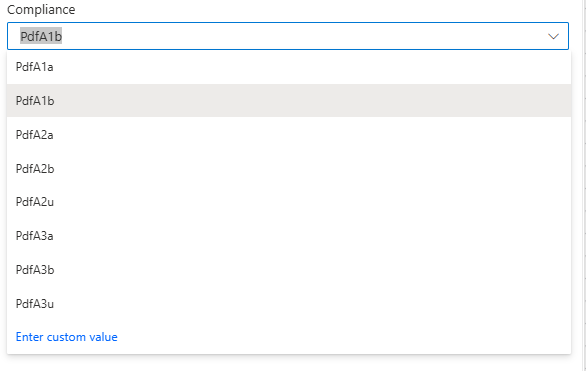
PdfA1b — basic visual integrity. PdfA1a — adds structure for accessibility. PdfA2 — newer standard with improved compression and transparency. PdfA3 — allows embedding other files (e.g. XML, Excel).
Step 4: Save the Archival PDF
Flow so far: Trigger → Get file content → Compress PDF → Create PdfA → Create file.
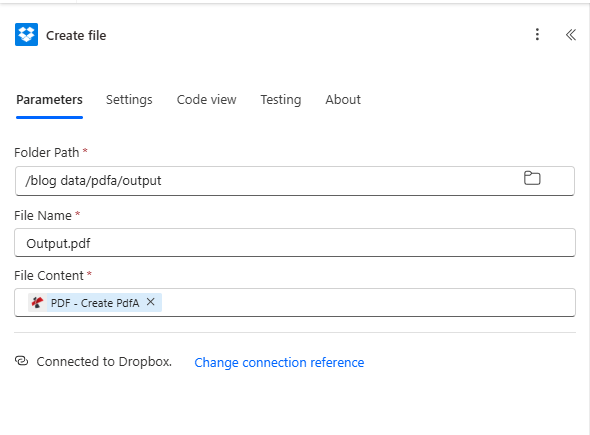
- Add Dropbox → Create file.
- Folder Path * — e.g.
/blog data/pdfa/output. - File Name * — e.g.
Output.pdf. - File Content * — Map File Content from the PDF – Create PdfA step.
- Ensure Connected to Dropbox.
The Result
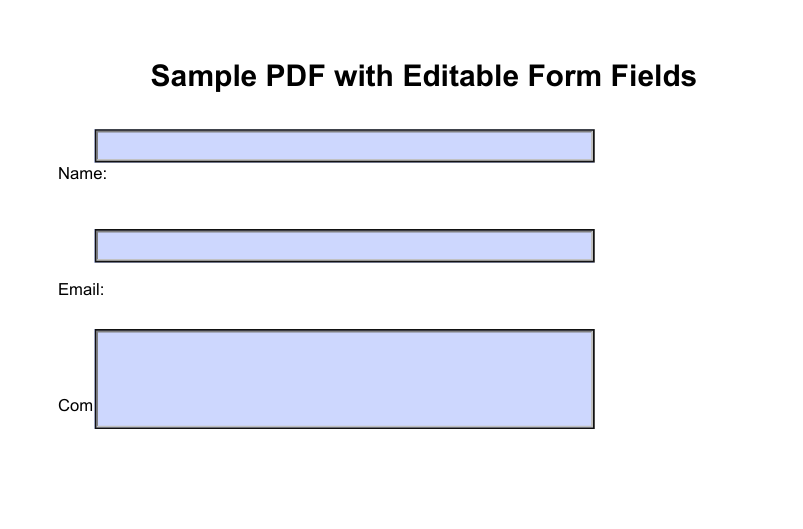
Archival PDF/A file saved to your output folder—ready for long-term preservation.
Who Uses PDF/A? Real-World Examples
Government and public records: Birth certificates, land deeds, and official filings must remain accessible for generations. PDF/A ensures they stay readable as technology changes.
Pharma and research: Clinical trial data, regulatory submissions, and lab reports often have retention requirements of 10+ years. PDF/A meets those compliance needs.
Libraries and museums: Digitized manuscripts, historical scans, and digital collections need formats that won’t become obsolete. PDF/A is a standard choice for preservation.
Quick Reference: Key Settings
| Step | Setting | Example |
|---|---|---|
| 1. Get file content | File Path | /blog data/pdfa/sample pdf.pdf |
| 2. Compress PDF | Optimize Profile | Default |
| 3. Create PdfA | Compliance | PdfA1b |
| 4. Create file | Folder Path | /blog data/pdfa/output |
For full parameter details, see Create PDF/A — Power Automate and Compress PDF — Power Automate.
Troubleshooting
Ensure you map File Content (binary) from the previous step, not the file path. Power Automate may show several fields—pick the one that contains the actual file bytes.
PDF4me Troubleshooting covers 401 (API key), 402 (credits), and more.