Word, Swiss QR Bill, and a Base PDF. Make Merges Them Into One. Six Modules, Done!
You have a Word file (e.g. 3Page.docx) and a base PDF (e.g. demo_5_page.pdf) in Dropbox, and you need a Swiss QR Bill merged on top so the final PDF is ready to send. Make and PDF4me do it in one scenario: Dropbox – Download a File (Word), PDF4me – Convert to PDF, PDF4me – Create SwissQR Bill with creditor and debtor details, Dropbox – Download a File (base PDF), PDF4me – Merge PDF Overlay (base + Swiss QR layer), then Dropbox – Upload a File. Six modules. One run. No code.
This guide uses authentic screenshots and descriptive image captions so you can follow each step and match the configuration (paths, file source, and parameters) in your own Make scenario.
In a nutshell: Dropbox – Download a File (/ Blog Data / Convert-SwissQR-Merge / 3Page.docx) → PDF4me – Convert to PDF (File: Dropbox – Download a File) → PDF4me – Create SwissQR Bill (File: Convert to PDF, Page Number 1, Amount 500.00, CHF, IBAN, creditor Test AG, debtor Test GmbH, Unstructured Message, Billing Info, AV1) → Dropbox – Download a File (/ Blog Data / Convert-SwissQR-Merge / demo_5_page.pdf) → PDF4me – Merge PDF Overlay (Base: 5. File Name + 5. Data, Layer: 3. Name + 3. Document) → Dropbox – Upload a File (Folder / Blog Data / Convert-SwissQR-Merge / output /, Data 4. Document, File Name Final_output.pdf, Overwrite No). Result: one merged PDF with base content and Swiss QR payment slip.
What You'll Get
Input: A Word file (e.g. 3Page.docx) and a base PDF (e.g. demo_5_page.pdf) in Dropbox, plus payment data for the Swiss QR Bill (IBAN, amount, creditor, debtor, reference type, language, optional message and billing info). Output: A single PDF that combines the base document with the generated Swiss QR Bill as an overlay, saved as Final_output.pdf in / Blog Data / Convert-SwissQR-Merge / output /. The QR bill shows Receipt and Payment part, scannable QR code, creditor (e.g. Test AG, Test Strasse 2, 8004 Zurich), debtor (e.g. Test GmbH, Musterstrasse 3, 3000 Bern), CHF 500.00, and optional invoice/contract text.
What You Need
- Make — Create a Make account and open a new scenario.
- PDF4me API key — Get your API key. Connect PDF4me when you add the modules. See Connect PDF4me to Make.
- Dropbox — Connection for Download a File (twice) and Upload a File. Space: Default.
- Word file — e.g.
3Page.docxat/ Blog Data / Convert-SwissQR-Merge / 3Page.docx. Downloaded in step 1 and used as input for Convert to PDF. - Base PDF — e.g.
demo_5_page.pdfat/ Blog Data / Convert-SwissQR-Merge / demo_5_page.pdf. Downloaded and used as the base layer in Merge PDF Overlay. - Swiss QR Bill data — Amount 500.00, Currency CHF, IBAN (e.g.
CH0200700110003765824), Creditor (Test AG, Test Strasse, 2, 8004, Zurich), Ultimate Debtor (Test GmbH, Musterstrasse, 3, 3000, Bern), Reference Type NON, Language English, Separator Line With Scissor. Optional: Unstructured Message (e.g. invoice #2026-003 - Monthly Services), Billing Info (Contract: ABC-123), AV1 Parameters (e.g. Name AV1: UV;UltraPay005;12345).
The Scenario at a Glance (6 Modules)
- Dropbox – Download a File (1) — Way of selecting files: Select a file. File:
/ Blog Data / Convert-SwissQR-Merge / 3Page.docx. - PDF4me – Convert to PDF (2) — Connection: your PDF4me connection. File: Dropbox – Download a File (step 1).
- PDF4me – Create SwissQR Bill (3) — File: PDF4me – Convert to PDF. Page Number: 1. Amount, Currency (CHF), IBAN, creditor and debtor fields, Reference Type NON, Language English, Separator Line With Scissor. Optional: Unstructured Message, Billing Info, AV1 Parameters.
- PDF4me – Merge PDF Overlay (4) — File: Map. Base File Name: 5. File Name. Base Document: 5. Data. Layer File Name: 3. Name. Layer Document: 3. Document. (Base comes from step 5, layer from step 3; ensure step 5 runs before step 4 in your scenario routing if needed.)
- Dropbox – Download a File (5) — Way of selecting files: Select a file. File:
/ Blog Data / Convert-SwissQR-Merge / demo_5_page.pdf. - Dropbox – Upload a File (6) — Folder:
/ Blog Data / Convert-SwissQR-Merge / output /. File: PDF4me – Merge PDF Overlay. Data: 4. Document. File Name:Final_output.pdf. Overwrite an existing file: No. Advanced settings as needed.
Complete scenario overview
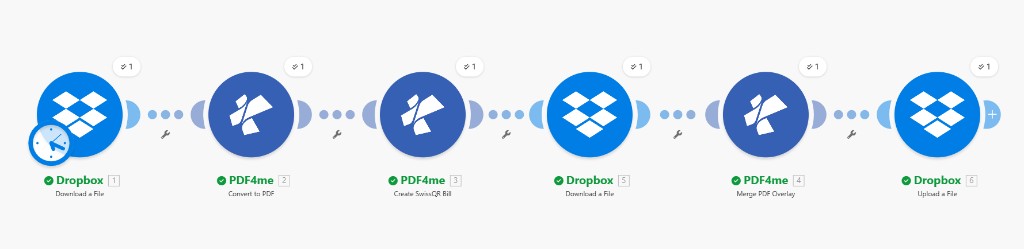
Six modules: Download Word, Convert to PDF, Create SwissQR Bill, Download base PDF, Merge PDF Overlay, Upload a File. Merge uses base from Download (5) and layer from Create SwissQR Bill (3); Upload uses 4. Document.
Step 1: Dropbox – Download a File (Word)
Scenario so far: First module only.
- Add Dropbox → Download a File.
- Connection — My Dropbox connection (or Add new).
- Way of selecting files — Select a file.
- File —
/ Blog Data / Convert-SwissQR-Merge / 3Page.docx. Use the folder icon to browse if needed. - Save. The module output (File, Data, etc.) will be used as the File source in Convert to PDF.
Dropbox – Download a File: Word document
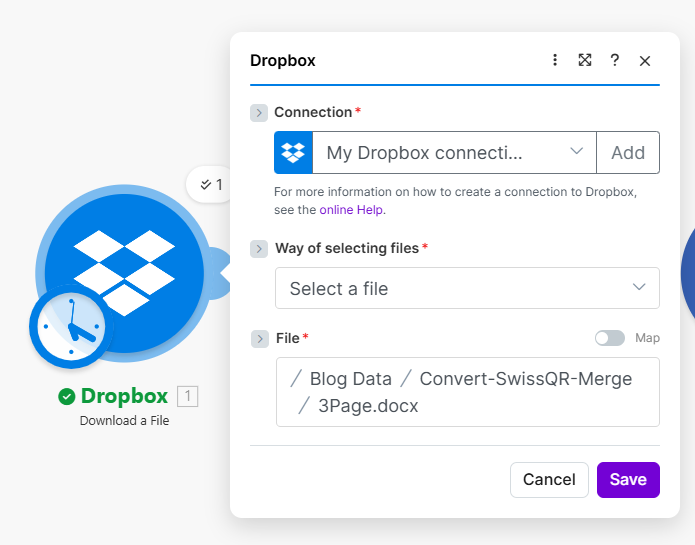
Dropbox Download a File configured with File path / Blog Data / Convert-SwissQR-Merge / 3Page.docx. Map this module's output to PDF4me Convert to PDF as File.
Step 2: PDF4me – Convert to PDF
Scenario so far: Download Word → Convert to PDF.
- Add PDF4me → Convert to PDF.
- Connection — My PDF4me connection.
- File — Select Dropbox – Download a File (the Word file from step 1). Alternatively use Map and choose the step 1 file output.
- Save. The converted PDF is used as the File input for Create SwissQR Bill (e.g. to add the QR bill to page 1 of this PDF or to generate the QR bill from it).
PDF4me – Convert to PDF: File source
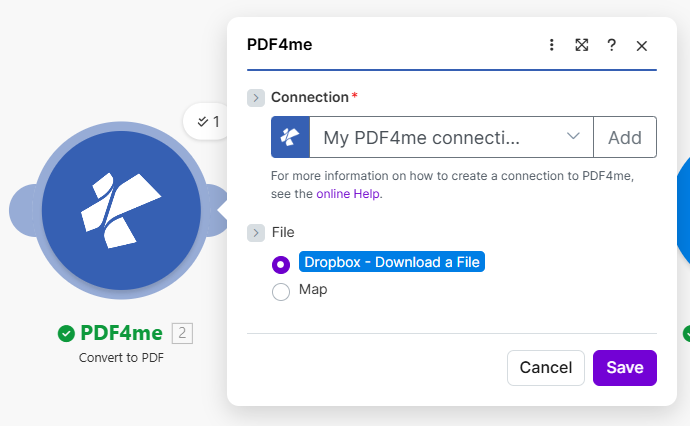
Convert to PDF with File source set to Dropbox - Download a File. Output is passed to Create SwissQR Bill.
Step 3: PDF4me – Create SwissQR Bill
Scenario so far: Download Word → Convert to PDF → Create SwissQR Bill.
- Add PDF4me → Create SwissQR Bill.
- Connection — My PDF4me connection.
- File — PDF4me – Convert to PDF (so the QR bill is created from or added to the converted PDF). Page Number — 1 (the page where the Swiss QR Bill is to be added).
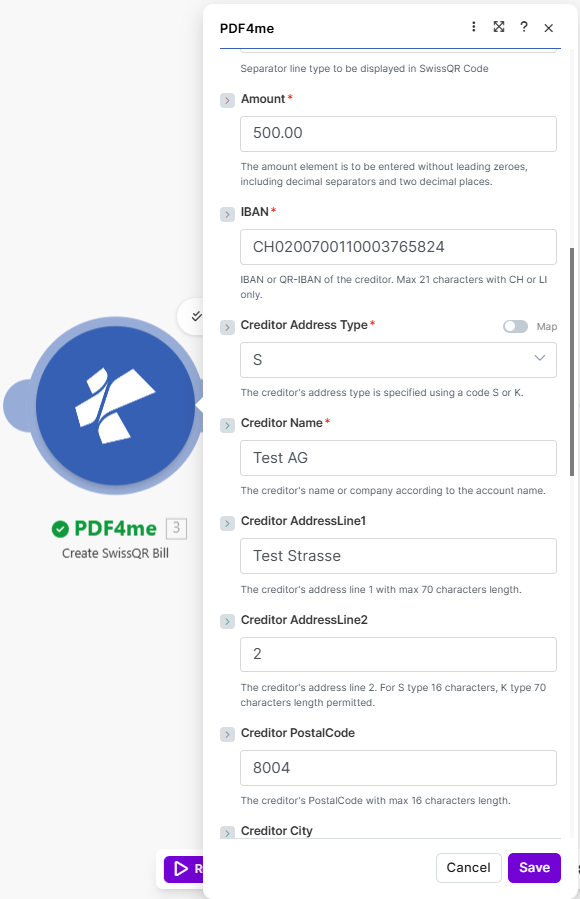
- Amount — 500.00. Currency — CHF. Reference Type — NON. Language Type — English. Separator Line — Line With Scissor.
- IBAN — e.g.
CH0200700110003765824. Creditor Address Type — S. Creditor Name — Test AG. Creditor AddressLine1 — Test Strasse. Creditor AddressLine2 — 2. Creditor PostalCode — 8004. Creditor City — Zurich. - Ultimate Debtor Address Type — S. Ultimate Debtor Name — Test GmbH. Ultimate Debtor AddressLine1 — Musterstrasse. Ultimate Debtor AddressLine2 — 3. Ultimate Debtor PostalCode — 3000. Ultimate Debtor City — Bern.
- Unstructured Message — e.g.
invoice #2026-003 - Monthly Services. Billing Info — e.g.Contract: ABC-123. AV1 Parameters — e.g.Name AV1: UV;UltraPay005;12345. Reference and AV2 optional. - Save. The module returns Name and Document (e.g. 3. Name, 3. Document), used as the Layer in Merge PDF Overlay.
Create SwissQR Bill: Amount, IBAN, creditor
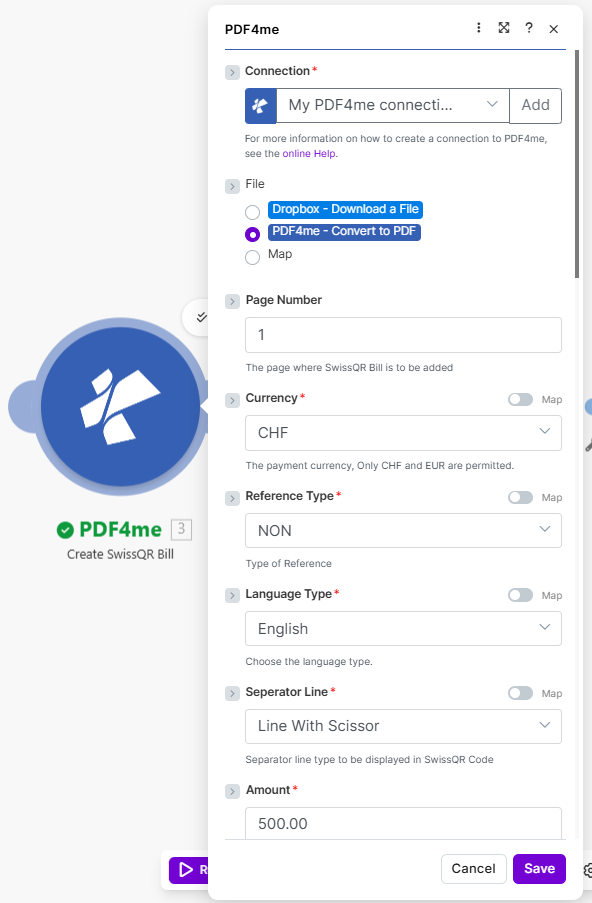
Create SwissQR Bill with Amount 500.00, Currency CHF, IBAN, Creditor Test AG (Test Strasse 2, 8004 Zurich). Map toggle available for dynamic values.
Create SwissQR Bill: Currency, reference, language, separator
Currency CHF, Reference Type NON, Language Type English, Separator Line Line With Scissor. File from Convert to PDF, Page Number 1.
Create SwissQR Bill: Ultimate debtor
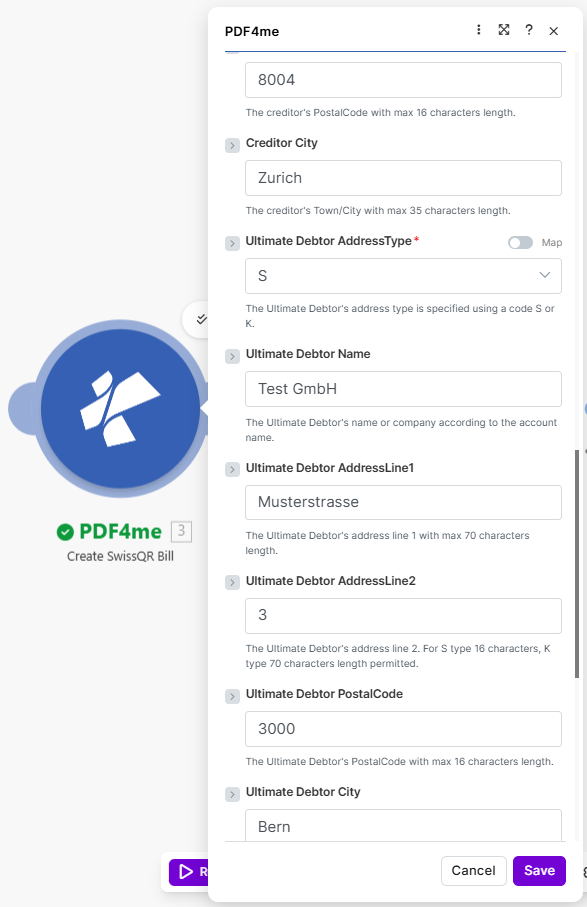
Creditor 8004 Zurich; Ultimate Debtor Test GmbH (Musterstrasse 3, 3000 Bern). Address type S for both.
Create SwissQR Bill: Unstructured message, billing info, AV1
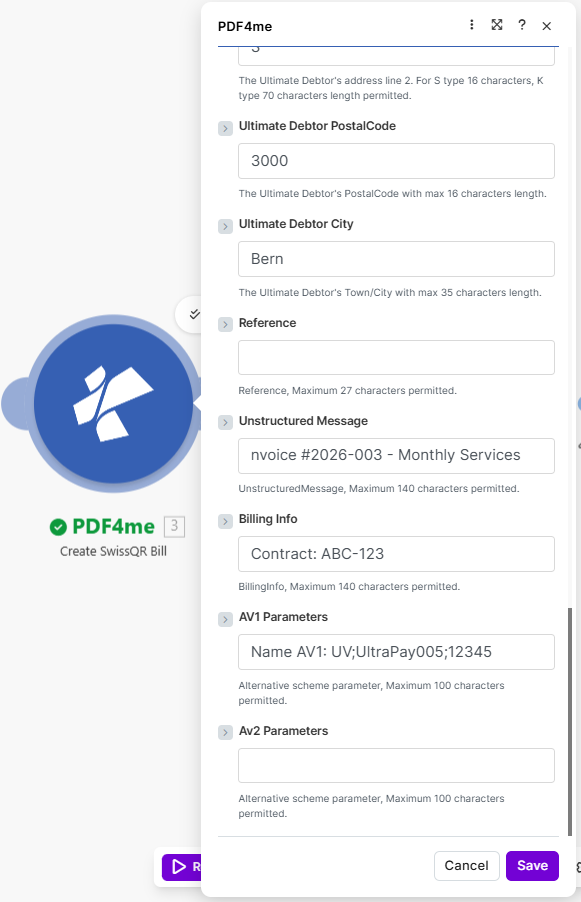
Unstructured Message (invoice #2026-003 - Monthly Services), Billing Info (Contract: ABC-123), AV1 Parameters. Output Name and Document used as layer in Merge PDF Overlay.
Step 4: Dropbox – Download a File (Base PDF)
Scenario so far: Download Word → Convert to PDF → Create SwissQR Bill → Download base PDF.
- Add Dropbox → Download a File (second instance).
- Connection — Same Dropbox connection.
- Way of selecting files — Select a file.
- File —
/ Blog Data / Convert-SwissQR-Merge / demo_5_page.pdf. - Save. The output (e.g. 5. File Name, 5. Data) will be used as the Base in Merge PDF Overlay. In Make, ensure this module runs before the Merge PDF Overlay module (e.g. order modules so Download base is step 5 and Merge is step 4 that references 5’s output, or route accordingly).
Dropbox – Download a File: Base PDF
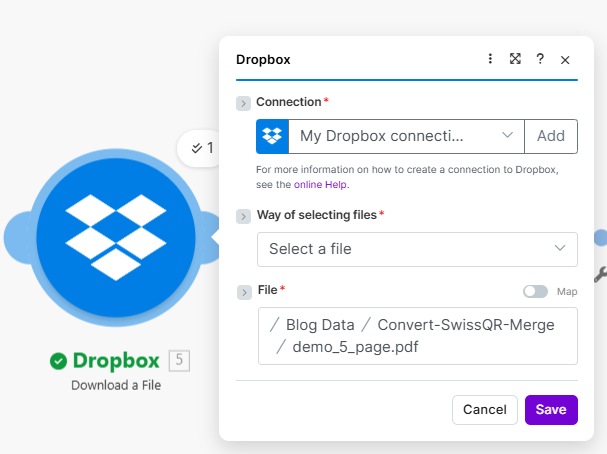
Dropbox Download a File configured for demo_5_page.pdf in / Blog Data / Convert-SwissQR-Merge /. Map 5. File Name and 5. Data to Merge PDF Overlay as Base.
Step 5: PDF4me – Merge PDF Overlay
Scenario so far: All steps up to the merge.
- Add PDF4me → Merge PDF Overlay (or Merge two PDF files one over another as Overlay, depending on module name in your Make app).
- Connection — My PDF4me connection.
- File — Map (so you can map Base and Layer from previous modules).
- Base File Name — Map from the Dropbox Download that provides the base PDF (e.g. 5. File Name). Base Document — Map from the same module (e.g. 5. Data).
- Layer File Name — Map from Create SwissQR Bill (e.g. 3. Name). Layer Document — Map from Create SwissQR Bill (e.g. 3. Document).
- Save. The module returns the merged PDF (e.g. 4. Document) for the Upload step.
- Ensure the base PDF module (step 5) is executed before this module so 5. File Name and 5. Data are available when Merge runs.
PDF4me – Merge PDF Overlay: Base and layer mapping
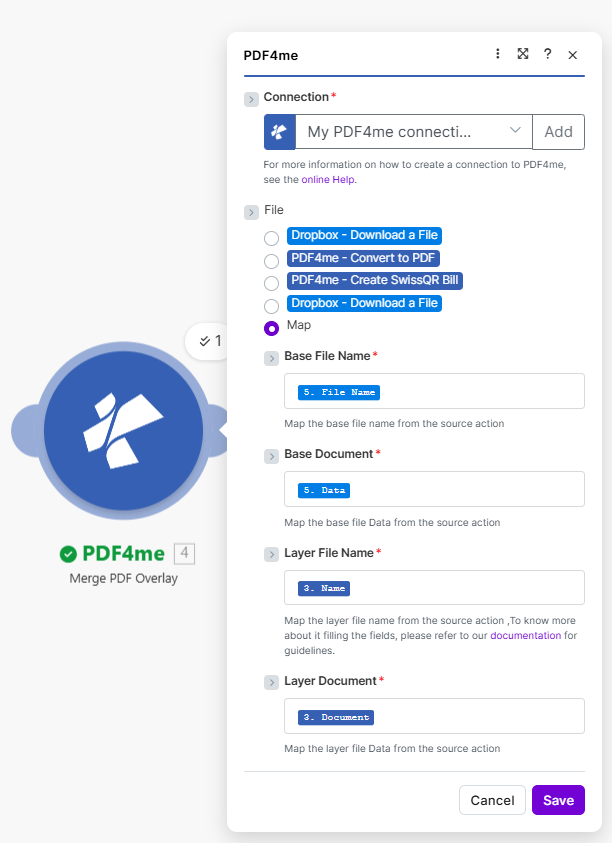
Merge PDF Overlay with Base from step 5 (5. File Name, 5. Data) and Layer from step 3 (3. Name, 3. Document). Output Document used in Upload.
Step 6: Dropbox – Upload a File
Scenario so far: All six modules; final step saves the merged PDF.
- Add Dropbox → Upload a File.
- Connection — Same Dropbox connection.
- Folder —
/ Blog Data / Convert-SwissQR-Merge / output /. Use the folder icon or Map if needed. - File — Select PDF4me – Merge PDF Overlay (source of the merged file). Data — 4. Document (the merged PDF content).
- File Name —
Final_output.pdf. - Overwrite an existing file — No (so an existing file with the same name will be renamed).
- Advanced settings — Enable if you need extra options.
- Save and run. The merged PDF appears in the output folder.
Dropbox – Upload a File: Final output
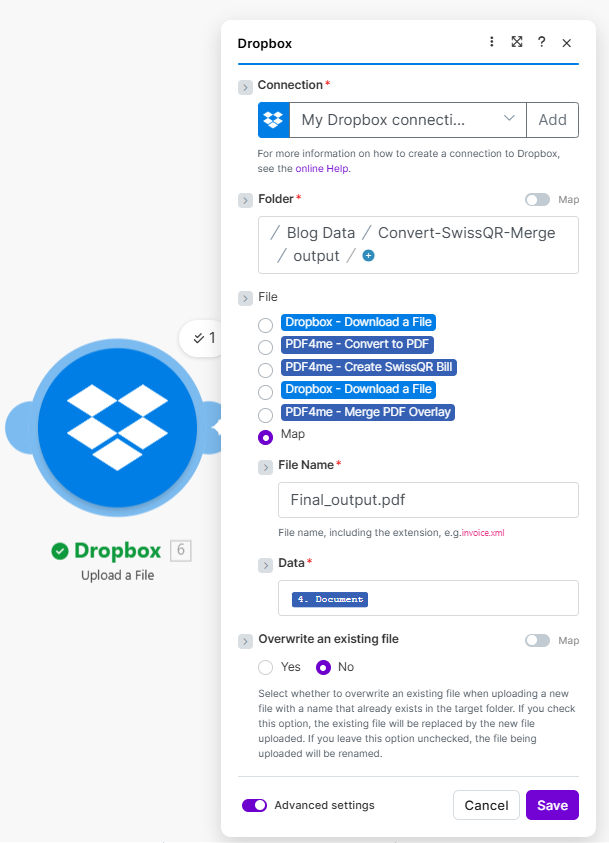
Upload a File with Folder .../output/, Data 4. Document (from Merge PDF Overlay), File Name Final_output.pdf, Overwrite No. Save to run the scenario.
Output: Merged PDF with Swiss QR Bill
The scenario produces a single PDF that combines the base document (e.g. demo_5_page.pdf) with the generated Swiss QR Bill as an overlay. The QR bill shows Receipt and Payment part, scannable Swiss QR code, Account/Payable to (e.g. CH02 0070 0110 0037 6582 4, Test AG, Test Strasse 2, 8004 Zurich), Payable by (e.g. Test GmbH, Musterstrasse 3, 3000 Bern), Currency Amount CHF 500.00, and optional invoice/contract text (invoice #2026-003 - Monthly Services, Contract: ABC-123). The file is saved as Final_output.pdf in / Blog Data / Convert-SwissQR-Merge / output /.
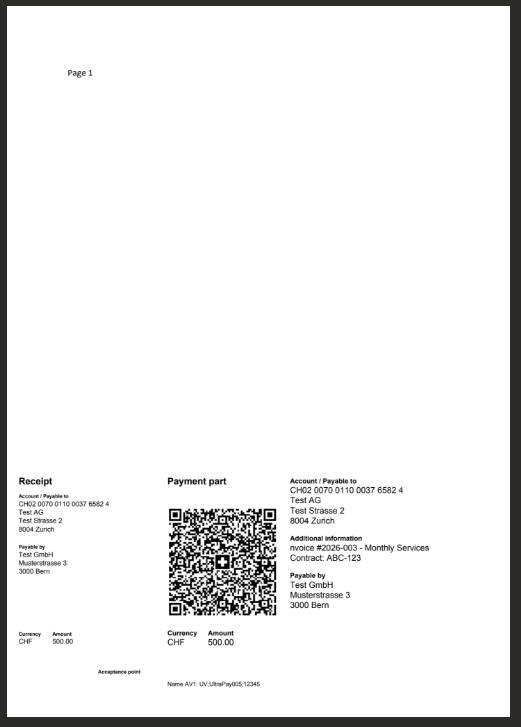
Final merged document with Swiss QR Bill: Receipt, Payment part with QR code, creditor and debtor details, CHF amount. Ready for distribution or printing.
Use Cases
Invoices and quotes: Use a Word or PDF invoice as the base; add a compliant Swiss QR Bill as overlay so each PDF is human-readable and machine-scannable for payment.
Scheduled or trigger-based: Run the scenario on a schedule or trigger it when a new Word file appears in the folder so conversion, QR bill, merge, and upload run automatically.
Same flow elsewhere: Use Swiss QR merge in Power Automate or Swiss QR merge in n8n for the same logic in other platforms.
Quick Reference
| Module | Key setting | Example |
|---|---|---|
| Dropbox Download (1) | File | / Blog Data / Convert-SwissQR-Merge / 3Page.docx |
| PDF4me Convert to PDF (2) | File | Dropbox – Download a File |
| PDF4me Create SwissQR Bill (3) | File, Page Number, Amount, Currency, IBAN, Creditor, Debtor | Convert to PDF; 1; 500.00; CHF; Test AG / Test GmbH; optional message, Billing Info, AV1 |
| Dropbox Download (5) | File | / Blog Data / Convert-SwissQR-Merge / demo_5_page.pdf |
| PDF4me Merge PDF Overlay (4) | Base (Name + Document), Layer (Name + Document) | 5. File Name, 5. Data; 3. Name, 3. Document |
| Dropbox Upload (6) | Folder, Data, File Name, Overwrite | .../output/; 4. Document; Final_output.pdf; No |
For full parameter details, see Create SwissQR Bill — Make and Merge Overlay — Make.
Troubleshooting
Base must come from the Dropbox Download that fetches the base PDF (e.g. 5. File Name, 5. Data). Layer must come from Create SwissQR Bill (3. Name, 3. Document). Ensure the base PDF module runs before the Merge module so its output is available.
Check IBAN format (Swiss IBAN), amount with two decimals, and that creditor and debtor address fields use the correct type (S or K). Reference and Unstructured Message have max character limits.
See PDF4me Troubleshooting for API key, credits, and connectivity.
What's Next
- Run the scenario — Execute once and confirm
Final_output.pdfappears in the output folder with base content and Swiss QR Bill visible. - Automate — Add a trigger (e.g. Watch Dropbox folder or Schedule) so new or updated files in the folder run the scenario automatically.
- Dynamic data — Use Make expressions or a previous module to set Amount, creditor, debtor, or message from a database or spreadsheet.
- Same flow in Power Automate or n8n — Use the Power Automate or n8n guides for the same workflow on those platforms.