Split PDF by Barcode in Power Automate: Step-by-Step with Dropbox and PDF4me
You have a multi-document PDF—batch-scanned invoices, mail with separator sheets, or reports with barcode dividers—and you need each document split into its own file. Doing that manually is tedious. PDF4me Split PDF by Barcode detects barcodes in the PDF, filters by text (e.g. starts with PDF4me), and splits before, after, or at the barcode page. In Power Automate, you wire it up in five steps: trigger → get file content (Dropbox) → Barcode – Split Document by Barcode (PDF4me) → Apply to each → Create file (Dropbox).
This guide is fact-checked against the Power Automate UI and the Split PDF by Barcode action reference. Every parameter, path, and output field matches a real run. At the end, we include the raw response structure and links to try the API interactively.
What You Need
- Power Automate — Open Power Automate, sign in (Microsoft 365 / Power Platform), and create a new cloud flow (Instant or Automated).
- PDF4me API key — Get your PDF4me API key. Create a connection when you add the Barcode – Split Document by Barcode action. First time? See Connect PDF4me to Power Automate.
- Dropbox — We use Dropbox for Get file content and Create file. You can swap in SharePoint, OneDrive, or another connector that provides file content and create-file actions.
The Flow at a Glance (5 Steps)
- Manually trigger a flow — Start the flow on demand (or use When a file is created in Dropbox for automation).
- Get file content using path (Dropbox) — Fetches the PDF from a path like
/blog data/split by barcode/barcode.pdf. - Barcode – Split Document by Barcode (PDF4me) — Splits the PDF by detected barcodes. Output: splitedDocuments array (each item has fileName, streamFile, barcodeText).
- Apply to each — Loops over each split document.
- Create file (Dropbox) — Saves each split PDF to the output folder using fileName and streamFile from the loop.
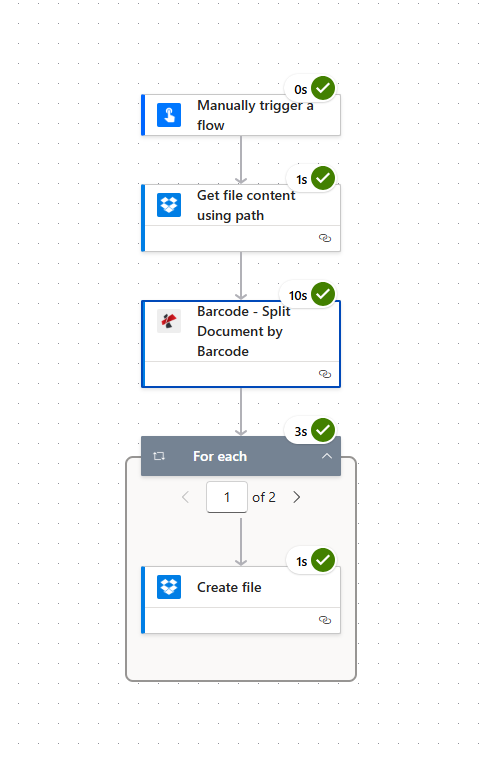
Input: One PDF (barcode.pdf) containing multiple documents separated by barcodes. Output: Multiple PDFs (e.g. PDF4me Barcode 1.pdf, PDF4me Barcode 2.pdf) in the same folder.

Input: barcode.pdf

Output: PDF4me Barcode 1.pdf, PDF4me Barcode 2.pdf
Step 1: Trigger + Get File Content
Flow so far: Trigger → Get file content.
- Add Manually trigger a flow (or When a file is created in Dropbox for automation).
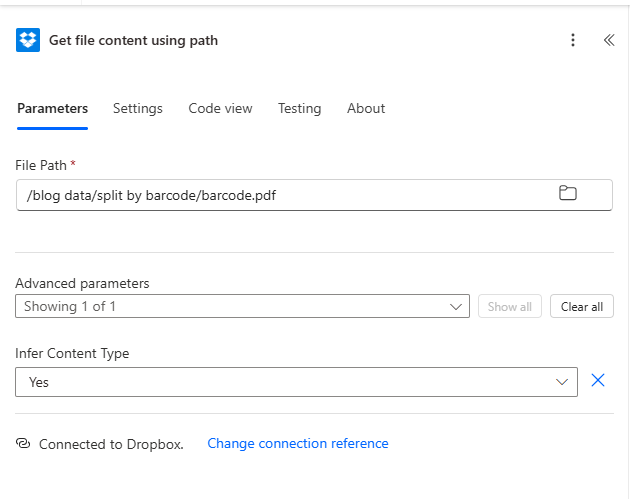
- Add Dropbox → Get file content using path.
- Parameters:
- File Path * — Enter the path to your PDF, e.g.
/blog data/split by barcode/barcode.pdf. Use the folder icon to browse if needed. - Advanced parameters → Infer Content Type — Set to Yes.
- File Path * — Enter the path to your PDF, e.g.
- Connection — Ensure Connected to Dropbox.
The output is the file content (binary). Map it to File Content in the Split action.
Step 2: Barcode – Split Document by Barcode (PDF4me)
Flow so far: Trigger → Get file content → Split Document by Barcode.
- Add PDF4me → Barcode – Split Document by Barcode.
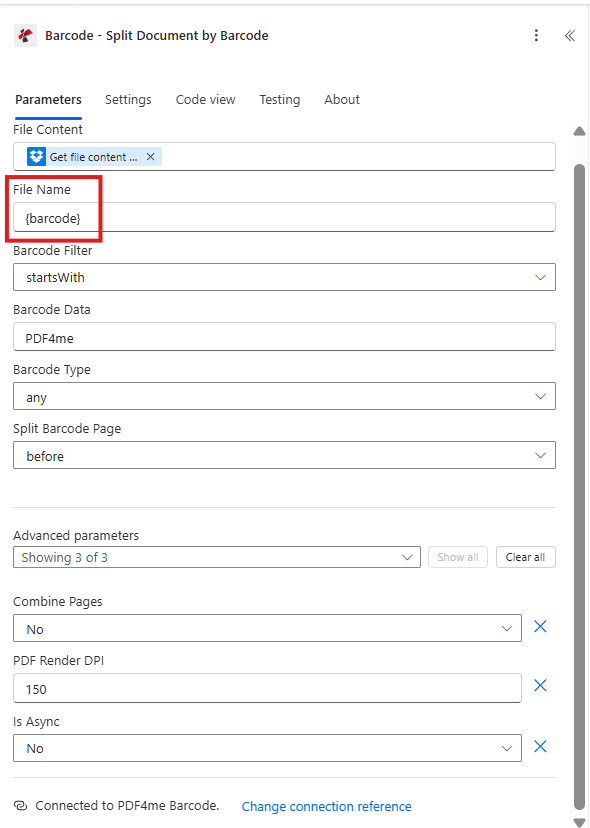
- Parameters (fact-checked from screenshot):
- File Content * — Map Get file content using path output (the PDF binary).
- File Name * — Enter a template such as
{barcode}or the source filename (e.g.barcode.pdf). The action uses this to generate output filenames. - Barcode Filter * — Choose Starts With (or Ends With, Contains, Exact).
- Barcode Data * — Enter the text to match (e.g.
PDF4me). Only barcodes whose text matches this filter trigger a split. - Barcode Type * — Any (or QR Code, Data Matrix if you want to restrict).
- Split Barcode Page * — Before (split before the barcode page), After (split after), or Remove (split and remove the barcode page).
- Advanced parameters (expand if needed):
- Combine Pages — No (split at every matching barcode) or Yes (combine consecutive pages with the same barcode).
- PDF Render DPI — e.g. 150 (higher = better barcode detection, slower processing).
- Is Async — No for synchronous (recommended for flows).
- Connection — Connected to PDF4me Barcode.
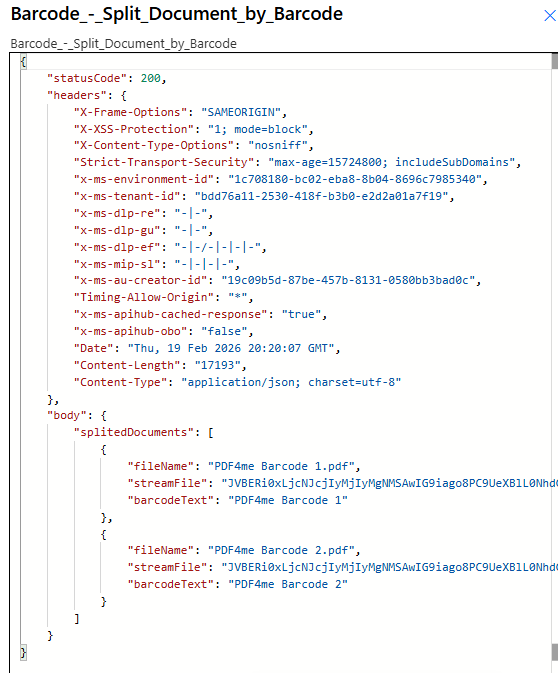
Output: The action returns body with splitedDocuments—an array. Each item has:
- fileName — Name of the split PDF (e.g.
PDF4me Barcode 1.pdf). - streamFile — Base64-encoded PDF content.
- barcodeText — The barcode value that caused this split (e.g.
PDF4me Barcode 1).
Step 3: Apply to Each + Create File
Flow so far: … → Split Document by Barcode → Apply to each → Create file.
- Add Apply to each.
- Select an output from the previous steps — Choose body → splitedDocuments (or the equivalent from Barcode – Split Document by Barcode).
- Inside the loop, add Dropbox → Create file.
- Parameters:
- Folder Path * — Target folder (e.g.
/blog data/split by barcode). - File Name * — Map fileName from the current item (dynamic content from the Split action).
- File Content * — Map streamFile from the current item (dynamic content from the Split action).
- Folder Path * — Target folder (e.g.
- Connection — Connected to Dropbox.
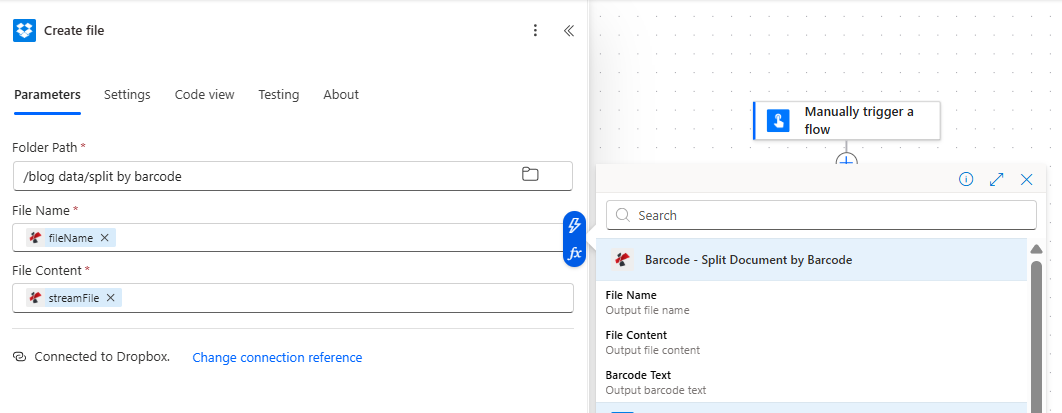
Each iteration creates one file. After the loop completes, you have one PDF per detected barcode in the output folder.
Summary: Parameters and Output (Fact-Checked)
| Parameter | Value in our example | Description |
|---|---|---|
| Barcode Filter | Starts With | Match barcodes whose text starts with Barcode Data |
| Barcode Data | PDF4me | Text to filter barcodes |
| Split Barcode Page | Before | Split before the page containing the barcode |
| Output | splitedDocuments | Array of { fileName, streamFile, barcodeText } |
For full parameter details and options, see Split PDF by Barcode — Power Automate.
Try the API Interactively
You can test the Split PDF by Barcode API without Power Automate using our API Tester—upload a PDF, set barcode filter and text, and see the response:
Next Steps
- Run the flow — Add a test PDF with barcodes to your Dropbox folder and run the flow. Check the output folder for split PDFs.
- Adjust filters — Change Barcode Data and Barcode Filter (Contains, Exact, etc.) to match your documents.
- Automate — Replace Manually trigger with When a file is created (Dropbox) and map the trigger’s file path to Get file content.