Swiss QR Bills Piling Up in Dropbox? Auto-Rename Them in Zapier with Code by Zapier
Swiss QR invoice PDFs—payment slips, bills, receipts—arrive with generic names. You need them renamed by debtor, creditor, amount, or reference so you can search, reconcile, and file them. Manual renaming doesn’t scale.
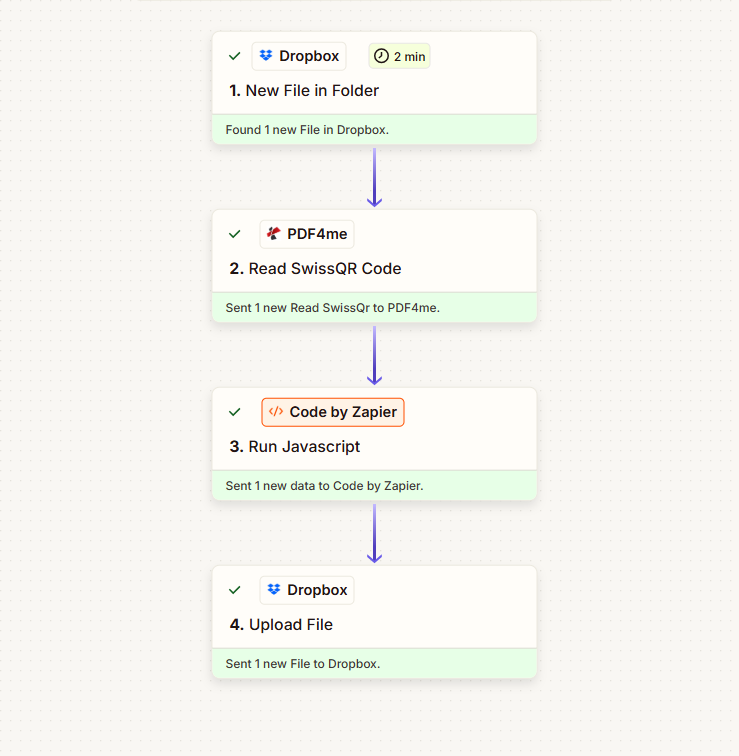
The fix: A Zapier Zap in four steps—no Find File needed. New File in Folder (trigger) gives you the file directly. Read SwissQR Code (PDF4me) extracts the QR-bill data as JSON. Code by Zapier parses it and pulls out the field you want (debtor ud_Name, creditor cr_Name, IBAN, or reference). Upload File saves the same PDF with the new name. Same file, searchable filename—every time.
This guide walks you through each step. Every field, folder path, and mapping is fact-checked from the Zapier screenshots.
Prerequisites: Zapier, PDF4me, Code by Zapier
- Zapier — Zapier account. Create a new Zap and add one trigger plus three actions.
- PDF4me API key — Get your PDF4me API key (free to start). Connect it when you add Read SwissQR Code. First time? See Connect PDF4me to Zapier.
- Dropbox — We use Dropbox so the steps match the screenshots. The same Zap pattern works with SharePoint, Google Drive, or any app with “New File in Folder” and “Upload File.”
- Code by Zapier — Built into Zapier; no extra account needed.
The Swiss QR Rename Zap: 4 Steps (No Find File Needed)
Unlike the generic barcode Zap, this flow skips Find File: the trigger delivers the PDF, and Code by Zapier parses the Swiss QR JSON. Here’s the Zap (screenshot below—all steps show a green checkmark when configured):
- 1. New File in Folder (Dropbox) — Trigger: when a new file appears in a folder. Set the Folder path, include file contents and sharing link as needed.
- 2. Read SwissQR Code (PDF4me) — Sends the PDF to PDF4me and returns Doc Text (JSON with Swiss QR-bill fields:
ud_Name,cr_Name,IBAN,Amount,Reference, etc.). - 3. Run JavaScript (Code by Zapier) — Parses 2. Doc Text as JSON and extracts
ud_Name(ultimate debtor name). OutputsudNamefor the next step. - 4. Upload File (Dropbox) — Saves the same PDF (from 1. File) to a folder with Specify File Name =
3. Ud Nameand Specify File Extension =.pdf.
Same file, new name—every time. Below we walk through each step in detail.
Input and Output
Before and after: The Zap takes a PDF with a generic name, reads its Swiss QR code, extracts the debtor name (ud_Name), and saves the same file with that value as the filename.
Input

Output

Step 1: Dropbox Trigger—New File in Folder
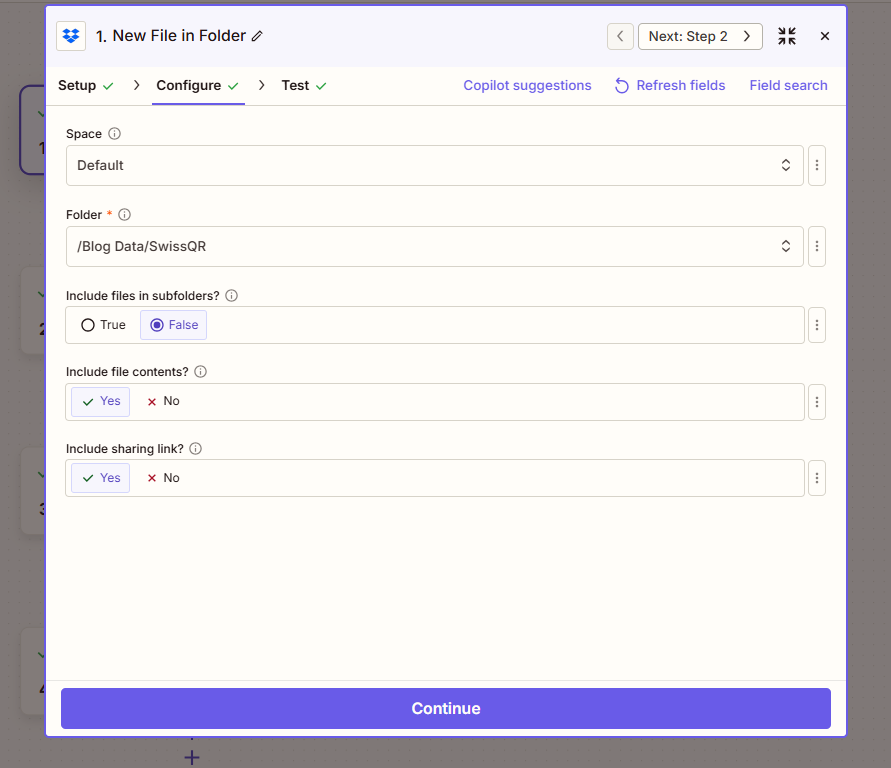
Configure the New File in Folder trigger so the Zap runs when a new file appears. The trigger provides the file content and metadata; you’ll pass the file to Read SwissQR Code and to Upload File.
Flow so far: 1. New File in Folder (trigger).
- Add trigger — Dropbox (or your storage app) → New File in Folder.
- Configure (fact-checked from screenshot):
- Space — e.g. Default.
- Folder (required) — Path to the folder to watch, e.g.
/Blog Data/SwissQR. - Include files in subfolders? — False to watch only that folder; True to include subfolders.
- Include file contents? — Yes. Important—the file content must be available for Read SwissQR Code and Upload File.
- Include sharing link? — Yes if you need a sharing link; otherwise No.
- Click Continue and run a test so the trigger returns sample data.
Step 2: Extract Swiss QR Data with PDF4me
Add the Read SwissQR Code action (PDF4me) to extract the Swiss QR-bill data from the PDF. The output Doc Text is a JSON string with creditor, debtor, amount, reference, IBAN, and more. You’ll parse it in Step 3.
Flow so far: 1. New File in Folder → 2. Read SwissQR Code.
- Add action — Search PDF4me → Read SwissQR Code.
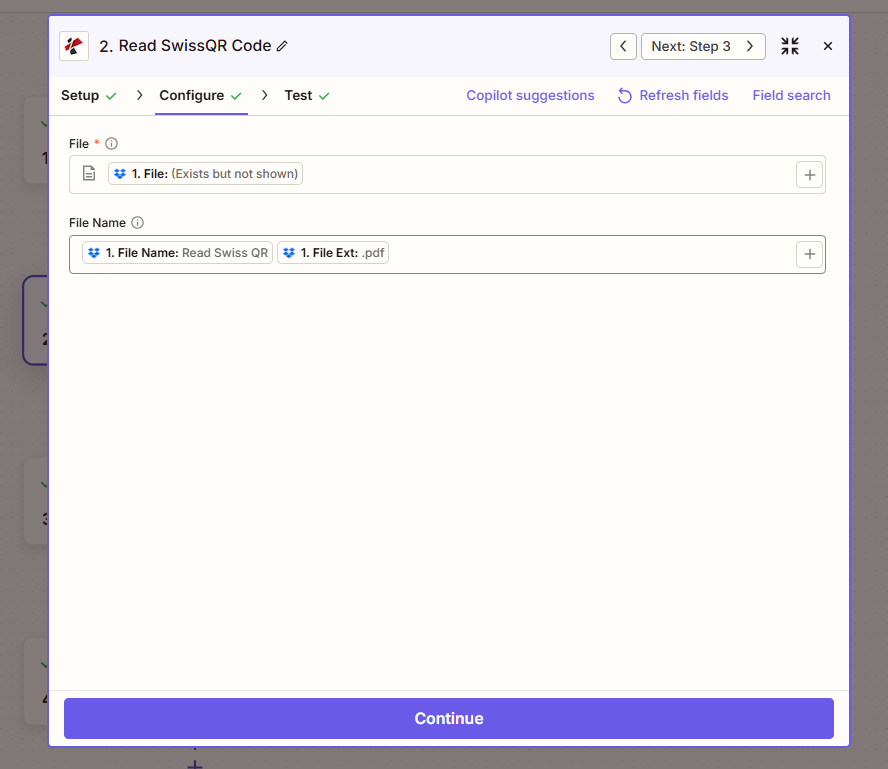
- Configure (fact-checked from screenshot):
- File (required) — Map 1. File from the trigger (Zapier shows “1. File: (Exists but not shown)”).
- File Name — Optional. You can map 1. File Name and 1. File Ext from the trigger to set the output file name, or leave default.
- Click Continue and test. The output includes 2. Doc Text (JSON string with Swiss QR fields such as
ud_Name,cr_Name,IBAN,Amount,Reference).
Read SwissQR Code Action Output (Data out)
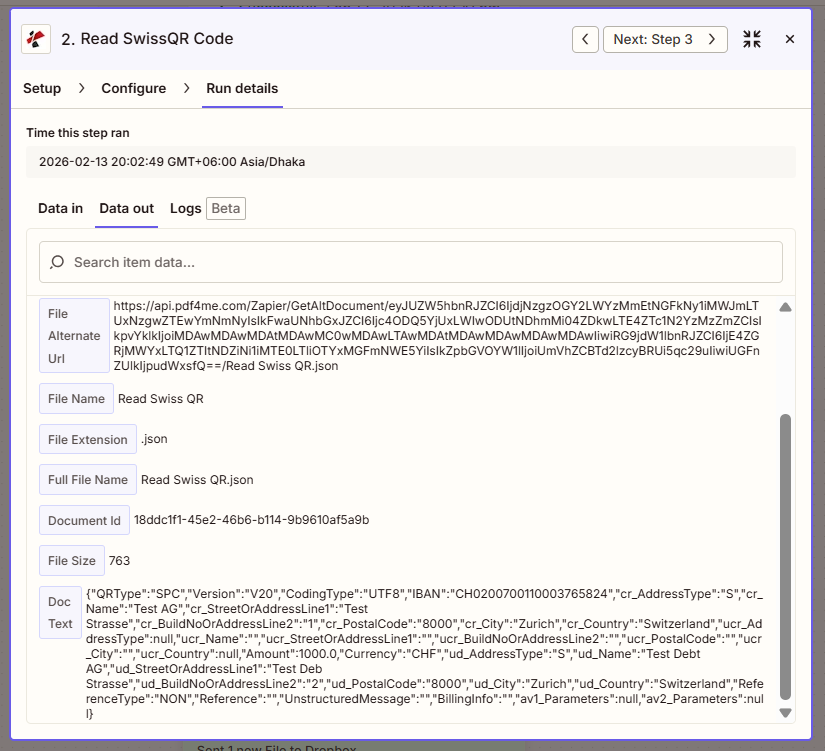
The Doc Text field contains the full Swiss QR-bill data as JSON. In this example, ud_Name is "Test Debt AG"—that value becomes the new filename in Step 4 and matches the output file (Test Debt AG.pdf) shown above.
Full reference: Read SwissQR Code — Zapier.
Step 3: Parse JSON and Extract ud_Name (Code by Zapier)
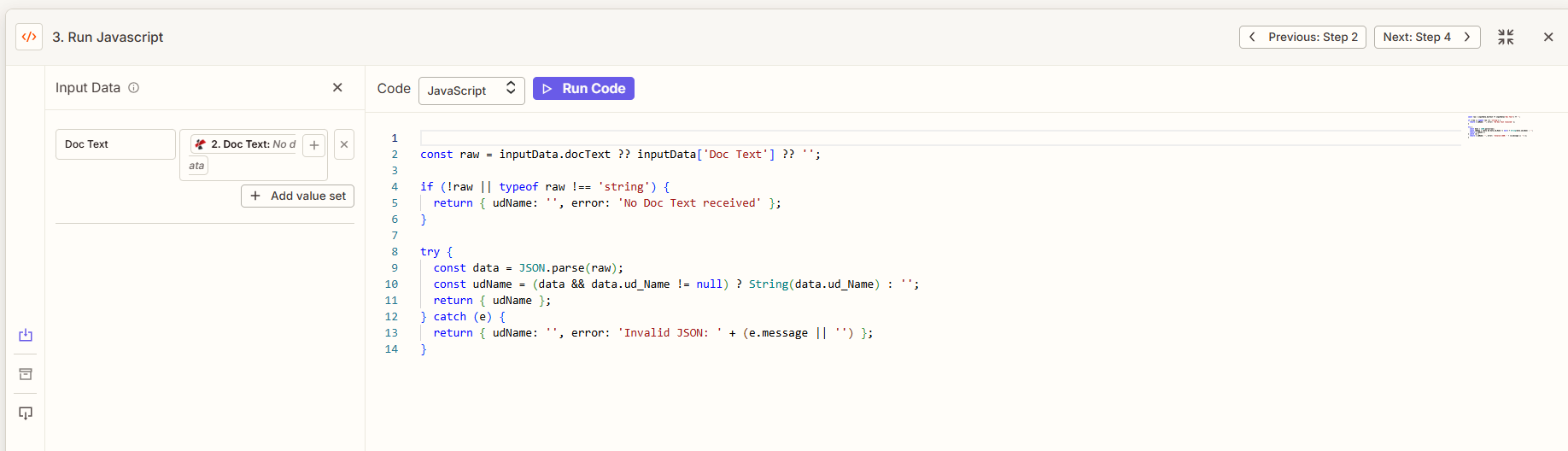
The Read SwissQR Code step returns Doc Text as a JSON string. The Run JavaScript action (Code by Zapier) parses it and extracts the field you want for the filename—here we use ud_Name (ultimate debtor name). You can change the code to use cr_Name, IBAN, Reference, or any other Swiss QR field.
Flow so far: 1. New File in Folder → 2. Read SwissQR Code → 3. Run JavaScript.
- Add action — Code by Zapier → Run JavaScript.
- Configure Input Data:
- Doc Text — Map 2. Doc Text from the Read SwissQR Code step.
- Paste this JavaScript into the Code field:
const raw = inputData.docText ?? inputData['Doc Text'] ?? '';

if (!raw || typeof raw !== 'string') {
  return { udName: '', error: 'No Doc Text received' };
}

try {
  const data = JSON.parse(raw);
  const udName = (data && data.ud_Name != null) ? String(data.ud_Name) : '';
  return { udName };
} catch (e) {
  return { udName: '', error: 'Invalid JSON: ' + (e.message || '') };
}
- Input Data field name — Zapier may show the field as
Doc Text(with space). The code handles bothinputData.docTextandinputData['Doc Text']. - Click Continue and test. The output includes 3. Ud Name—use this as the filename in Step 4.
What this does: Parses the JSON from Read SwissQR Code, reads ud_Name, and returns it as udName. To use creditor name instead, change data.ud_Name to data.cr_Name and return an object with crName as the key (and map 3. Cr Name in Step 4).
Step 4: Upload with the New Filename
Add the Upload File action to save the same PDF to a folder with the new name. The file content comes from 1. File; the filename comes from 3. Ud Name.
Flow so far: 1. New File in Folder → 2. Read SwissQR Code → 3. Run JavaScript → 4. Upload File.
- Add action — Dropbox → Upload File.
- Configure (fact-checked from screenshot):
- Space — e.g. Default.
- Folder (required) — Target folder, e.g.
/Blog Data/SwissQR. - File (required) — Map 1. File from the trigger. Do not use output from Read SwissQR Code—that is data, not the PDF.
- Overwrite — True to replace an existing file with the same name; False to keep existing files.
- Specify File Name — Map 3. Ud Name from the Run JavaScript step.
- Specify File Extension — Set to
.pdf. - Include sharing link? — Yes if needed; otherwise No.
- Click Continue and test. The file will appear in the folder with the new name (e.g.
Test Debt AG.pdf).
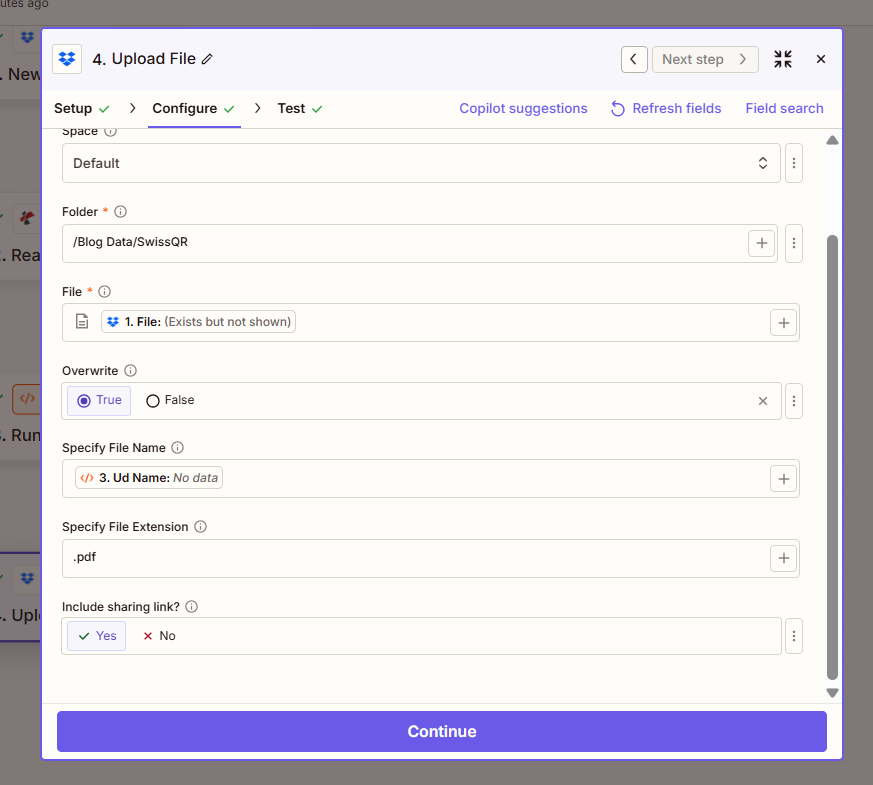
Summary: File in Upload File must come from 1. File (trigger). Specify File Name = 3. Ud Name (Run JavaScript). Specify File Extension = .pdf. Same PDF, new name—every time.
Zap Field Mapping Cheat Sheet
How the Zap Connects
- New File in Folder triggers when a file appears and provides 1. File (content) and metadata. Set Include file contents? Yes.
- Read SwissQR Code takes 1. File and returns 2. Doc Text (JSON) with Swiss QR fields:
ud_Name,cr_Name,IBAN,Amount,Reference, etc. - Run JavaScript parses 2. Doc Text and extracts
ud_Name; output is 3. Ud Name. Change the code to usecr_Name,Reference, or another field. - Upload File uses 1. File for content and 3. Ud Name for the filename. Need help? See Connect PDF4me to Zapier.
Use Cases: Creditor, Debtor, Amount, Reference
Invoices by Creditor Name
Problem: Incoming invoice PDFs with generic names; you need to find them by supplier (creditor) and location.
Solution: Change the Run JavaScript code to extract cr_Name instead of ud_Name. Use: const crName = (data && data.cr_Name != null) ? String(data.cr_Name) : ''; and return an object with crName as the key. Map 3. Cr Name in Specify File Name.
Extract fields: creditor name (cr_Name), optionally city and country
Trigger: New File in Folder (Dropbox, Google Drive, SharePoint)
Payment Slips by Amount and Reference
Problem: Payment slip PDFs need to be filed by amount and reference for reconciliation.
Solution: Extract Amount, Currency, and Reference in the JavaScript and return a combined string (e.g. amount_currency_ref). Use that for the filename.
Extract fields: Amount, Currency, Reference
Trigger: New File in Folder
Debtor-Based Filing (ud_Name)
Problem: You need to group PDFs by customer (ultimate debtor) for accounting.
Solution: Use the default code—it already extracts ud_Name. Each file is renamed by the debtor name (e.g. Test Debt AG.pdf).
Extract fields: ud_Name, optionally ud_City
Trigger: New File in Folder
Troubleshooting and FAQ
- Which Swiss QR field should I use for the filename? Use whatever fits your workflow:
ud_Name(debtor),cr_Name(creditor),IBAN,Reference,Amount, or a combination. Change the Run JavaScript code to extract the field(s) you need and return a string for the filename. - What if no Swiss QR code is found? Read SwissQR Code may return empty or invalid Doc Text. The Run JavaScript code returns
udName: ''and optionally anerrorfield. Add a Zapier filter so Upload File runs only when3. Ud Namehas a value, or use a Formatter step for a fallback name. - Can I use Google Drive or SharePoint instead of Dropbox? Yes. Use the same trigger and file actions for your app (“New File in Folder” and “Upload File”). Map the file and filename the same way—the logic stays the same.
- What is Doc Text vs Barcode Data? In Zapier, the Read SwissQR Code output may appear as Doc Text or Barcode Data. Both contain the same JSON. The Run JavaScript code handles
inputData.docTextandinputData['Doc Text'].
Related Guides and Resources
| Resource | Description |
|---|---|
| Connect PDF4me to Zapier | Create the PDF4me connection and add your API key |
| Read SwissQR Code — Zapier | Full action reference: parameters and output |
| Rename PDFs by Swiss QR on Make | Same idea (watch → read Swiss QR → parse → upload) on Make |
| Rename PDFs by Swiss QR in n8n | Same idea in n8n |
| Rename PDFs by Swiss QR in Power Automate | Same idea in Power Automate and SharePoint |
| Rename PDFs by barcode in Zapier | Rename by generic barcode (not Swiss QR) |
| API Tester — Read SwissQR Code | Test the Read SwissQR Code API with your own PDF |
Recap: New File in Folder → Read SwissQR Code → Run JavaScript (parse JSON, extract ud_Name) → Upload File. Specify File Name = 3. Ud Name, Specify File Extension = .pdf. Same PDF, new name—every time.