Want to Rename PDFs by What's Inside? Use Parse Document in Zapier!
PDFs landing in your folder as input.pdf or document.pdf are hard to find and match to the right record. You need the invoice number, customer name, order ID, or contract reference right in the filename—without opening every file.
This guide shows a simple flow: When a new PDF lands in a Dropbox folder, PDF4me Parse Document extracts the field you need (e.g. invoice number) using a template you define on dev.pdf4me.com. You then upload the same file with a new name—the extracted value. Same content, findable filename. No code.
First, create a parse template on dev.pdf4me.com (e.g. Blog-test with key Invoice No). Then, build the Zap in Zapier: New File in Folder → Parse Document → Upload File. All steps and parameters below are fact-checked from the Zapier and PDF4me dashboards.
What Do You Need Before You Build?
- Zapier — Zapier account. Create a new Zap with one trigger and two actions.
- PDF4me API key — Get your PDF4me API key. Connect it when you add the Parse Document action. First time? See Connect PDF4me to Zapier.
- Dropbox — We use Dropbox so the steps match the screenshots. The same pattern works with Google Drive, SharePoint, or any app that offers New File in Folder and Upload File.
What Is This Flow Doing?
The Zap does three things:
- Watches a folder — When a new file (e.g.
input.pdf) appears in a folder such as/Blog Data/Parse, the trigger fires. - Parses the PDF — The PDF is sent to PDF4me Parse Document using your template. PDF4me returns Parse Info with your keys (e.g.
Invoice No=Invoice #Pdf4me-202503-25041). - Uploads with the new name — The Upload File action saves the same file (content from step 1) with Specify File Name = the parsed value (e.g.
Invoice #Pdf4me-202503-25041.pdf).
Result: One PDF in (e.g. input.pdf) → one PDF out (e.g. invoice #Pdf4me-202503-25041.pdf) with the same content, renamed by the extracted field. Each Parse Document run uses 1 credit.
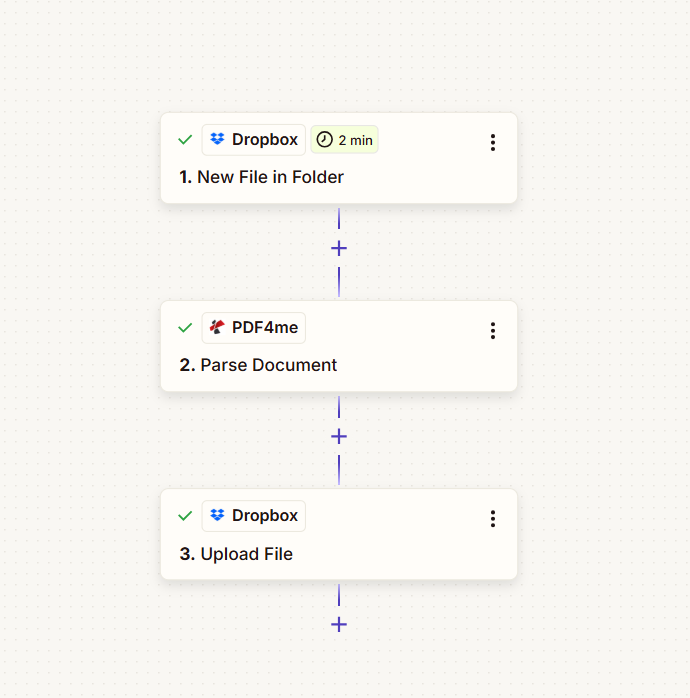
What Does the Zap Look Like? (3 Steps)
All three steps show a green checkmark when configured:
- 1. New File in Folder (Dropbox) — Trigger: new file in folder. Provides 1. File, 1. File Name, 1. File Ext.
- 2. Parse Document (PDF4me) — Sends 1. File and 1. File Name + 1. File Ext to PDF4me; returns 2. Parse Info (e.g.
Invoice No). - 3. Upload File (Dropbox) — File = 1. File (content from trigger); Specify File Name = 2. Parse Info Invoice No; Specify File Extension =
.pdf.
Before and After: What Changes?
Before: A PDF in the watched folder (e.g. input.pdf).
After: The same folder contains a PDF named by the parsed value (e.g. invoice #Pdf4me-202503-25041.pdf) with the same content.
Input: input.pdf

Output: invoice #Pdf4me-202503-25041.pdf

Where Do You Set Up the Parse Template?
First, define what to extract for your file names. A PDF4me parse template tells the API which field to pull from each document—e.g. invoice number, customer name, or order number. You'll use the template's Template Name (e.g. Blog-test) in Zapier when you add the Parse Document action.
Use the same PDF4me account for both: log in to the dashboard to create the template and use that account when you connect PDF4me in Zapier.
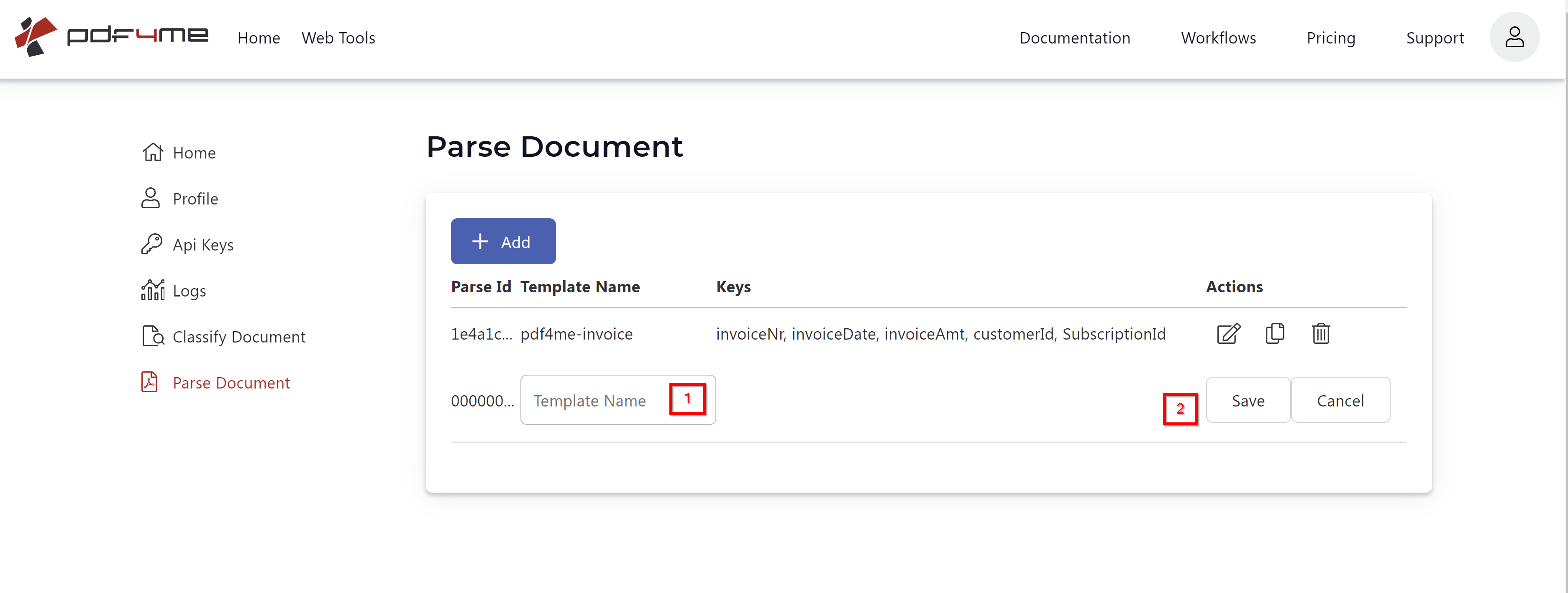
Create Template
- Go to the Parse Document page in your PDF4me dashboard.
- Click Add and input the template name in its field (e.g.
Blog-test). - Click Save to save the template.
- Click the Edit button to begin configuration.
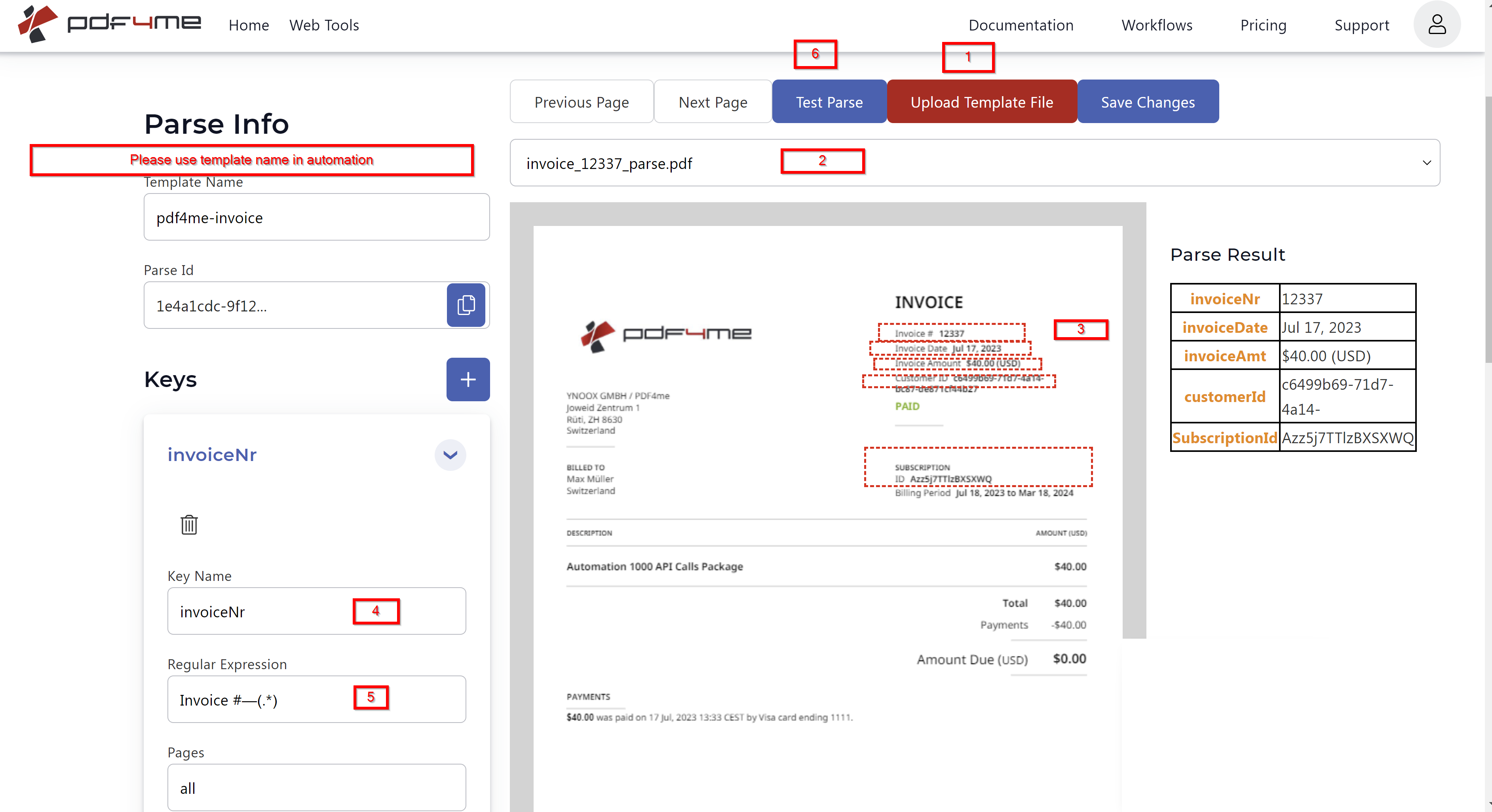
Configure Template
- Click Upload Template File and upload a representative PDF that matches the documents you'll receive.
- Select the required template file from your uploads.
- Draw capture areas on the template page by selecting rectangular areas around the data you want to extract (e.g. invoice number).
- Rename the keys on the left to reflect the data they will contain (e.g.
Invoice No,customerName,orderNumber). - Optionally provide a regular expression for individual keys to validate or format the extracted data.
- Click Test Parse to preview the parsed results.
- Click Save Changes to save the template configuration.
- Copy the Template Name (e.g.
Blog-test) from the dashboard—you'll enter it in the Parse Document action in Zapier.
For detailed template setup, see Prepare Parse Info for Document.
Step 1: Where Do Your PDFs Come In?
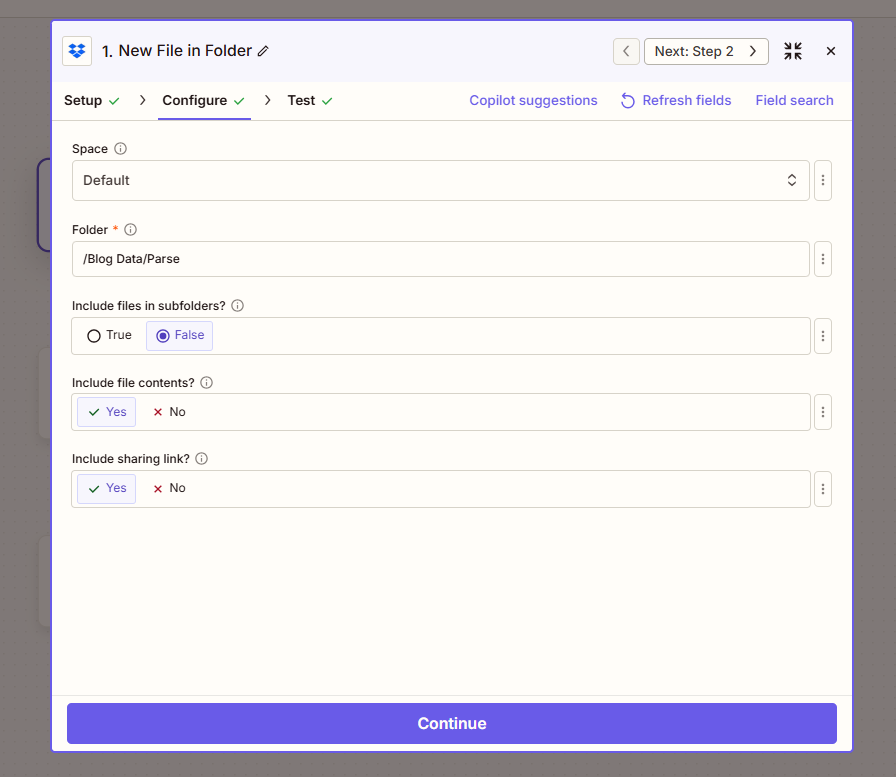
Configure the trigger so the Zap runs when a new file appears in your folder. The trigger must provide file contents so step 2 can send the PDF to PDF4me, and you'll pass the same 1. File to step 3 for the upload.
Flow so far: 1. New File in Folder (trigger).
- Add trigger — Dropbox → New File in Folder.
- Configure (from screenshot):
- Space — Default (or your Dropbox space).
- Folder (required) — Path to the folder to watch, e.g.
/Blog Data/Parse. - Include files in subfolders? — False to watch only that folder; True to include subfolders.
- Include file contents? — Yes. Required so the PDF bytes are available for Parse Document and for Upload File.
- Include sharing link? — Yes or No as needed.
- Click Continue and run a test so the trigger returns sample data (e.g. a test PDF such as
input.pdf).
Step 2: How Do You Parse the PDF?
Add the Parse Document action to extract the field you need (e.g. invoice number) using the template you created on dev.pdf4me.com.
Flow so far: 1. New File in Folder → 2. Parse Document.
Important: Parse Document returns only JSON (Parse Info with your keys)—it does not pass through the file content. The file content stays from step 1. In Step 3 you'll use 1. File for the upload content and 2. Parse Info Invoice No for the filename.
- Add action — Search PDF4me → Parse Document.
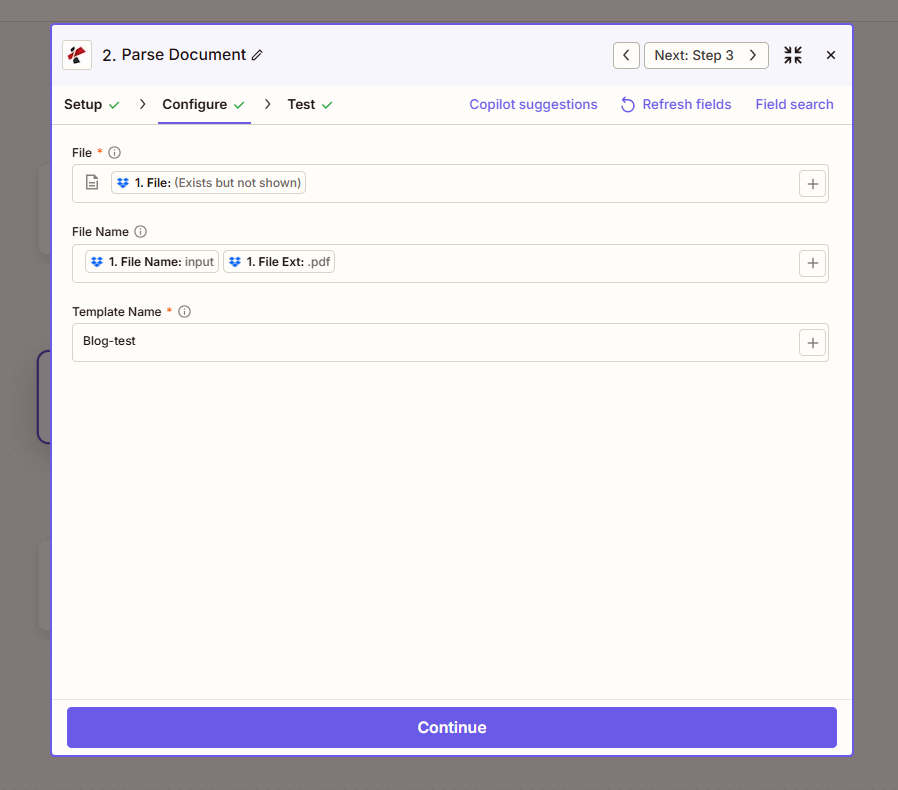
- Configure (from screenshot):
- File (required) — Map 1. File from the New File in Folder step (Zapier may show "1. File: (Exists but not shown)").
- File Name — Map 1. File Name and 1. File Ext from step 1 so the parser receives the correct name and extension (e.g.
input+.pdf). - Template Name (required) — Enter the Template Name you copied from the dashboard, e.g.
Blog-test.
- Click Continue and test. The output includes 2. Parse Info with your keys (e.g. 2. Parse Info Invoice No =
Invoice #Pdf4me-202503-25041). Each parse uses 1 credit.
Step 3: Where Does the Renamed File Go?
Use the Upload File action to save the same file with the new name. File must come from 1. File (step 1)—not from Parse Document, which returns JSON only. Specify File Name comes from 2. Parse Info Invoice No (or your template key).
Flow so far: 1. New File in Folder → 2. Parse Document → 3. Upload File.
- Add action — Dropbox → Upload File.
- Configure (from screenshot):
- Space — Default (or your Dropbox space).
- Folder (required) — Same folder as the trigger, e.g.
/Blog Data/Parse, or a different output folder. - File (required) — Map 1. File from the New File in Folder step. Do not use the Parse Document output—that returns JSON, not the PDF.
- Overwrite — True to replace an existing file with the same name; False to keep existing files.
- Specify File Name — Map 2. Parse Info Invoice No from the Parse Document step (e.g.
Invoice #Pdf4me-202503-25041). Use your template key; if the key has a space, it appears asParse Info Invoice No. - Specify File Extension — Set to
.pdf. - Include sharing link? — Yes or No as needed.
- Click Continue and test. You should see the renamed file in the folder (e.g.
invoice #Pdf4me-202503-25041.pdf).
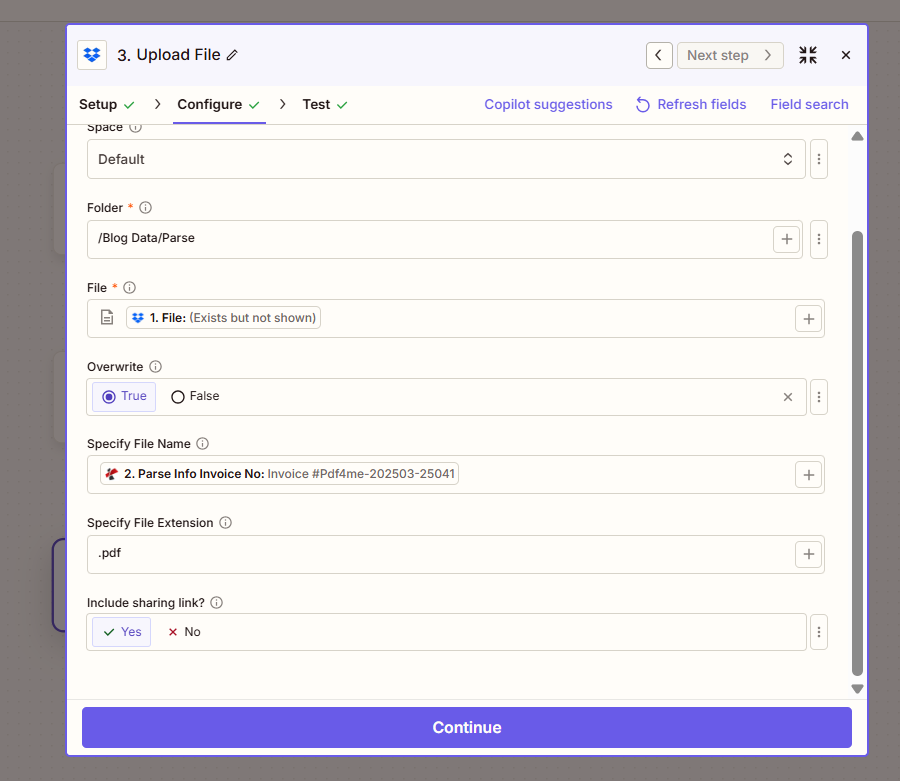
Summary: File in Upload File = 1. File (trigger). Specify File Name = 2. Parse Info Invoice No (or your template key). Specify File Extension = .pdf. Same content, new name.
Stuck? What Maps Where
Quick Reference: Field Mapping
- New File in Folder supplies 1. File (PDF content), 1. File Name, and 1. File Ext. Set Include file contents? Yes.
- Parse Document takes 1. File (required), 1. File Name + 1. File Ext, and Template Name (e.g.
Blog-test). Returns 2. Parse Info with your keys (e.g. 2. Parse Info Invoice No). It does not return the file—only JSON. - Upload File uses 1. File for File (content) and 2. Parse Info Invoice No for Specify File Name. Same file, new name.
Key Takeaways!
How It Works
- Parse template is defined on dev.pdf4me.com. Create a template with keys (e.g.
Invoice No), copy the Template Name (e.g.Blog-test), and use it in Zapier. - Parse Document returns JSON only. The file content stays from the trigger. Upload File needs 1. File for content and 2. Parse Info [Key] for the filename.
- One credit per parse. Each Parse Document run uses 1 credit.
- Template keys with spaces appear as
Parse Info Invoice Noin Zapier. Use the key that matches your template.
Where Can You Use This?
Rename PDFs by invoice number, customer name, order ID, or any field you define in your parse template:
Vendor invoice processing
Problem: Invoices arrive as document.pdf—hard to match to payments.
Solution: Parse the invoice number (e.g. INV-202601-32324) and save as INV-202601-32324.pdf. Each file is searchable and traceable.
Purchase order documents
Problem: PO PDFs have generic filenames; linking to ERP is difficult.
Solution: Rename each PO PDF by order number (e.g. PO-98765.pdf).
Customer contracts
Problem: Finding a specific contract by client or contract ID requires opening files one by one.
Solution: Rename by customer name or contract ID (e.g. Acme-Corp-202601.pdf).
What to Do Next
- Create your parse template — Parse Document dashboard. Add keys (e.g.
Invoice No), copy the Template Name. - Get an API key — PDF4me API key dashboard. Use it in Zapier to connect PDF4me.
- New to PDF4me + Zapier? — Connect PDF4me to Zapier.
- Build the Zap — New File in Folder → Parse Document → Upload File. Map File from 1. File, Specify File Name from 2. Parse Info Invoice No.
- Full action reference — Parse Document — Zapier.