Slides Were Trapped in a PDF. Make Released Them as PowerPoint.
You have a PDF that should become a PowerPoint deck—maybe a report exported as PDF, or a scan that is not editable slide-by-slide. Doing it by hand means recreating layouts. Make with PDF4me runs a straight line: Dropbox – Download a File pulls the PDF, PDF OCR makes text and layout machine-friendly (especially for scans), PDF to Powerpoint builds the .pptx, then Dropbox – Upload a File saves it beside your source files. Four modules in the happy path. One scenario. Your team opens PowerPoint instead of fighting the PDF.
This guide uses authentic screenshots and descriptive image captions so you can match connections, file sources, quality levels, and upload mapping in your own scenario.
In a nutshell: Dropbox – Download a File (/ Blog Data / Convert From PDF / sample_presentation_style.pdf) → PDF4me – PDF OCR (File: Dropbox – Download a File; QualityType Standard; OCR Only When Needed No; Is Async No) → PDF4me – PDF to Powerpoint (File: PDF4me – PDF OCR; QualityType Expert; Is Async No) → Dropbox – Upload a File (Folder / Blog Data / Convert From PDF / Output /, File Name PDF to Powerpoint.pptx, Data 4. Document from PDF to Powerpoint). Result: an editable .pptx in your Dropbox output folder.
What You'll Get!
Input: A PDF in Dropbox (e.g. presentation-style export or scan) at a path such as / Blog Data / Convert From PDF / sample_presentation_style.pdf. Output: A PowerPoint file (e.g. PDF to Powerpoint.pptx) saved under / Blog Data / Convert From PDF / Output /, ready to edit slides, speaker notes, and branding. The sample file row shows sample_presentation_style.pdf as source and PDF to Powerpoint.pptx as the produced deck.
What You Need?
- Make — Create a Make account and create a new scenario.
- PDF4me API key — Get your API key. Connect PDF4me on both PDF4me modules. See Connect PDF4me to Make.
- Dropbox — Connection with read access to the source path and write access to the output folder.
- Source PDF — e.g.
sample_presentation_style.pdfunder/ Blog Data / Convert From PDF /. - Output folder — e.g.
/ Blog Data / Convert From PDF / Output /for the generated.pptx.
Files before and after (reference)

Source file name as stored in cloud storage (example: sample_presentation_style.pdf).

Output deck name (example: PDF to Powerpoint.pptx) after upload from the scenario.
The Scenario at a Glance (4 Modules!)
- Dropbox – Download a File — Way of selecting files: Select a file. File:
/ Blog Data / Convert From PDF / sample_presentation_style.pdf. - PDF4me – PDF OCR — File: Dropbox – Download a File. QualityType Standard. OCR Only When Needed No (force OCR when you need consistent behavior). Is Async No.
- PDF4me – PDF to Powerpoint — File: PDF4me – PDF OCR. QualityType Expert for stronger layout fidelity (API cost varies by quality; see docs). Is Async No.
- Dropbox – Upload a File — Folder
/ Blog Data / Convert From PDF / Output /. Data: mapped from PDF to Powerpoint (e.g. 4. Document). File NamePDF to Powerpoint.pptx.
If your scenario shows module numbers 1, 3, 4, 5 on the canvas, that usually means a module was removed earlier—data routing stays: Download → OCR → PDF to Powerpoint → Upload.
Complete scenario overview
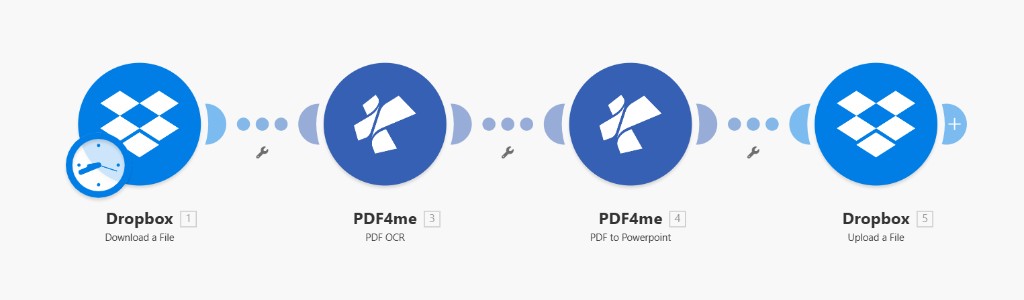
Four-module pipeline: ingest PDF from Dropbox, OCR, convert to PowerPoint, upload .pptx to an output folder.
Step 1: Dropbox – Download a File
Scenario so far: First module only.
- Add Dropbox → Download a File.
- Connection — Select your Dropbox connection (Add if needed).
- Way of selecting files — Select a file.
- File —
/ Blog Data / Convert From PDF / sample_presentation_style.pdf(browse with the folder icon if you prefer). - Save. Use this module’s file output as the File input on PDF OCR.
Dropbox – Download a File: source PDF
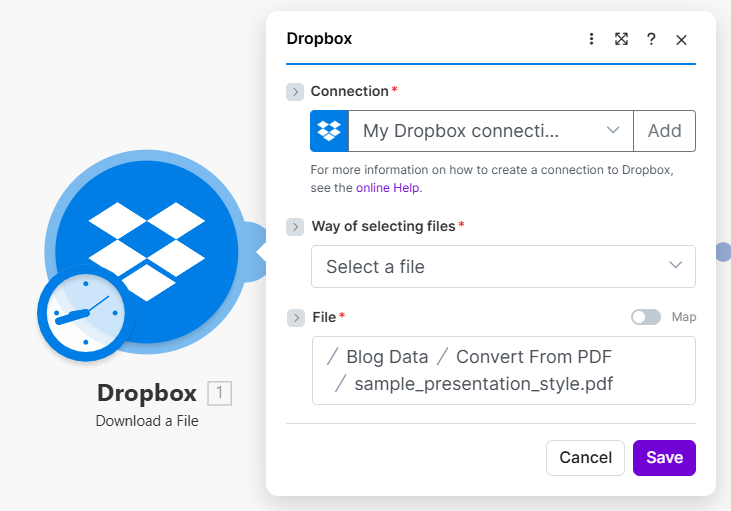
Fixed path to the presentation-style PDF; toggle Map if you build the path from a trigger or list later.
Step 2: PDF4me – PDF OCR
Scenario so far: Download PDF → PDF OCR.
- Add PDF4me → PDF OCR.
- Connection — My PDF4me connection (or your named connection).
- File — Select Dropbox – Download a File (not Map unless you need a custom expression).
- QualityType — Standard (balance of cost and quality; use higher tiers for difficult scans per product docs).
- OCR Only When Needed — No to always run OCR in this pattern (matches the screenshot).
- Language Code — Optional; set when auto-detection is not enough.
- Is Async — No for synchronous completion.
PDF4me – PDF OCR: Parameters
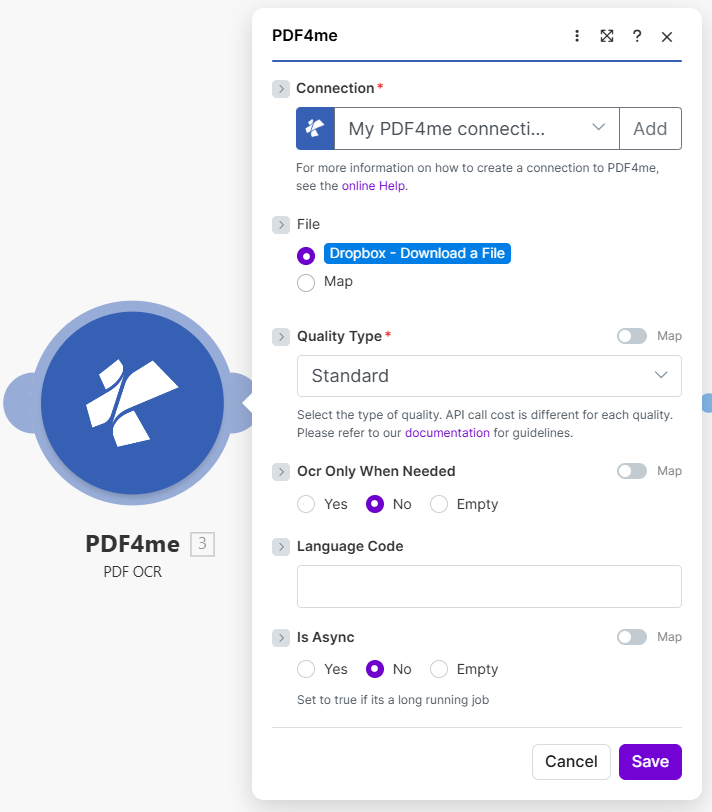
OCR output feeds PDF to Powerpoint so slides and text recover better from scanned PDFs.
Step 3: PDF4me – PDF to Powerpoint
Scenario so far: Download PDF → PDF OCR → PDF to Powerpoint.
- Add PDF4me → PDF to Powerpoint (spelling may match the app: Powerpoint vs PowerPoint).
- Connection — Same PDF4me connection.
- File — Select PDF4me – PDF OCR (the OCR step’s output, not the raw Dropbox file).
- QualityType — Expert for higher-fidelity conversion in this walkthrough (check API pricing for Expert vs Standard in the module docs).
- Language — Optional; helps when the engine needs explicit language hints.
- Is Async — No unless you move large jobs to async handling.
PDF4me – PDF to Powerpoint: Parameters
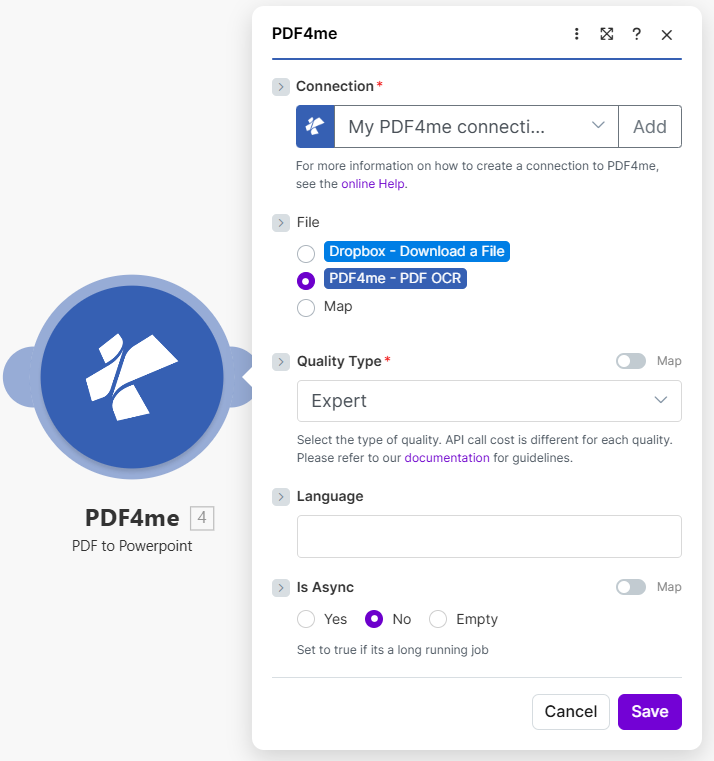
Mapping PDF OCR ensures the converter sees searchable text and structure from the previous step.
Step 4: Dropbox – Upload a File
Scenario so far: All modules; final step saves the deck.
- Add Dropbox → Upload a File.
- Connection — Your Dropbox connection.
- Folder —
/ Blog Data / Convert From PDF / Output /. - File Name —
PDF to Powerpoint.pptx(or map a dynamic name from the trigger file). - Data — Map the binary output from PDF to Powerpoint (screenshot shows 4. Document when that module is step 4). If your bundle uses Doc Data or another field name, pick the buffer that represents the generated PPTX from the module’s output.
- Advanced settings — Expand as needed for your tenant.
- Save and run the scenario once to verify the file appears in the output folder.
Dropbox – Upload a File: PPTX output
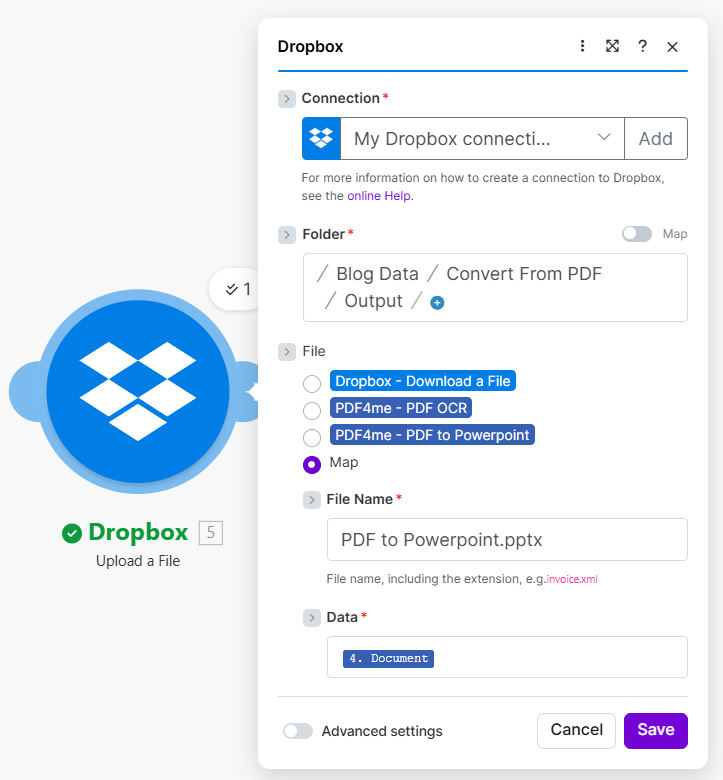
Upload maps Document (or equivalent) from the PDF to Powerpoint module into Dropbox as a named .pptx.
Use Cases
Marketing and sales: Turn archived PDF decks back into PowerPoint for seasonal updates, speaker notes, or template refreshes without retyping slides.
Scanned PDFs: Use PDF OCR before PDF to Powerpoint so text and slide structure recover more reliably from image-based PDFs.
Controlled handoff: Keep input and output under separate folders (e.g. /Convert From PDF/ vs /Output/) so reviewers always know which files are originals vs generated decks.
Quick Reference
| Module | Role | Key settings | Example |
|---|---|---|---|
| 1 | Dropbox – Download a File | Source path | / Blog Data / Convert From PDF / sample_presentation_style.pdf |
| 2 | PDF4me – PDF OCR | File from Dropbox; quality | Standard; OCR Only When Needed No |
| 3 | PDF4me – PDF to Powerpoint | File from OCR; quality | Expert; Is Async No |
| 4 | Dropbox – Upload a File | Folder, Data, file name | .../output/; 4. Document; PDF to Powerpoint.pptx |
For full parameter and output details, see PDF OCR — Make and PDF to PowerPoint — Make.
Troubleshooting!
Try Expert on PDF to Powerpoint and raise OCR quality if the PDF is a scan. Ensure PDF to Powerpoint uses PDF OCR output, not the raw download.
Map the correct output field from PDF to Powerpoint (often Document / buffer). Confirm the file name ends with .pptx.
See PDF4me Troubleshooting for API key, credits, and connectivity.
What's Next?
- Run once — Execute the scenario and open
PDF to Powerpoint.pptxfrom the output folder to validate slide layout. - Trigger on new files — Replace manual scheduling with Dropbox – Watch files or a router so new PDFs in an inbox folder convert automatically.
- Dynamic names — Map File Name from the source PDF’s name plus
.pptxto avoid overwrites. - Handoff — Add Send an email or Slack after upload so the team gets a link to the new deck.