Word Template + JSON in Dropbox? Run a Mail Merge in Make. PDF or Word in Four Clicks!
You have a Word template (e.g. simple_mail_merge_template.docx) with merge placeholders and data in JSON (e.g. sample_mail_merge_data.json). Manually filling each document is slow and error-prone. With Make and PDF4me, you can automate it: download the template and JSON from Dropbox, run PDF4me – Generate Document with Template File Type: Mail Merge and Output Type: Pdf (or Word), then upload the generated file. Four modules. One scenario. No code.
This guide follows current market standards: In a nutshell, What You Need, step-by-step with screenshots and descriptive alt text, real-world use cases, Quick Reference, Troubleshooting, and links to the action docs.
In a nutshell: Dropbox – Download a File (Word template, e.g. /Generate document Mail Merge/simple_mail_merge_template.docx) → Dropbox – Download a File (JSON data, e.g. /Generate document Mail Merge/sample_mail_merge_data.json) → PDF4me – Generate Document (Template File Type: Mail Merge, Output Type: Pdf or Word, map Template and Document Data from steps 1 and 2) → Dropbox – Upload a File to your output folder. Result: one generated PDF or Word document per run.
What You'll Get
Input: A Word mail-merge template (e.g. simple_mail_merge_template.docx) and a JSON file whose keys match the template placeholders (e.g. firstname, lastname, gender, member). Output: A single PDF or Word document with placeholders replaced by the JSON values—saved to your Dropbox output folder (e.g. MailMerge_Make_Prod_2.pdf or MailMerge_Make_Prod.docx).
What You Need
- Make — Create a Make account and open a new scenario.
- PDF4me API key — Get your API key. Connect it when you add the PDF4me module. First time? See Connect PDF4me to Make.
- Dropbox — For template file, JSON file, and output folder. The connector needs Download a File and Upload a File. Google Drive or other storage with similar actions works too.
- Word mail merge template — A .docx with merge fields (e.g. mustache
{{firstname}}or Word merge-field names). Store it in Dropbox. In PDF4me, set Template File Type to Mail Merge. - JSON data — One object (or array of one object) with keys matching the template placeholders (e.g.
firstname,lastname,gender,member). Example:{"firstname":"John","lastname":"Adams","gender":"Female","member":"Basic"}. Stored as a file in Dropbox or provided from a previous module.
The Scenario at a Glance (4 Modules)
- Dropbox – Download a File (1) — Fetches the Word template (e.g.
simple_mail_merge_template.docx). - Dropbox – Download a File (2) — Fetches the JSON data file (e.g.
sample_mail_merge_data.json). - PDF4me – Generate Document (7) — Template File Type: Mail Merge, Output Type: Pdf or Word. Template content and name from step 1; document data from step 2 (Document Data File or Document Data Text). Document DataType: Json.
- Dropbox – Upload a File (6) — Saves the generated document to the output folder. File content from PDF4me Document; set File Name (e.g.
MailMerge_Make_Prod_2.pdforMailMerge_Make_Prod.docx) and Overwrite an existing file (Yes/No) as needed.
Complete scenario overview
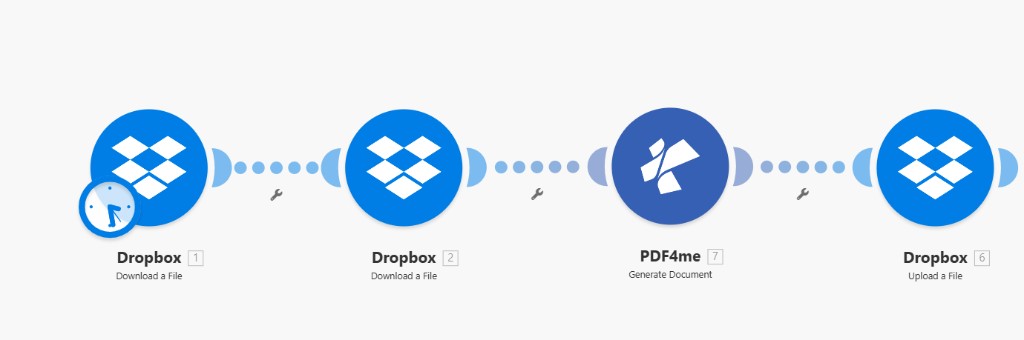
Fact-checked: Dropbox 1 and 2 download template and JSON; PDF4me 7 generates the document (Template File Type Mail Merge); Dropbox 6 uploads to /Generate document Mail Merge/Output/. Step numbers (6, 7) reflect typical scenario order in the UI.
Step 1: Download the Word Template from Dropbox
Scenario so far: First Download only.
- Add Dropbox → Download a File.
- Connection — Select your Dropbox connection (e.g. YnooxTestone).
- Way of selecting files — Select a file (or use Map for dynamic paths from a trigger).
- File — Enter the path to your Word template, e.g.
/Generate document Mail Merge/simple_mail_merge_template.docx. - Save. The module output (e.g. Data or File) will be mapped into PDF4me as Template and Template Name (e.g. 1. File Name).
Dropbox – Download a File: Word template
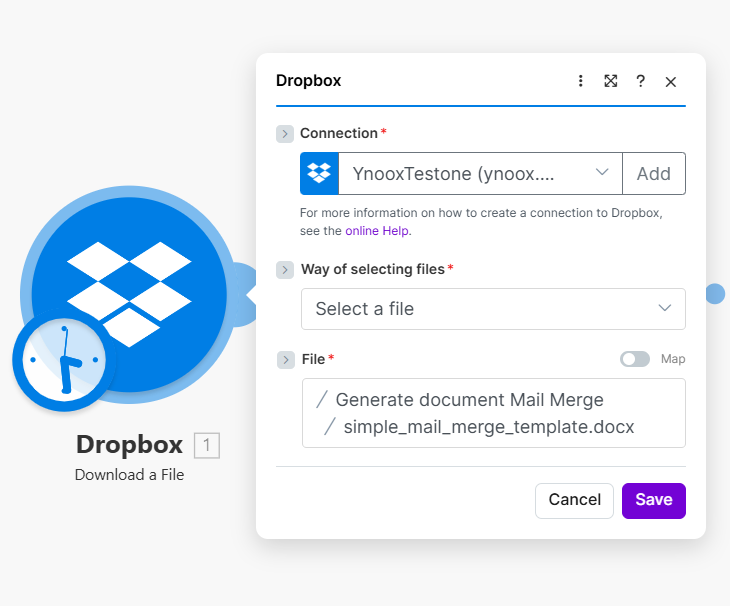
Fact-checked: Connection required; Way of selecting files = Select a file; File shows /Generate document Mail Merge and simple_mail_merge_template.docx. Output (1. File Name, 1. Data) maps to PDF4me Template Name and Template.
Step 2: Download the JSON Data
Scenario so far: Download template → Download JSON.
- Add a second Dropbox → Download a File.
- Connection — Same Dropbox connection.
- Way of selecting files — Select a file (or Map).
- File — Path to your JSON file, e.g.
/Generate document Mail Merge/sample_mail_merge_data.json. - Save. The output Data (file content) will be passed to PDF4me as Document Data File (or use Document Data Text if you prefer to pass a string from another source).
Dropbox – Download a File: JSON data
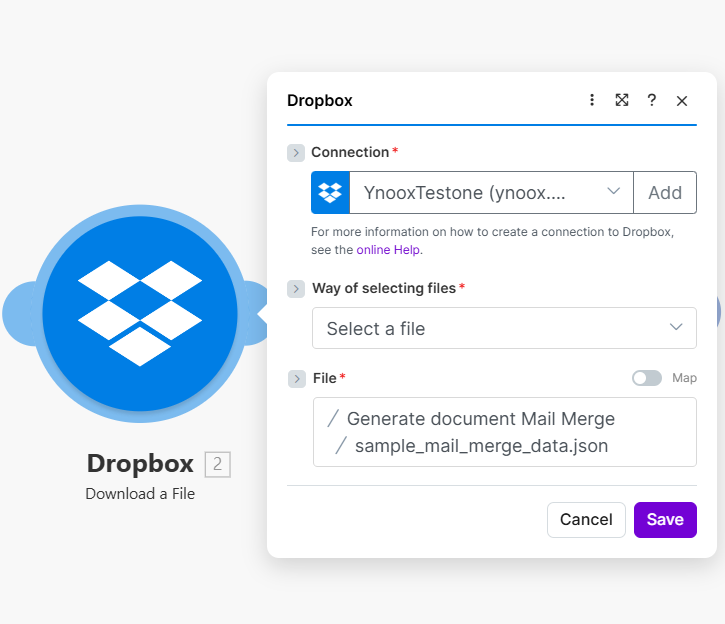
Fact-checked: Same Connection and Way of selecting files; File path set to sample_mail_merge_data.json. Map this module's Data output to PDF4me Document Data File (2. Data).
Step 3: PDF4me – Generate Document (Mail Merge + JSON)
Scenario so far: Download template → Download JSON → Generate Document.
- Add PDF4me → Generate Document.
- Connection — Select your PDF4me connection (e.g. TestUser01).
- Template File Type * — Select Mail Merge from the dropdown. (Other options in the UI: PDF4me Word Template, Html, Google Docs, Pdf Form.)
- Output Type * — Select Pdf for a PDF output or Word for a .docx output.
- File (template source) — Choose Dropbox – Download a File (first module) or Map, then map:
- Template Name * — From the first Dropbox Download (e.g. 1. File Name).
- Template * — From the first Dropbox Download (e.g. 1. Data).
- Document Data File — Map the second Dropbox Download output (e.g. 2. Data). Alternatively, use Document Data Text and paste or map a JSON string.
- Document DataType * — Json.
- Document Data Text — Leave empty if using Document Data File; otherwise paste or map your JSON (e.g.
{"firstname":"John","lastname":"Adams","gender":"Female","member":"Basic"}). - Meta Data Json — Optional. Use for field formatting (dates, checkboxes, etc.) if needed.
- Save. The module returns Document (and Name) — use Document in the Upload step.
Template File Type: Mail Merge
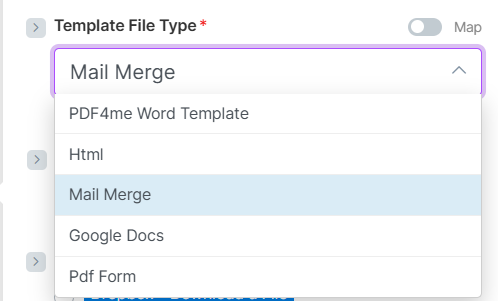
Fact-checked: Template File Type * required; dropdown shows Mail Merge selected. Other options visible in UI: PDF4me Word Template, Html, Google Docs, Pdf Form. Use Mail Merge for Word templates with merge placeholders.
Output Type: Pdf or Word
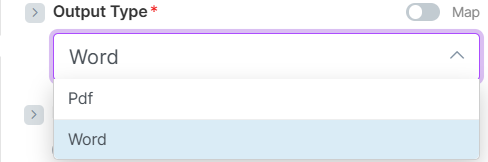
Fact-checked: Output Type * required; choose Pdf for PDF or Word for .docx. Map toggle available for dynamic output format.
Generate Document: Full configuration
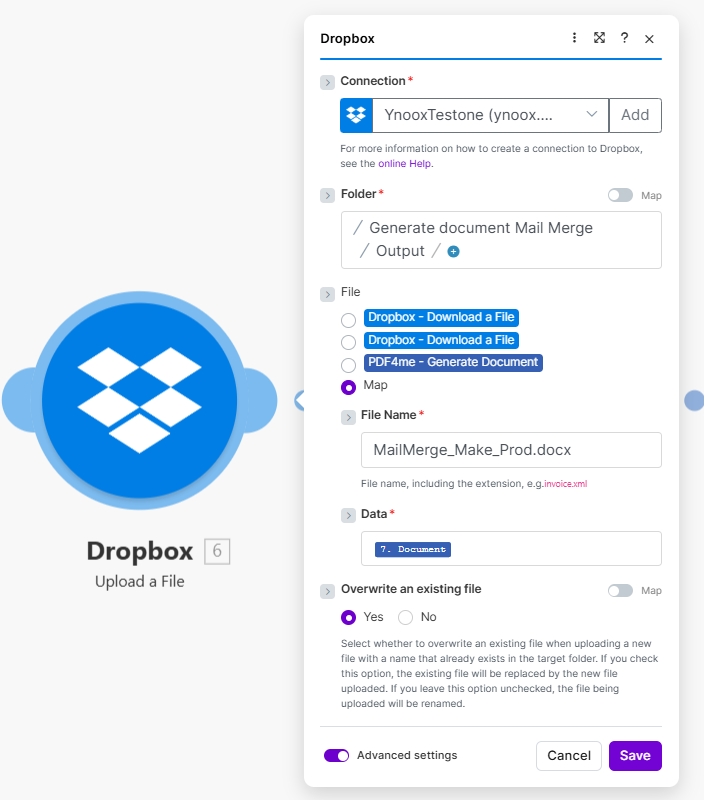
Fact-checked: Connection (e.g. TestUser01); Template File Type Mail Merge; Output Type Pdf or Word. File = Dropbox Download (template); Document Data File 2. Data from Download 2, or Document Data Text with JSON (e.g. firstname, lastname, gender, member). Document DataType Json. Output Document used in Upload.
Step 4: Upload the Generated Document to Dropbox
Scenario so far: Download template → Download JSON → Generate Document → Upload.
- Add Dropbox → Upload a File.
- Connection — Same Dropbox connection.
- Folder — Output path, e.g.
/Generate document Mail Merge/Output/. - File — Map the Document output from PDF4me – Generate Document (e.g. 7. Document or 8. Document, depending on module order).
- File Name — e.g.
MailMerge_Make_Prod_2.pdforMailMerge_Make_Prod.docx. Use the same extension as your Output Type (Pdf → .pdf, Word → .docx). - Overwrite an existing file — Yes to replace an existing file with the same name; No to have Make rename the new file if one already exists.
- Save and run the scenario. The generated PDF or Word file appears in the output folder.
Dropbox – Upload a File
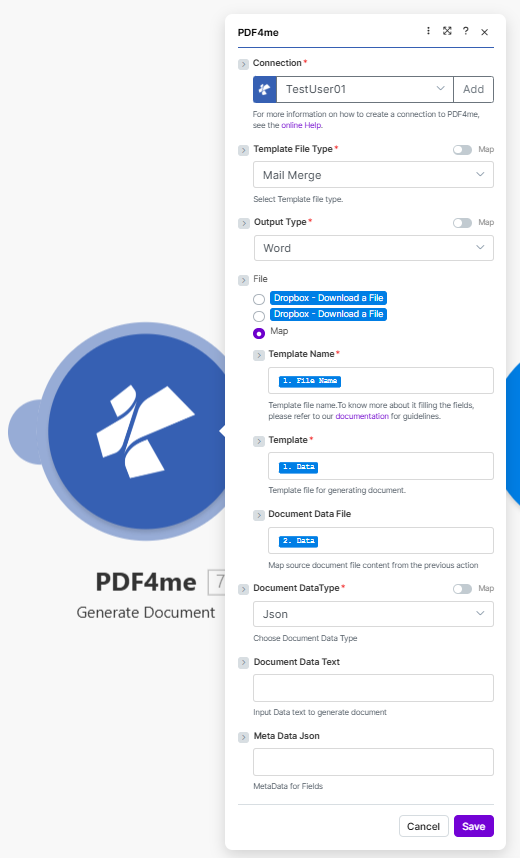
Fact-checked: Folder * = /Generate document Mail Merge/Output/; File source = PDF4me Generate Document (e.g. 7. Document or 8. Document); File Name * = MailMerge_Make_Prod_2.pdf or MailMerge_Make_Prod.docx; Overwrite an existing file = Yes to replace, No to rename. Advanced settings available.
Real-World Use Cases
Certificates and training: Course or event data in JSON (name, course, date). Generate personalized certificates from a Word mail merge template and save as PDF or Word for distribution or archival.
Invoices and quotes: Pull data from Airtable, Google Sheets, or a database; output JSON. Merge into a Word template and generate PDF or Word for clients or internal use.
Letters and mailings: Recipient data as JSON (firstname, lastname, address, member tier). Template with placeholders; generate PDF or Word and upload to a shared folder or attach to an email in a follow-up module.
Mail merge at scale: Use a single scenario run per document, or combine with Make iterators to generate many documents from a list of JSON objects—each with its own output file name.
Quick Reference
| Module | Key setting | Example / output |
|---|---|---|
| Dropbox Download (1) | File | /Generate document Mail Merge/simple_mail_merge_template.docx → Template + Template Name |
| Dropbox Download (2) | File | /Generate document Mail Merge/sample_mail_merge_data.json → Document Data File (2. Data) |
| PDF4me Generate Document | Template File Type | Mail Merge |
| PDF4me Generate Document | Output Type | Pdf or Word |
| PDF4me Generate Document | Template Name / Template | 1. File Name, 1. Data |
| PDF4me Generate Document | Document Data File / Document DataType | 2. Data, Json |
| PDF4me Generate Document | Output | Document (and Name) |
| Dropbox Upload | Folder, File, File Name | /Generate document Mail Merge/Output/, 7. Document (or 8. Document), MailMerge_Make_Prod_2.pdf or MailMerge_Make_Prod.docx |
For full parameter details, see Generate Document Single — Make. The PDF4me connector in Make supports Template File Type: Mail Merge for Word templates with merge placeholders.
Troubleshooting
JSON keys must match the template placeholders (e.g. firstname, lastname, gender, member). Check the template for exact placeholder names and use the same keys in your JSON. Document DataType must be Json when passing JSON.
Map the actual Data (or file content) from each Dropbox Download—not the file path. Template = first Download's content; Document Data File = second Download's content. Use the correct step numbers (e.g. 1. Data, 2. Data) in the mapping panel.
For Word .docx templates with merge fields (mustache or Word merge fields), select Mail Merge. For Google Docs–style templates use Google Docs; for fillable PDF forms use Pdf Form. See the action docs for each type.
Check PDF4me Troubleshooting for 401 (API key), 402 (credits), and connection issues.
What's Next
- Run the scenario — Add a Word template and JSON file to the configured Dropbox paths and run once. Confirm the generated PDF or Word file in the output folder and that all placeholders are filled.
- Automate — Replace manual trigger with When a file is created (Dropbox) or a webhook; use Map to pass the new file path to the Download modules for template or data.
- Batch — Use an iterator over a list of JSON objects (or multiple JSON files); run Generate Document and Upload inside the loop to produce one output file per item.
- Try the API — Use the API Tester or the Generate Document Single docs to test template types and output formats. For bulk generation from one template and many records, see Generate Documents Multiple.