Struggling to Extract and Map Invoice Data in Zapier? 3 Steps with PDF4me AI!
You use PDF4me in Zapier to extract data from PDF invoices—but mapping every field from the PDF into your next step can feel unclear. Which action should you use? How do you get vendor name, invoice number, amounts, and dates out of the PDF and into a usable format?
This guide shows a simple, repeatable flow: When a new invoice PDF lands in a Dropbox folder, PDF4me AI - Invoice Parser extracts structured fields (invoice number, vendor name, vendor address, store number, delivery date, subtotal, total, and more). You then upload a text file to the same folder with the extracted data as the file content and the invoice number as the filename. So you get both the original PDF and a small .txt file (e.g. Pdf4me-202503-25041.txt) containing the parsed data—ready for downstream Zaps, spreadsheets, or ERP.
Every step, field name, folder path, and mapping below is fact-checked from the Zapier and Dropbox screenshots. Use it as your step-by-step setup.
What Do You Need Before You Build?
- Zapier — Zapier account. Create a new Zap with one trigger and two actions.
- PDF4me API key — Get your PDF4me API key. Connect it when you add the AI - Invoice Parser action. First time? See Connect PDF4me to Zapier.
- Dropbox — We use Dropbox so the steps match the screenshots. The same pattern works with Google Drive, SharePoint, or any app that offers New File in Folder and Upload File.
What Is This Flow Doing?
The Zap does three things:
- Watches a folder — When a new file (e.g. an invoice PDF) appears in a folder such as
/Blog Data/Process Invoice, the trigger fires. - Extracts invoice data — The PDF is sent to PDF4me AI - Invoice Parser. The AI returns structured fields: Invoice Number, Vendor Name, Vendor Address, Store Number, Delivery Date, Sub Total, Total, and optional custom fields (Customer Reference, Department Code, Financial Charges, etc.).
- Saves the extracted data as a file — The Upload File action creates a
.txtfile in the same folder. The file content is the mapped data from step 2; the file name is the invoice number (e.g.Pdf4me-202503-25041.txt). So you keep the original PDF and get a small text file of parsed data for each invoice.
Result: One PDF in → one PDF plus one .txt (named by invoice number) out. Each AI - Invoice Parser run uses 1 credit.
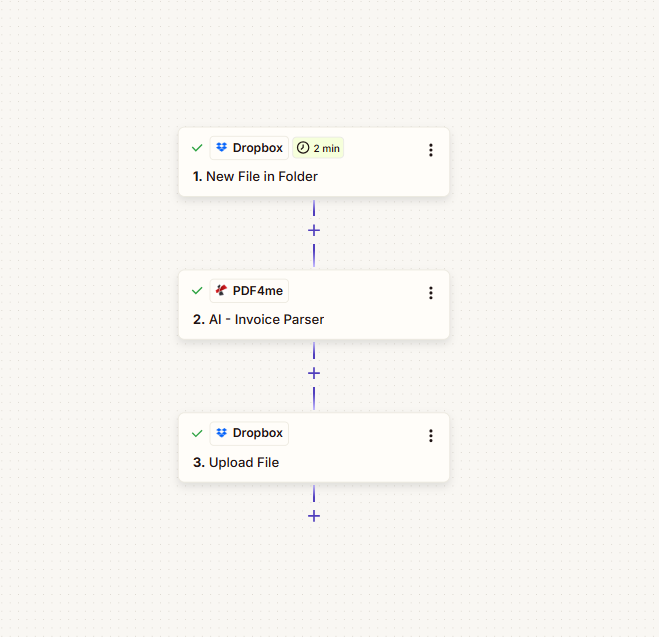
What Does the Zap Look Like? (3 Steps)
All three steps show a green checkmark when configured:
- 1. New File in Folder (Dropbox) — Trigger: new file in folder. Provides the file and its name/extension for the next steps.
- 2. AI - Invoice Parser (PDF4me) — Sends the PDF from step 1 to PDF4me; returns Invoice Number, Vendor Name, Vendor Address, Store Number, Delivery Date, Sub Total, Total, and any custom fields you configured.
- 3. Upload File (Dropbox) — Writes a
.txtfile to the folder. File = mapped data from step 2 (Invoice Number, Vendor Name, Vendor Address, Sub Total, Total); Specify File Name = 2. Invoice Number; Specify File Extension =.txt.
Before and After: What Changes?
Before: An invoice PDF in the watched folder (e.g. PDF-4me.pdf).
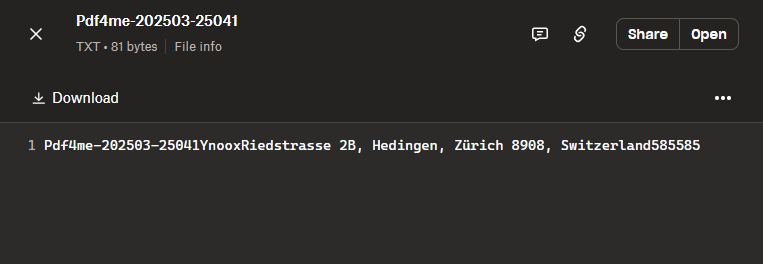
After: The same folder contains the original PDF and a new text file named by invoice number (e.g. Pdf4me-202503-25041.txt, 81 bytes) whose content is the extracted invoice data (invoice number, vendor name, vendor address, subtotal, total).
Dropbox folder after Zap runs

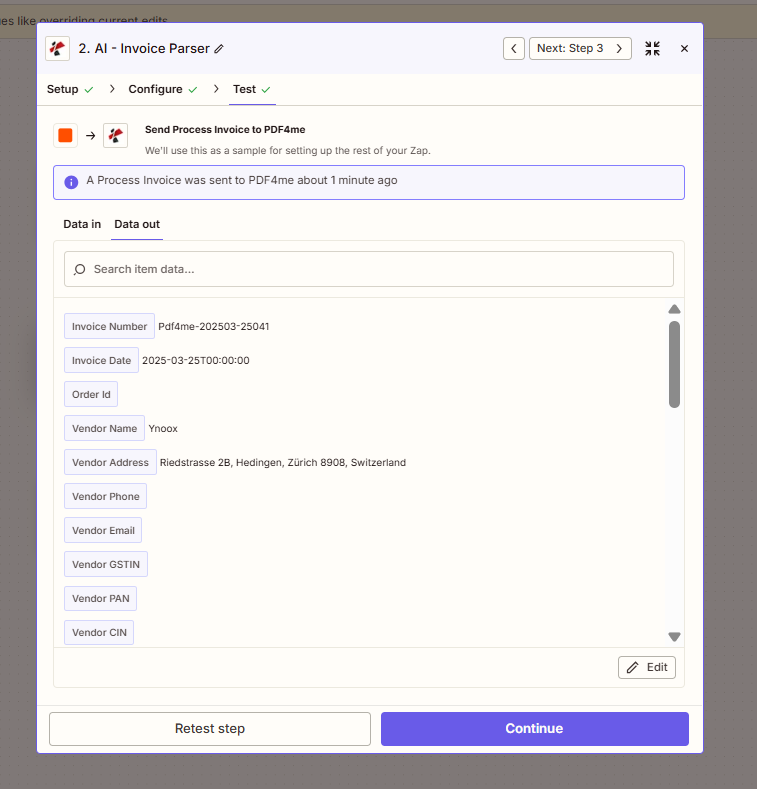
AI - Invoice Parser Data out (Test step)
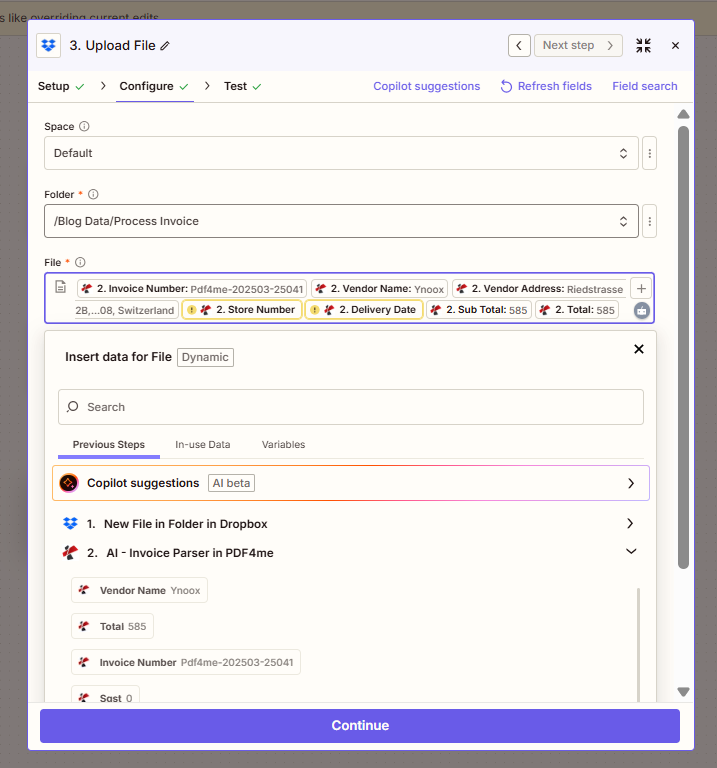
Upload File: mapping extracted data into File field
What the extracted data looks like in the .txt file
Step 1: Where Do Your Invoice PDFs Come In?
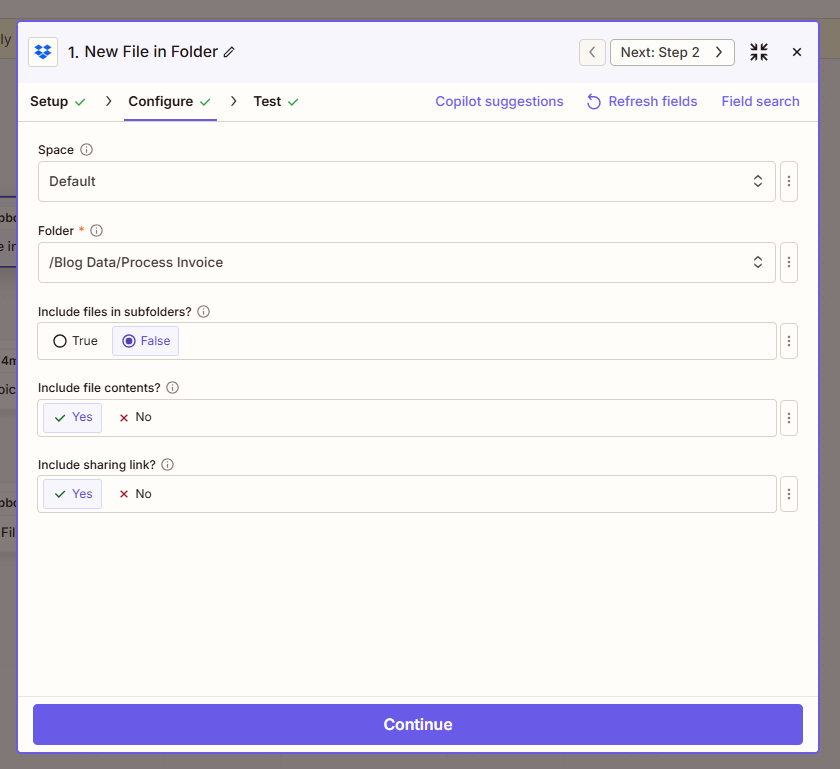
Configure the trigger so the Zap runs when a new file appears in your invoice folder. The trigger must provide file contents so step 2 can send the PDF to PDF4me.
Flow so far: 1. New File in Folder (trigger).
- Add trigger — Dropbox → New File in Folder.
- Configure (from screenshot):
- Space — Default (or your Dropbox space).
- Folder (required) — Path to the folder to watch, e.g.
/Blog Data/Process Invoice. - Include files in subfolders? — False to watch only that folder; True to include subfolders.
- Include file contents? — Yes. Required so the PDF bytes are available for the AI - Invoice Parser.
- Include sharing link? — Yes or No as needed.
- Click Continue and run a test so the trigger returns sample data (e.g. a test invoice PDF).
Step 2: How Do You Extract the Invoice Data?
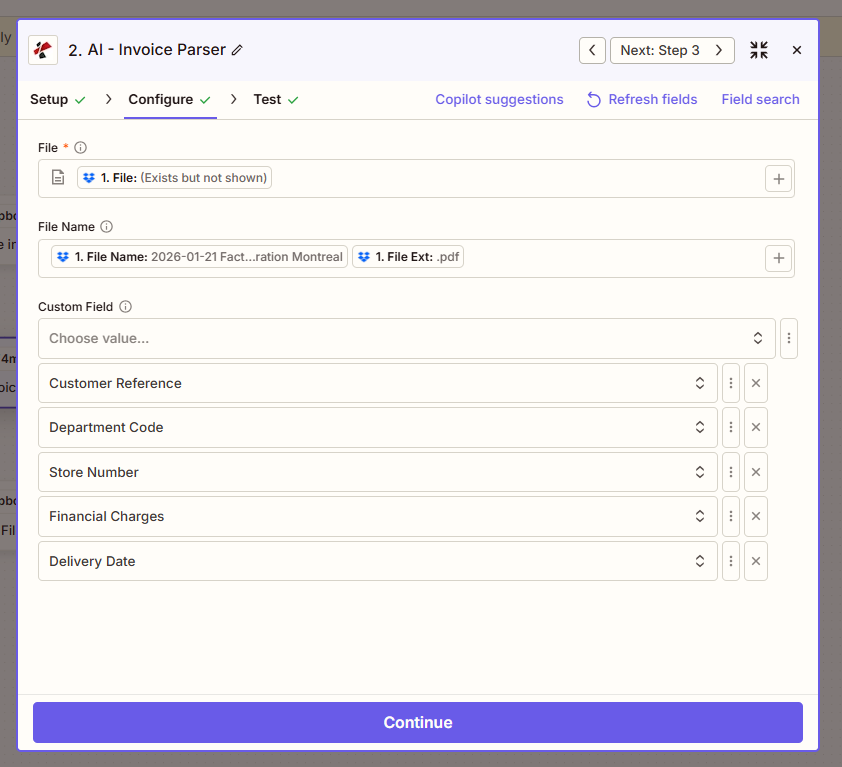
Add the AI - Invoice Parser action to extract structured data from the invoice PDF.
Flow so far: 1. New File in Folder → 2. AI - Invoice Parser.
- Add action — Search PDF4me → AI - Invoice Parser.
- Configure (from screenshot):
- File (required) — Map 1. File from the New File in Folder step (Zapier may show "1. File: (Exists but not shown)").
- File Name — Map 1. File Name and 1. File Ext from step 1 so the parser receives the correct name and extension (e.g.
invoice+.pdf). - Custom Field (optional) — Add any extra fields you want the AI to extract, e.g. Customer Reference, Department Code, Store Number, Financial Charges, Delivery Date. These appear in the action output alongside the standard fields.
- Click Continue and test. The output includes Invoice Number (e.g.
Pdf4me-202503-25041), Invoice Date, Vendor Name (e.g.Ynoox), Vendor Address, Store Number, Delivery Date, Sub Total, Total, Bill To, and any custom fields.
Step 3: Where Does the Extracted Data Go?
Use the Upload File action to write the extracted invoice data into a text file in the same folder, named by invoice number.
Flow so far: 1. New File in Folder → 2. AI - Invoice Parser → 3. Upload File.
- Add action — Dropbox → Upload File.
- Configure (from screenshot):
- Space — e.g. Default.
- Folder (required) — Same folder as the trigger, e.g.
/Blog Data/Process Invoice. - File (required) — Map the data you want in the file body. In the screenshot, the File field is set to the mapped output from step 2: 2. Invoice Number, 2. Vendor Name, 2. Vendor Address, 2. Store Number, 2. Delivery Date, 2. Sub Total, 2. Total. Zapier will combine these into the file content. (To get a single structured line or custom format, you can use a Formatter or Code by Zapier step to build the string first, then map that result here.)
- Overwrite — True to replace an existing file with the same name; False to keep existing files.
- Specify File Name — Map 2. Invoice Number from the AI - Invoice Parser (e.g.
Pdf4me-202503-25041). - Specify File Extension — Set to
.txt. - Include sharing link? — Yes or No as needed.
- Click Continue and test. You should see the new
.txtfile in the folder (e.g.Pdf4me-202503-25041.txt).
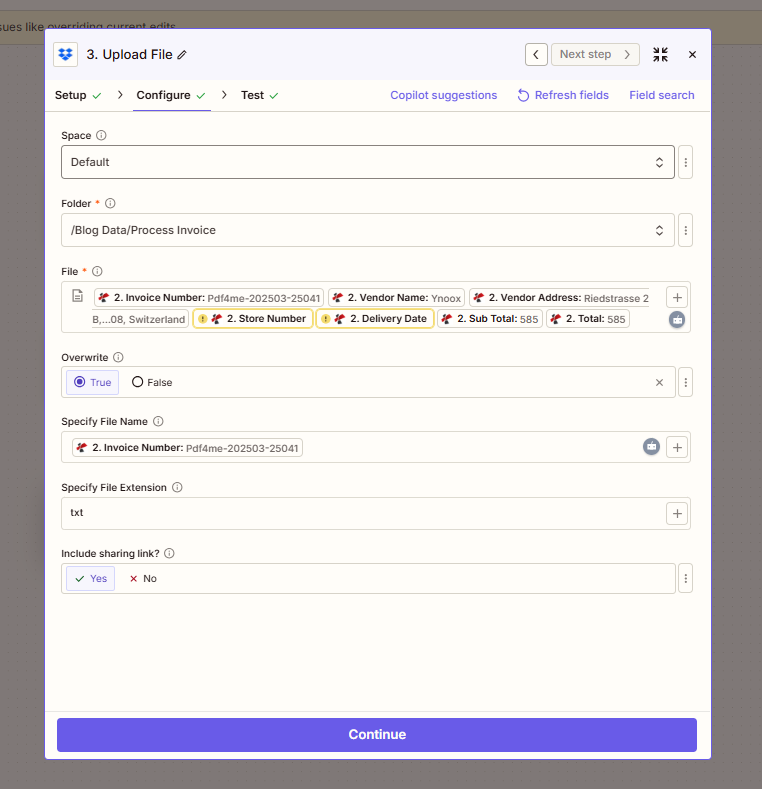
Summary: File in Upload File = the extracted data from step 2 (or a formatted string you build from it). Specify File Name = 2. Invoice Number. Specify File Extension = .txt. Same folder as the trigger.
How Does It All Connect?
Field mapping
- New File in Folder supplies 1. File (content), 1. File Name, and 1. File Ext. Set Include file contents? Yes.
- AI - Invoice Parser takes 1. File and 1. File Name + 1. File Ext, and returns 2. Invoice Number, 2. Vendor Name, 2. Vendor Address, 2. Store Number, 2. Delivery Date, 2. Sub Total, 2. Total, plus custom fields.
- Upload File uses the step 2 outputs for File (content) and Specify File Name = 2. Invoice Number, Specify File Extension =
.txt. Need help connecting PDF4me? See Connect PDF4me to Zapier.
Stuck? Common Questions
- What is 1 credit? One AI - Invoice Parser run = 1 credit. Page count doesn’t change that for this action (high‑quality OCR/Excel/AI features may use 1 credit per page; check the docs).
- How do I see how many credits I used? Check your usage and limits in the PDF4me dashboard (Logs) and account settings.
- Can I use Google Drive or SharePoint instead of Dropbox? Yes. Use the same trigger and upload actions for your app; map the file and folder the same way.
- I want a different output format (e.g. JSON or CSV). Add a Formatter or Code by Zapier step between step 2 and step 3 to build the string or structure you want, then map that output into File in Upload File.
- Which fields can I extract? Standard fields include Invoice Number, Vendor Name, Vendor Address, Bill To, Store Number, Delivery Date, Sub Total, Total, and more. Use Custom Field in the AI - Invoice Parser to request extra keys (e.g. Customer Reference, Department Code, Financial Charges).
Want to Go Deeper?
| Resource | Description |
|---|---|
| Connect PDF4me to Zapier | Create the PDF4me connection and add your API key |
| AI - Invoice Parser — Zapier | Full action reference: parameters, output fields, custom fields |
| PDF4me dashboard (Logs) | View API usage and credits |
Recap: New File in Folder → AI - Invoice Parser → Upload File. Map File in step 2 from 1. File; map File and Specify File Name in step 3 from step 2 outputs; Specify File Extension = .txt. You get one .txt per invoice, named by invoice number.