Mixed PDFs in One Folder? Auto-Classify Them in Power Automate and Route by Document Type
You get a mix of PDFs—invoices, contracts, receipts—and you need them sorted by type so the right workflow handles each one. Doing that by hand doesn't scale.
The fix: Define your classification rules on dev.pdf4me.com (using regex or JavaScript expressions), then run the same classification inside Power Automate: get a PDF (e.g. from Dropbox) → PDF4me Classify Document → use the returned Class Name to route or organize. Classification lives in your PDF4me account; Power Automate just sends the file and gets back the class.
This guide has two parts. Part 1 is on dev.pdf4me.com: where to go and how to set up your first class (e.g. pdf4me_invoice with a regex like invoice(.*)). Part 2 is on Power Automate: a flow (Get file content using path → PDF - Classify Document) and how to read the result. All steps and screenshots are fact-checked from the PDF4me and Power Automate UIs.
What You Need
- A PDF4me account — Sign in at PDF4me. Classification templates are created and stored in your account at Classify Document. You define expressions in regex or JavaScript (for AI-based classification, custom training can be arranged—contact PDF4me if needed).
- Power Automate — Power Automate (Flow). Create an automated or instant flow. Add the PDF4me PDF connector for the Classify Document action.
- A PDF4me API key — Get your PDF4me API key. In Power Automate, use it to create a PDF4me connection. First time? See Connect PDF4me to Power Automate.
- A file source — We use Dropbox – Get file content using path so the steps match our screenshots. You can use SharePoint, OneDrive, Google Drive, or any connector that supplies file content (binary). The flow stays the same: get the PDF → Classify Document → use Class Name in the next step.
Part 1: Set Up Classification on dev.pdf4me.com
Classification is defined and stored on dev.pdf4me.com. You create document classes and assign each class an expression (regex or JavaScript). When you call Classify Document from Power Automate, PDF4me uses these templates to return a Class Name for the PDF you send. Do this part first so your Power Automate flow has something to run against.
Step 1: Open Classify Document on PDF4me
- Log in at PDF4me (dev.pdf4me.com).
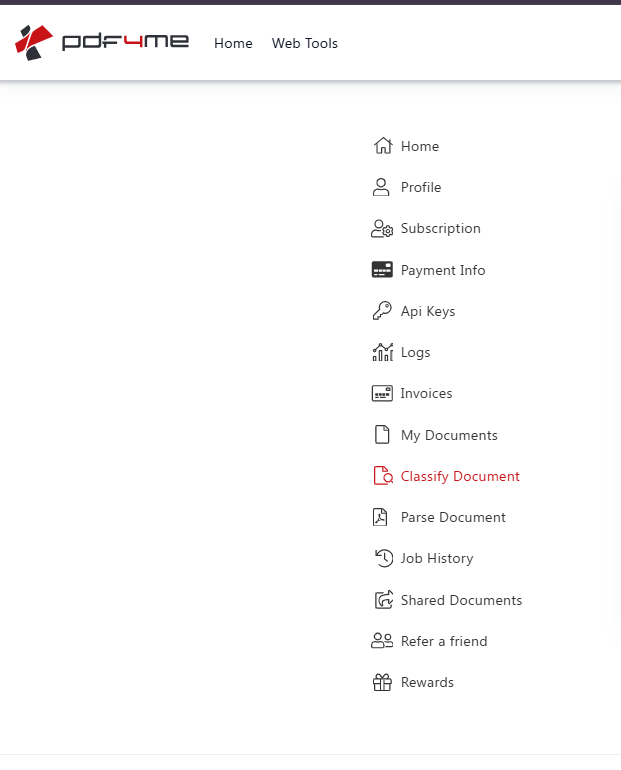
- In the sidebar, click Classify Document. The page title is Classify Document and the subtitle is Classify your documents based on expressions.
Step 2: Create or Edit a Class
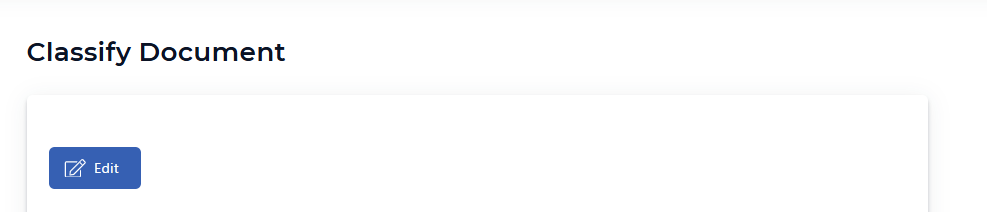
- On the Classify Document page, click the blue Edit button (with the pencil icon) to create a new classification template or modify an existing one.
- You'll see the class definition area where you can add document classes and define how each is matched.
Step 3: Define a Class Name and Expression
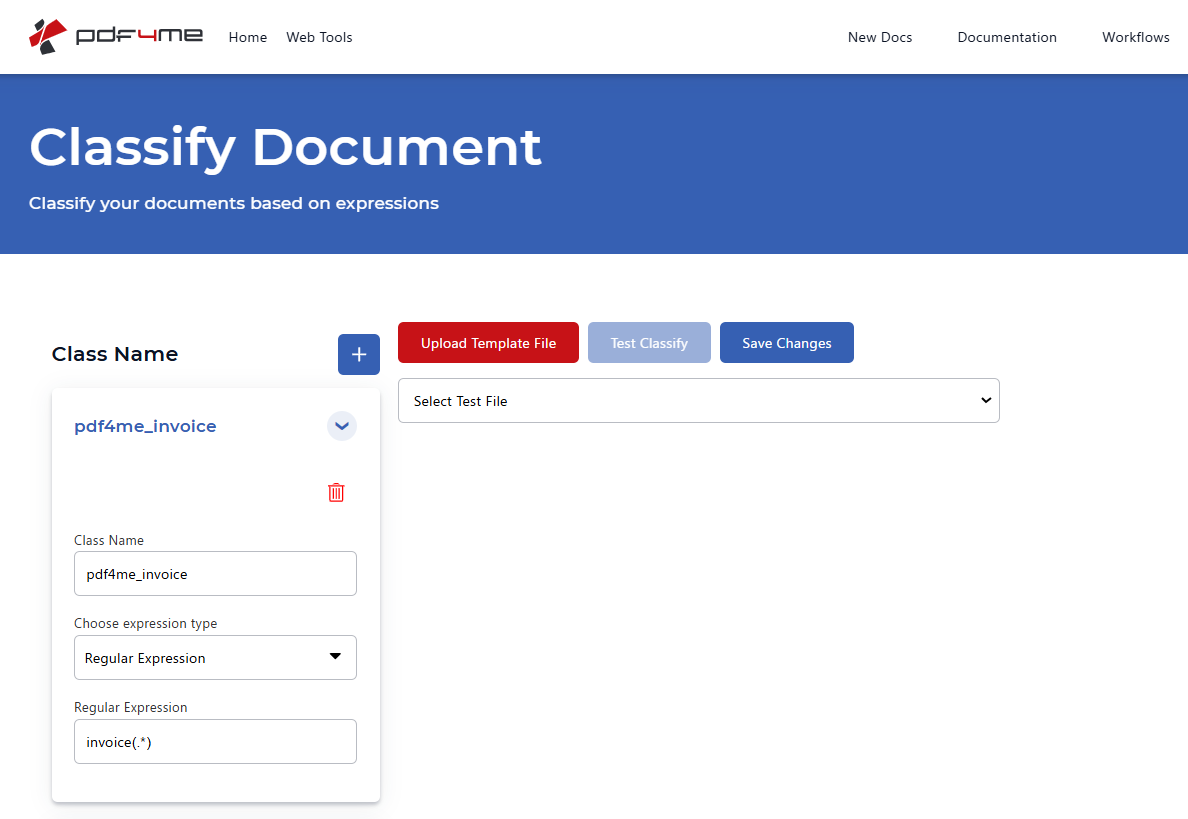
- Under Class Name, click the + (plus) button to add a new class if needed.
- In the class card:
- Class Name — Give the class a name that will be returned by the API (e.g.
pdf4me_invoice). This is the value you'll see as Class Name (orclassName) in Power Automate. - Choose expression type — Select Regular Expression or JavaScript depending on how you want to match the document content.
- Regular Expression (if you chose regex) — Enter a pattern that identifies this document type. Example:
invoice(.*)to match documents containing the word "invoice" followed by any characters.
- Class Name — Give the class a name that will be returned by the API (e.g.
- Use Select Test File to pick a file, then click Test Classify to see which class it matches.
- Click Save Changes so the classes are saved to your PDF4me account. These are the templates that the Power Automate Classify Document action will use.
Important: Classification on PDF4me uses expressions in regex or JavaScript. The guideline and UI are at Classify Document on PDF4me. For AI-based classification with custom training, PDF4me can schedule a call to help.
Part 2: Automate Classification in Power Automate
Once your classes exist on dev.pdf4me.com, you can run classification from Power Automate: get a PDF from a previous action (e.g. Dropbox) and send it to PDF4me – Classify Document. The action returns Class Name (e.g. pdf4me_invoice), which you can use for routing, renaming, or further steps.
The Flow at a Glance
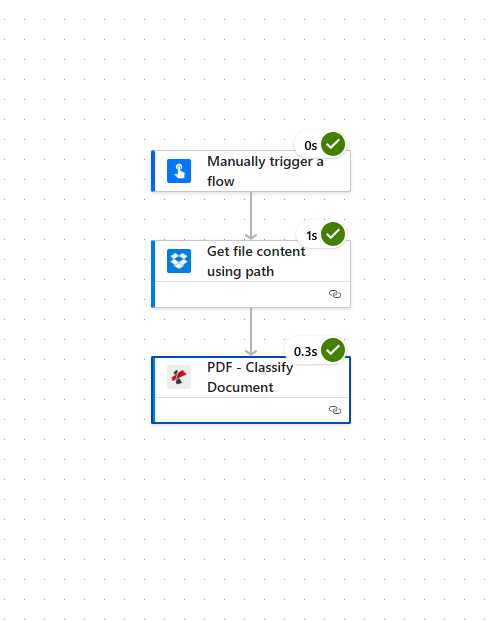
Your Power Automate flow has three steps (screenshot below—all show a green checkmark when executed):
- Manually trigger a flow — Start the flow (for testing). For production, use When a file is created (SharePoint, OneDrive) or When a new file is added to a folder (Dropbox).
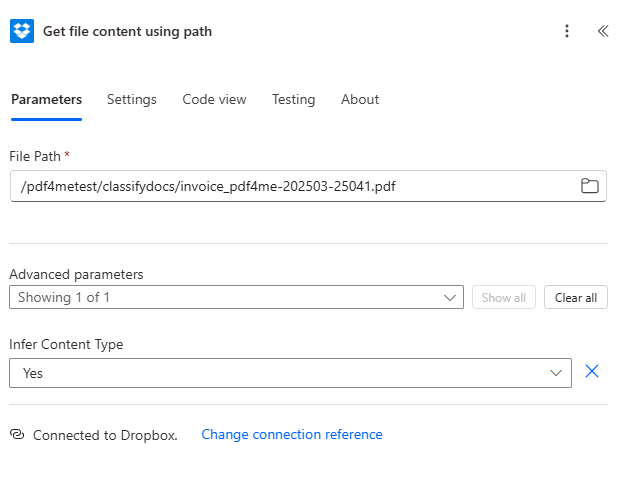
- Get file content using path (Dropbox) — Retrieves the PDF from a path you specify (e.g.
/pdf4metest/classifydocs/invoice_pdf4me-202503-25041.pdf). Output: File Content (binary). - PDF - Classify Document (PDF4me) — Sends that PDF to PDF4me using your saved classification templates. Output: Class Name (e.g.
pdf4me_invoice). Full details: Classify Document — Power Automate.
Step 1: Get File Content Using Path (Dropbox)
Get the PDF into Power Automate so the next action can send it to PDF4me.
Flow so far: Manually trigger a flow → Get file content using path.
- Add the trigger (e.g. Manually trigger a flow for testing).
- Add Dropbox → Get file content using path.
- File Path * — Enter the full path to your PDF. In our screenshot:
/pdf4metest/classifydocs/invoice_pdf4me-202503-25041.pdf. - Infer Content Type — Set to Yes so Power Automate detects the file type correctly.
- Ensure the flow is Connected to Dropbox. The action outputs File Content (the PDF binary) that you'll pass to Classify Document.
Step 2: PDF - Classify Document (PDF4me)
Send the retrieved PDF to PDF4me. Classification uses the templates you defined in Part 1 on dev.pdf4me.com.
Flow so far: Get file content using path → PDF - Classify Document.
- Add PDF4me PDF (or PDF4me) → Classify Document.
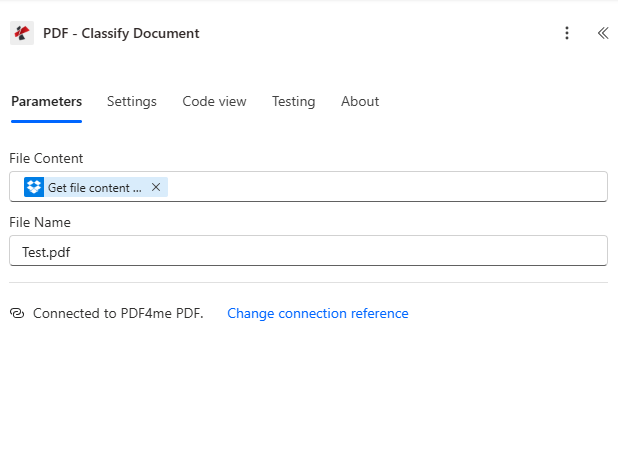
- File Content * — Map File Content (or Body) from the Get file content using path action. Use the dynamic content picker and select the output from the previous step.
- File Name — Optional. Map the file name from the trigger or enter a static value (e.g.
Test.pdf) for identification. - Ensure the action is Connected to PDF4me PDF.
- Save and run the flow. The action returns Class Name (e.g.
pdf4me_invoice) in the output body. Each classification uses 1 credit.
Step 3: Use the Result
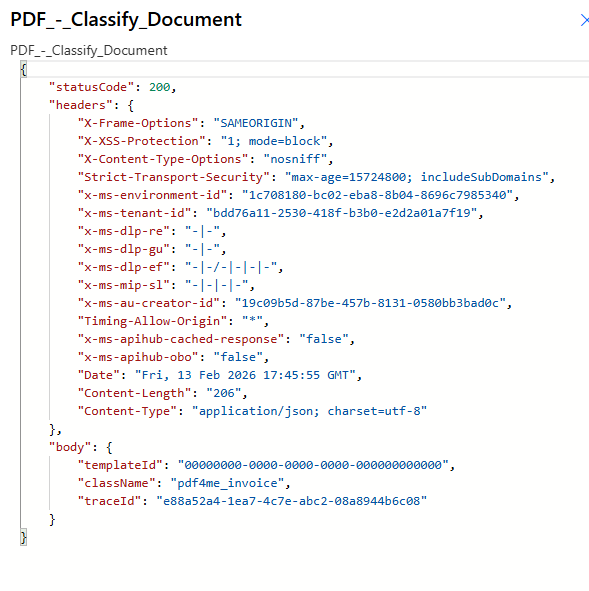
The PDF - Classify Document output includes body.className (e.g. pdf4me_invoice). In subsequent actions you can use Class Name to route the document (e.g. to different folders or flows), rename files, or trigger type-specific actions. The JSON response shows statusCode: 200 and body.className: "pdf4me_invoice" when classification succeeds.
Key Takeaways
How It Works
- Classification is defined on dev.pdf4me.com. Go to Classify Document in the PDF4me sidebar, use Edit, and add classes with regex or JavaScript expressions. Save your changes so Power Automate can use these templates.
- Power Automate only runs the classification. Get a PDF (e.g. from Dropbox) and pass its File Content to PDF - Classify Document. The action returns Class Name (e.g.
pdf4me_invoice) so you can route or organize in later steps. - One credit per classification. Each Classify Document operation uses 1 credit. Use the Class Name output in conditions, switches, or follow-up actions.
- For AI-based classification with custom training, PDF4me can help—reach out to schedule a call. For regex/JavaScript setup, use the Classify Document page and this guide.
Real-World Use Cases
Add classification templates in your PDF4me account, then use them in Power Automate to route, rename, or trigger type-specific workflows:
Route invoices vs contracts to different folders
Problem: Mixed PDFs land in one Dropbox folder; invoices go to accounting, contracts go to legal.
Solution: Define classes on PDF4me (e.g. invoice, contract). In Power Automate, add a Condition after Classify Document: if Class Name = invoice, create file in /Accounting/Invoices/; if contract, create file in /Legal/Contracts/.
Parse by document type (different templates per class)
Problem: Invoices need one parse template; receipts need another. You don't know which until you know the type.
Solution: Classify first, then parse. Add classes on PDF4me (e.g. invoice, receipt). In Power Automate: Get file content, Classify Document, Condition or Switch on Class Name. For invoice, add Parse Document with the invoice template; for receipt, add Parse Document with the receipt template.
Rename files by class for search and filing
Problem: Generic filenames like document.pdf; you want to prefix the class (e.g. invoice_document.pdf, contract_document.pdf).
Solution: Add classes on PDF4me, then in Power Automate: Get file content, Classify Document, Create file (or Upload file). Set File Name using an expression: Class Name + underscore + original filename + .pdf. Use File Content from Get file content for the file bytes.
Next Steps
- Set up classes on PDF4me — Open Classify Document, click Edit, add a class (e.g.
pdf4me_invoice) with a Regular Expression or JavaScript expression, then Save Changes. - Get an API key — PDF4me API key dashboard. Use it in Power Automate to create your PDF4me connection.
- New to PDF4me + Power Automate? — Connect PDF4me to Power Automate shows how to create the connection.
- Build the flow — Get file content using path (Dropbox) → PDF - Classify Document. Map File Content to the Get file content output; use Class Name in the next action.
- Full action reference — Classify Document — Power Automate for all parameters and output fields.