安全文档 - 保护 Zapier
PDF4me 安全文档 是一个 Zapier 增加密码保护和编辑限制的操作 Word 文件。使用此功能可要求输入密码才能打开文档,或将编辑限制为只读、只注释、表单字段或跟踪修订。返回一个受保护的文件。 Word 文件用于下一步 Zap 步骤。
此操作的作用
需要 Word 来自先前 Zap 步骤的文档,并应用以下两种独立保护措施中的一种或两种: 打开密码 (打开时安全)必须在查看文件之前输入,以及 编辑限制 (保护类型)限制用户打开文件后的操作,例如只读、只评论、只编辑表单字段或只编辑已跟踪的修订版本。每种保护类型都使用独立的密码。非常适合用于机密分发、只读报告或仅允许评论的审阅工作流程。
验证您的身份 API 要求
要访问 PDF4me 网站 API 通过 Zapier每个请求都必须包含正确的身份验证凭据。身份验证可确保通信安全,并验证您作为授权用户的身份,从而实现与您的系统之间的无缝集成。 Zapier 工作流程和 PDF4me的 Word 文件安全服务。
对于此操作而言,什么才算“安全”?
此操作不会对文档进行签名、添加水印或编辑。它应用了两个 Microsoft Word-原生保护:一种 加密密码 必须启用打开文件权限(打开时安全),以及 文档保护密码 这限制了文件打开后可以编辑的内容(保护类型)。两者都是标准配置。 Word 保护功能以编程方式应用,而不是通过…… Word 桌面用户界面。
您不容错过的重要事实
:::提示:使用上一步中的映射文件
使用 + 旁边的按钮 文件 和 文件名 从之前的 Zap 步骤(例如,Google 云端硬盘、Dropbox 或触发器)进行映射。 Word 文件必须提供完整内容,不能仅提供“存在但未显示”的引用。
:::
:::警告 文件:(存在但未显示)
如果在“文件”字段中看到“文件:(存在但未显示)”并出现错误,请选择提供相应选项的选项。 完整文件内容 另见。 Zapier & Power Automate 尖端 详情请见下文。
:::
安全文档的主要特点是什么?
- 密码保护添加打开文档的密码要求
- 文档保护:通过各种保护类型限制编辑功能
- 只读安全将文档设置为只读,以防止未经授权的编辑
- 仅评论权限仅允许添加或修改评论
- 表单字段编辑限制编辑范围:仅编辑表单字段
- 修订跟踪仅允许跟踪更改和修订
- 联合安保:同时应用密码保护和编辑限制
- 灵活访问控制针对不同使用场景的不同安全级别
参数
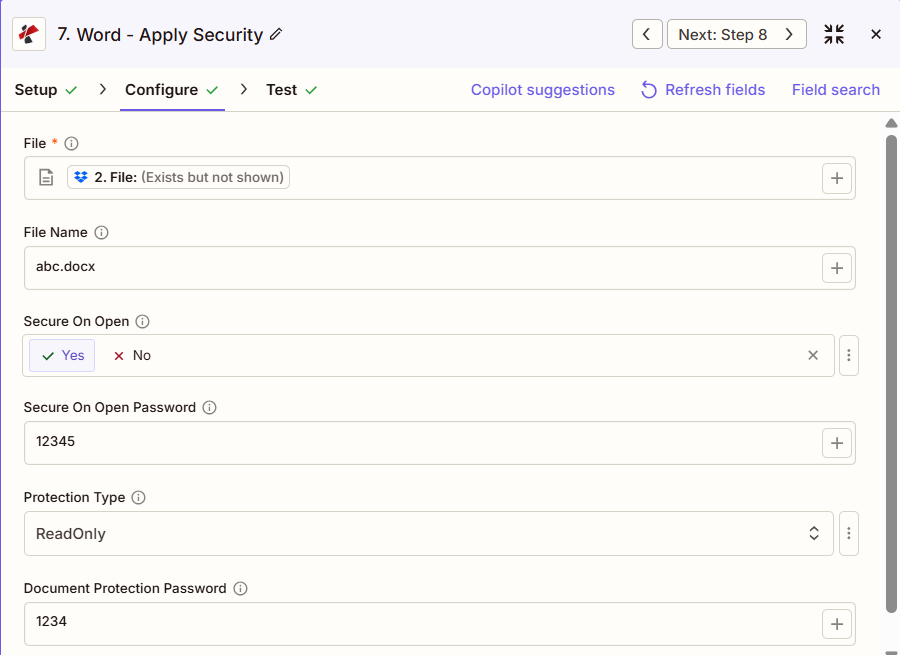
安全文档操作的完整参数列表。参数名称与以下内容匹配: Zapier 配置 UI 如上图所示。
- 地图 文件 和 文件名 上一步
- 放 安全开启 是的,而且 打开密码时的安全 用于加密
- 放 保护类型 (只读、允许评论等)和 文档保护密码 如果不是“无保护”
| 范围 | 必需的 | 它的作用 | 例子 |
|---|---|---|---|
| File | Required | Word document to secure. Map from a previous step (Drive, Dropbox, trigger). Must provide full file content. | [2. File from Step 2] |
| File Name | Conditional | Word filename with .docx or .doc extension for the output file. | abc.docx |
| Secure On Open | Conditional | Enable password to open. Yes requires a password before the file can be opened at all. | Yes |
| Secure On Open Password | Conditional | Password to open the document. Required when Secure On Open is Yes. | 12345 |
| Protection Type | Conditional | Editing restriction applied once the file is open. ReadOnly, Allow Comments, Allow Form Fields, Allow Revisions, or No Protection. | ReadOnly |
| Document Protection Password | Conditional | Password to remove the editing restriction inside Word. Required when Protection Type is not No Protection. | 1234 |
重要的: 标记的参数 必需的 必须始终设置。标记的参数 条件 仅当启用相应的安全选项时才需要输入密码(当“打开时安全”=“是”时需要输入“打开时安全密码”;当“保护类型”不为“无保护”时需要输入“文档保护密码”)。
安全文档返回什么?
这 PDF4me 安全文档 操作返回安全状态 Word 该文件用于后续的 Zap 步骤。输出格式在所有 Zap 步骤中都是通用的。 PDF4me Word 文件返回操作 Zapier。
关键输出字段(将这些字段映射到您的下一步)
API 下载安全文件的端点 Word 文件。将其映射到下一步的文件输入。
api.pdf4me.com/Zapier/GetDocument?d=...备用下载 URL 文件名包含在路径中。
api.pdf4me.com/Zapier/GetAltDocument/.../document.docx| 场地 | 类型 | 它包含什么 |
|---|---|---|
Job Id | String | Unique identifier for the Zapier job execution. |
File Url | URL | API endpoint to download the secured Word file. |
Alternate File Url | URL | Alternate download URL with the filename in the path. |
File Name | String | Base filename without extension. |
Full File Name | String | Complete filename with extension. |
File Extension | String | File extension of the returned file, .docx. |
- JSON
- Zap Integration
例子 JSON 输出 (URL(仅显示格式,链接无效):
{
"Job Id": "...",
"File Url": "api.pdf4me.com/Zapier/GetDocument?d=...",
"Alternate File Url": "api.pdf4me.com/Zapier/GetAltDocument/.../document.docx",
"File Name": "document",
"Full File Name": "document.docx",
"File Extension": ".docx"
}
使用 + 绘制地图 文件 URL 或者 备用文件网址 下一步,通过云端硬盘、Dropbox、电子邮件或其他方式。 PDF4me Word 行动。
典型配置
工作流程示例Common Zapier workflow patterns using Secure Document.
- 当共享云端硬盘文件夹中的文档被标记为最终版本时,会触发一个触发器。
- PDF4me 安全文档运行方式为:打开时启用安全功能 = 是,并设置打开时启用安全密码,同时设置保护类型 = 只读,并设置单独的文档保护密码。
- Gmail 步骤会通过电子邮件发送受保护的文件,而打开密码则通过 Slack 等单独的渠道发送。
- 一个定时任务会从 Dropbox 文件夹中检索最新生成的报告。
- PDF4me 安全文档以“打开时安全”=“否”和“保护类型”=“只读”运行,并设置了文档保护密码,因此任何人都可以打开文件,但不能编辑它。
- 安全文件上传到共享团队文件夹,以便广泛分发。
- 草稿文件进入审阅文件夹,触发 Zap。
- PDF4me 安全文档设置保护类型 = 允许添加注释,并设置文档保护密码,以便审阅者可以添加注释,但不能更改原始文本。
- 通过电子邮件步骤将审阅副本发送给利益相关者,同时将保护密码单独分享给文档所有者。
实用技巧
速查表
| 场地 | 价值 |
|---|---|
| Action | Secure Document |
| File | [Mapped from previous step] |
| File Name | abc.docx |
| Secure On Open | Yes |
| Secure On Open Password | 12345 |
| Protection Type | ReadOnly |
| Document Protection Password | 1234 |
| Connection | PDF4me API key |
常见问题
相关操作
在其他平台上执行相同任务
行业应用案例及应用
- Finance & Accounting
- Legal & Professional
- Human Resources
- Corporate
- 财务报告加密在向董事会分发之前对季度财务报表进行加密
- 薪资档案保护对薪酬分析文件进行密码保护
- 审计工作底稿安全使用公司特定的密码加密审计文件
- 预算模板保护对预算模板应用只读设置,同时保留公式
- 板级封装加密:采用加密和只读保护措施保护电路板材料
- 客户事项加密对客户机密事项文件进行密码保护
- 特权文档安全对律师与客户之间的特权通信进行加密
- 合同只读保护对已执行的合约应用只读权限,防止更改
- 发现文件安全加密机密发现文件
- 工作成果保护使用密码加密保护律师工作成果
- 人事档案加密使用密码保护员工记录
- 绩效考核安全对绩效考核文件进行加密
- 补偿分析保护:密码保护的薪资福利分析
- 政策模板(只读)为了保持一致性,请对策略模板应用只读设置。
- 机密备忘录加密对敏感的人力资源通信进行加密
- 战略计划加密对战略规划文件进行密码保护
- 并购文件安全使用双重密码保护并购资料
- 保密提案保护对敏感商业提案进行加密
- 执行报告安全使用密码和只读设置保护高管报告。
- 产品上市保护:确保发布前文档安全,防止未经授权的编辑