跳到主要内容

AI货运标签解析器 Zapier

此操作的作用

PDF4me AI货运标签解析器 允许您自动提取货运标签数据 Zapier包括追踪号码、承运商名称、寄件人和收件人地址、重量、尺寸、发货日期和特殊处理说明,来自任何 PDFPNG, 或者 JPG 标签文件。将其连接到任何 Zapier 触发(Gmail、Google Drive、Dropbox、Shopify、WooCommerce),并将结构化输出直接导入您的订单管理系统、仓库平台、电子表格或客户通知步骤。无需编写代码,无需手动复制粘贴。只需映射您的标签文件,所有字段即可自动生成结构化版本,随时可用。

相关博客文章(3)
还在为如何在 Zapier 中提取和映射发票数据而苦恼吗?使用 PDF4me AI,只需 3 个步骤即可搞定!
Zapier分步指南:在文件夹(Dropbox)中新建文件 → PDF4me AI - 发票解析器 → 上传文件。从PDF发票中提取供应商、发票编号、金额和日期,并以发票编号命名保存为.txt文件(例如:Pdf4me-202503-25041.txt)。根据Zapier用户界面截图核实。
阅读帖子
在 Zapier 中使用 AI 重命名供应商发票:Dropbox + PDF4me 的 5 步工作流程
五步 Zap:Dropbox 新建文件 → Dropbox 查找文件 → PDF4me AI 文档解析器 → Zapier 代码运行 JavaScript → Dropbox 上传文件。利用 AI 提取客户姓名并将其用作输出文件名。真实截图,精确字段值,除两行 JSON.parse 代码外,无需其他代码。
阅读帖子
在 Zapier 中按供应商名称重命名所有供应商发票:5 步 Dropbox + PDF4me AI 工作流程
五步搞定应付账款团队。Dropbox 监控您的发票接收文件夹,PDF4me AI 文档解析器从每个 PDF 文件中提取供应商名称,Zapier 代码将解析器的输出转换为可映射的标记,Dropbox 将文件上传回 Dropbox,并将供应商名称作为文件名。本教程中使用的示例供应商发票 (sample-vendor-invoice.pdf) 和实际截图、精确字段值均可下载。
阅读帖子

验证您的身份 API 要求

每一个 PDF4me 行动 Zapier 需要有效的 联系创建或选择一个包含您的连接 PDF4me API 密钥,以便您的 Zap 可以安全地调用 AI 提取功能。

您不容错过的重要事实

映射实际二进制文件内容

文件 必须是来自先前步骤的实际二进制数据,而不是 URL 或者文件名字符串。将其映射到触发器的文件数据输出(Gmail 附件、Google 云端硬盘文件内容、Dropbox)。传递一个 URL 导致提取失败。

文件名必须包含扩展名。

文件名 字段必须以……结尾 .pdf.png, 或者 .jpgPDF4me 使用扩展名进行格式检测。没有扩展名的名称将返回空结果。例如: 标签-199287-1.pdf

门控置信度评分

每个字段都有一个 0-1 的置信度评分。添加一个 Zapier 解析器之后的过滤器:仅当 置信度追踪值 > 0.85将低置信度记录路由到审核表,而不是将可疑数据写入您的 OMS。

配置操作 Zapier

打开 配置 标签页 PDF4me AI货运标签解析器步骤。地图 文件 来自上一步的二进制输出(显示为 “存在但未显示”Zapier的 UI(这对于文件对象来说是正常的)。然后构建 文件名 通过结合 文件名 令牌和 文件扩展名 从触发器中获取令牌,以便结果包含扩展名(例如: 标签-199287-1.pdf)。
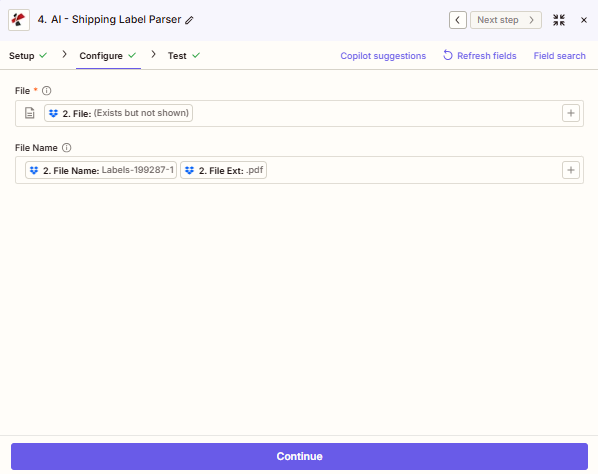
Zapier PDF4me AI-Shipping Label Parser 配置选项卡:文件字段设置为步骤 2 二进制文件输出,显示“存在但未显示”,文件名字段由文件名标记 (Labels-199287-1) 和文件扩展名标记 (.pdf) 组成。

配置选项卡: 文件 映射自步骤 2(二进制标签文件, Zapier 演出 “存在但未显示” 对于文件对象而言,这是预期的)。 文件名 由两个令牌组成, 文件名文件扩展名,生产 标签-199287-1.pdf。 使用 刷新字段 如果步骤 2 最近被重命名,并且示例数据不同步。

主要特点

  • 人工智能驱动的提取:读取打印和热敏打印标签;处理低分辨率扫描件、数字图像 PDFs以及多种标签方向
  • 完整地址解析发件人和收件人信息拆分为以下字段:姓名、公司、街道、城市、州/省、邮政编码、国家/地区
  • 载波自动检测UPS、FedEx、DHL USPSRoyal MailAustralia Post加拿大邮政和自动识别的区域承运商
  • 追踪和条形码:主跟踪号、辅助条形码和承运商参考 ID 作为单独的字段返回
  • 重量和尺寸:标示重量(单位:千克/磅)和包装尺寸(单位:厘米/英寸)
  • 特殊处理说明易碎品、需签名、请置于安全处、请勿折叠(以结构化文本形式捕获)
  • 每个字段的置信度得分用于分支 Zap 逻辑、标记低质量记录并保护下游系统

参数

必需的: 联系文件, 和 文件名必须先配置好这三项内容,才能保存操作步骤。

范围必需的它的作用示例值
ConnectionYesYour PDF4me API connection. Create one via "Add a new connection" and paste your API key from dev.pdf4me.com.My PDF4me connection
FileYesBinary content of the shipping label. Map the file data output (not a URL) from your trigger or a file-download step.1. Attachment (File Content)
File NameYesFile name including extension (.pdf, .png, .jpg). Used for format detection and AI optimization. Must include extension.Labels-199287-1.pdf
Custom Field KeysNoOptional list of extra field keys for the AI to extract: carrier-specific codes, routing zones, or hazmat classes not covered by the default output.["routingCode","hazmatClass"]

如何提取货运标签数据 Zapier

按照以下步骤即可在任何 Zap 中设置 AI 货运标签解析器。整个设置过程不到 5 分钟。

1
Add a PDF4me action step
In Zapier, click the + button to add a new Action. In the app search box, type PDF4me and select it. From the action list, choose AI-Shipping Label Parser.
2
Connect your PDF4me account
Click Sign in to PDF4me. A connection dialog opens: paste your PDF4me API key (get it free at dev.pdf4me.com/dashboard/#/api-keys/). Click Yes, Continue to save.
3
Map the File field to binary label data
Under File, click the + icon to map from a previous step. Select the file-data output: not a URL. From a Gmail trigger this is "Attachment"; from Google Drive it is "File Content"; from Dropbox it is "File Binary". The field must contain actual bytes, not a link.
4
Set the File Name with extension
Under File Name, map the filename from your trigger. Confirm it ends with .pdf, .png, or .jpg: for example Labels-199287-1.pdf. If your trigger returns the name without an extension, use Zapier Formatter (Text → Append) to add it before this step.
5
Add Custom Field Keys (optional)
If your carrier prints fields not covered by the default output: routing codes, zone identifiers, hazmat classes, enter them as a list in Custom Field Keys. Each key you add is returned as an extra field in the response.
6
Test the action
Click Continue then Test action. PDF4me processes the sample label and returns all extracted fields. Check that trackingNumber, carrierName, recipientAddress, and weight are populated correctly.
7
Add a confidence score filter
After the parser, add a Zapier Filter step. Set it to continue only when the confidence value for your most critical field (e.g. trackingNumber) is greater than 0.85. Route failed records to a review sheet or Slack alert.
8
Map output to downstream steps
Use the extracted fields: tracking number, addresses, carrier, weight, estimated delivery date, in subsequent Zapier steps to update Shopify orders, write to Google Sheets, send customer SMS/email, or post a warehouse notification in Slack.

你能得到什么

提示: 运行 测试操作Zapier打开输出面板,即可查看特定标签返回的确切字段名称。字段可用性取决于标签上打印的内容,标签上不存在的字段将作为空字段返回。 无效的 或省略。下表显示了标准输出集。

场地类型描述
trackingNumberStringPrimary tracking number extracted from the label barcode or printed text
carrierNameStringCarrier identified from the label (e.g. UPS, FedEx, DHL, USPS, Royal Mail)
serviceTypeStringService level printed on the label (e.g. Ground, Express, Priority Mail)
senderNameStringSender name or company as printed in the From/Sender section
senderAddressStringSender street address
senderCityStringSender city
senderStateStringSender state, province, or region
senderPostalCodeStringSender postal code or ZIP
senderCountryStringSender country
recipientNameStringRecipient name or company as printed in the To/Recipient section
recipientAddressStringRecipient street address
recipientCityStringRecipient city
recipientStateStringRecipient state, province, or region
recipientPostalCodeStringRecipient postal code or ZIP
recipientCountryStringRecipient country
weightStringDeclared weight as printed on the label (value and unit may be combined, e.g. "2.3 lb")
shipDateStringShip date as printed on the label
referenceNumberStringReference number, order ID, or PO number printed on the label (if present)
confidenceObjectPer-field confidence scores (0-1). Confirmed across all PDF4me AI parsers. Use in a Filter step to gate data quality.
jobIdStringUnique identifier for this AI processing job: use for tracking and support
jobIdExtStringExternal job reference (null if not applicable)
successBooleantrue when extraction completed without errors
messageStringResult message from the API: describes success or the specific error

工作流程示例

工作流程示例Real-world Zapier patterns built around the AI-Shipping Label Parser.
电子商务:电子邮件 → 解析 → 更新订单
  1. Gmail/Outlook触发器一封带有发货标签附件的新邮件。
  2. AI货运标签解析器提取跟踪号码、收件人、承运商、预计到达时间。
  3. 筛选仅当 成功 = 真
  4. Shopify / WooCommerce更新订单信息,包括追踪号码和承运商。
  5. Gmail / Twilio向客户发送带有跟踪链接的品牌发货确认邮件。
仓库:扫描标签 → 解析 → 记录
  1. Google 云端硬盘触发器新扫描标签 PDF 在收货文件夹中。
  2. AI货运标签解析器提取发件人信息、追踪号码、重量、尺寸。
  3. 路径根据承运商或目的地选择不同的处理规则。
  4. Google Sheets / Airtable将完整的发货记录添加到收货日志中。
  5. 松弛通知仓库团队包裹摘要和特殊说明。
退货:退货标签 → RMA → 退款
  1. Dropbox/OneDrive触发器退货标签由顾客上传。
  2. AI货运标签解析器提取发件人(回头客)和参考编号。
  3. 订单查询将参考编号与 Shopify 或 OMS 中的原始订单进行匹配。
  4. 创建RMA记录,将提取的所有字段预先填充到返回结果中。
  5. Stripe / PayPal触发退款;发送客户确认邮件。

常见问题解答

What data does the AI-Shipping Label Parser extract from a shipping label?+
It extracts tracking number, carrier name, service type, full sender and recipient addresses (name, street, city, state, postal code, country), declared weight, package dimensions, package type, ship date, estimated delivery date, reference/order number, and special handling instructions. Every field is returned individually so you can map each one into downstream Zapier steps without any text parsing.
Which shipping carriers are supported?+
All major carriers are detected automatically: UPS, FedEx, DHL, USPS, Royal Mail, Australia Post, Canada Post, Deutsche Post, and most regional carriers. You do not specify the carrier: the AI reads the label and identifies it. For carrier-specific fields not in the standard output, use the Custom Field Keys parameter.
Why do I need to map file content instead of a file URL?+
The File field expects raw binary data: the actual bytes of the PDF or image, not a download URL. In Zapier, this is the "Attachment" output from a Gmail trigger or the "File Content" output from a Google Drive download step. Mapping a URL string causes the action to fail. If your trigger only provides a URL, add a Download File step (e.g., HTTP by Zapier) before the parser to convert the URL to binary content.
How do I use confidence scores to prevent bad extractions from reaching my OMS?+
After the parser action, add a Zapier Filter step and check: "Only continue if: Confidence trackingNumber: Greater than, 0.85". Records below the threshold are stopped here. To capture them for review instead of dropping them, use a Paths step: one path handles high-confidence records (write to OMS), the other handles low-confidence records (write to a review sheet or Slack alert).
Can I extract custom fields that my carrier prints on the label?+
Yes. Use the Custom Field Keys parameter to pass a list of field names you want the AI to look for: for example ["routingCode", "sortFacility", "hazmatClass"]. Each key is returned as an additional field in the response alongside the standard output. This is useful for carrier-specific barcodes, zone IDs, or any label fields not in the default field set.

相关操作

获取帮助