文件分类 Zapier
分类文件 是一个 Zapier 采取行动 PDF4me 匹配 PDF 针对正则表达式的内容或 JavaScript 您可以在 dev.pdf4me.com 上定义规则,并返回匹配的类名。使用此功能可将发票、合同和收据路由到正确的文件夹或工作流分支,无需机器学习或训练数据。
相关博客文章(1)
此操作的作用
PDF4me 分类文件 需要一 PDF 并返回 类名 与您预先在 Zap 中创建的规则相匹配。定义如下类: pdf4me_invoice 使用类似这样的正则表达式 发票(。*) 在 PDF4me 仪表板,然后在仪表板中使用返回的类名 筛选、路径、上传文件、Google 表格或 Airtable 无需编写或训练分类器即可按类型对文档进行排序的步骤。
验证您的身份 API 要求
要访问 PDF4me 网站 API 通过 Zapier每个请求都必须包含正确的身份验证凭据。
您不容错过的重要事实
课程内容托管在 dev.pdf4me.com 上,而不是在…… Zapier
创建和编辑类(类名加上正则表达式或 JavaScript 图案)在 文档分类仪表板 首先。 Zapier 操作仅评估 PDF 针对您账户中已存在的任何类别。
基于规则而非机器学习
与需要带标签的训练数据和固定分类法的机器学习分类器不同,此操作将内容与正则表达式或 JavaScript 您编写的表达式。无需训练,无需调整置信度阈值,您可以精确控制用于标识每个类别的文本。
仅需文件
文件名是可选的,仅用于标识。此操作不会返回或更改文件内容。 PDF 本身,在任何下游步骤中,请继续使用触发器中的原始文件引用。
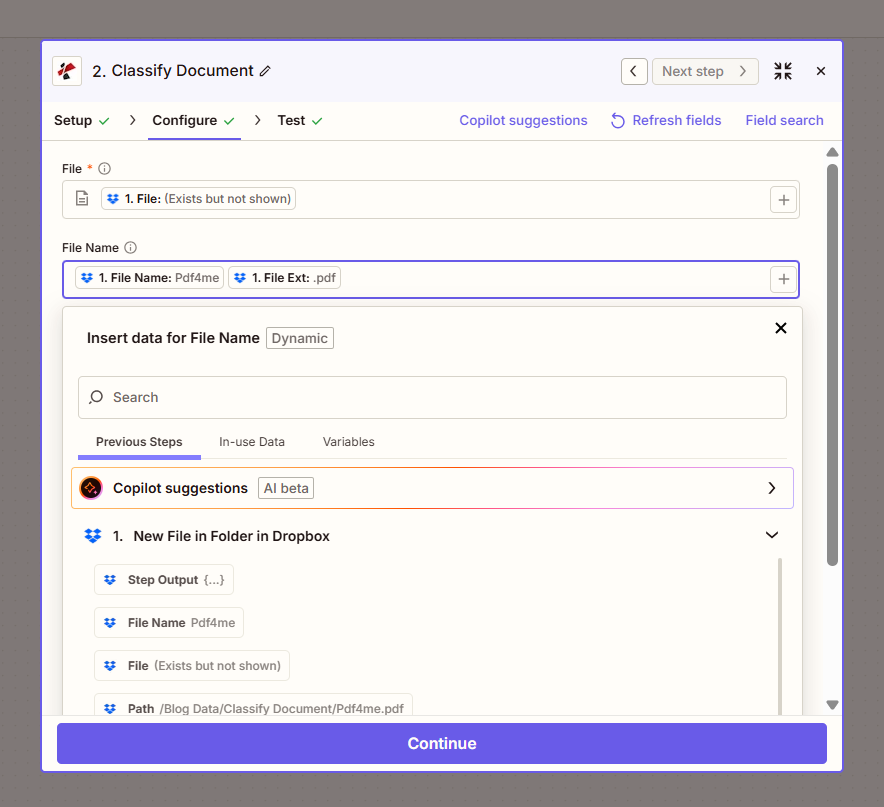
设置操作面板:文件为必填项,文件名为可选,由触发器的文件名和扩展名生成。
参数
必需 Zapier UI: 文件。文件名是可选的。
| 范围 | 必需的 | 它的作用 | 例子 |
|---|---|---|---|
| File | Required | The PDF file to classify. Map from your trigger (for example File from New File in Folder) or a previous step. | 1. File |
| File Name | Optional | Name of the PDF for identification in the response. Typically built from the trigger's File Name plus File Ext. | document.pdf |
创建类
在 文档分类仪表板点击“编辑”,添加类名(例如)
pdf4me_invoice),选择正则表达式或 JavaScript并输入类似这样的模式: 发票(。*)测试前,请点击“保存更改”。 Zapier。输出
| 场地 | 类型 | 它包含什么 |
|---|---|---|
Trace Id | String | Unique identifier for the request, useful for support and debugging. |
Class Names | String | The matched class (for example pdf4me_invoice or Invoice). Empty or unmatched if no saved class matched the content. Use in a Filter, Paths, or file-naming step. |
如何在文档中设置分类? Zapier?
- 在 dev.pdf4me.com, 打开 分类文件 并添加一个类(类名加上正则表达式或 JavaScript (图案),然后点击 保存更改。
- 在您的 Zap 中添加 PDF4me 作为操作应用程序并选择 分类文件。
- 连接您的 PDF4me 创建一个帐户或选择现有连接。
- 地图 文件 从触发器或上一步开始。(可选)映射 文件名。
- 测试该步骤并确认 类名 返回你期望的类。
- 使用 类名 在 筛选 或者 路径 步骤 1 分支你的 Zap,或在 上传文件 按文档类型命名输出。
何时应该使用基于规则的分类而不是机器学习分类器?
如果您的文档类型可以通过一致的短语、标题或 ID 模式(例如发票编号格式、固定的合同标题、已知的表单代码)来识别,并且您希望立即获得结果而无需训练阶段,请选择“文档分类”。如果类别模糊、内容措辞差异很大,或者您已经拥有用于训练的已标注数据集,请选择机器学习分类器,例如 Google Cloud Natural Language 或 Amazon Comprehend。
典型配置
工作流程示例Common Zapier patterns using Classify Document.
将发票和合同分别归档到不同的文件夹
- 文件夹中的新文件触发(Dropbox、Google Drive、 SharePoint)在新 PDF。
- 对文档进行分类,映射文件和文件名,返回类名。
- 路径步骤按类名分支:发票走一条路,合同走另一条路。
- 上传文件会将每个分支保存到各自的文件夹中(会计/发票、法律/合同)。
先进行分类,然后使用匹配的模板进行解析
- 当传入新文件时,会触发“文件夹中的新文件”触发器。 PDF。
- 对文档进行分类,返回文档的类名。
- “路径”步骤在“类名称”为“发票”时使用发票模板运行“解析文档”,在“类名称”为“收据”时使用收据模板运行“解析文档”。
- 每条路径都将提取的字段映射到其自身的下游步骤。
在文件名前加上检测到的类名。
- 当传入新文件时,会触发“文件夹中的新文件”触发器。 PDF。
- 对文档进行分类,返回文档的类名。
- 上传文件使用触发器中的原始文件,并将“指定文件名”设置为“类名”加上下划线加上原始文件名。
实用技巧
Test your regex on dev.pdf4me.com before wiring the Zap
Save Changes only commits a class once its pattern actually matches sample content. Confirm the class works in the dashboard test panel first, then map File in Zapier.
Always handle the unmatched case
Class Names comes back empty or unmatched when no saved class fits, this is not an error. Add a default Paths branch or a catch-all Filter so unclassified documents still land somewhere reviewable.
Keep patterns specific to avoid false matches
A broad regex like invoice(.*) can also match a contract that happens to mention the word invoice. Anchor patterns to consistent headers, ID formats, or fixed phrases unique to each document type.
The action does not return the PDF itself
Only Class Names and Trace Id come back. Keep referencing the original File from your trigger for any follow-up step like Upload File or Parse Document.
JavaScript expressions unlock logic regex cannot
For classification rules that need more than pattern matching, for example combining two conditions, use a JavaScript expression class instead of a Regular Expression class.
速查表
| 场地 | 价值 |
|---|---|
| Action | Classify Document |
| Classes defined at | dev.pdf4me.com Classify Document dashboard |
| File | Required, from trigger or previous step |
| File Name | Optional |
| Output | Trace Id, Class Names |
| Unmatched result | Empty/unmatched Class Names, not an error |
| Credits | 1 credit per classification run |
常见问题
相关操作
解析文档
在“分类文档”之后运行,使用与检测到的类别匹配的模板提取结构化字段。
创建 ZUGFeRD 发票
分类之后常见的下一步是 PDF 作为发票:附加一个机器可读的 ZUGFeRD 层,以符合电子发票要求。
证实 PDF/一个
将文件按类别分流到档案管理部门后,确认文件是否符合归档要求。
行业应用案例及应用
- Accounts Payable & Finance
- Legal & Professional Services
- General Document Management
- 发票路由将发票按类别(例如,使用正则表达式匹配“发票”)路由到应付账款工作流程。
- 收据处理:使用表达式模式识别费用管理的收据
- 文档排序:使用您的分类规则按类型整理财务文件
- 合同识别:使用正则表达式对合约进行分类(例如:
contract(.*))用于合同管理 - 文件路由根据类别名称将文件分发给相应的法律团队
- 案件档案管理使用自定义表达式对案例相关文档进行分类
- 混合文件夹排序将一个文件夹中的混合 PDF 文件(发票、收据、表格)分类到相应类型的文件夹中
- 按类型解析:在路径中使用类名,以便针对不同的文档类型运行不同的文档解析模板
- 搜索重命名为了便于搜索和归档,请在文件名前添加类名前缀。