分裂 PDF 通过文本 Zapier
此操作的作用
此操作的作用: 这 PDF4me 分裂 PDF 通过文本 动作扫描 PDF 对于您定义的特定文本短语(例如章节标题、展品标签、表单分隔符或任何唯一字符串),它会在每次匹配时分割文档。选择是否进行分割。 前 这句话, 后 它,或者 移除分隔页 完全。输出结果为 ZIP 文件 包含所有单独的拆分 PDF文件已准备就绪,可下载、存档或分发。无需打印条形码或手动分割——文档中任何现有的文本标记都会自动成为分割点。 Zapier 工作流程。
相关博客文章
目前尚无关于此功能的博客文章——敬请期待。
在此期间,您可以浏览 PDF4me 博客,查看适用于各平台的教程和工作流程。
访问博客 →
验证您的身份 API 要求
每一个 PDF4me 行动 Zapier 需要有效 API 密钥。连接 PDF4me 一旦进入 Zapier帐户设置 - 您的密钥将被安全存储并在所有帐户中重复使用 PDF4me 自动启动。
您不容错过的重要事实
文本匹配精确且区分大小写。
“EXHIBIT A”和“Exhibit A”被视为完全不同的短语。拆分文本的值必须与文本中显示的字符完全匹配,包括空格和标点符号。 PDF先用已知短语进行测试,确认匹配后再构建后续逻辑。
分割类型控制剪切操作发生在哪个页面上。
“正文之前”选项会在分隔页之前结束当前文档,并从该页开始下一个文档。“正文之后”选项会将分隔页保留在当前文档末尾,并从下一页开始下一个文档。“删除包含正文的页面”选项会完全丢弃分隔页——此选项适用于您不希望出现在任何输出文档中的空白分隔页或封面页式标记。
输出结果为 ZIP - 相应地规划后续步骤
该操作返回一个 ZIP 文件 URL 在文件输出字段中,而不是在单个字段中 PDF URLs. 您的下一个 Zap 步骤必须处理 ZIP - 将其上传到 Google 云端硬盘或 Dropbox,触发存储解压缩操作,或传递 URL 到代码步骤。如果您需要处理每个拆分 PDF 另外,使用由解压缩文件夹中的新文件触发的子 Zap。
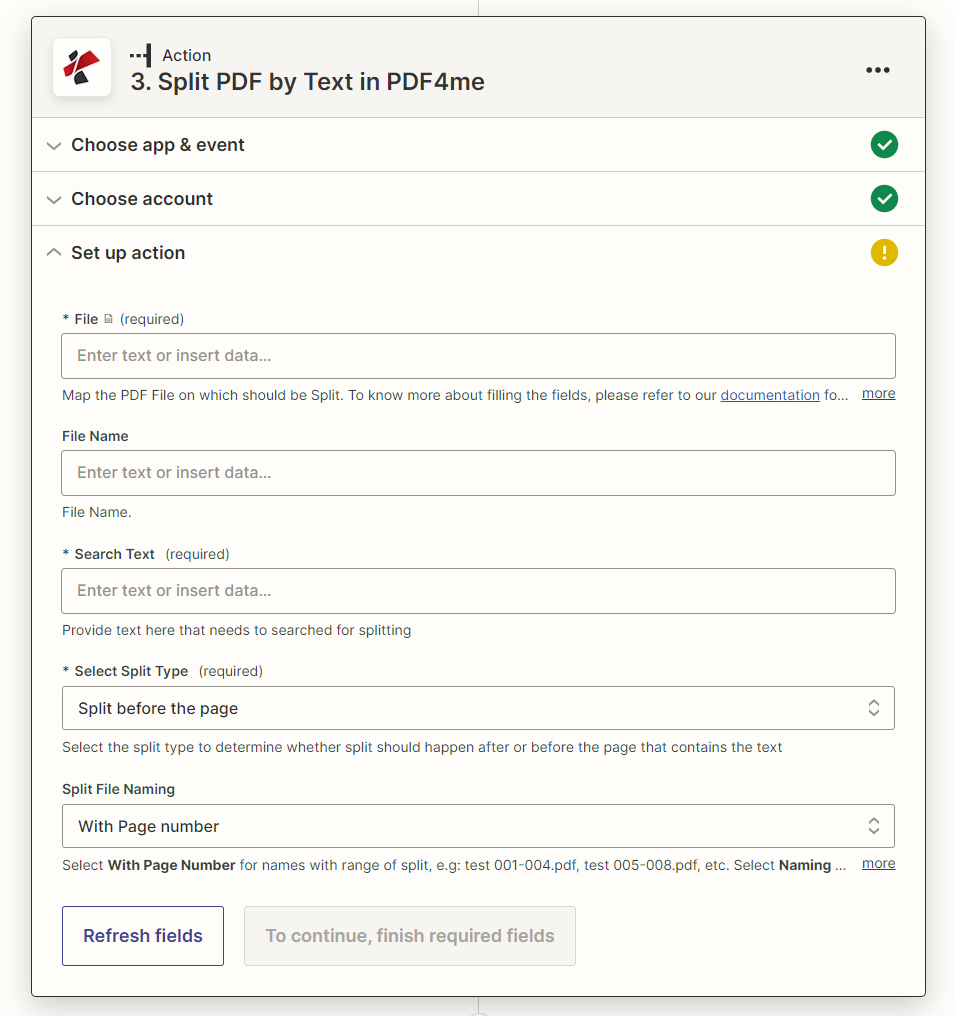
参数
⚠️ 文件、拆分文本和拆分类型都是必需的。 缺少任何一项都会导致操作失败。文件名是可选的——省略文件名,输出文件名将沿用源文件名。
| 范围 | 必需的 | 它的作用 | 例子 |
|---|---|---|---|
| File | Yes | The PDF to split. Map the binary file output from a Zapier trigger or previous action - Google Drive file, Gmail attachment, OneDrive/Dropbox file, or a PDF generated by an earlier step. A direct URL to a PDF can also be passed. | consolidated_report_may2026.pdf |
| File Name | No | Custom name for the output ZIP file. If omitted, the name is derived automatically from the source File field. Do not include a path - just the base filename without extension. | split_contracts_may2026 |
| Split Text | Yes | The exact text phrase to search for as the split marker. Must match verbatim - including casing, spaces, and punctuation - as it appears in the PDF. Use a phrase unique to each section boundary to avoid false matches. | EXHIBIT A |
| Split Type | Yes | Controls where the document is cut relative to the page containing the text. "Before the Text" - the split occurs before the separator page (separator becomes first page of the next document). "After the Text" - split occurs after the separator page (separator stays at the end of the current document). "Remove the page containing the Text" - the separator page is discarded and not included in any output document. | Remove the page containing the Text |
输出字段
| 输出字段 | 描述 |
|---|---|
File | URL of the ZIP file containing all split PDF documents - download or upload this to a storage service in the next step |
File Name | ZIP filename without the extension |
Full File Name | Complete ZIP filename including the .zip extension |
File Extension | Always .zip - the output package format for split documents |
快速设置
- 创建或打开一个 Zap 并添加一个提供多部分的触发器 PDF - Google 云端硬盘新建文件、Gmail 附件、OneDrive、Dropbox 或之前 Zap 步骤中生成的文档。
- 添加操作步骤 → 搜索 PDF4me → 选择 分裂 PDF 通过文本。
- 认证 你的 PDF4me API 如果尚未连接,请输入密钥。
- 地图文件 来自触发输出(二进制文件字段或 PDF URL)。
- 输入拆分文本 - 出现在你文章中每个分割点的确切短语 PDF (例如。
EXHIBIT A,DEPARTMENT:,NEW FORM)。 - 选择拆分类型 - 根据文档结构,在分隔页之前、之后或删除分隔页。
- (可选)设置文件名 输出 ZIP留空则从源文件自动命名。
- 测试该步骤 - Zapier 将处理样品 PDF 并返回 ZIP URL 在文件输出中。
- 添加下游步骤 上传 ZIP 解压到 Google 云端硬盘或 Dropbox,通过电子邮件或 Slack 发送下载链接,或者触发子 Zap 来处理每个解压后的文件。 PDF。
工作流程示例
工作流程示例Common Zapier patterns using Split PDF by Text.
月度报告(含章节标题)→ 拆分 → 通过电子邮件发送给部门负责人
将每月综合报告按部门标题拆分,并自动将相关部分通过电子邮件发送给各部门负责人。
- Google 云端硬盘:文件夹中的新文件 - 请查看“月度报告”文件夹以获取汇总数据 PDF
- PDF4me: 分裂 PDF 按文本映射文件;拆分文本 = '部门:';拆分类型 = 文本之前;文件名 = 'report_sections'
- Google 云端硬盘:上传文件 - 保存输出 ZIP 到“报表,拆分”文件夹
- Gmail:发送电子邮件 - 附加附件 ZIP URL 并通知报告协调员;子 Zap 会将每个部分路由到正确的部门负责人。
已执行的合同及附件 → 拆分并移除分隔符 → 将各部分存档
签署合同 PDF 展品附有封面页,将其拆分为主要协议和各个展品——丢弃封面页。
- Gmail:新建附件 - 筛选主题包含“已执行合同”的电子邮件
- PDF4me: 分裂 PDF 按文本 - 映射文件(附件);拆分文本 = '展览';拆分类型 = 删除包含文本的页面
- Google 云端硬盘:上传文件 - 保存 ZIP 到按日期排序的“合同,拆分”文件夹
- Slack:在 #legal 频道发布消息 - 通知团队合同名称和云端硬盘链接,以便律师可以获取分配给他们的附件。
批量打印的带分隔符的表格 → 拆分 → 送至处理队列
自动将批量打印的表格与单个表格分开 PDF 使用每个表单首页上的文本标记,将表单内容分别保存到各个文件中。
- Dropbox:文件夹中的新文件 - 请查看“批量扫描”文件夹,其中包含批量表单 PDFs 被丢弃
- PDF4me: 分裂 PDF 按文本映射文件;拆分文本 = '表单 ID:';拆分类型 = 文本之后(以便表单 ID 行保留在每个表单中用于识别)
- Dropbox:上传文件 - 保存拆分 ZIP 到“个人表格”文件夹
- Zapier Webhook 或代码步骤:解析文件名 ZIP 提取表单 ID 并触发 Airtable、Salesforce 或自定义数据库中的下游队列
常见问题解答
相关操作
按条形码分割 PDF
使用打印的条形码作为分隔标记——非常适合大批量文档处理,因为条形码分隔页已经是您流程的一部分。
按页面拆分 PDF
当您的章节具有固定、已知的结构时,按精确的页码分割——无需文本检测。
合并PDF
组合多个 PDF将 s 合并成一个综合文档——这是在需要重新组合已审核部分时拆分的自然逆过程。