分裂 PDF 瑞士 QR 在 Zapier
瑞士二维码分割 是一个 Zapier 采取行动 PDF4me 扫描一批 PDF 瑞士 QR 它会根据检测到的每个代码对账单进行编码,并将其拆分成单独的文档。当供应商发票、客户水电费账单或扫描的付款单被捆绑在一个大文件中时,就会触发此操作。 PDF 需要自动分离。
相关博客文章
目前尚无关于此功能的博客文章——敬请期待。
在此期间,您可以浏览 PDF4me 博客,查看适用于各平台的教程和工作流程。
访问博客 →
此操作的作用
PDF4me,由 SwissQR Code 分割 扫描 PDF 瑞士 QR 账单编码并将文档拆分成每个单独的文件。 QR 代码位置可放在付款单页之前或之后,由您选择。批量扫描的供应商发票、多客户公用事业账单以及每月合并成一个大包裹的账单。 PDF 自动拆分为单独的文档。配置渲染 DPI 为了可靠 QR 可检测任何扫描质量,并可选择合并具有相同质量的连续页面。 QR 编写代码,并将所有输出文件接收到一个文件中。 ZIP 为了便于后续处理 Zapier。
验证您的身份 API 要求
每一个 PDF4me 行动 Zapier 需要连接 帐户使用您的设备连接 PDF4me API 首次添加操作时需要输入密钥。
您不容错过的重要事实
拆分位置会影响哪个文档会被拆分。 QR 页
在 SwissQR 之前 在新文档的开头 QR 页,付款单成为下一个文件的第 1 页。 瑞士QR之后 关闭当前文档 QR 页码,付款单是前一张发票的最后一页。大多数瑞士发票批次都使用 后 自 QR 收据是每张发票的最后一页。
DPI 控制检测精度,起始值为 150
有效值为 100、150、200 和 250。当值为 150 时 DPI 该装置能够可靠地检测出印刷精美的瑞士产品。 QR 使用标准办公扫描仪扫描的文件。对于扫描质量较低、页面略微倾斜或字号较小的文件,请使用代码 200。 QR 代码。只有当 200 个代码仍然无法覆盖时,才增加到 250 个:更高 DPI 显著增加大批量处理的处理时间 PDF秒。
批量处理时,请使用回车符作为邮政编码 PDF有很多发票
拆分时 PDF 无论处理 20 张还是 200 张发票,该操作都会为每张发票生成一个输出文件。设置 返回 Zip True 会将所有拆分的文档打包成一个单独的文件。 ZIP一个输出包 Zapier 而不是使用可变长度数组。 ZIP 然后可以一步上传到 Dropbox 或 Google Drive 进行批量检索,也可以在后续步骤中逐个提取。
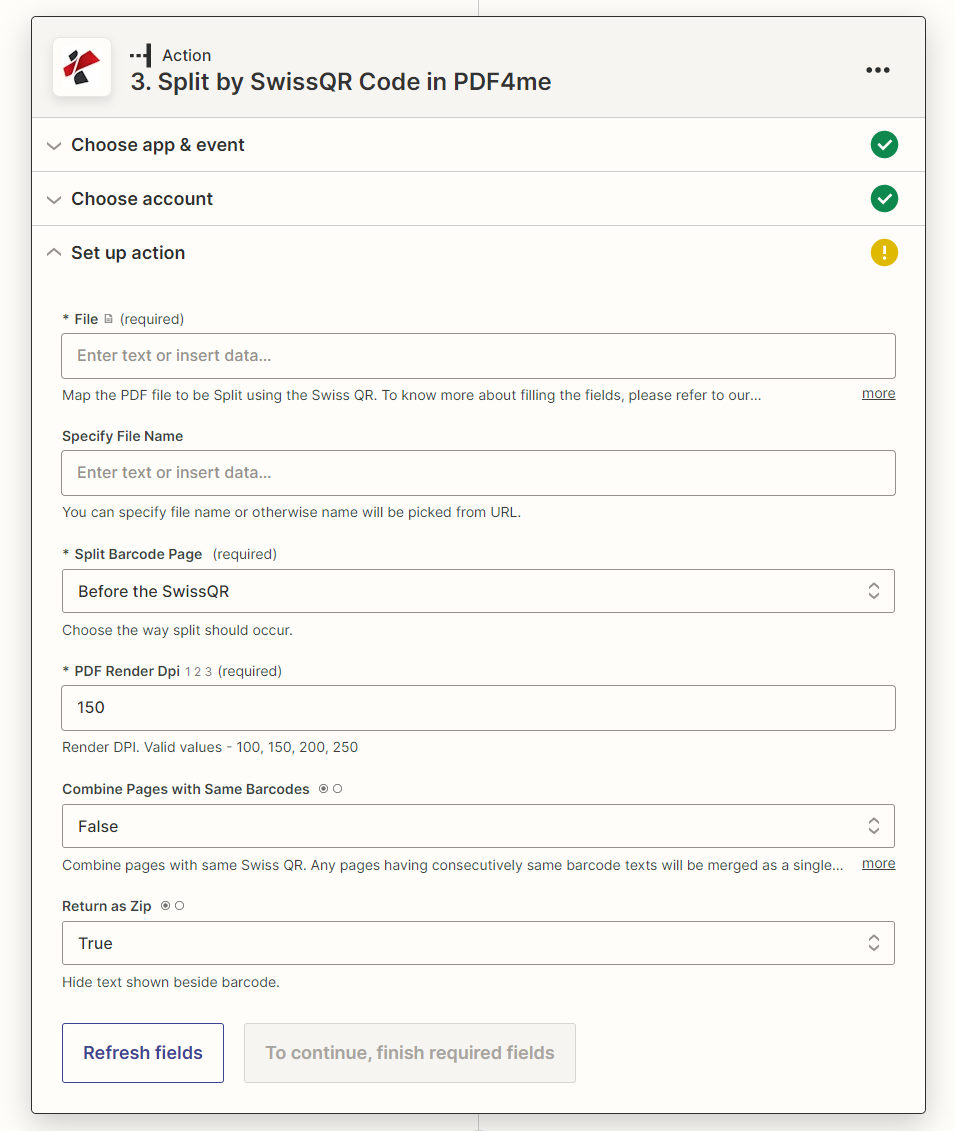
地图 文件 从触发或下载步骤中,选择相对于以下位置的分割位置: QR 页面,设置 DPI并启用 ZIP 批量输出。
参数
必需的: 文件, 分割条形码页, 和 PDF 使成为 DPI其他所有参数均为可选,并具有合理的默认值。
| 范围 | 必需的 | 它的作用 | 例子 |
|---|---|---|---|
| File | Required | The PDF to split. Map the binary file output from your Zap trigger or a prior download step. Hint: "Map the PDF file to be Split using the Swiss QR." | PDF file from trigger |
| Specify File Name | Optional | Output filename for the ZIP or individual split files. If left empty, the name is picked from the source file or URL. Hint: "You can specify file name or otherwise name will be picked from URL." | swiss_invoices_split |
| Split Barcode Page | Required | Where to divide the document relative to the Swiss QR page. Options: Before the SwissQR (QR page starts the next document) or After the SwissQR (QR page closes the current document). Hint: "Choose the way split should occur." | After the SwissQR |
| PDF Render DPI | Required | Resolution used to render PDF pages for QR code scanning. Valid values: 100, 150, 200, 250. Higher DPI improves detection on low-quality scans but increases processing time. Hint: "Render DPI. Valid values - 100, 150, 200, 250." | 150 |
| Combine Pages with Same Barcodes | Optional | When True, consecutive pages sharing the same Swiss QR code are merged into one output document. Set True for multi-page invoices where each page repeats the payment QR. Hint: "Combine pages with same Swiss QR." | False |
| Return as Zip | Optional | When True, all split documents are packaged into a single ZIP file for easy downstream handling. Recommended for batch PDFs with many invoices. | True |
输出结果包含哪些字段?
| 场地 | 类型 | 它包含什么 |
|---|---|---|
File Content | Binary | Split PDF documents or a single ZIP archive, depending on the Return as Zip setting. |
File Name | String | Name of each split PDF file, or the ZIP file name when Return as Zip is True. |
如何在 SwissQR Code 中设置拆分 Zapier?
- 在您的 Zap 中,点击 + 添加新操作并搜索 PDF4me。
- 选择 瑞士二维码分割 PDF4me 作为事件。
- 连接您的 PDF4me 使用您的帐户 API 钥匙。
- 地图 文件 到 PDF 从触发或下载步骤中获取二进制文件。
- 放 分割条形码页: 选择 瑞士QR之后 对于付款单位于每个部分的末尾的发票。
- 进入 PDF渲染DPI:从……开始
150增加到200如果 QR 代码缺失。 - 放 合并具有相同条形码的页面 到
True对于多页发票,False适用于单页页面。 - 放 返回 Zip 到
True适用于包含多张发票的批量订单。 - 点击 测试操作 验证拆分结果后,发布 Zap。
工作流程示例
工作流程示例Common Zapier workflow patterns using Split by Swiss QR.
供应商批次 PDF → 瑞士人分割 QR → 将单个发票上传至 SharePoint
- 供应商通过电子邮件发送一批 PDF 包含 30 张发票,每张发票均以瑞士法郎结尾。 QR 付款单。
- Gmail 会在收到来自供应商地址的新邮件时触发 Zap。 PDF 依恋。
- 瑞士二维码分割 将批次在每个 QR 页面(在 SwissQR 之后), DPI 150,返回 Zip True。
- 格式化步骤从中提取单个文件 ZIP 捆。
- 每张单独的发票 PDF 上传到 SharePoint “应付账款/收款”库,用于审核和付款。
每月公用事业账单生成 → 分账 → 向每位客户发送账单
- 当计费系统在月底删除合并客户时,预定的 Zap 操作会触发。 PDF 存入 Dropbox。
- Dropbox触发Zap并提供 PDF 二进制。
- 瑞士二维码分割 将每位顾客的账单分开(合并具有相同条形码的页面为真,按邮政编码返回为真)。
- 对每个拆分文件执行格式化步骤和迭代器循环。
- Gmail 会通过电子邮件发送每份账单 PDF 通过 Airtable 客户查找,将匹配的客户电子邮件地址发送给客户 QR 参考编号。
扫描收件箱批量 → 拆分 → 记录到 Google 表格 → 归档到云端硬盘
- 一台多功能打印机将收到的瑞士发票扫描成每日一批文件。 PDF 并将其保存到 Google 云端硬盘。
- Google 云端硬盘会在“已扫描收件箱”文件夹中有新文件时触发 Zap。
- 瑞士二维码分割 将每日批次分成每份 QR 滑倒 DPI 200 用于 MFP 扫描的可靠检测。
- 每个拆分后的文档都会上传到云端硬盘的“已处理发票”文件夹中,文件名以时间戳为前缀。
- Google Sheets 步骤会追加一个日志行,其中包含文件名、拆分计数和处理日期,以便进行审计跟踪。
常见问题解答
相关操作
阅读瑞士二维码
提取以瑞士法郎编码的支付数据 QR 账单, IBAN参考编号、金额和债权人详细信息,来自 PDF 或者不分割文档直接生成图像。
创建瑞士二维码钞票
生成瑞士 QR 发票上的账单部分 PDF相应的操作是开具符合瑞士规定的付款单据的发票。
按条形码分割 PDF
分裂 PDFs 适用于任何条形码类型 Code128, QR Code, DataMatrix对于使用通用条形码分隔符的非瑞士文件批次。