使用 Zapier 在 Word 中将文本替换为图像
在 Word 中将文本替换为图像 是一个 Zapier 采取行动 PDF4me 它可以查找 Word 文档中的文本占位符,并将其替换为您提供的图像。您可以使用它自动将签名、徽标或图表插入合同、录用通知书或报告模板中,而无需打开 Word。输出结果是一个全新的 .docx 文件,可用于 Zap 的下一步操作。
此操作的作用
PDF4me在 Word 中将文本替换为图像 在 Word 文档中搜索精确的、区分大小写的文本字符串,并将每个匹配项替换为您在 Zap 中映射的图像。控制哪些页面会受到影响。 页 和 跳过第一页,并可选择性地设置 图片宽度 和 图片高度 调整插入图像的大小。常见用途包括将签名添加到合同模板中,将徽标添加到品牌信函中,或在分发报告前将图表添加到报告中。
相关博客文章
目前尚无关于此功能的博客文章——敬请期待。
在此期间,您可以浏览 PDF4me 博客,查看适用于各平台的教程和工作流程。
访问博客 →
我如何验证我的身份 API 要求?
要访问 PDF4me 网站 API所有请求都必须包含正确的身份验证凭据。身份验证可确保通信安全,并验证您作为授权用户的身份。
您不容错过的重要事实
Zapier的字段名称与底层不同 API
Zap 编辑器会标记字段
Word 文件, Word 文件名, 搜索文本, 和 图像文件请按照这些标签绘制地图,而不是按照您可能在地图中看到的名称绘制。 PDF4me的将军 API 文档。跳过首页和页面协同工作
跳过第一页 是一个独立的真/假切换开关 页。 环境 页 到 全部 和 跳过第一页 设置为 True 仍然排除第一页,当第一页是封面页时很有用。搜索文本必须完全匹配
匹配区分大小写,并查找完全匹配的字符串。占位符类似这样
{SIGNATURE} 不匹配 签名 或者 {Signature}因此,文档将原封不动地返回。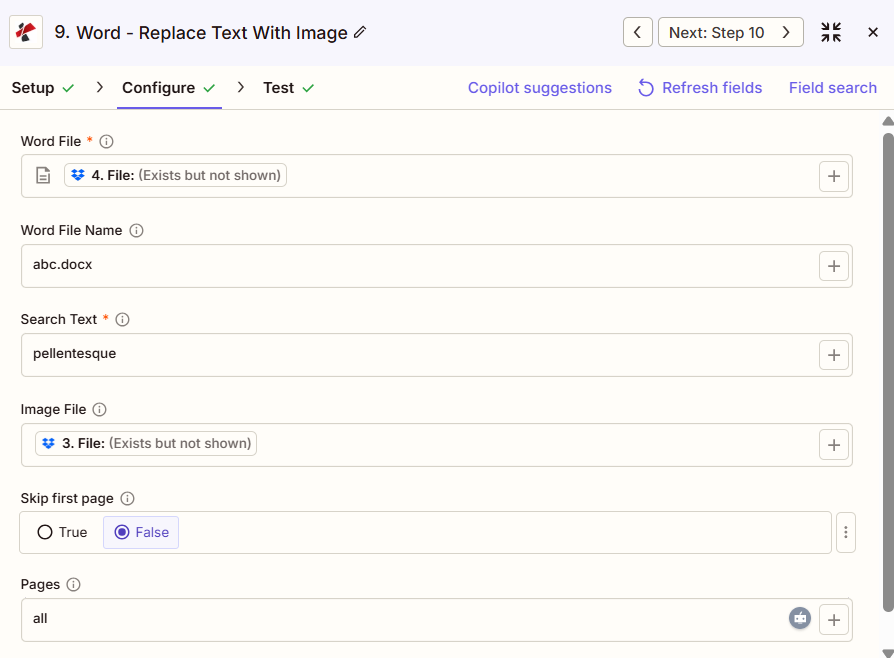
在 Word 操作面板中将文本替换为图像:Word 文件、搜索文本、图像文件、跳过第一页和页面
参数
必需 Zapier 用户界面: Word 文件和搜索文本。Word 文件名、图像文件、跳过首页、页数、图像宽度和图像高度均为可选参数,但如果没有映射的图像文件,此操作将不会插入任何内容。
| 范围 | 必需的 | 它的作用 | 例子 |
|---|---|---|---|
| Word File | Required | The Word document to process, mapped from a previous Zap step. | [Word File] |
| Word File Name | Conditional | Filename with extension for the document being processed. Used for output naming. | abc.docx |
| Search Text | Required | Exact, case-sensitive placeholder text to find. Every matching instance is replaced. | {COMPANY_LOGO} |
| Image File | Conditional | The replacement image, mapped from a previous step. No asterisk in the Zapier UI, but required for the action to insert anything. | [Logo File] |
| Skip First Page | Conditional | True/False toggle. True excludes page one from the replacement even if Pages is set to all. Default False. | False |
| Pages | Conditional | Which pages to search. Accepts all, first, last, or a comma-separated list of page numbers. | all |
| Image Width | Conditional | Width of the inserted image in millimeters, up to 500. Leave blank to use the image's original width. | 50 |
| Image Height | Conditional | Height of the inserted image in millimeters, up to 500. Leave blank to use the image's original height. | 30 |
输出结果包含哪些字段?
| 场地 | 类型 | 它包含什么 |
|---|---|---|
File | URL | Direct URL to the processed Word document with the image inserted. |
File Name | String | The filename without extension. |
Full File Name | String | Complete filename including the .docx extension. |
File Extension | String | File extension of the returned document, .docx. |
Job ID | String | Unique job identifier for tracking this run. |
Trace ID | String | Trace identifier useful when contacting support about a specific request. |
典型配置
工作流程示例Common Zapier workflow patterns using Replace Text With Image In Word.
在已签署的合同上签名
- 审批或电子签名步骤标志着合同 Word 模板已准备就绪。
{SIGNATURE}内部为占位符。 - PDF4me 在 Word 中将文本替换为图像,并将搜索文本设置为
{SIGNATURE},图像文件映射到签名者存储的签名图像,页面设置为全部。 - 完成的合同将发送到 Zap 的下一个步骤,例如通过电子邮件发送或上传到存储设备。
在生成的文档上添加徽标
- 使用包含以下内容的模板生成一个新的 Word 文档:
{COMPANY_LOGO}占位符。 - 搜索文本设置为占位符文本,图像文件映射正确的品牌徽标,跳过第一页设置为“否”,以便徽标也可以出现在第一页上。
- 带有品牌标识的文件将进入分发或归档阶段。
将图表插入到计划报告中
- 报表数据刷新后,会触发一个计划内的触发器,该触发器会生成图表图像。
- 在 Word 中将文本替换为图像会交换文本和图像。
{CHART_1}用于显示生成的图表图像的占位符,可通过 Pages 定位到特定页面。 - 报告完成后将自动通过电子邮件发送给利益相关者。
实用技巧
Search Text is case-sensitive
A placeholder like {SIGNATURE} will not match {Signature} or signature. Copy the exact text straight from the template document to avoid silent mismatches.
Image File has no asterisk but is still needed
The Zapier UI does not mark Image File required, but the action has no image to insert without it. Always map a real image file.
Skip First Page is independent of Pages
Setting Pages to all does not override Skip First Page. Set both explicitly if the first page is a cover page that should stay untouched.
Pages accepts words or numbers
Use all, first, last, or a comma-separated list such as 1,2,3 to target exact pages instead of the whole document.
Leave Image Width/Height blank for original size
Both fields are optional and capped at 500mm. Omit them to insert the image at its native dimensions instead of forcing a resize.
速查表
| 场地 | 价值 |
|---|---|
| Action | Replace Text With Image In Word |
| Word File | [mapped from previous step] |
| Word File Name | contract_template.docx |
| Search Text | {SIGNATURE} |
| Image File | [mapped from previous step] |
| Skip First Page | False |
| Pages | all |
| Image Width | 50 |
| Image Height | 30 |
常见问题解答
相关操作
替换文本
当需要将占位符替换为新文本而不是图像时,请使用此方法。
给 Word 文档添加水印
另一种图像插入选项,是将徽标或标签印在每个页面上,而不是替换特定的占位符。
为 Word 文档添加页眉和页脚
将徽标或文本插入到页眉/页脚区域,而不是替换文档正文中的内联占位符。
在其他平台上执行相同任务
在 Word 中将文本替换为图像
与以下操作相同 Make 模块,带有云存储触发器的可视化场景。
在 n8n 中将 Word 中的文本替换为图像
配置与自托管或云中的节点相同的替换方案 n8n 工作流程。
在 Power Automate 中将 Word 中的文本替换为图像
Microsoft 365 与……流动 SharePoint, Outlook以及 Teams 触发器,加上高级页面筛选参数。
在 Word REST API 中将文本替换为图像
原始 PDF4me 用于自定义后端代码或 Postman 测试的端点。
行业应用案例及应用
- Legal & Professional Services
- Human Resources
- Corporate Communications
- Marketing & Sales
- 合同签字在合同中插入签名图像
- 信函模板在法律信函上添加签名
- 协议处理自动在协议中插入签名
- 文件认证插入验证图片
- 录用通知书在录用通知书上添加经理签名
- 员工手册插入公司标志和照片
- 证书在结业证书上添加签名
- 政策文件品牌文档(含徽标插入)
- 信笺抬头将徽标插入信函模板
- 提案在提案中添加品牌元素
- 报告在报告模板中插入图表
- 演示文稿将演示文稿数据转换为包含图片的 Word 文档
- 提案在销售提案中插入产品图片
- 案例研究在案例研究模板中添加客户徽标
- 宣传册将产品照片插入宣传册模板
- 演示文稿向 Word 演示文稿添加动态图像